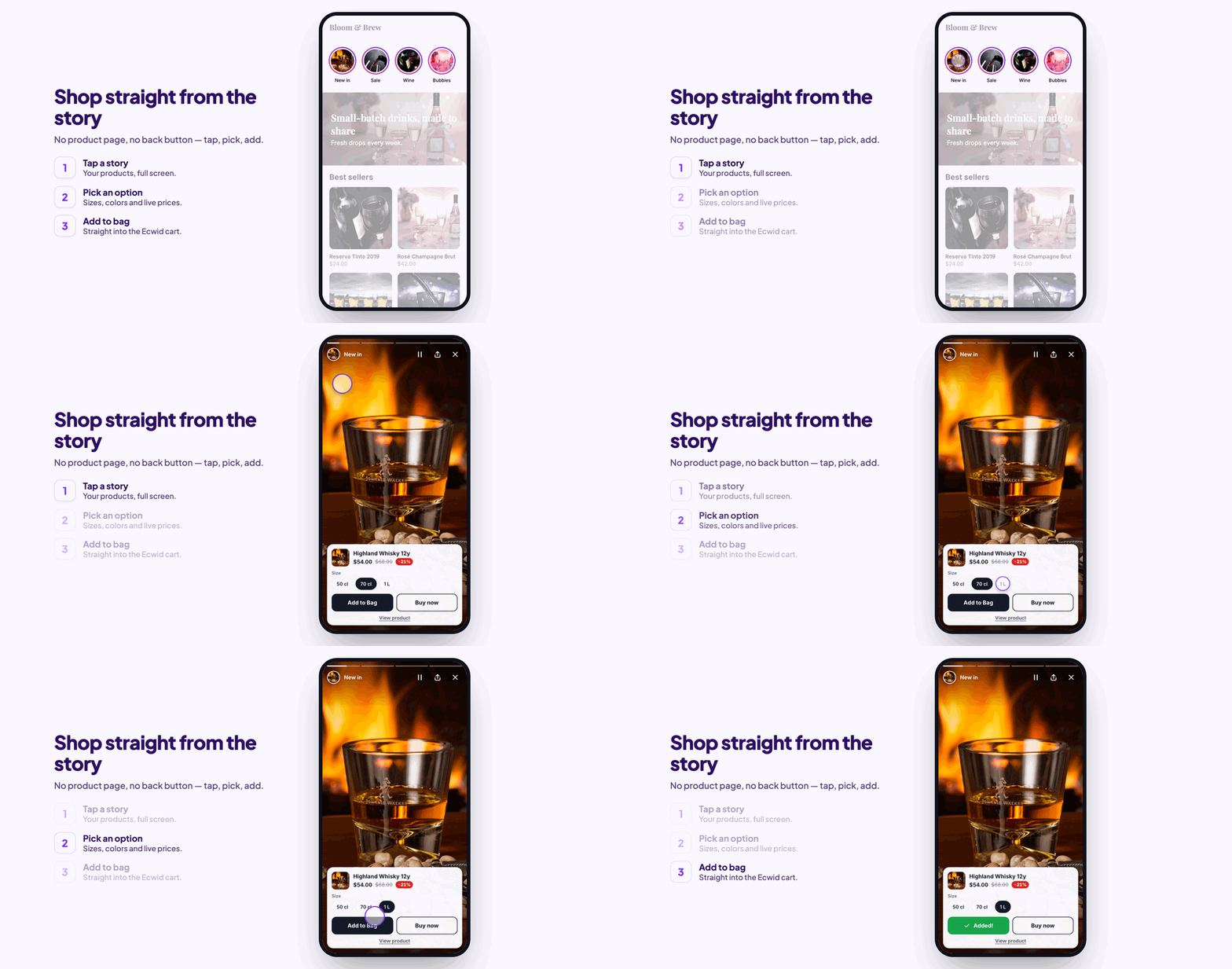
How it works in short
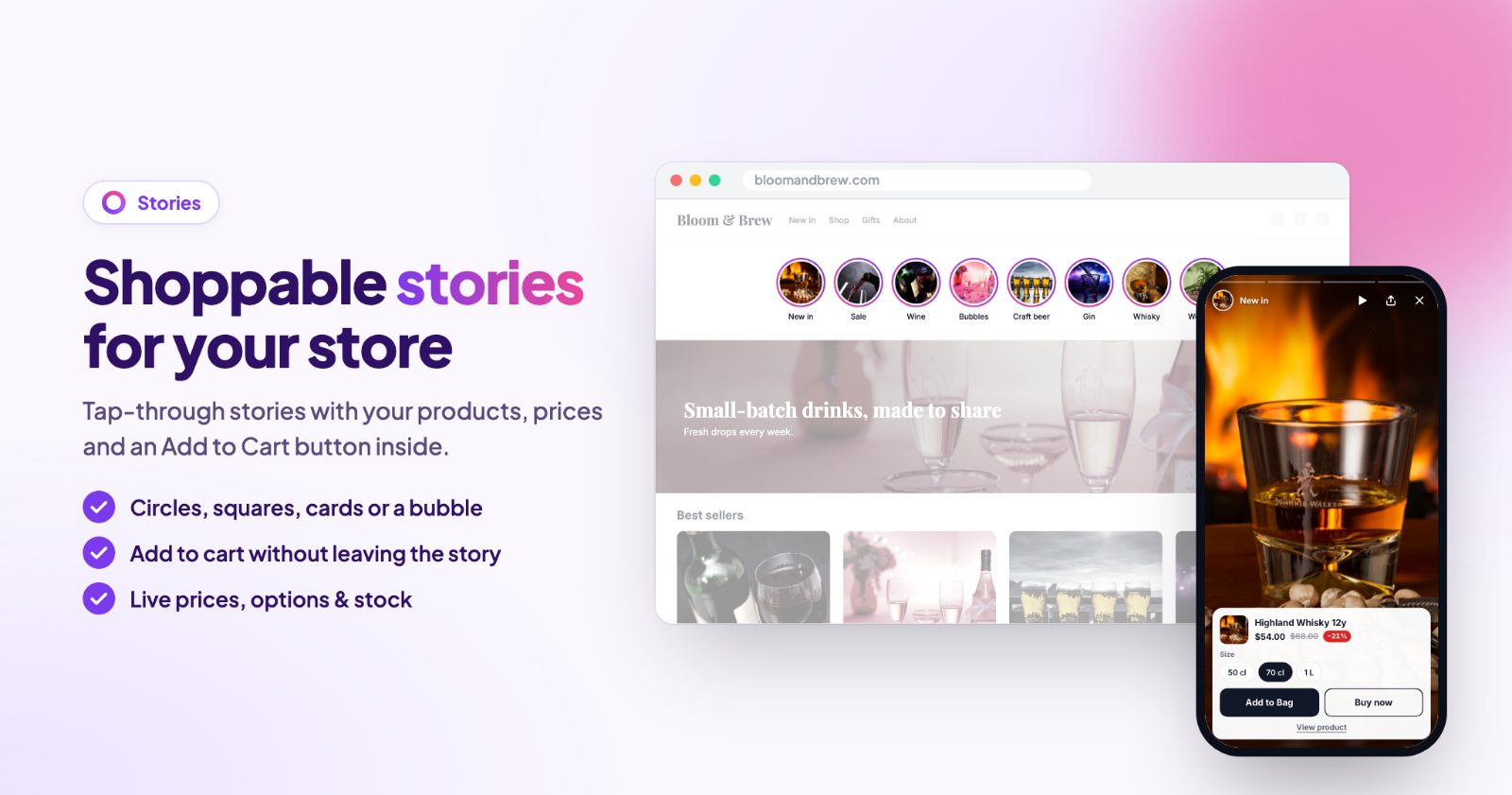
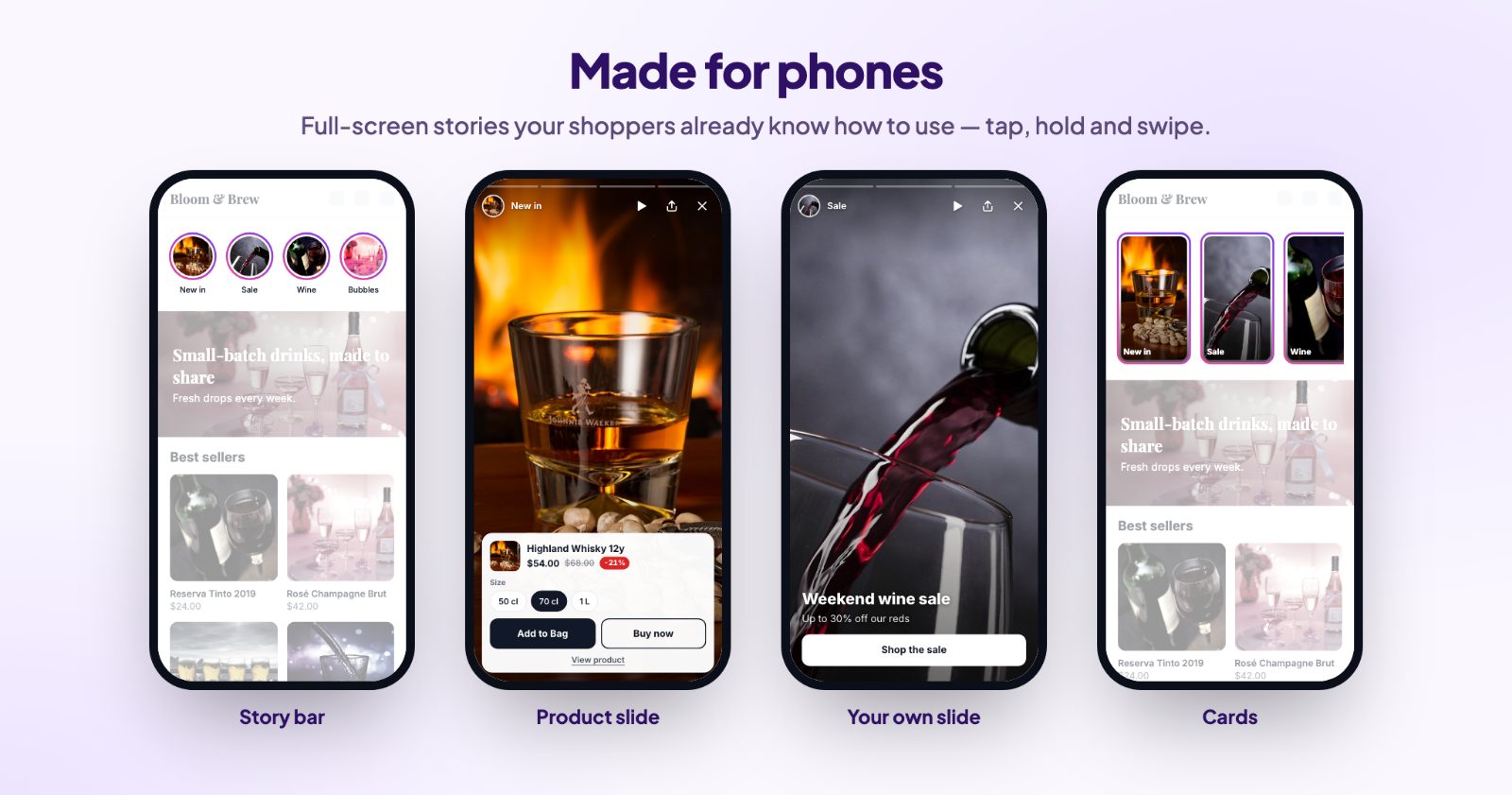
Shoppable stories are short full screen slides, like on Instagram, with your products. They show as a row of circles on your store pages. A shopper taps one and the story plays: one screen after the other, tap to go on, swipe to move to the next story.
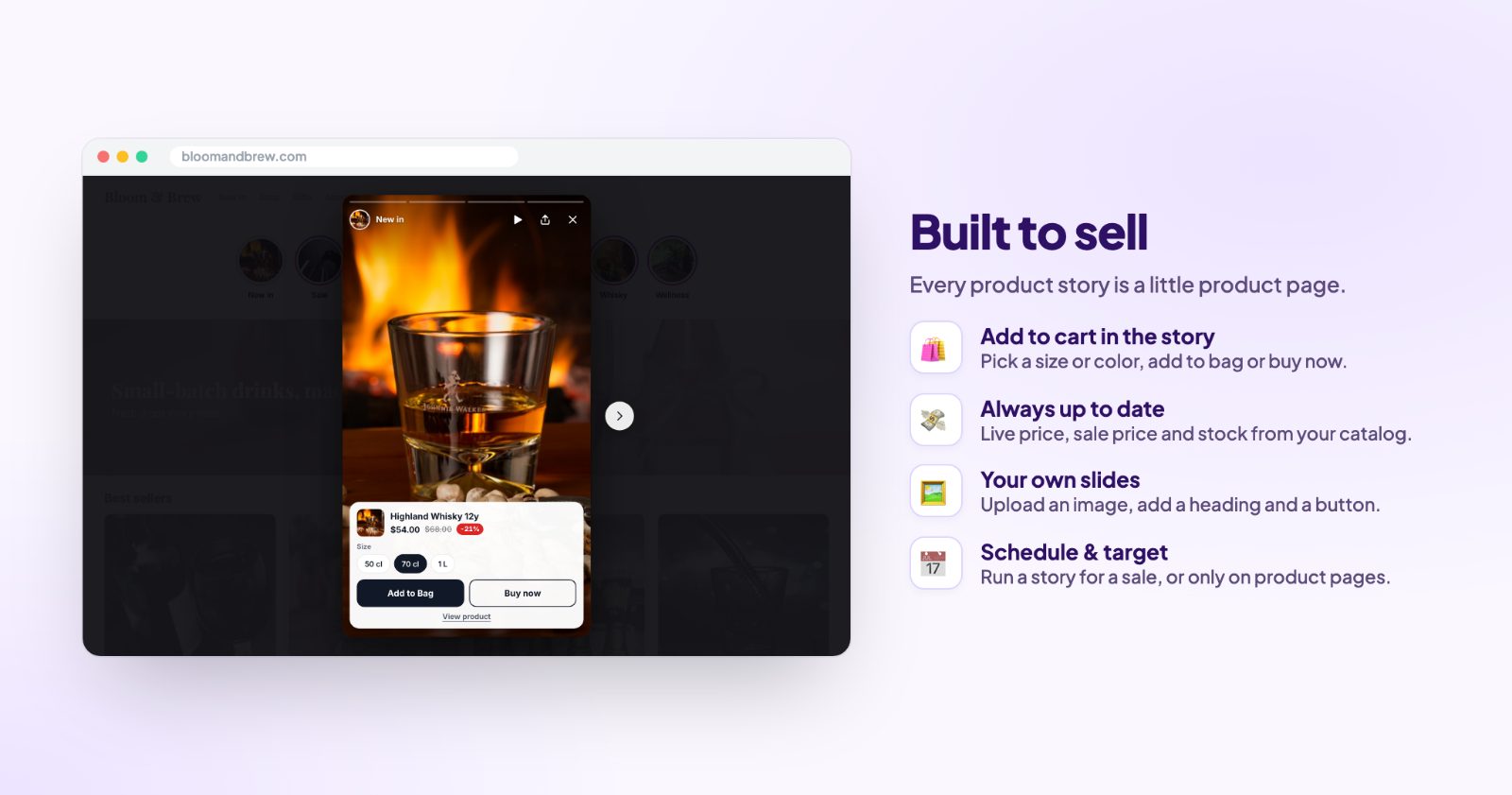
- Product slides: pick a product and its photos, price and an add to cart button are added for you. The price, sale price and stock come live from your catalog, so a story never shows an old price.
- Image slides: your own picture with a heading, a text and a button, for a promo, a lookbook or an announcement.
- Buy in the story: the shopper picks a size or color, then Add to cart or Buy now, without opening the product page.
Stories use images and your product photos. Video hosting isn't included, so there is nothing to film or upload besides pictures. If you want videos from TikTok or Instagram in your store, see TikTok and Instagram shoppable videos.
1. Create your first story (Stories)
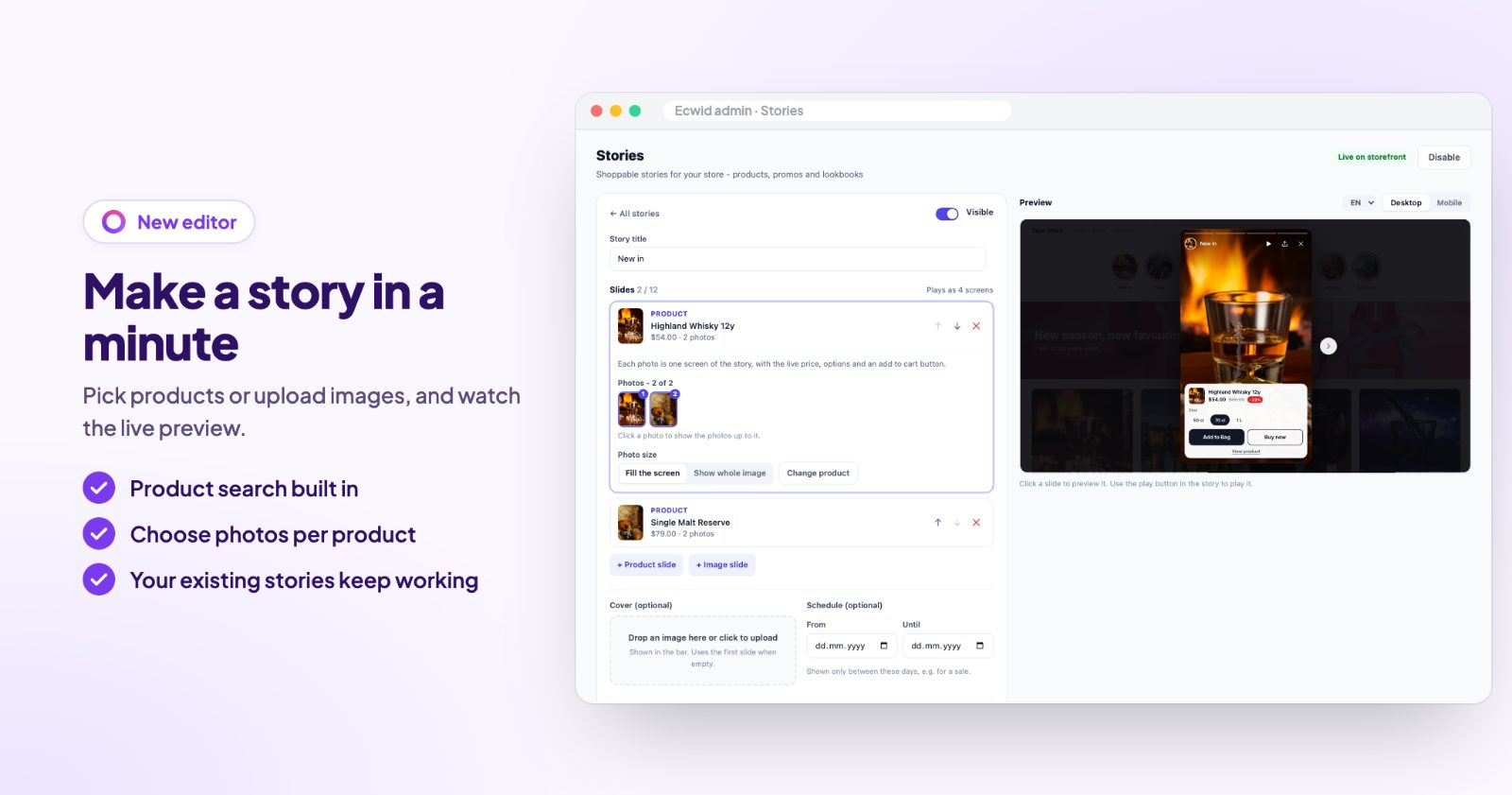
Open the app. The Stories tab lists your stories; click + New story. Give it a Story title, for example "New in", "Bestsellers" or "How to use". The title shows under the circle, so keep it short. The Visible switch at the top hides a story without deleting it.
2. Add product slides
Click + Product slide and search your products. Each photo of the product is one screen of the story, with the live price, options and an add to cart button. Under Photos, click a photo to show the photos up to it, for example only the first two. Photo size chooses Fill the screen or Show whole image, and Change product swaps the product without rebuilding the slide.
A story can have up to 12 slides. The editor says how many screens it plays as, and the arrows move a slide earlier or later.
3. Add image slides for promos and lookbooks
+ Image slide adds your own picture. Portrait images (9:16) look best, for example 1080 × 1920. Add a Heading ("Summer sale is on"), a Text, and if you like a Button text with a Button link to a category or a sale page. Text position (top, center or bottom) and Text color keep the words readable on your picture.
4. Cover and schedule
The Cover (optional) is the picture in the circle; without one, the first slide is used. Schedule (optional) has From and Until dates: the story shows only between these days, which is handy for a sale or a holiday gift guide. Back on the list, Duplicate copies a story and the arrows change the order in the row.
5. Pick the look (Look)
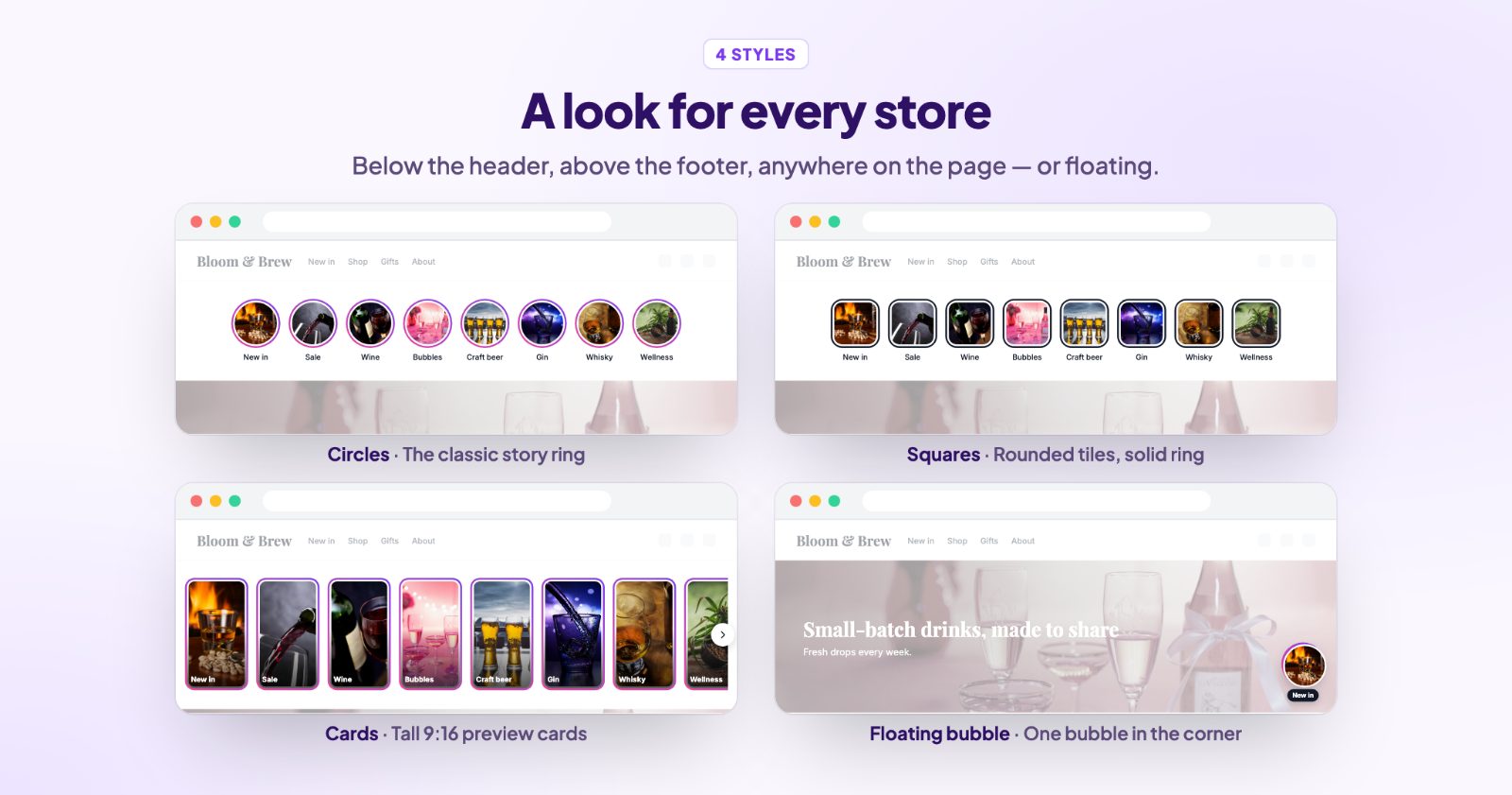
On Look, choose one of four styles:
- Circles: round thumbnails with a ring, like Instagram.
- Rounded squares: soft squares, a bit more modern.
- Story cards: tall 9:16 cards with the title on the image.
- Floating bubble: one round bubble in the corner of every page, with a Label under the bubble and a Corner (right or left).
Then the Size, Alignment and Position: below the header, above the footer, or above or below an element of your page (a CSS selector). You can add a Title above the bar ("Shop our stories"). The Ring can be a gradient, solid or none, with ready color pairs like Instagram, Ocean or Gold. Watched stories get the Watched ring color, and New stories first moves the ones a shopper hasn't seen yet to the front.
6. Set up the viewer (Story viewer)
Play automatically moves to the next slide on its own, after the Seconds per slide you set. Photos per product slide (default) is how many photos new product slides use. Under Product slides, choose what shows: Product name, Price & discount, Short description and the Add to cart button (with size and color pickers; turned off, shoppers get a link to the product). Buy now button adds the product and goes straight to checkout. The Share button lets shoppers send a link that opens the story.
7. Choose where it shows (Where to show)
- Show on desktop and Show on mobile can be switched separately.
- Show on every page, or only on the pages you pick: home page, categories, product pages, search, cart and more.
- On product pages, only stories with that product: a how-to story shows up on the product it's about.
Translations has the texts for your other store languages (empty fields use your main texts), and Advanced has Custom CSS. The Preview on the right shows the bar and the open story on desktop or mobile while you edit.
Common setups
New arrivals on the home page
One story "New in" with a product slide per new product, circles below the header, New stories first on. Update it when new products come in.
A holiday gift guide with an end date
Stories like "For him", "For her" and "Under $50", each starting with an image slide and then the products. Set Until to the last shipping day so the guide disappears on its own.
How-to stories on the product page
A story per product with image slides that show how to use it, and On product pages, only stories with that product on. Shoppers see the right story on the right product.
A quiet bubble for phones
Floating bubble in the right corner with the label "Shop", Show on mobile only, so the page layout stays as it is.
Questions
Can I use videos?
No. Stories use images and your product photos; video hosting isn't included.
Can shoppers buy from a story?
Yes. Each product slide shows the price, options and an Add to cart or Buy now button.
How do shoppers know which stories they've seen?
Watched stories get a different ring color, and new stories can be shown first.
Do prices update when I change them?
Yes. Product slides show the live price, sale price and stock from your catalog.
More ways to let shoppers buy without leaving the page: Quick View and the sticky add to cart button.