How it works in short
You make one or more offers in the app. Each offer has a format, its content (a title, text, a coupon, a countdown, products...), a moment when it shows and rules for who sees it. One offer shows at a time: the first one in your list whose rules match the shopper.
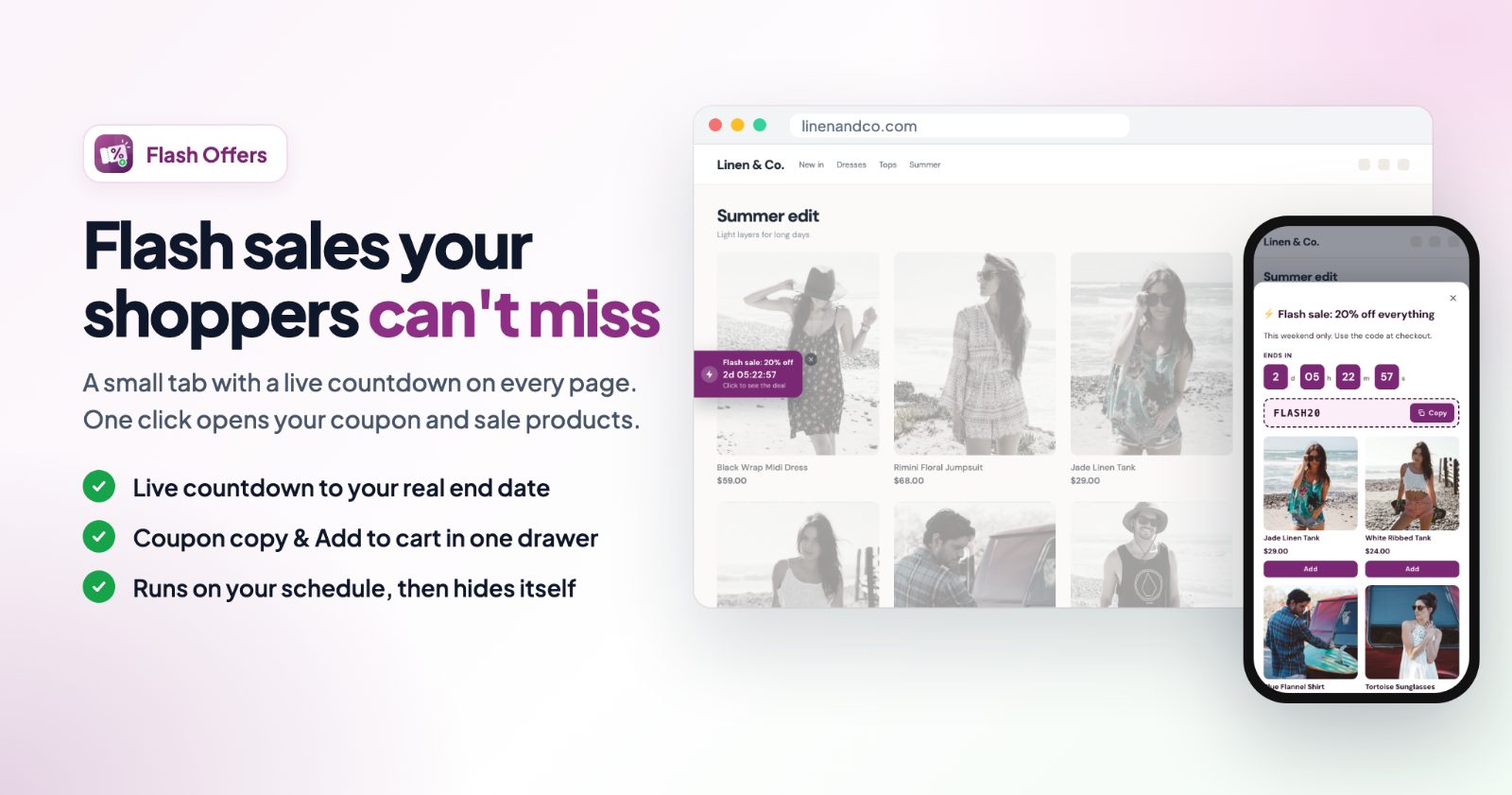
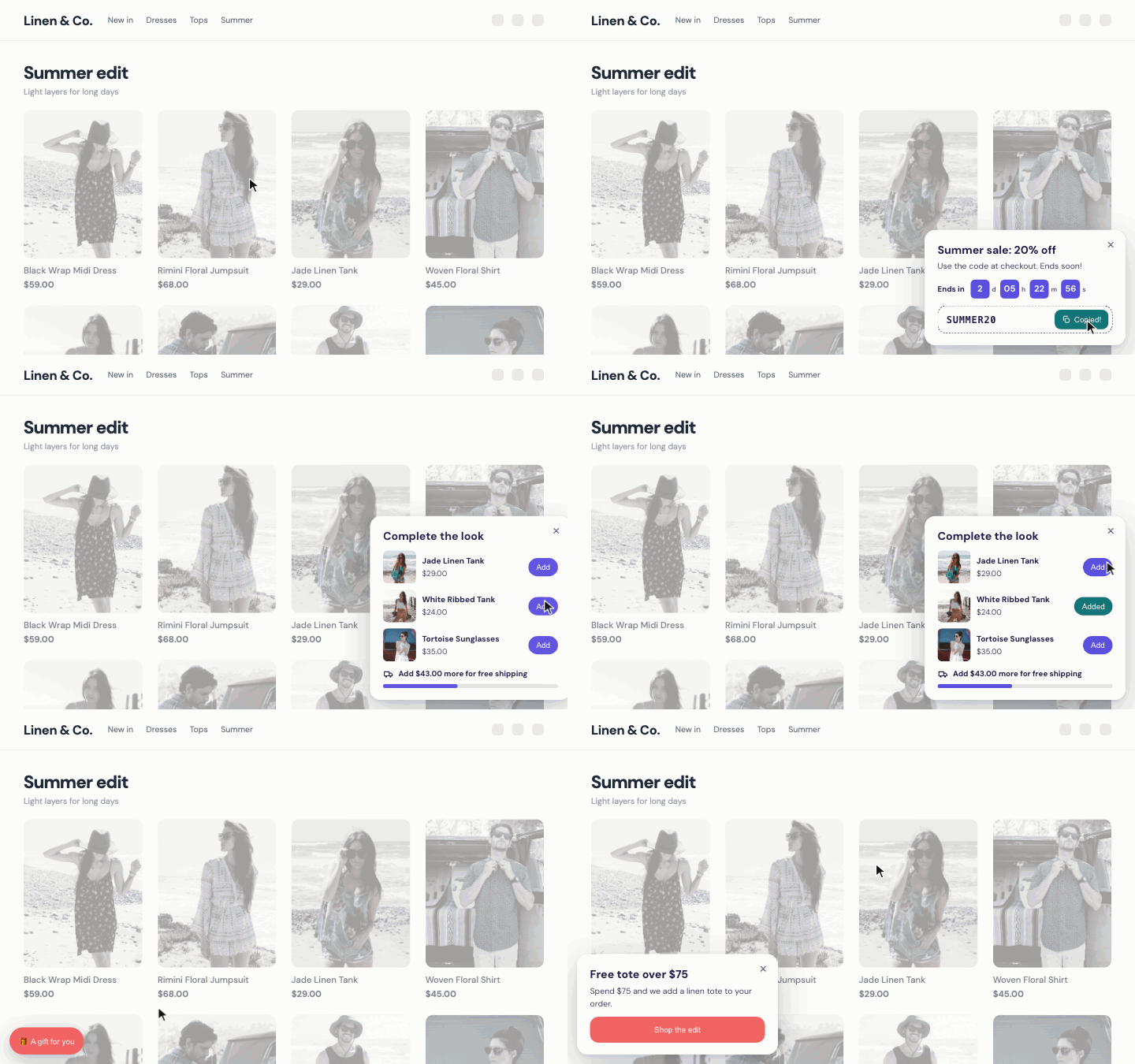
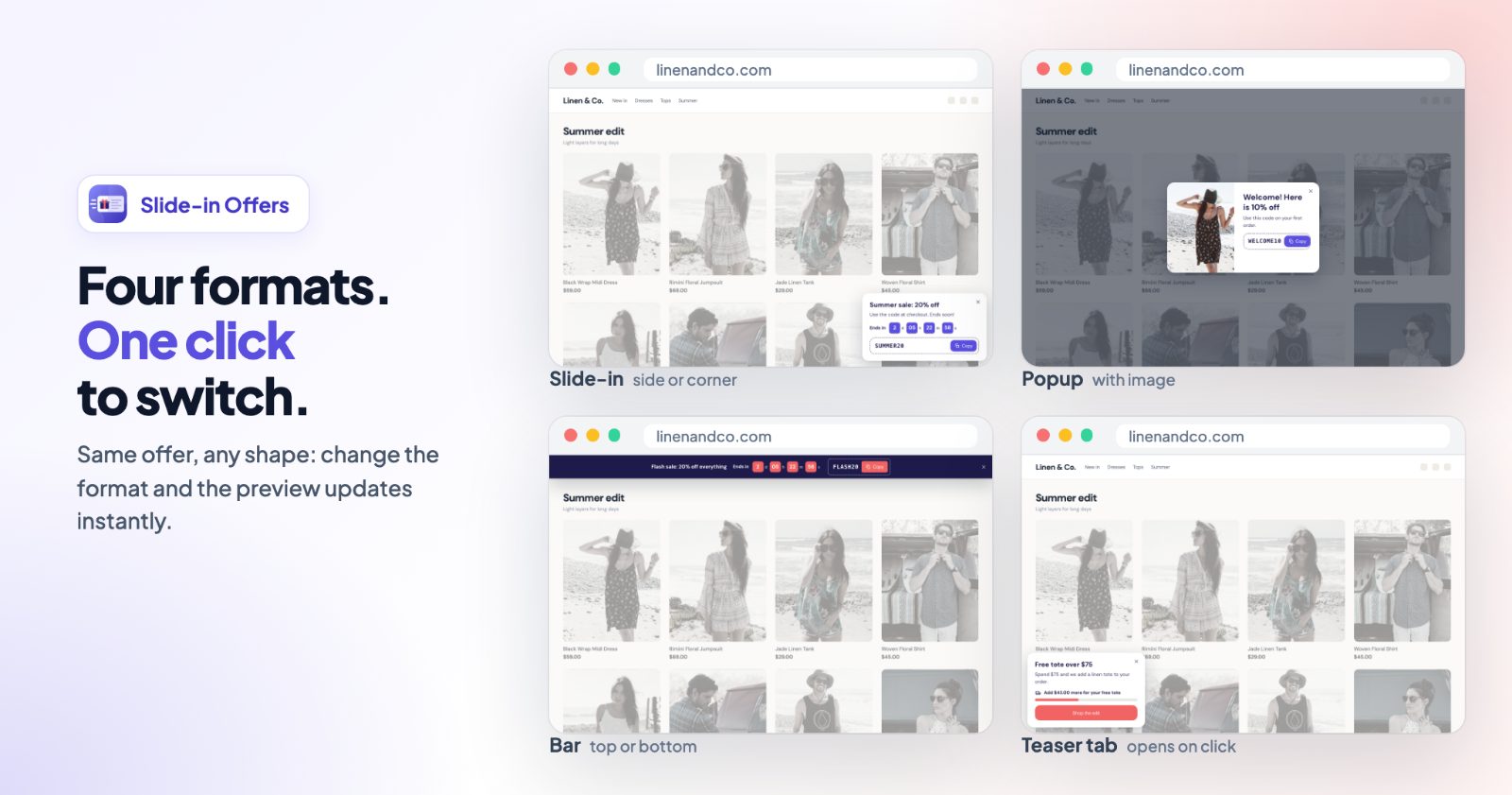
- Four formats: a slide-in from a side or corner, a centered popup, a full-width bar at the top or bottom, or a small teaser tab that opens the offer.
- Real deadlines only: a countdown runs to the end date you set, the same for every shopper. It never restarts.
- Not pushy: after a shopper closes an offer, it stays hidden for the days you choose.
1. Start from a template
Open the app and click + New offer. Pick a template - every part can be changed - or Start blank. The templates:
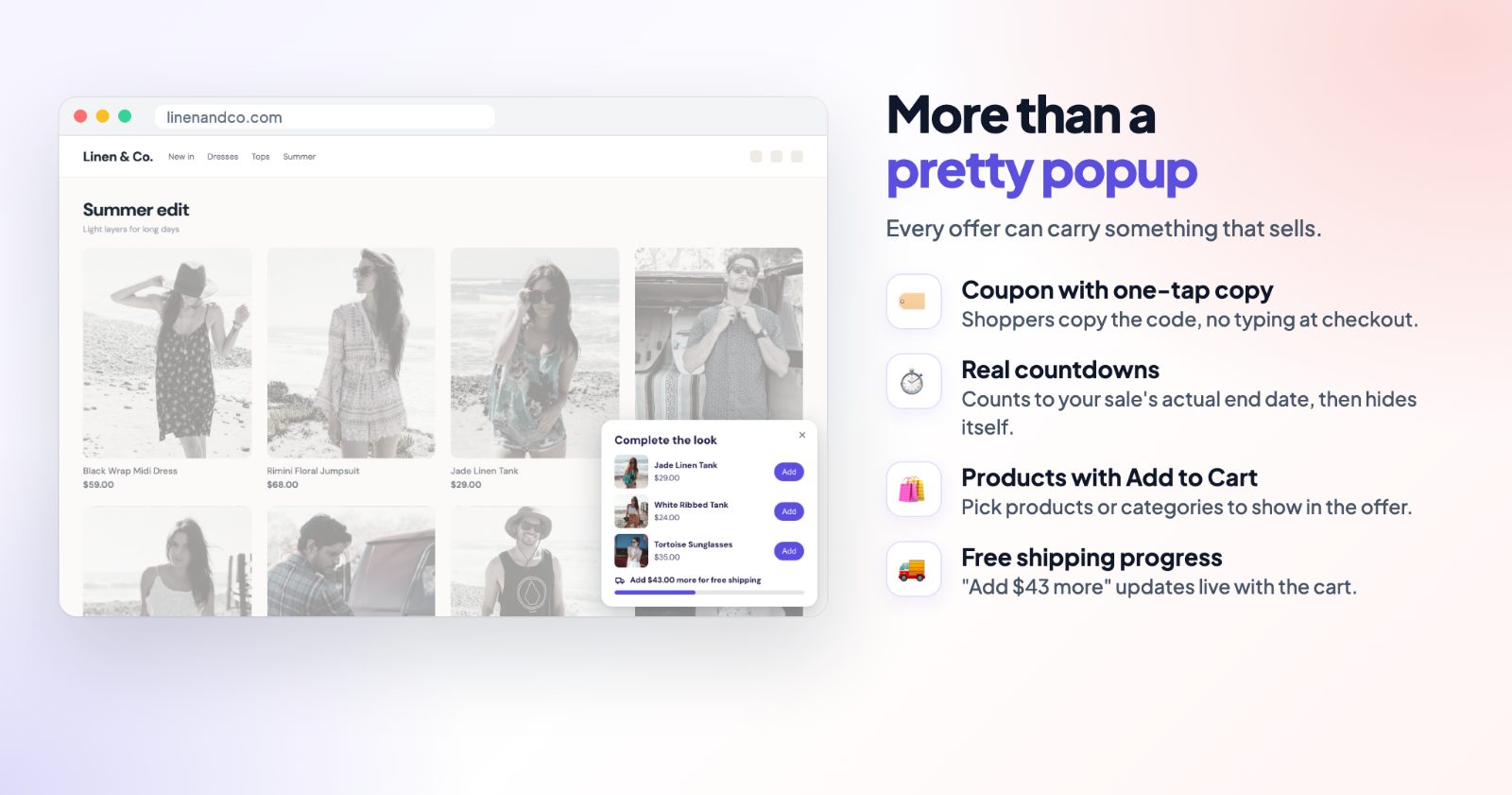
- Sales: Welcome discount (a popup with a coupon to copy), Free shipping nudge, Flash sale bar (a countdown to a real end date), Before you go (exit intent with a last-chance coupon), Gift teaser.
- Email and products: Email signup (join the list, get a coupon) and Picks for you (products with Add to Cart).
- Seasonal: Black Friday, Holiday sale, Valentine's Day, Summer sale.
2. Write the offer
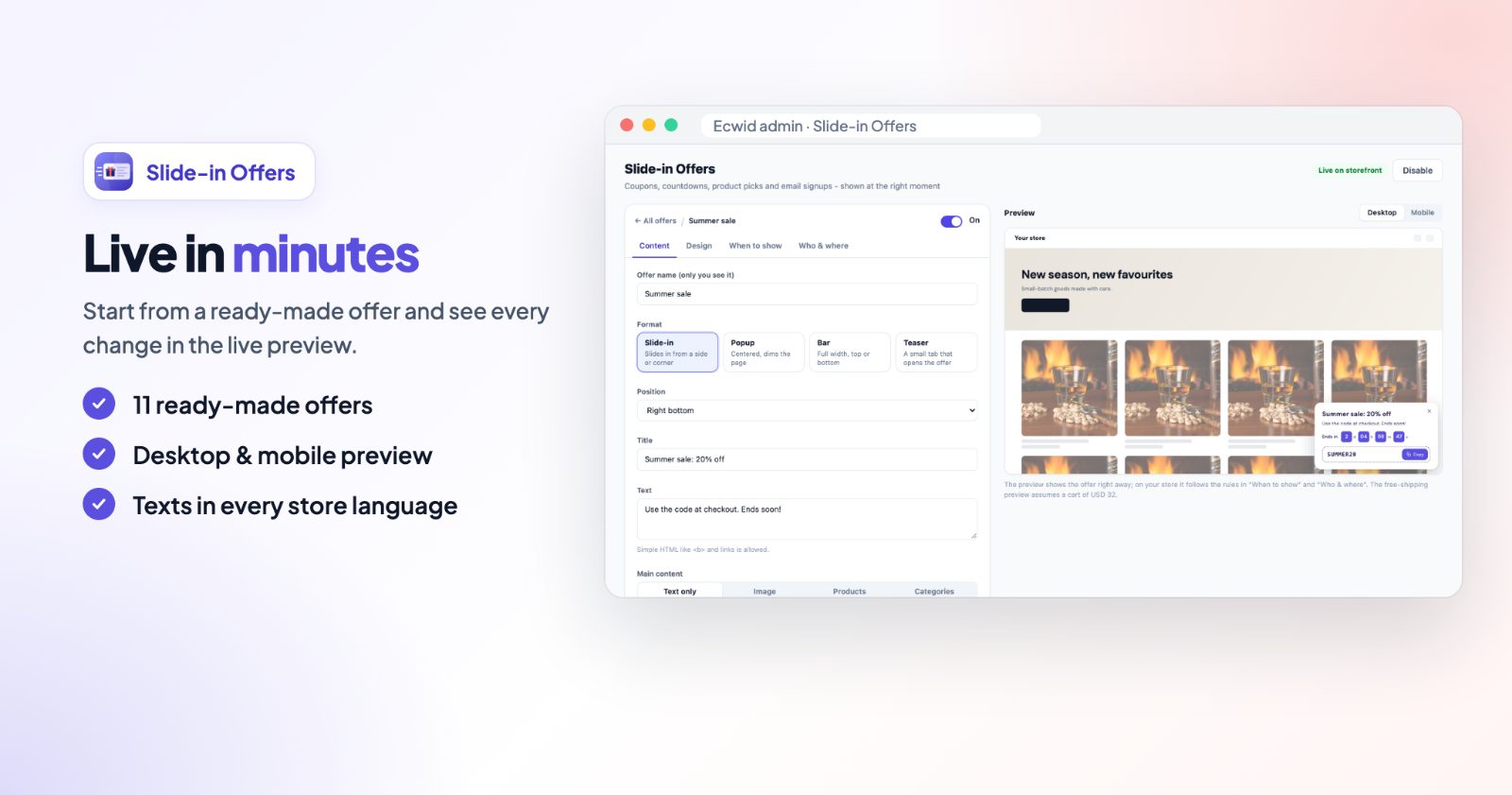
On the Content tab, give the offer a name (only you see it), pick the Format and its Position, and write the Title and Text. Under Main content choose:
- Text only or Image (in a popup the image fills the left side).
- Products: shown with price and an Add button. Products with options get a View button to their page, where shoppers pick them.
- Categories: links to the categories you tick.
Then add what makes the offer worth clicking:
- Coupon code: create the coupon in your store admin (Marketing, Discount coupons) and enter its code. Shoppers get a Copy button, so nobody has to type it.
- Countdown: set Ends at and a label. Turn on Hide the offer when the countdown ends so it disappears with the sale.
- Free shipping progress: enter your Free shipping from amount and the offer shows how much more the shopper needs to add, with a progress bar.
- Button: open a link, copy the coupon, or just close.
3. Collect emails (optional)
Under Email signup, turn on Collect emails. Signups become customers in your store who accepted marketing emails, and you can put them in a customer group with Add to customer group. Turn on Show the coupon only after signing up to give the coupon in exchange for the email, Ask for a name too if you want it, and fill in Consent checkbox if shoppers must tick it before subscribing.
4. Choose when it shows
On the When to show tab, pick one moment under Show the offer:
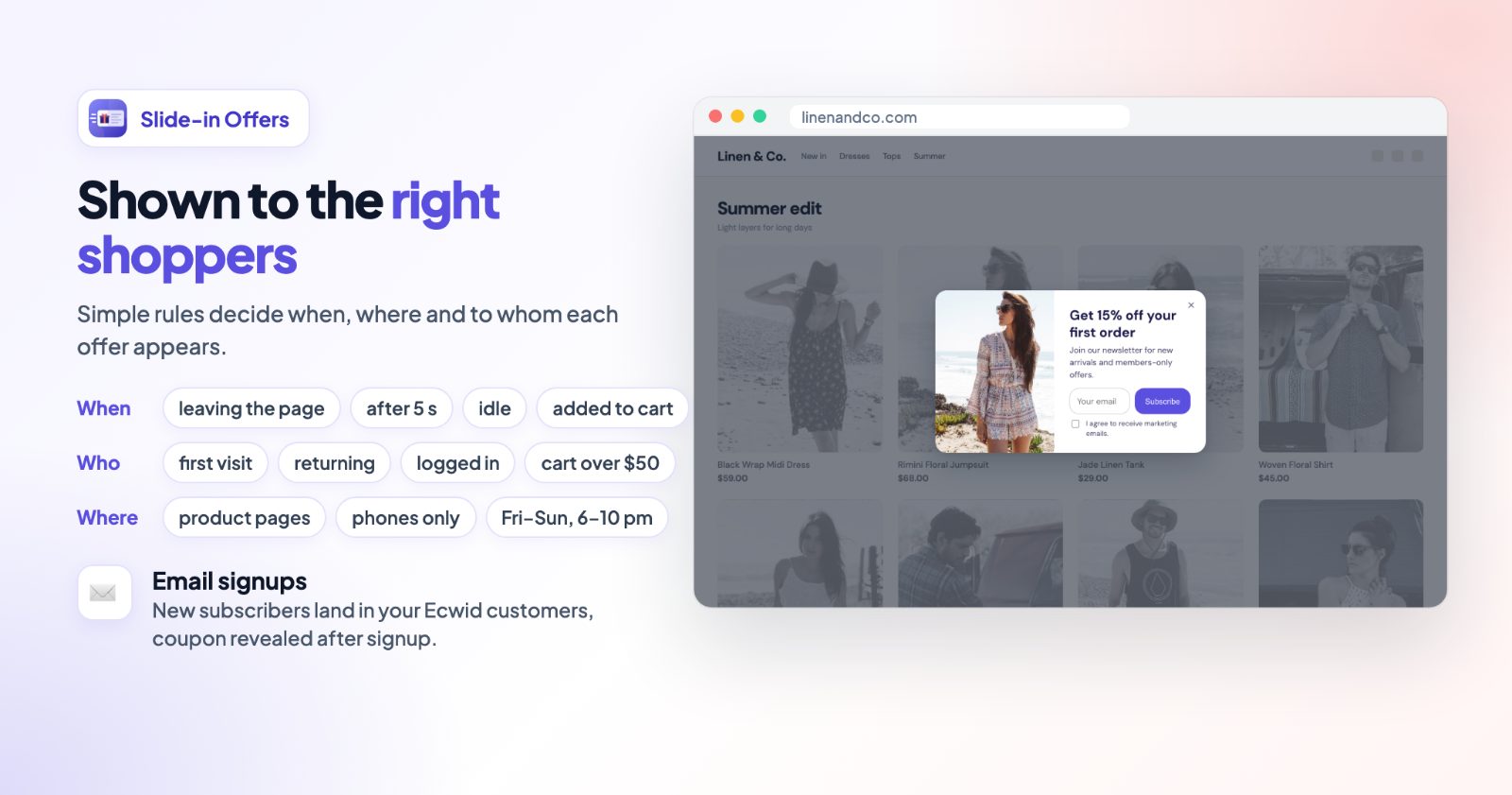
- After a delay: seconds after the page opens, optionally once they scroll a part of the page.
- When leaving: exit intent - the mouse heads for the tabs, or a quick scroll up on phones.
- When idle: no mouse, keyboard or scroll for a while.
- After adding to cart: right after a product goes into the cart.
Only from page number waits until the shopper has seen a few pages. Under How often, After it's closed, hide it for sets the days it stays hidden, and Never show it again after they use it stops it once they signed up, copied the coupon, added a product or clicked the button.
5. Choose who and where
On the Who & where tab, leave anything empty and it doesn't limit the offer:
- Pages: home, category and product pages, search, cart, the checkout steps, order confirmation and more. You can also limit it to some product pages or categories.
- Customers (everyone, guests or logged-in customers), Visitors (first visit or returning) and Device (desktop or phones).
- Traffic source contains: for example instagram or newsletter, matched against the visit's utm tags or the site they came from.
- Cart at least / at most and Cart contains one of your products.
- Schedule: from and until dates, days of the week and hours.
- Languages, if your store has more than one.
6. Match your design and check the preview
On the Design tab, set the background, text and button colors, the width, corner radius, animation (slide, zoom, fade or none), shadow and close button. The Preview shows the offer on desktop and phone as you change it. If your store has more languages, write every text on the Translations tab. Then save and switch the offer on.
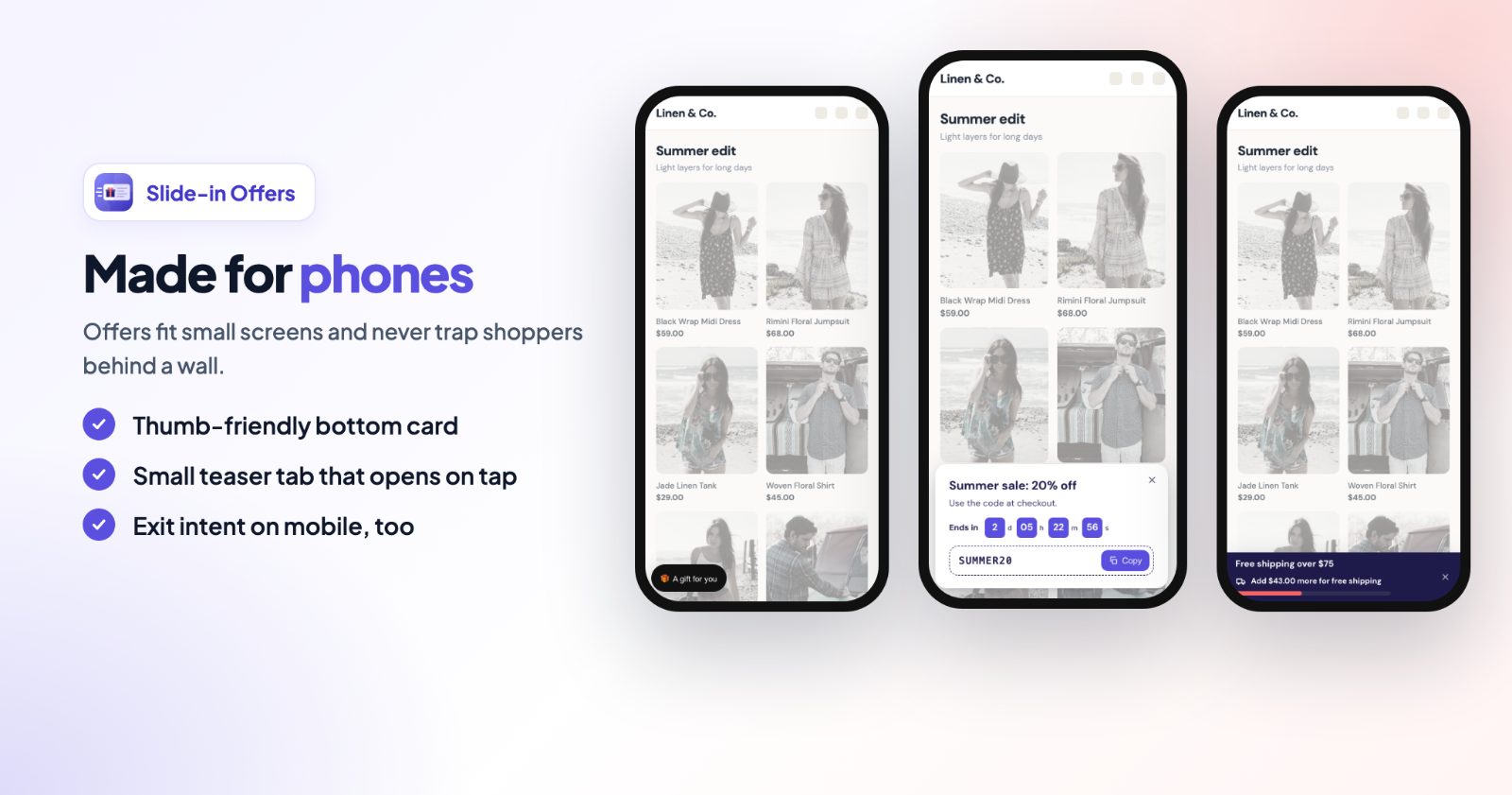
On phones, offers fit small screens: a bottom card, a small teaser tab or a bar.
Common setups
A welcome coupon for first visits
Use Welcome discount: a popup after 5 seconds for first-visit shoppers, with your coupon to copy. Keep it hidden for 7 days after it's closed.
A coupon for an email
Use Email signup and turn on Show the coupon only after signing up. Add new subscribers to a customer group, for example Newsletter.
A last chance before they leave
Use Before you go (When leaving) and set Cart at least to 1, so it only shows to shoppers with something in the cart. For a full cart reminder, see win back abandoned carts.
A Black Friday bar with a countdown
Use Black Friday, set the countdown to the real end of your sale and turn on Hide the offer when the countdown ends.
Products on product pages
Use Picks for you, choose the products and keep Add to cart buttons on. It shows on product pages after 10 seconds.
An offer for your Instagram visitors
Set Traffic source contains to instagram and write an offer just for them.
Want a game instead of a popup? See the spin to win wheel. For a sale tab that stays on screen while shoppers scroll, see Flash Offers.
Questions
When does the offer show?
You choose: after a delay, after scrolling, when leaving, when the shopper is idle, after adding to cart, or only from a later page. You can also limit it by cart value, products in the cart, days, hours and device.
Will it keep showing after a shopper closes it?
No. Under After it's closed, hide it for you choose how long it stays hidden, and it can stop showing for good after the shopper uses it.
Can I show different offers to different shoppers?
Yes. Add several offers with their own rules; the first matching one in your list is shown.
How do I add a coupon?
Create it under Marketing, Discount coupons in your store admin and enter its code in the offer.