How it works in short
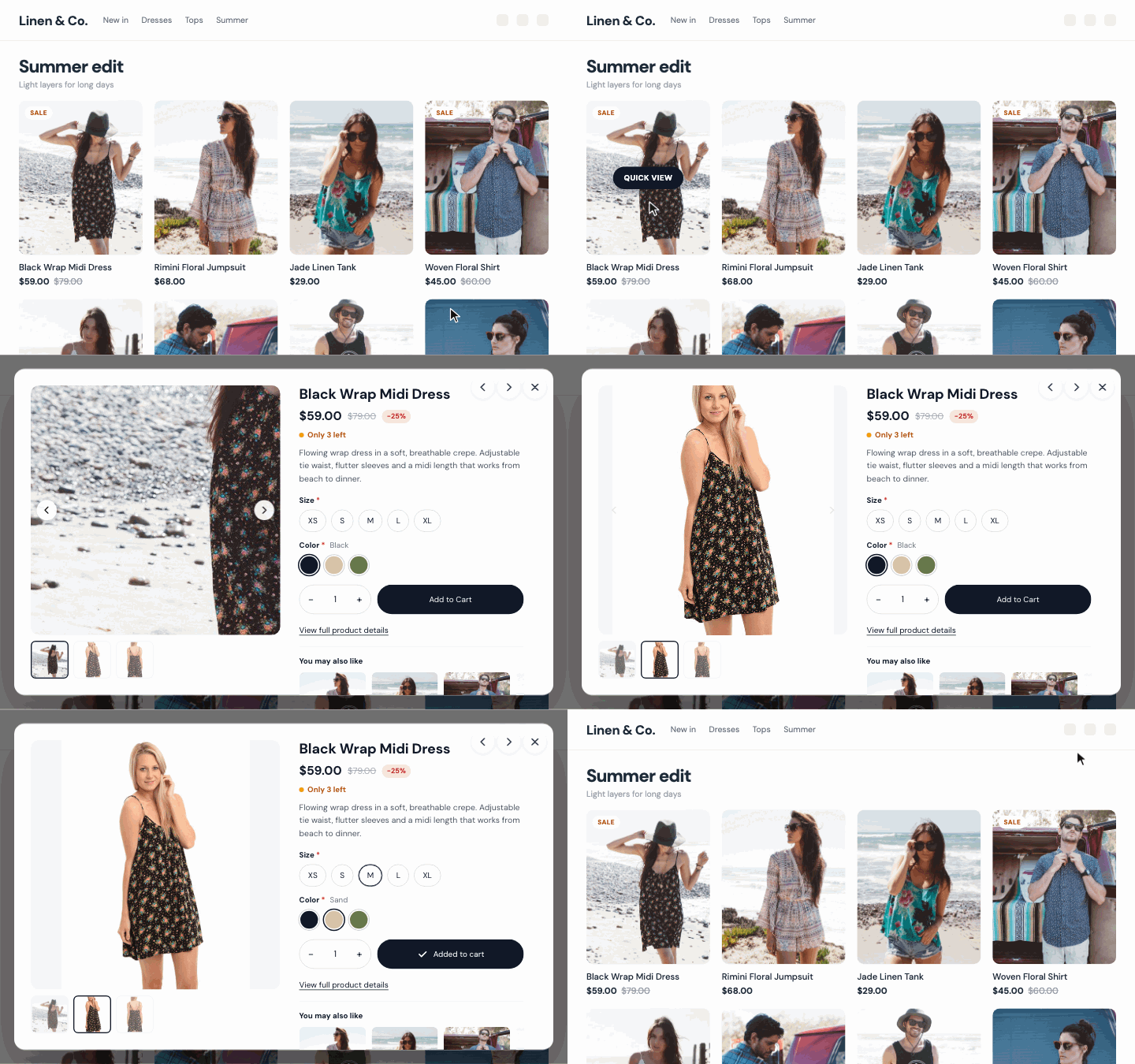
The app adds a button to your product cards. A click opens the product in a popup: photos, price, options, stock and Add to cart. Shoppers buy or keep browsing, and the category page stays where it was.
- All option types are shown. When a shopper picks a variation, the price, stock and photo change to that variation.
- The right price for the chosen variation and quantity goes to the cart.
- Product names, descriptions and options show in the shopper's language. The popup's own buttons and texts can be translated in the settings.
1. Set up the card button
Open the app. The Card button tab starts with Quick looks: Classic, Modern, Minimal, Soft and Icon. One click sets the button, the popup corners and the animation, and you can still change every value after. Then pick:
- Button style: Solid, Outline, Pill, Icon + text or Icon only, with an Eye, Magnifier, Bag or Plus icon, the Button color, Text color and Corner radius.
- Position, separately for desktop and mobile: Center of the image, Top of the image, Bottom of the image, Corner icon (top right) or Above the product title.
- Show: On hover, Always or Hidden on desktop; Always or Hidden on phones.
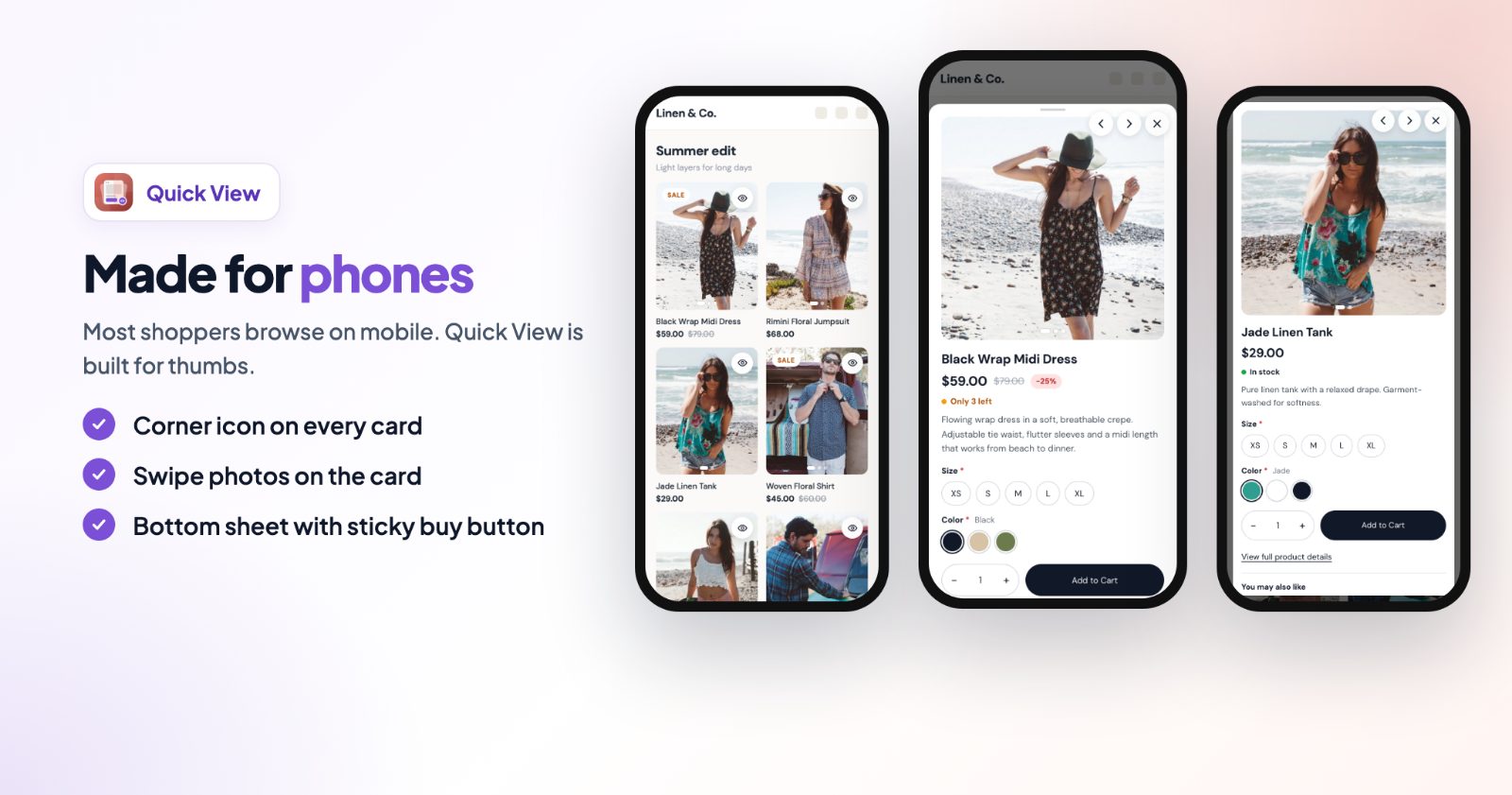
- Swipe through photos on product cards: arrows on hover and swipe on phones let shoppers see every photo without leaving the category page.
2. Pick the popup layout
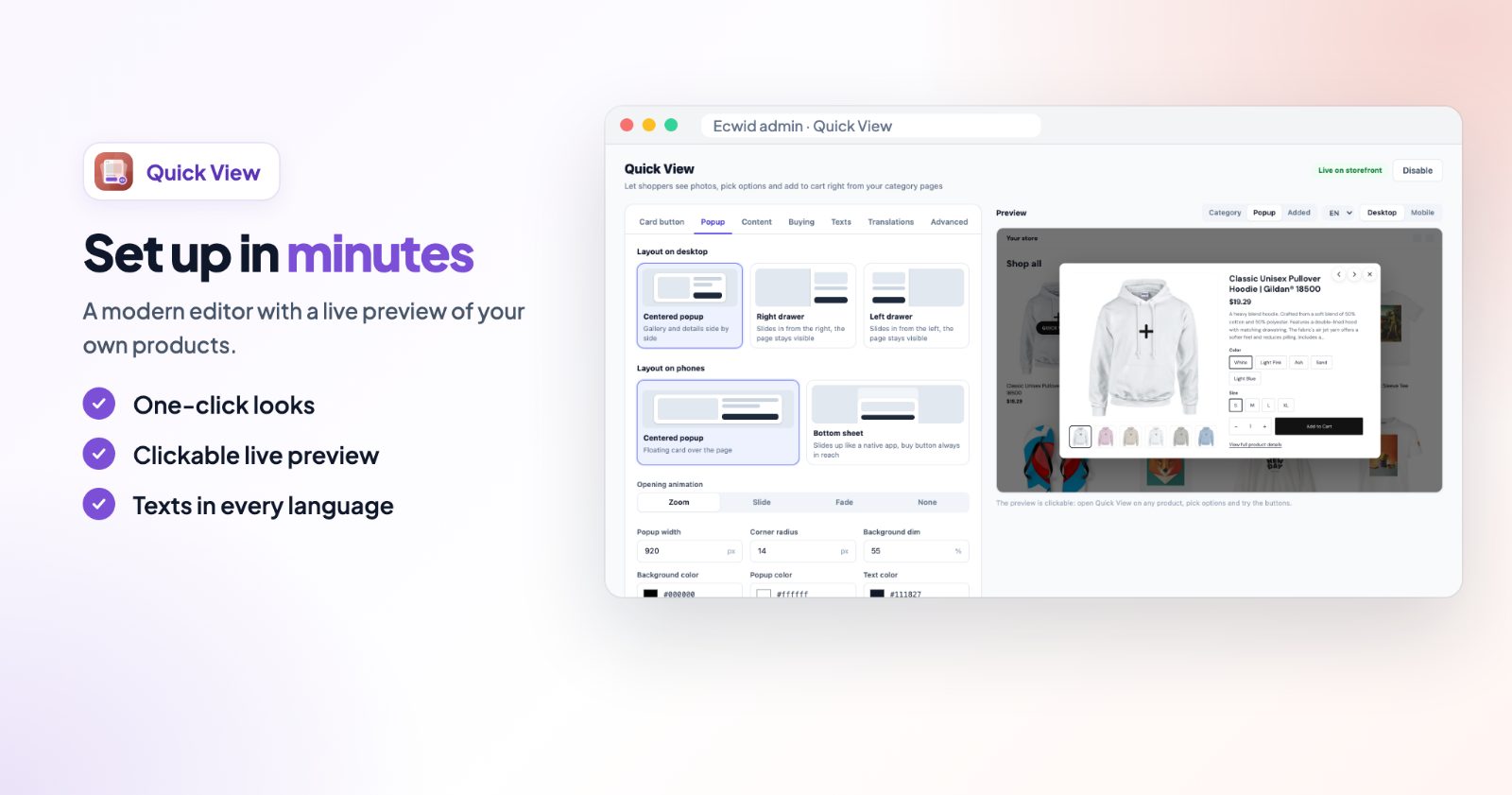
On the Popup tab, choose how it opens:
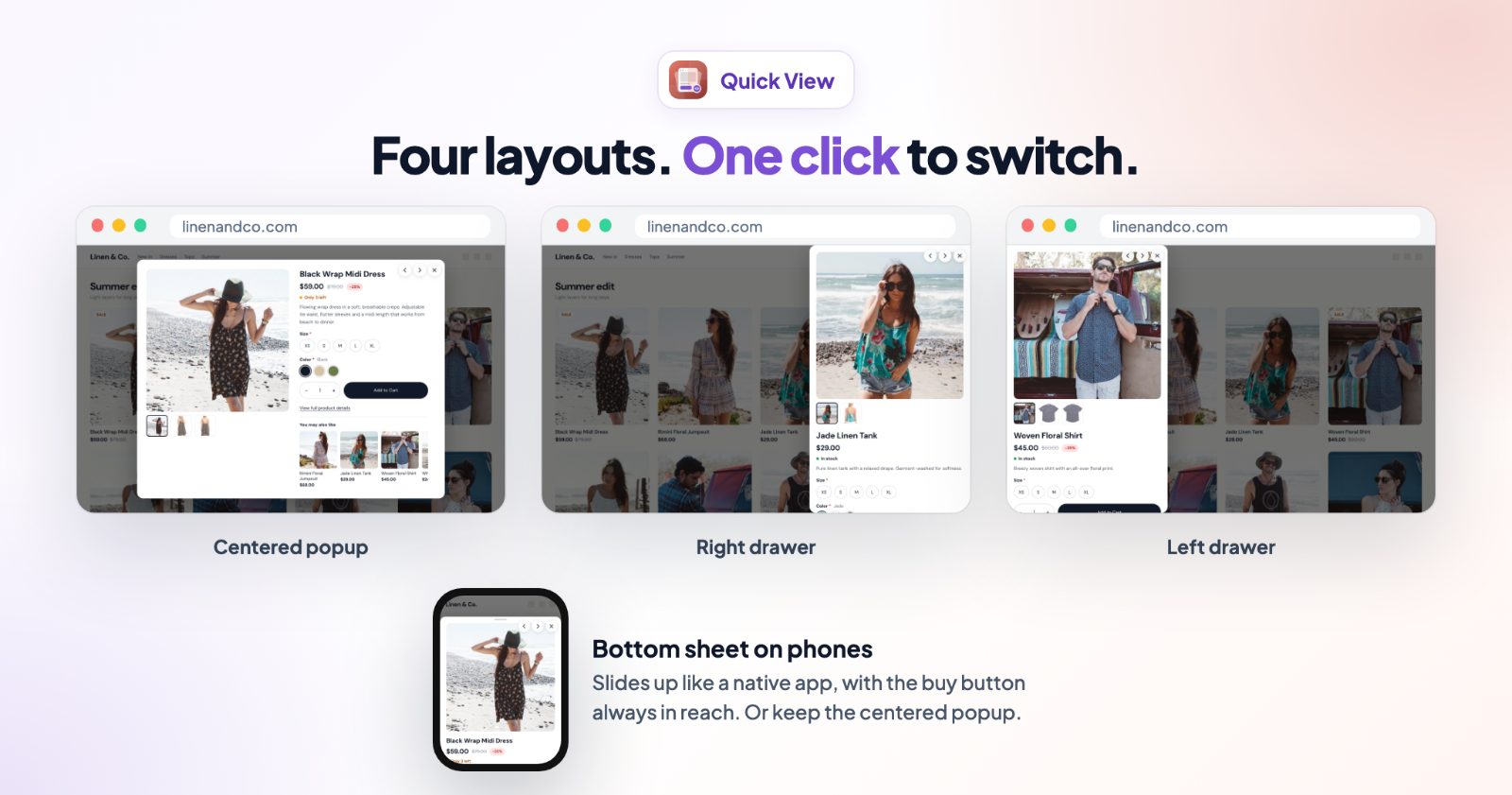
- Layout on desktop: Centered popup (gallery and details side by side), Right drawer or Left drawer (slides in from the side, the page stays visible).
- Layout on phones: Centered popup, or Bottom sheet (slides up like a native app, the buy button always in reach).
- Opening animation (Zoom, Slide, Fade, None), Popup width, Corner radius, Background dim and the colors.
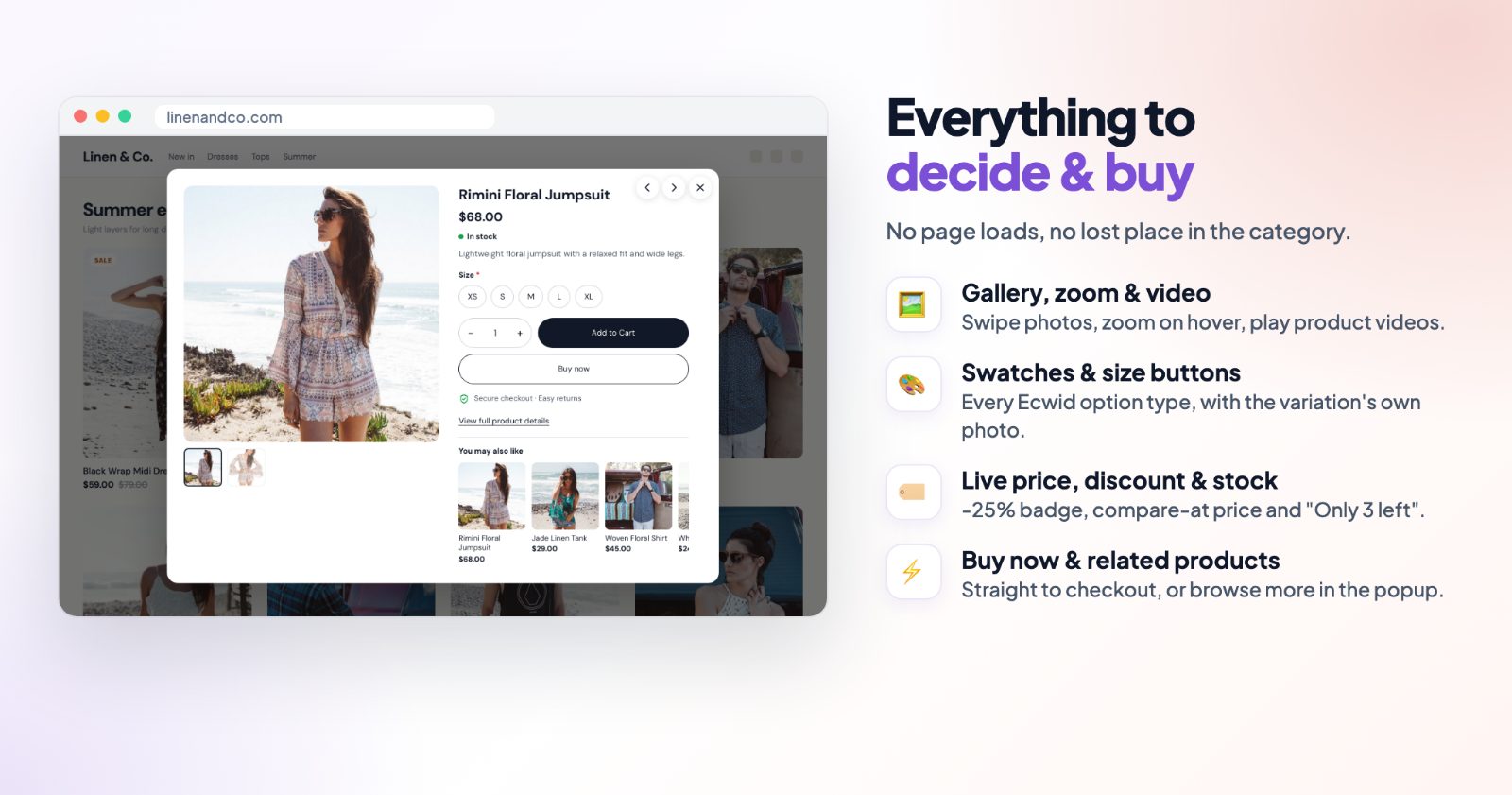
- Photos: Zoom on hover (tap to zoom on phones), Show product videos (YouTube and Vimeo from your product gallery), Show the chosen variation's photo, and thumbnails under the photo on desktop.
- Previous / next product arrows: shoppers browse the category without closing the popup. The arrow keys work too.
3. Choose what the popup shows
The Content tab decides what shoppers see next to the photos:
- Description: Short excerpt (you set the length), Full or Hidden.
- Product options: Automatic (buttons for short choices, dropdowns for long lists), Buttons, or Dropdowns. Color swatch and size options always show as swatches and buttons.
- Compare-at price, a Discount badge (for example -25% next to the price) and Stock status: In stock, or "Only 3 left" from the number of items you choose.
- SKU, a Link to the full product page, and a Trust line under the buttons.
- Related products: a row from the product's related products in your product settings.
4. Set up buying
On the Buying tab you style the Add to cart button and choose:
- Quantity selector on or off.
- Buy now button: adds the product and goes straight to checkout.
- After adding to the cart: Close the popup, Keep it open, or Open the cart.
Products that can't be bought from a popup, like a name-your-price product or one with a required file upload, show a button that opens the product page instead.
5. Texts, preview, and switch it on
The Texts tab has every word shoppers see, such as the Quick View button, Added to cart message, the Low stock text (where {count} is the number of items left) and the Trust line. If your store has more languages, the Translations tab shows a column for each; empty fields use your default language.
The Preview on the right is clickable: open Quick View on any product, pick options and try the buttons. Click Save, then Enable. The label at the top says Live on storefront.
Common setups
Clothing store with sizes and colors
Keep Product options on Automatic, switch on Show the chosen variation's photo and Stock status. Shoppers pick Black in M, see the black dress and know if it's in stock.
Shoppers who buy several items
Set After adding to the cart to Keep it open or Close the popup, and switch on the previous / next arrows. They add one product and move to the next without reloading the page.
One-product orders and gifts
Switch on the Buy now button so a shopper who knows what they want goes straight to checkout.
A clean grid on phones
Use the Icon look: a small icon in the corner of every card, always visible, and the Bottom sheet layout on phones.
Questions
Can shoppers add to the cart from the popup?
Yes, with all product options, quantity and the right price for the chosen variation. You choose what happens after: stay, close the popup or go to the cart.
Does it work with product options and variations?
Yes. All option types are shown, and the price, stock and photo follow the chosen variation.
Can I show related products in the popup?
Yes. Turn on Related products to show a row from the product's related list, and set how many.
Is the popup translated?
Product names, descriptions and options show in the shopper's language. The popup's own buttons and labels can be translated in the settings.
Want shoppers to see every color on the card before they open it? See color swatches. For long descriptions on the product page, see product description tabs.