How it works in short
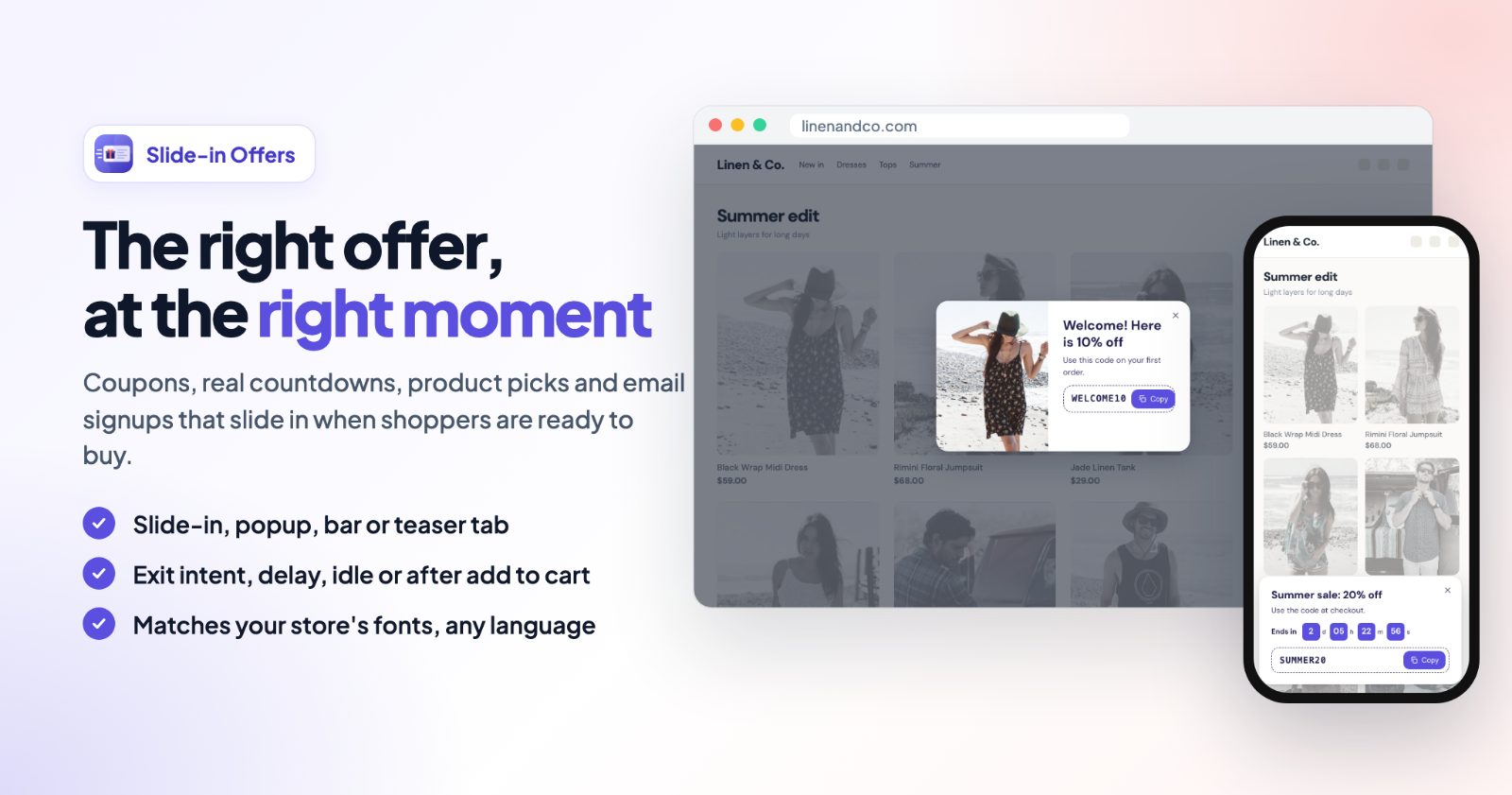
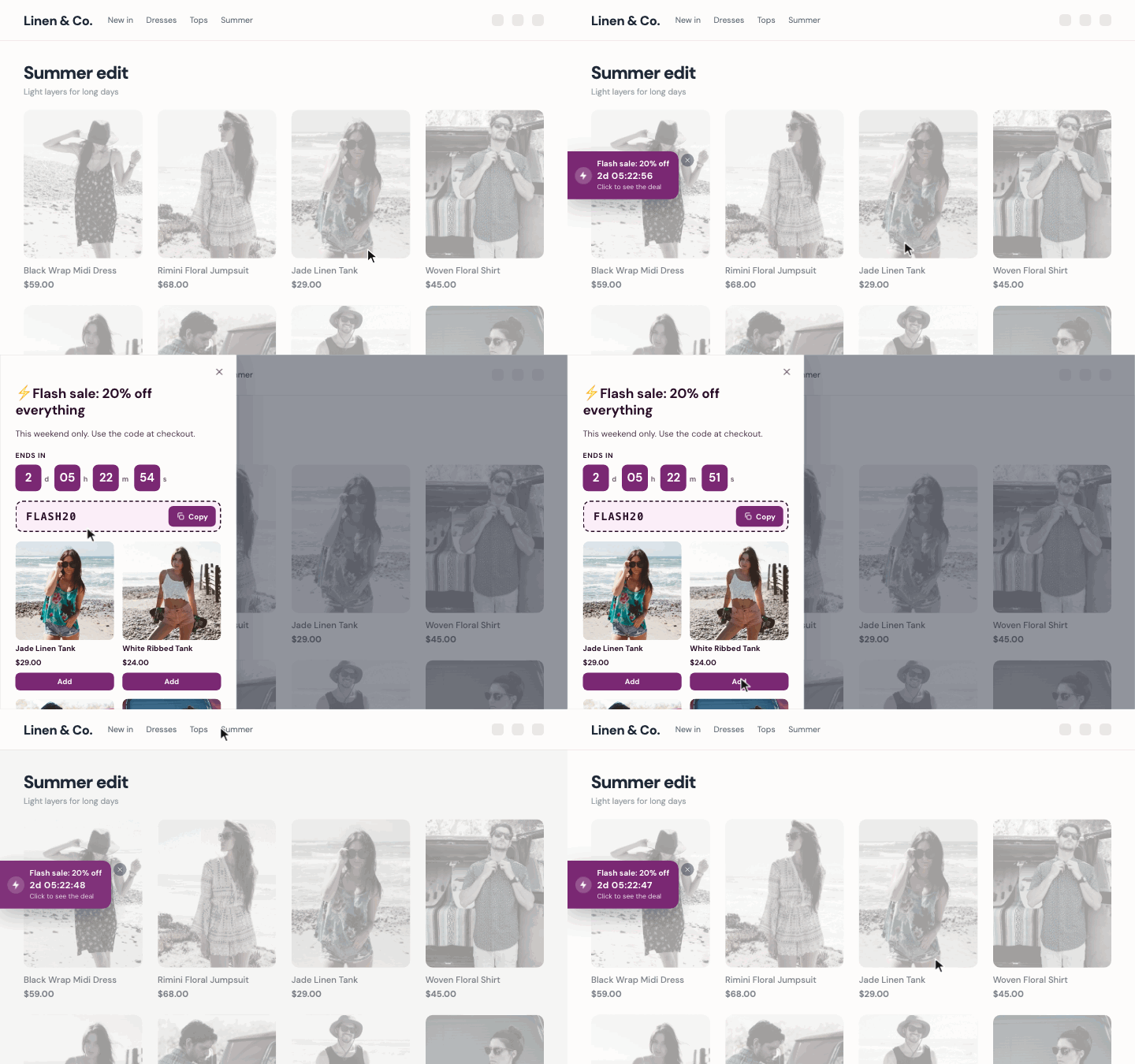
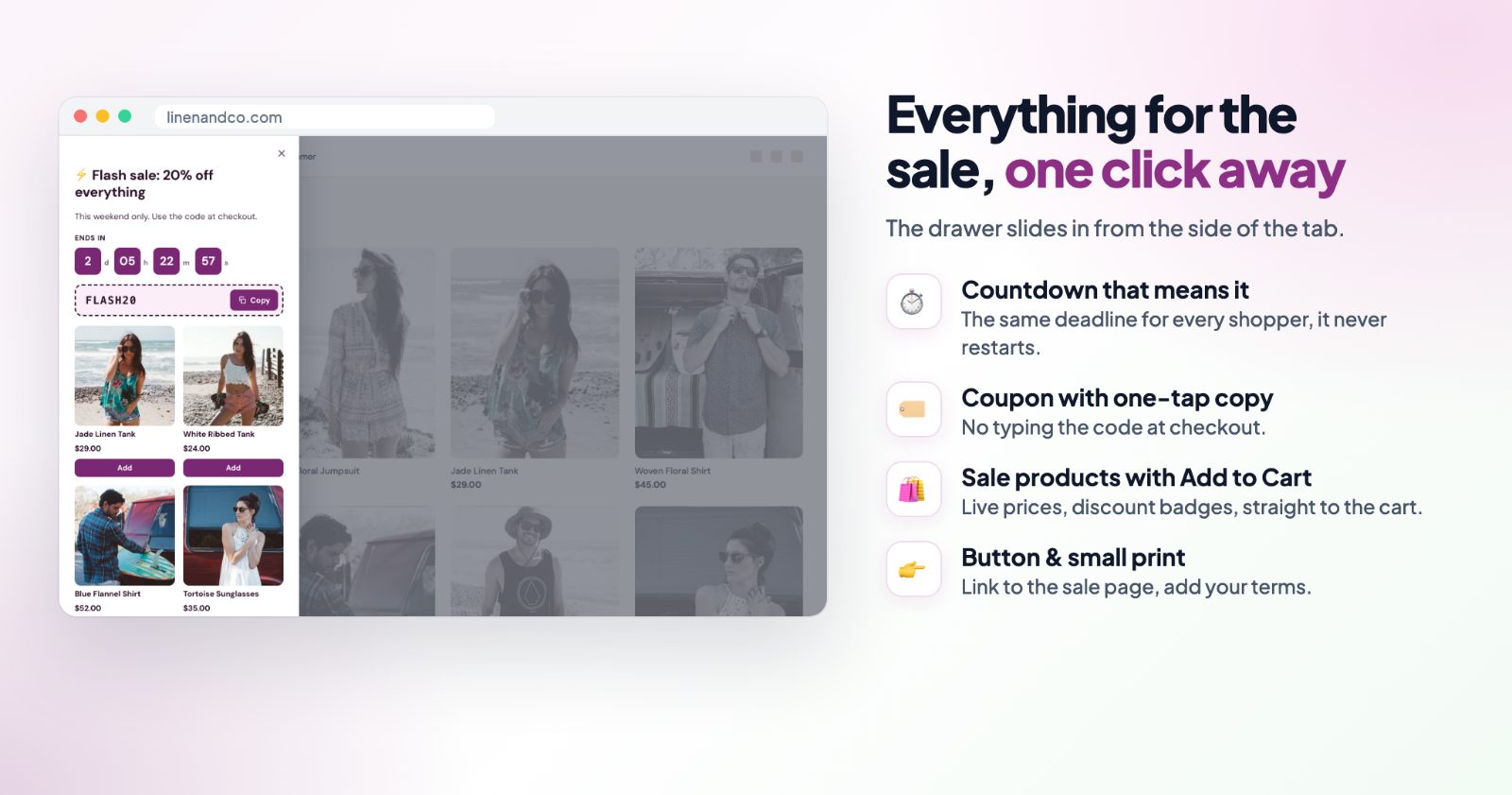
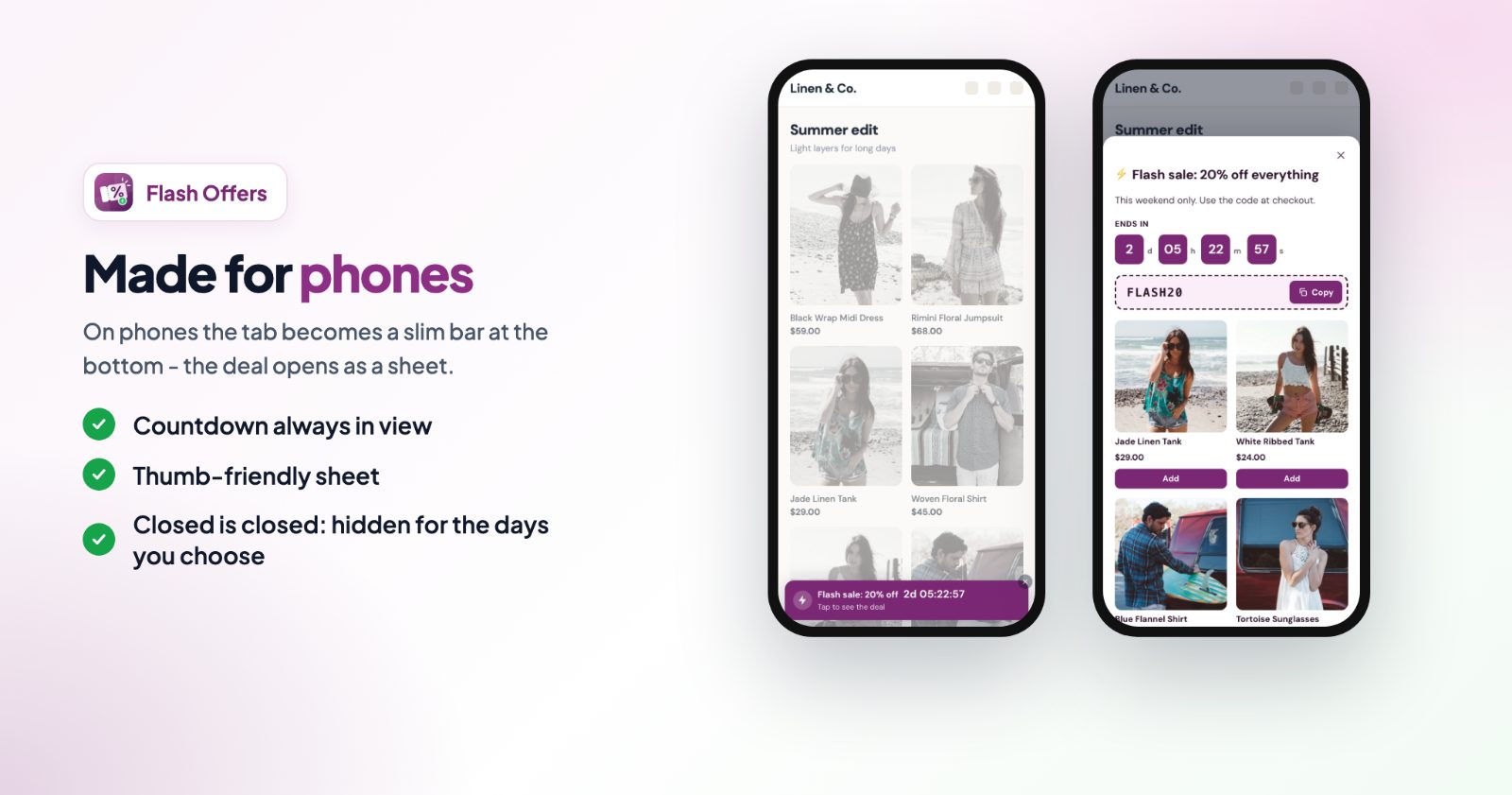
A flash offer has two parts. The teaser is a small tab that stays on the screen edge while shoppers scroll, with a live countdown. The drawer opens from the same side when the teaser is clicked, with your title, text, coupon, products, a button and small print. On phones the teaser is a slim bar at the bottom and the drawer opens as a sheet.
- A real deadline: the countdown runs to the end of your offer, so every shopper sees the same time left. It never restarts, and the offer disappears when the time is up.
- Coupon with a Copy button: nobody has to type the code at checkout.
- Sale products with Add to Cart: straight from the drawer.
1. Pick a template
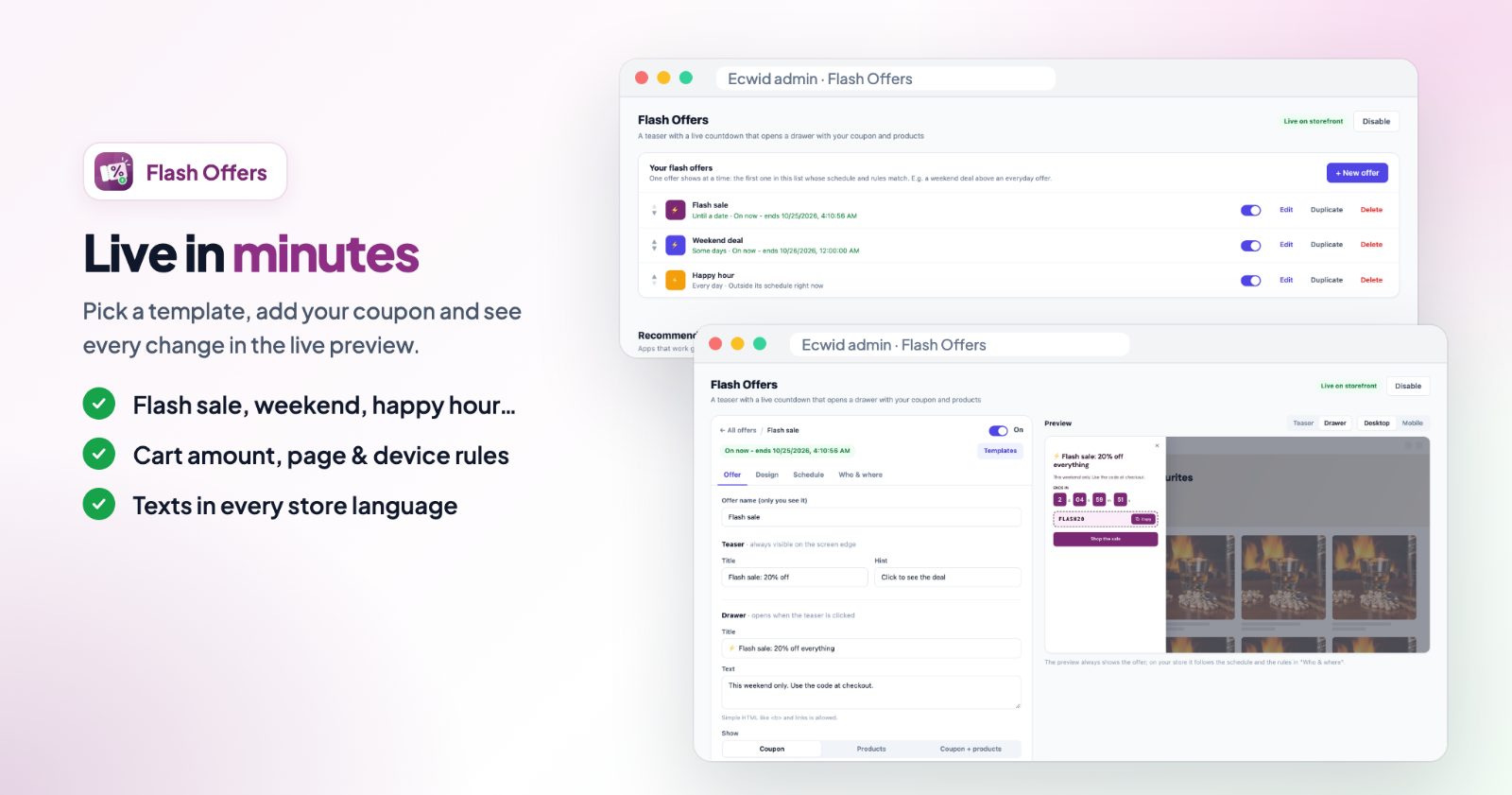
Open the app, click + New offer and start from a template - every part can be changed - or Start blank:
- Flash sale: red, counts down 3 days.
- Weekend deal: every Friday to Sunday.
- Happy hour: daily, 18:00 to 21:00.
- Gift picks: products, no countdown.
- Black Friday: black and yellow, 5 days.
Later, the Templates button changes the texts, colors and schedule of an offer. Your coupon, products and rules stay.
2. Write the teaser and the drawer
On the Offer tab:
- Teaser: a Title (for example "Flash sale: 20% off") and a Hint ("Click to see the deal").
- Drawer: a Title and Text, then under Show pick Coupon, Products, or Coupon + products.
- Coupon code: create the coupon in your store admin (Marketing, Discount coupons) and enter its code here.
- Products: pick them and keep Add to cart buttons on. Products with options get a View button to their page, where shoppers pick them.
- Button (optional) with a link to your sale page, and Small print (optional), for example "Not combinable with other discounts".
3. Set the schedule
On the Schedule tab, choose When is the offer on?
- Always on: no countdown.
- Until a date: counts down to your end date. A start date is optional.
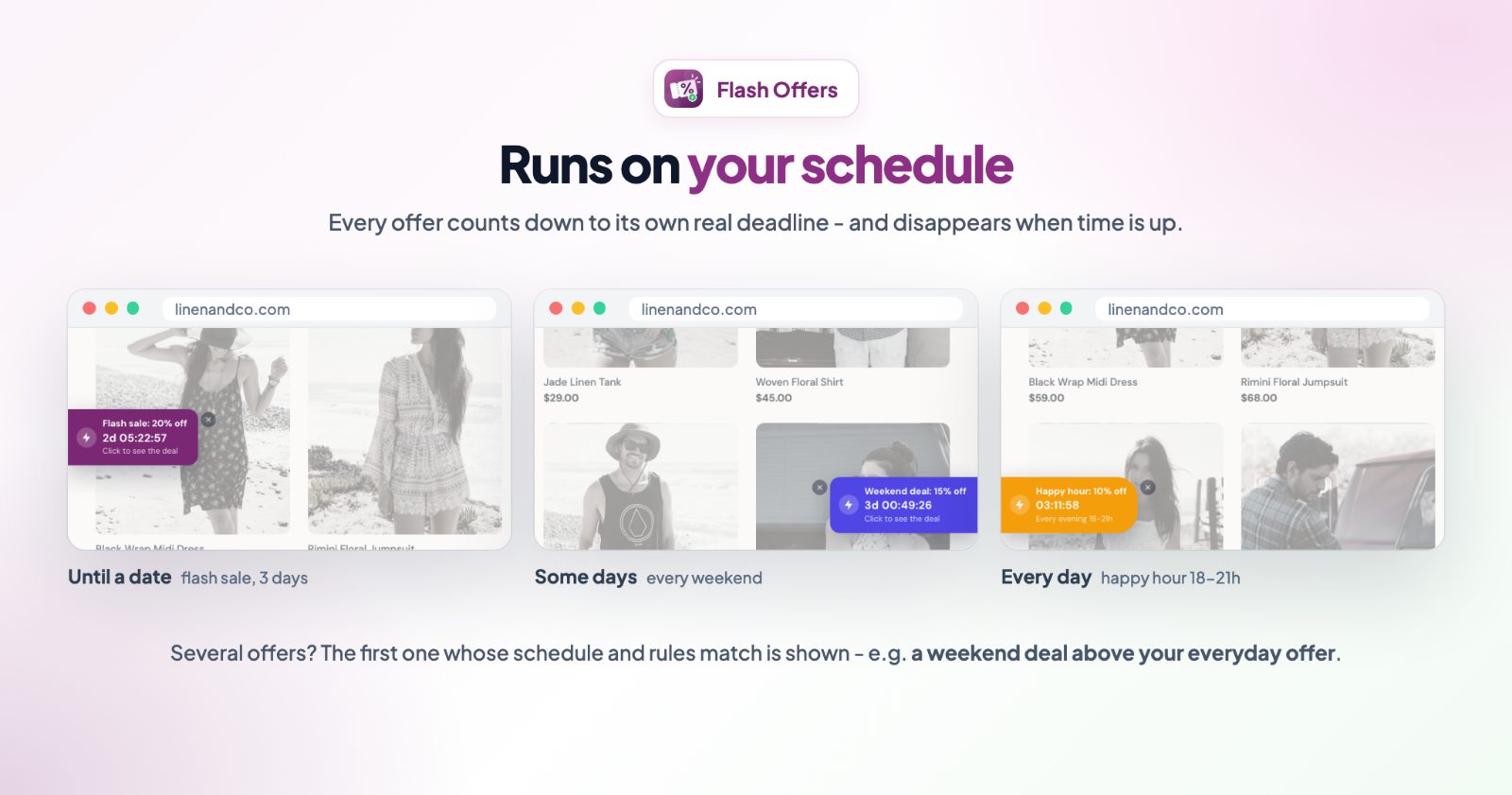
- Every day: a daily window, for example a happy hour from 18:00 to 21:00.
- Some days: the days you tick, for example every weekend, with an optional time window.
Times use one time zone, so the offer starts and ends at the same moment for every shopper, wherever they are. Turn on Countdown in the teaser to show the time left on the tab too (the drawer always shows it), and write your Countdown label.
4. Choose who and where
On the Who & where tab:
- Cart: Show when any cart, or the cart total is at least or at most an amount, and And while for an upper or lower limit. Turn on Include tax in the cart total if your amounts include tax.
- Device: all devices, desktop or phones.
- When a shopper closes the teaser, hide it for: until the next page, 1, 2, 3 or 7 days, or for good.
- Pages: home, category and product pages, search, cart, checkout steps and more.
5. Design, preview and switch it on
On the Design tab, pick the teaser's position (left or right, middle or bottom), its colors and corner radius, and the drawer's background, text, coupon box and button colors. The Preview shows the teaser and the drawer on desktop and phone. It always shows the offer; on your store it follows the schedule and the rules. If your store has more languages, write the texts on the Translations tab.
In the list, each offer shows its status, such as "On now - ends..." or "Outside its schedule right now". One offer shows at a time: the first one in the list whose schedule and rules match. Put a weekend deal above an everyday offer and it takes over on weekends.
And on a phone:
Common setups
A 3-day flash sale
Use Flash sale, set Until a date to the real end of your sale and enter your coupon. The tab disappears by itself when the sale ends.
A deal every weekend
Use Weekend deal: Some days, Friday to Sunday. Put it above your other offers so it shows first on those days.
An evening happy hour
Use Happy hour: Every day, 18:00 to 21:00. A window like 22:00 to 02:00 also works and runs past midnight.
Black Friday to Cyber Monday
Use Black Friday, set the start and end dates, show Coupon + products and add your best deals. For the rest of the store, see the Black Friday setup guide.
A gift guide without a sale
Use Gift picks: products only, no countdown. Shoppers open the drawer and add gifts straight to the cart.
A bonus for bigger carts
Set Show when to Cart total at least $50 and offer a coupon for shoppers who are already buying.
Need a popup, a bar or an email signup instead of a tab? See Slide-in Offers.
Questions
Does the countdown reset for every visitor?
No. It runs to the end of your offer, so everyone sees the same time left - no fake timers.
How do I add a discount?
Create the coupon under Marketing, Discount coupons in your store admin, then enter its code in the offer. Shoppers see it in the drawer with a Copy button.
Can I run several offers?
Yes. Add several offers with their own schedules; the first one that is on and in its schedule is shown.
Can I show it only on phones or only on desktop?
Yes. Pick the Device on the Who & where tab.