Quick pick: which one for which store
Each app is a custom payment gateway: it adds one payment method to the payment step of your checkout, next to the ones you already have. You can use several at once. Start from your store's country and currency:
- Your shoppers have Amazon accounts (US, EU, UK or Japan Amazon Pay accounts): Amazon Pay.
- Buy now, pay later in Australia, Canada, New Zealand or the United States: Zip.
- Pay in 2, 3 or 4 installments in a euro store: Alma.
- Cards plus many local methods in Europe: Viva Wallet.
- Monthly installments on the shopper's own credit card: Splitit.
- Simple card payments (CB, Visa, Mastercard) in euros: PayPlug.
- Shoppers in Africa, Asia or Latin America: dLocal.
Amazon Pay: checkout with an Amazon account
Amazon Pay lets Amazon customers check out on your store with the shipping address and payment method saved in their Amazon account.
- What shoppers see: an Amazon Pay button in the cart and, if you turn it on, on product pages under the add to bag button. They sign in with Amazon, and the checkout is filled in from their account. Change address and Change payment links let them pick another one from Amazon.
- Where it works: you choose your Amazon Pay region in the app: US, EU, UK or JP. It doesn't work for stores shown inside a Wix site (the store is in an iframe there).
- What you need: an Amazon Pay merchant account, and from its Integration Central your Merchant ID, Store ID, Public Key ID and the private key (.pem file).
Setup guide: Amazon Pay integration step by step.

Zip Payments: buy now, pay later
Zip (formerly Quadpay) lets shoppers buy now and pay later in four installments.
- What shoppers see: a Zip message under the price on product pages and under the cart total, an optional Zip strip on every page, and Zip at the payment step. They finish the payment with Zip and come back with a paid order.
- Where it works: merchants based in Australia, Canada, New Zealand and the United States. In the US and Canada, Zip shows at checkout for orders of $35 or more.
- Good to know: you can capture the payment right away or only when you mark the order as shipped, and refunds and cancellations from your orders go to Zip by themselves.
Setup guide: Zip Payments: how to set up buy now, pay later.

Alma: 2, 3 or 4 installments in euros
Alma Payment Gateway offers payment in installments, so shoppers can spread an order over 2, 3 or 4 payments.
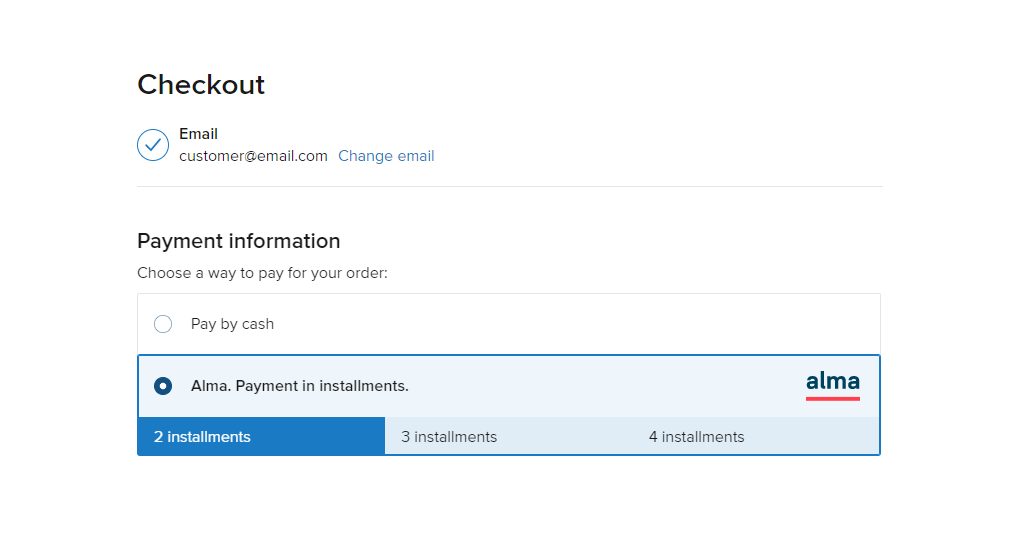
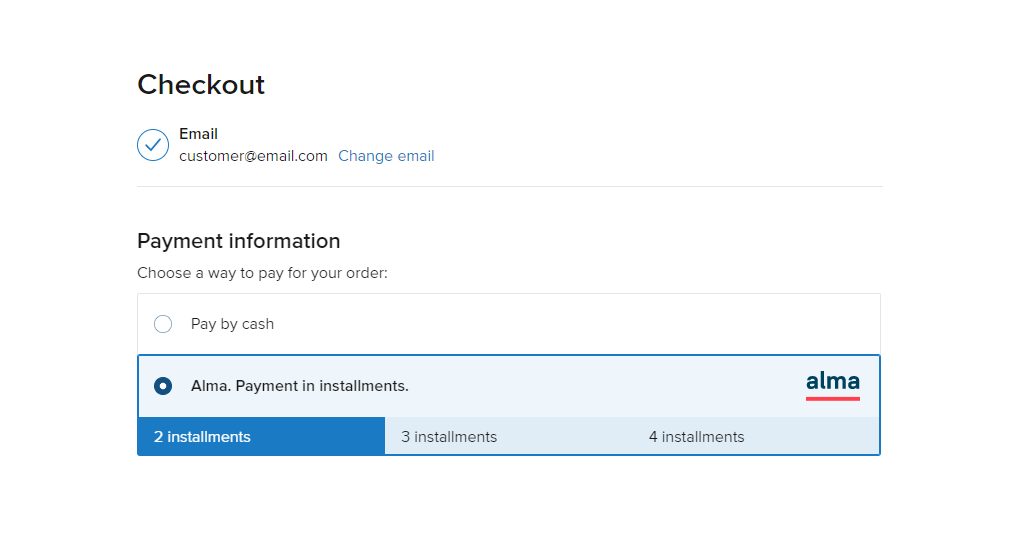
- What shoppers see: Alma at the payment step with buttons for the plans you offer (2, 3 or 4 installments), and an optional Alma widget under the product price that shows the payments. They pay on Alma's page and come back to a paid order.
- Where it works: stores whose currency is EUR. Alma shows at checkout for orders from 50 EUR up to the maximum you set (2000 by default).
- What you need: an Alma account, your Merchant ID and the live (and test) API key from the Alma dashboard.
Setup guide: Alma: payment in 2, 3 or 4 installments.
Viva Wallet: cards and local methods with Smart Checkout
Viva Wallet is a European cloud-based neobank, present in 24 countries in Europe. The app connects its Smart Checkout to your store.
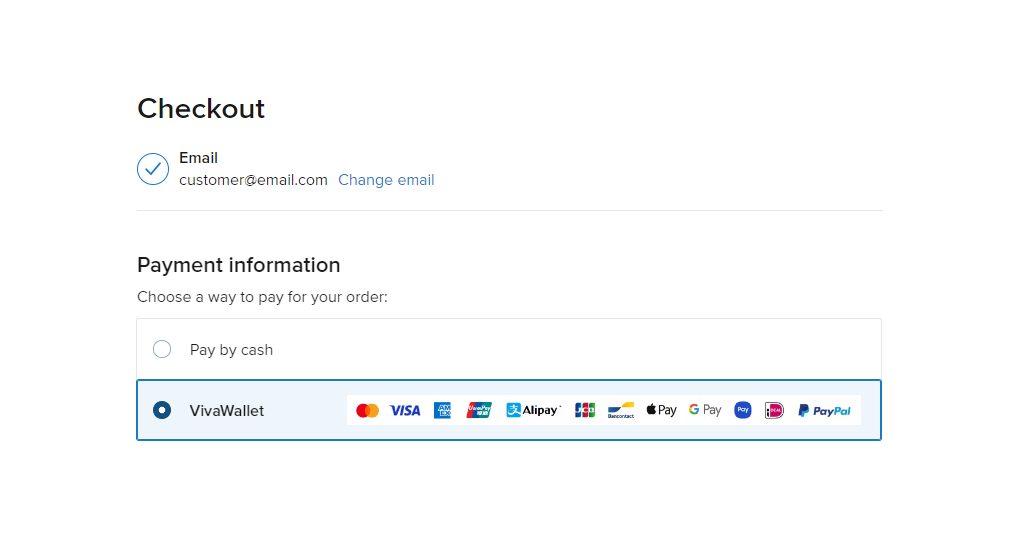
- What shoppers see: Viva Wallet at the payment step (the picture at the top). They go to Viva Wallet's Smart Checkout page and pay by card or another method your Viva Wallet account offers, such as Apple Pay, Google Pay, PayPal, iDEAL, BLIK, Klarna or SEPA Direct Debit. You can set your brand color for the page and the payment method that is chosen first.
- Where it works: your store's currency must match your Viva Wallet account's currency.
- What you need: the Smart Checkout Client ID and Client Secret, the Source code of a payment source for your website, and (recommended) your Merchant ID and API Key for the webhook.
Setup guide: How to set up Viva Wallet Smart Checkout.
Splitit: installments on the shopper's own credit card
Splitit lets shoppers split the cost of an order into monthly payments on the credit card they already have, without any extra registration or application.
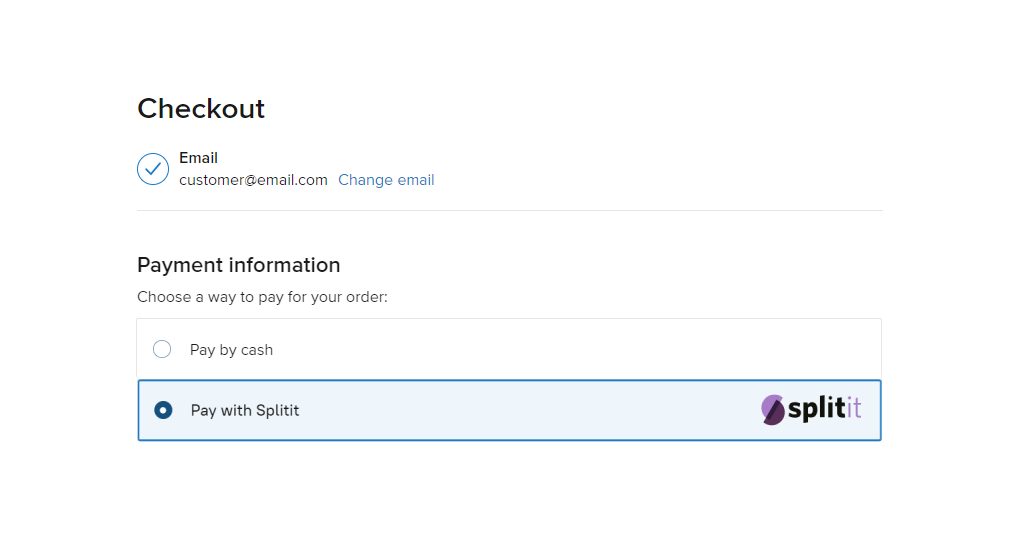
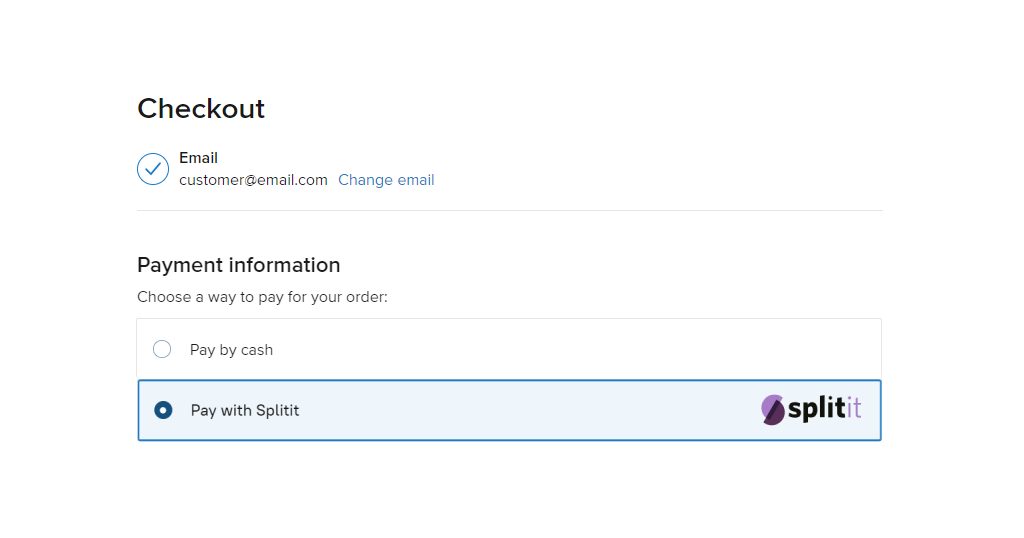
- What shoppers see: your Splitit payment method (Pay with Splitit by default) with the Splitit logo. They enter their card on Splitit's page, and the order comes back paid with the Splitit plan number on it.
- What you need: a Splitit merchant account with its Client Id, Client secret and Terminal API Key.
Setup guide: Splitit: installments on the shopper's own credit card.
PayPlug: card payments in euros
PayPlug is a payment solution for online card payments from CB, Visa and Mastercard cards.
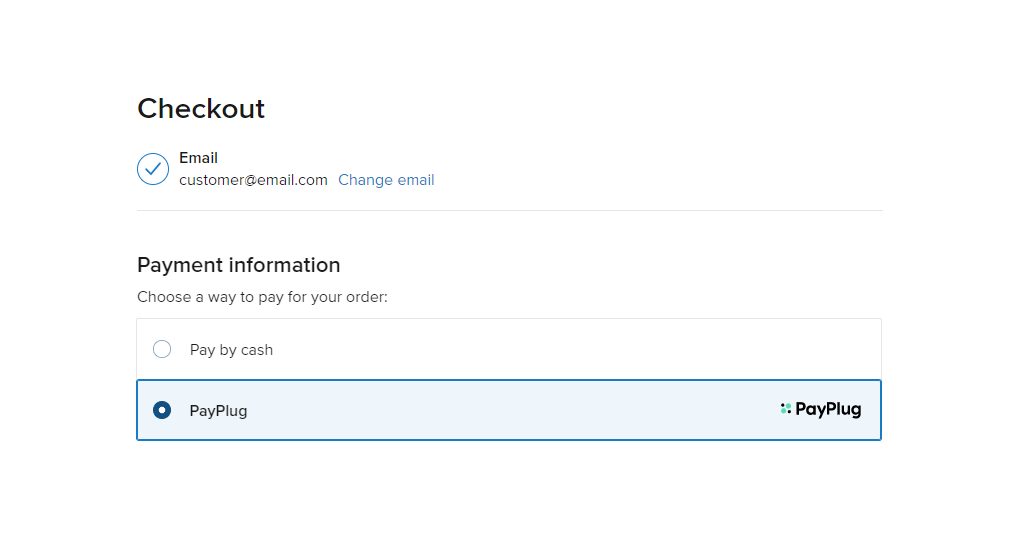
- What shoppers see: PayPlug at the payment step with the PayPlug logo. They pay on PayPlug's payment page and come back to your store.
- Where it works: PayPlug supports only EUR for now, so your store's default currency must be EUR. The cart total must be between 1 and 20000.
- What you need: a PayPlug account and its private (secret) key. A test key (sk_test_) takes test payments, a live key (sk_live_) real ones.
Setup guide: PayPlug payments setup.
dLocal: payments from emerging markets
dLocal Payments lets you receive payments from customers in Africa, Asia and Latin America, with the local payment methods shoppers there use.
- What shoppers see: dLocal at the payment step. dLocal needs the shopper's document ID, so you add a required Document ID field to your checkout (the app lists the steps). Then they pay on dLocal's page.
- What you need: a dLocal merchant account and its X_Login, X_trans_key and Secret key. The app has a Sandbox Mode for tests.
Setup guide: dLocal payments setup.
What they all have in common
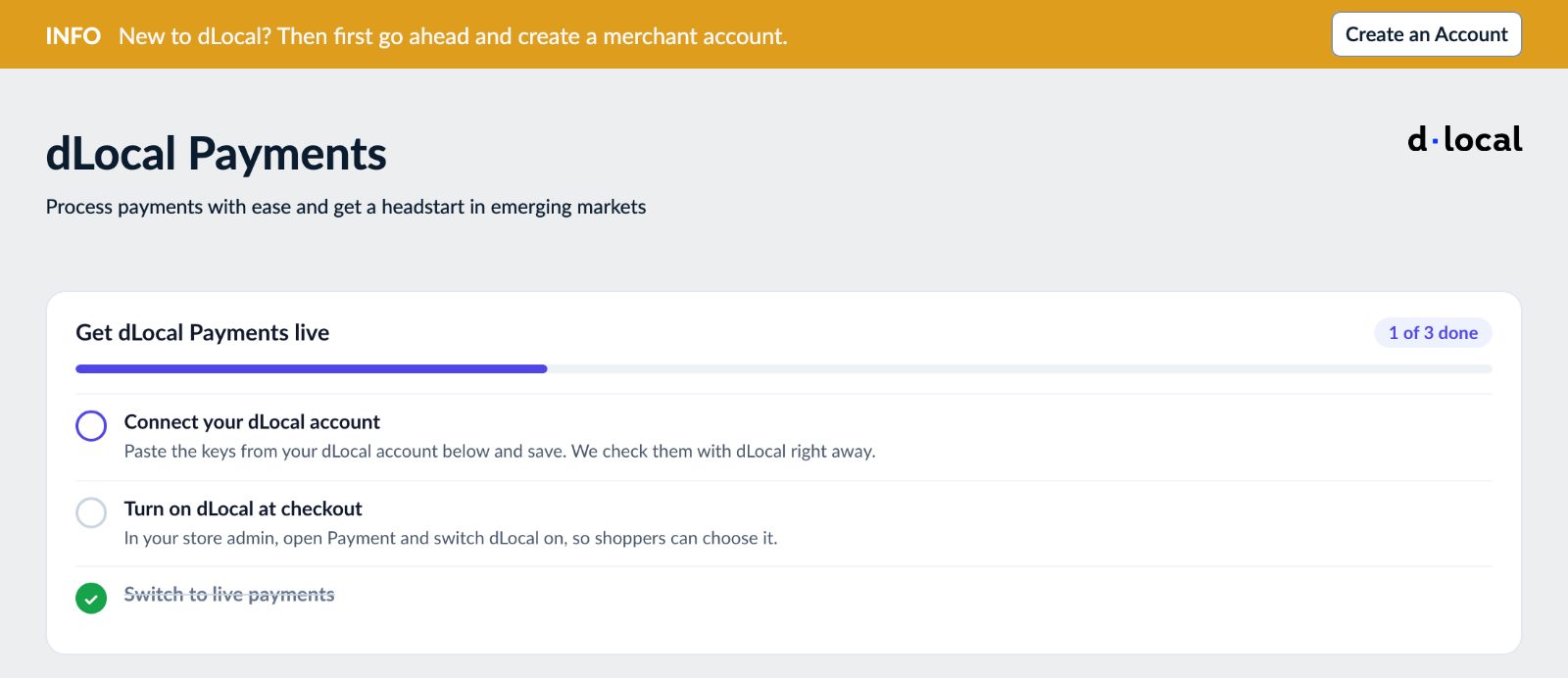
- Get live steps: each app shows three steps at the top that tick themselves off: connect your account, turn the method on at checkout, switch to live payments.
- A key check on save: Amazon Pay, Zip, Alma, Viva Wallet, Splitit and PayPlug try your keys with the provider when you click Save and tell you if a key is wrong, or a test key is saved for live payments.
- Test first: use a sandbox or test mode (or test keys) and place a test order before real shoppers pay.
- Your own name at checkout: every app has a Payment method name at checkout field, so you can write it in your store's language.
- Turn it on in your store: after saving the keys, switch the method on in your store admin's Payment settings. The app's Open payment settings button takes you there.
Show the methods you accept before checkout, too: Trust Badges & Payment Icons adds payment logos to your product pages and cart, see the Trust Badges guide.
Questions
Can I use more than one payment app?
Yes. Each app adds its own payment method, and shoppers choose at the payment step. A common mix is one card payment app plus one installment option, for example PayPlug or Viva Wallet with Alma in a euro store.
Which apps offer installments?
Zip (buy now, pay later in four installments), Alma (2, 3 or 4 installments, EUR) and Splitit (monthly payments on the shopper's credit card).
Which ones work only in euros?
Alma and PayPlug. For Viva Wallet, your store's currency must match your Viva Wallet account's currency.
What does each payment cost?
The provider sets its own fees, and the app's price is on its page. Check the provider's website for your country before you sign up.
I installed the app, but shoppers don't see the method. Why?
Most often the method isn't switched on in your store's Payment settings yet, or the store's currency or the order total is outside what the provider allows (for example Alma under 50 EUR, Zip under $35 in the US). The Get live steps in the app show what is still missing.