How it works in short
PayPlug is a French payment provider for card payments. The app adds PayPlug to your checkout as a payment method. A shopper who chooses it goes to PayPlug's payment page, enters their card and pays. When PayPlug confirms the payment, the shopper comes back to your store and the order is marked as paid.
- Cards: Visa, Mastercard and CB.
- Euros only: PayPlug takes payments in EUR, so your store's default currency must be EUR.
- Order value: from 1 to 20,000 per order.
1. Create a PayPlug merchant account
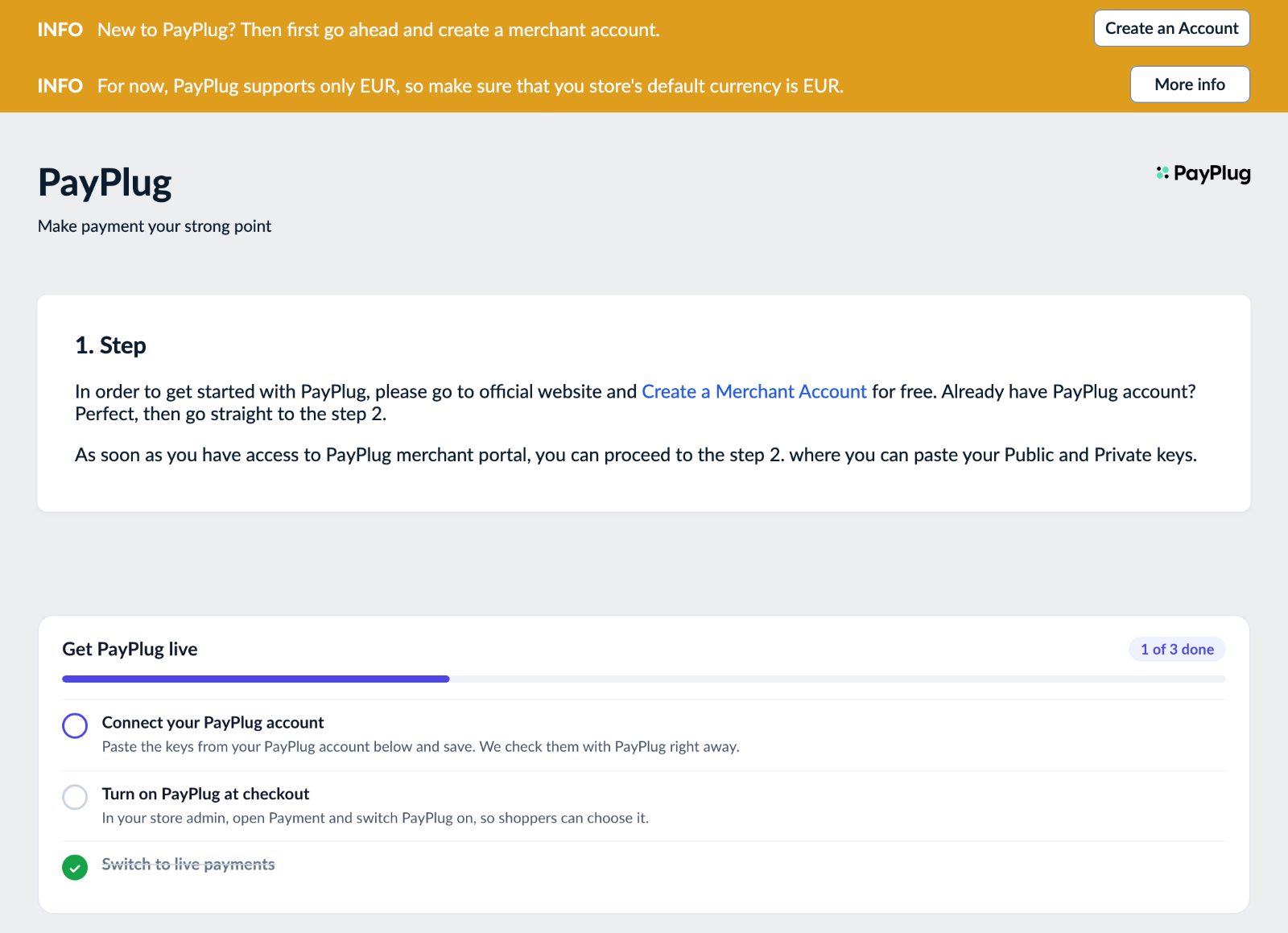
If you are new to PayPlug, first create a PayPlug merchant account. Already have one? Go straight to step 2.
Then add the PayPlug app to your store and open it. The Get PayPlug live steps tick themselves off as you go: connect your PayPlug account, turn on PayPlug at checkout, switch to live payments.
2. Check your store currency
The app shows it at the top: "For now, PayPlug supports only EUR, so make sure that your store's default currency is EUR." Check it in your store's general settings before you go on. Payments are always sent to PayPlug in euros.
3. Copy your keys from the PayPlug portal
Log in to the PayPlug portal and open Developers - API keys. Copy your private (secret) key: it starts with sk_test_ for test payments or sk_live_ for real ones. You can copy the public key too.
4. Paste them into the app and save
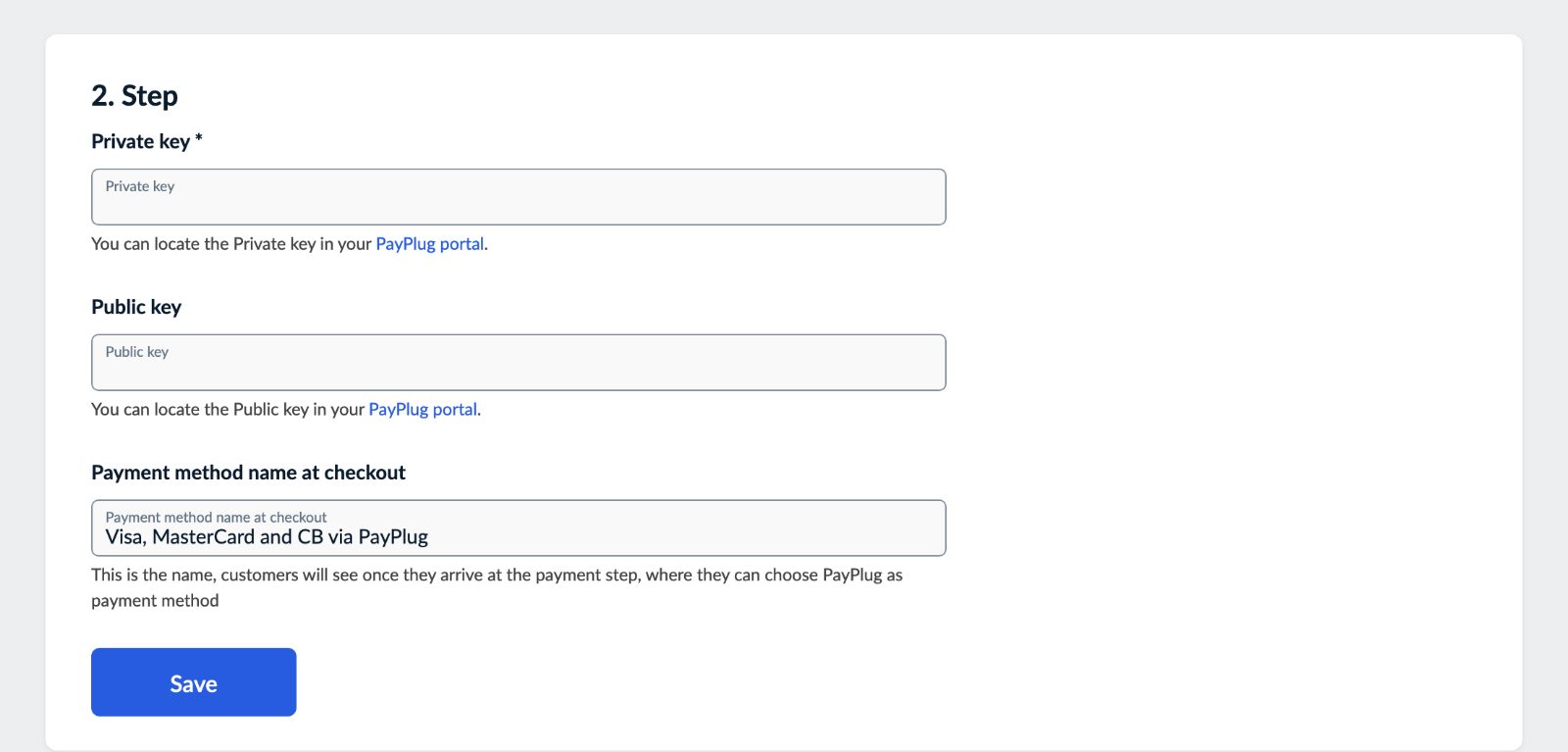
In the app, fill in:
- Private key: required. This is the key that takes the payments.
- Public key
- Payment method name at checkout: the name shoppers see at the payment step. It is "Visa, MasterCard and CB via PayPlug" until you change it.
Click Save. The app saves your settings and checks your private key with PayPlug right away. The result shows under the form:
- "Saved. PayPlug accepted your key." Your live key works.
- "Saved. PayPlug accepted your test key - payments are not real." You are in test mode (see step 6).
- "Saved, but PayPlug refused your private key." Copy it again from the PayPlug portal.
- A note that the key doesn't look like a PayPlug private key: you probably pasted the public key. The private key starts with sk_live_ or sk_test_.
5. Turn on PayPlug at checkout
In your store admin, open the Payment settings and switch PayPlug on, so shoppers can choose it. The Open payment settings button in the app's steps takes you there.

6. Make a test order, then go live
There is no separate sandbox switch: the key decides. Save your sk_test_ key, place an order, choose PayPlug and pay on the PayPlug page. Check that the order shows up as paid in your store. Then paste your sk_live_ key into Private key and save again. The Switch to live payments step is ticked, and real payments can come in.
Common setups
A store in France
Keep the default name "Visa, MasterCard and CB via PayPlug", so shoppers see that their CB card works.
A shorter name at checkout
Change Payment method name at checkout to something like "Card payment" or "Pay by card (PayPlug)".
Shoppers from outside the euro zone
Your prices and payments stay in euros. To show shoppers an estimate in their own currency while they browse, add the Ultimate Currency Converter, with its note at checkout that they pay in euros (see the Currency Converter guide).
Comparing payment providers
See our payment gateways compared for the other providers our apps add to your checkout.
Questions
What happens if the shopper doesn't finish the payment?
If the shopper cancels on the PayPlug page, they go back to your store. If the payment isn't completed, they are sent back to checkout with "The payment with PayPlug was not completed, please try again." The order isn't marked as paid.
Can I use PayPlug with a store currency other than EUR?
No. PayPlug takes only euros, so your store's default currency must be EUR.
What is the minimum and maximum order value?
The cart total must be at least 1 and at most 20,000.
How do I refund a PayPlug order?
Refund the payment in your PayPlug portal. Changing the order's payment status in your store doesn't refund it at PayPlug.