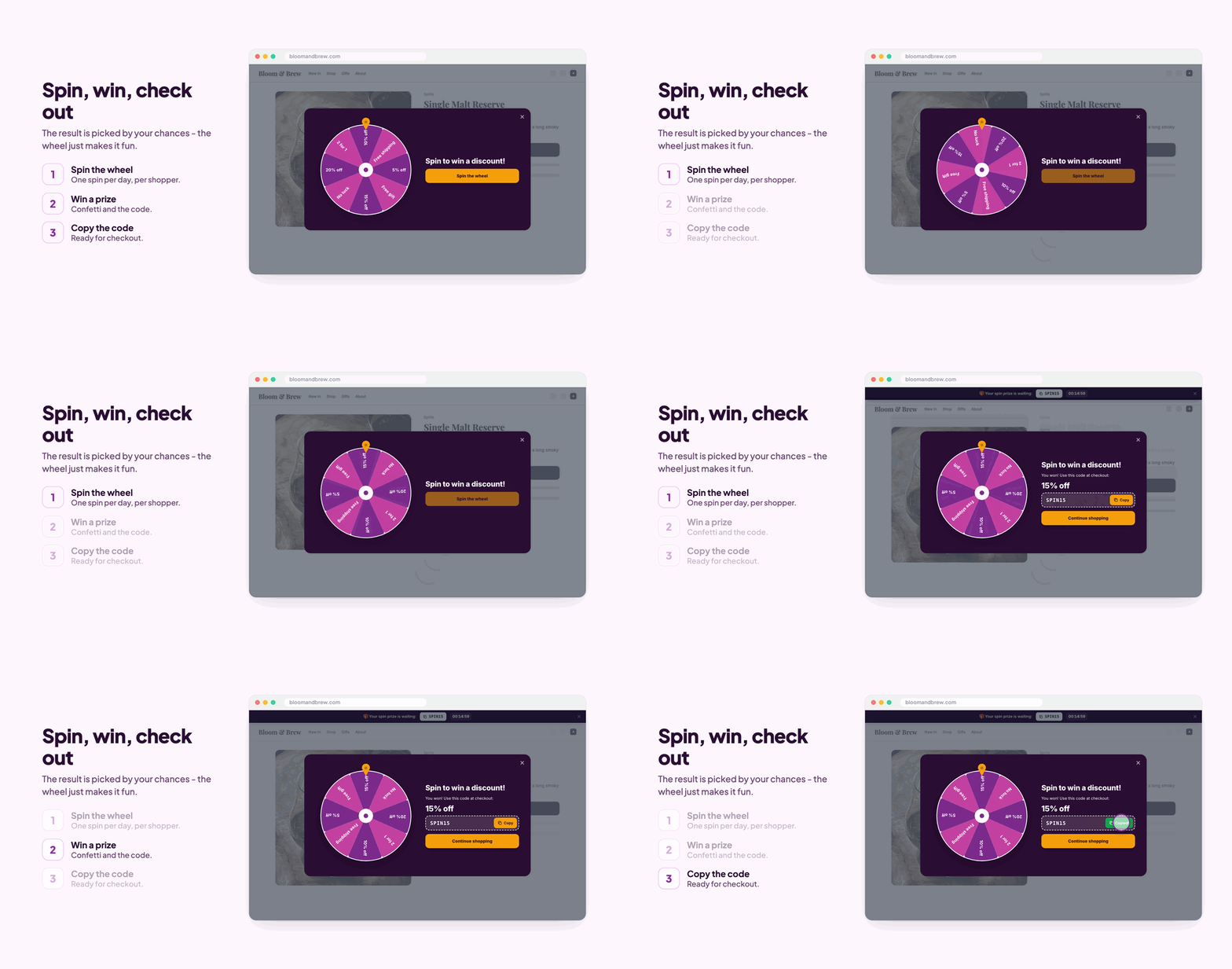
How it works in short
A wheel opens in your store. The shopper leaves an email (if you ask for one), spins, and wins one of the prizes on the wheel. Every prize is a discount coupon from your store, so the code works at checkout like any other coupon. After a win, the code stays on screen in a small bar on every page, with a countdown, so the shopper uses it today instead of forgetting it.
- You set the odds: each slice has its own chance, and you can add slices that win nothing.
- You choose the moment: after the page loads, after scrolling, or when the shopper is about to leave. Never during checkout.
- You grow your list: the emails go to your store's customers with marketing consent.
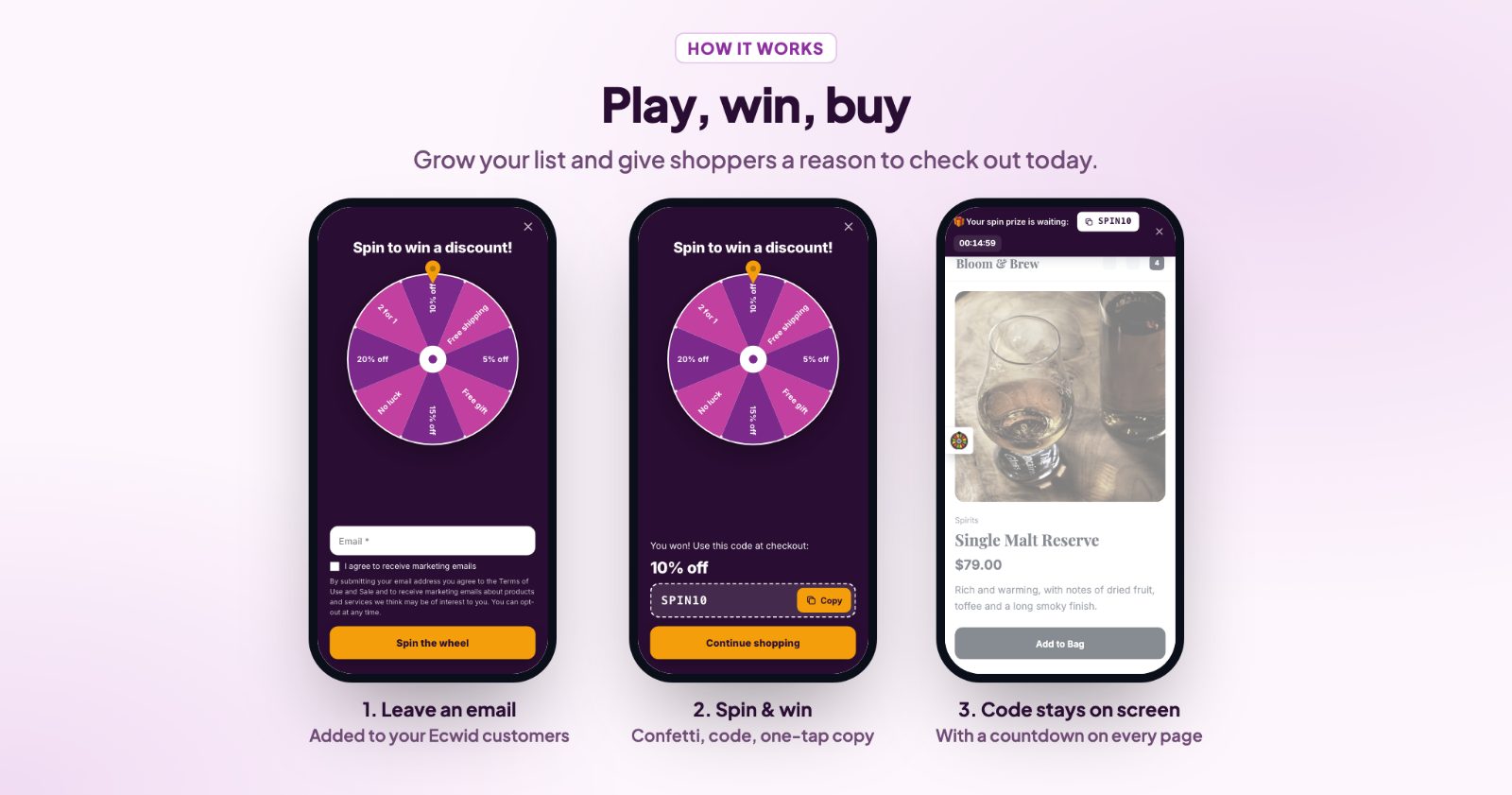
1. Create the coupon codes first
The wheel hands out codes you already have. In your store admin, open Marketing → Discount coupons and create one coupon per prize, for example SPIN10 for 10% off, SPIN15 for 15% off and SPINSHIP for free shipping. Give them an end date: for a holiday wheel, a few days after the sale ends.
2. Add the prizes and set the chances (Prizes)
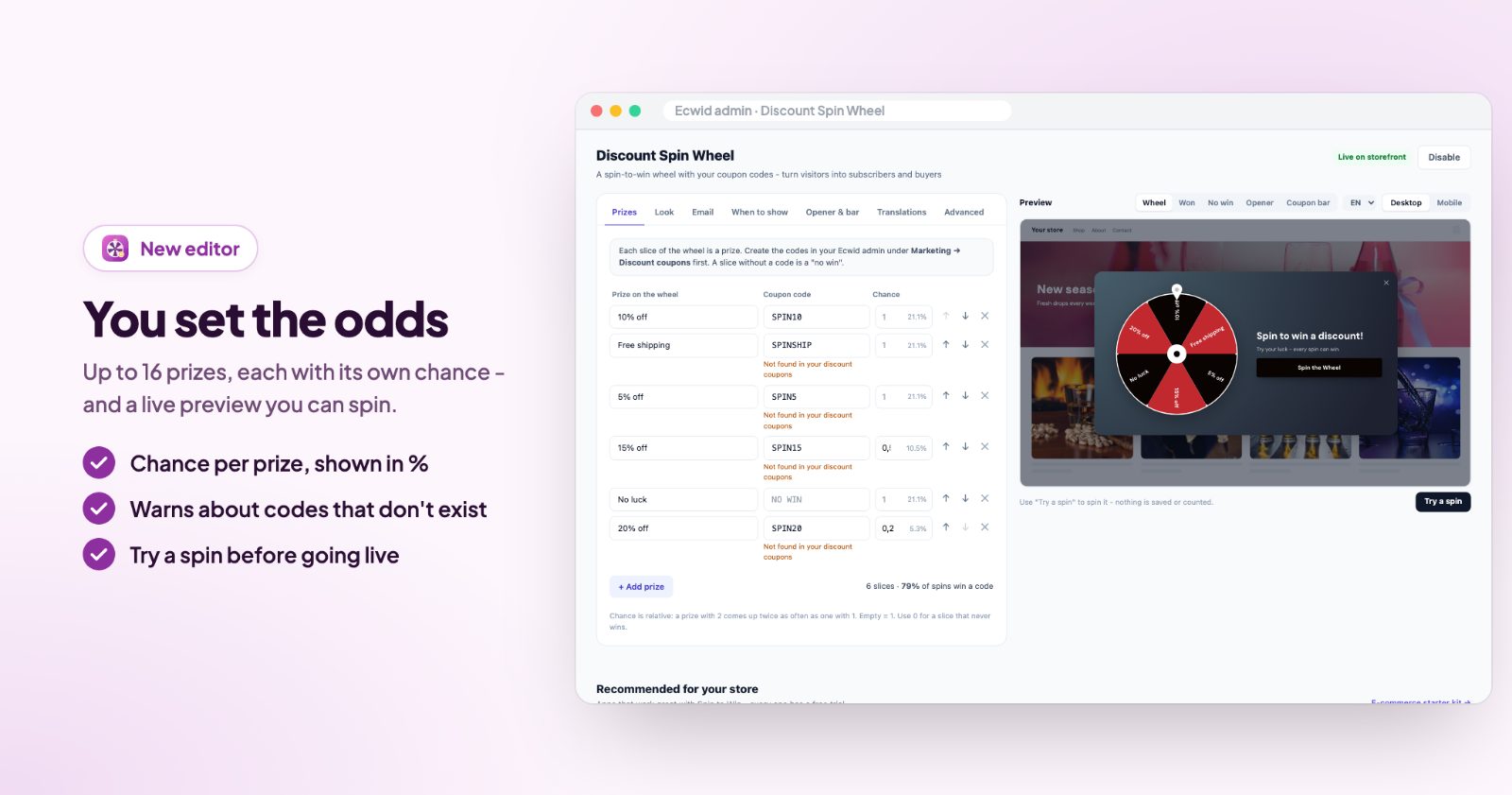
Open the app. On the Prizes tab, each row is one slice of the wheel: the Prize text shoppers see on the slice, its Coupon code, and its Chance. You can have up to 16 prizes; + Add prize adds one, the arrows change the order.
- Chance is relative: a prize with 2 comes up twice as often as one with 1. The app shows each prize's share in percent and how many spins win a code.
- A slice without a code is a "no win" (for example "No luck"). Use 0 for a slice that should never win, like a big prize that is only there to look good.
- If a code isn't in your discount coupons, the row says Not found in your discount coupons, so a typo never reaches a shopper.
3. Pick the look (Look)
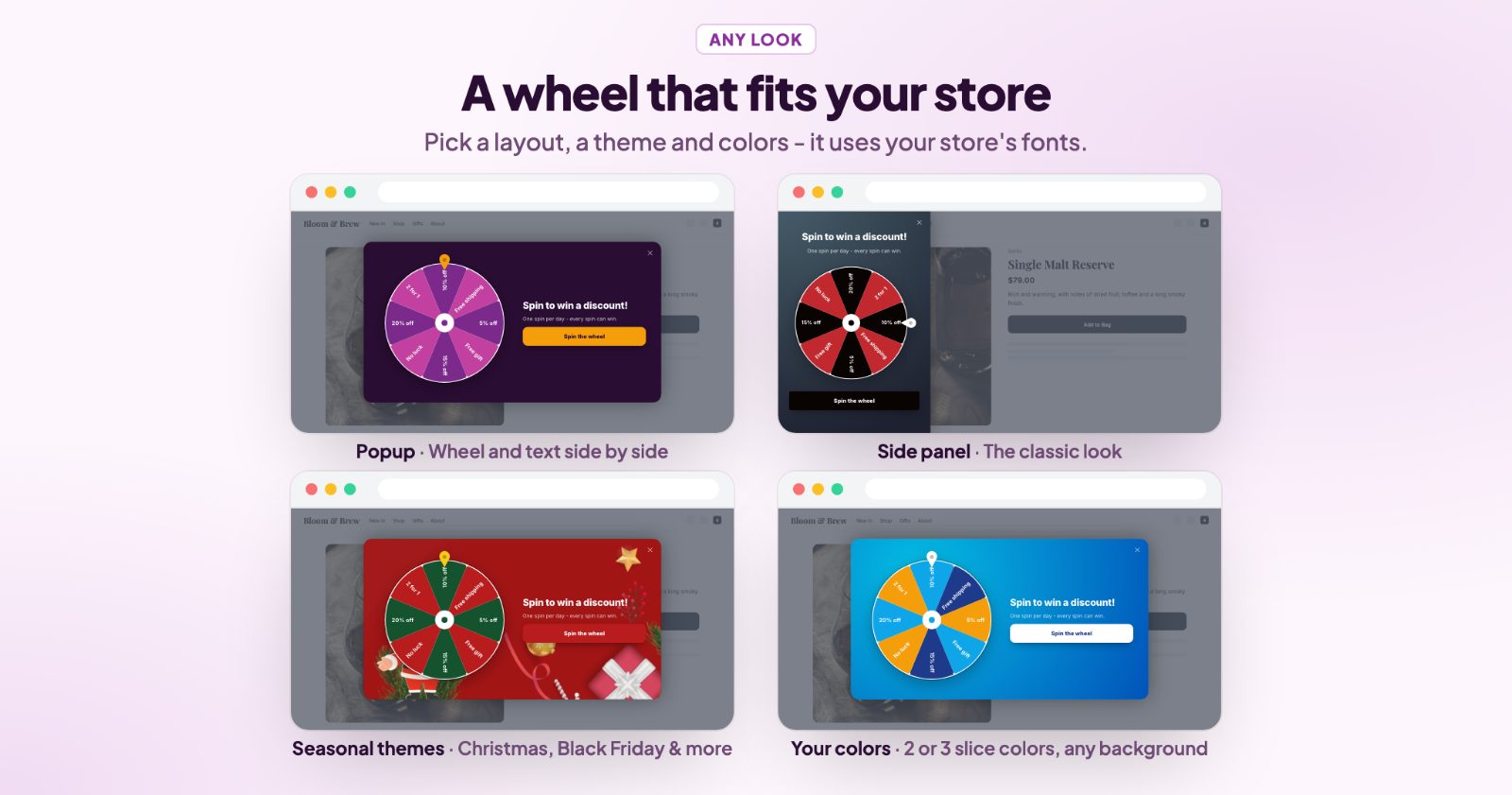
On Look, choose the layout: Popup (wheel and text side by side, centered) or Side panel (slides in from the side, the classic look). Then a theme: color themes like Classic, Dark, Gold or Ocean, seasonal ones for Black Friday, Cyber Monday, Christmas, New Year, Halloween and Valentine's Day, or Your colors with 2 or 3 slice colors and your own background. The wheel uses your store's fonts.
4. Collect emails (Email)
Turn on Ask for an email before spinning, and if you like Ask for their name too. Shoppers are added to your store's customers with marketing consent, so you can email them about your sale later. Add them to the customer group puts them in a group of your choice, and a Consent checkbox can be required before they spin.
5. Choose when it opens (When to show)
- After the page loads (with a wait in seconds), After scrolling down, or When they are about to leave (computers: the mouse heads for the tabs or the address bar).
- Each shopper can spin: only once, once a day, once a week, once a month or every visit.
- On every page, or only on the pages you pick (home page, products, categories, cart, search...). Never during checkout.
- Computers and Phones & tablets can be switched separately, and Only for one customer group limits the wheel to, for example, your VIPs.
6. The opener tab and the coupon bar (Opener & bar)
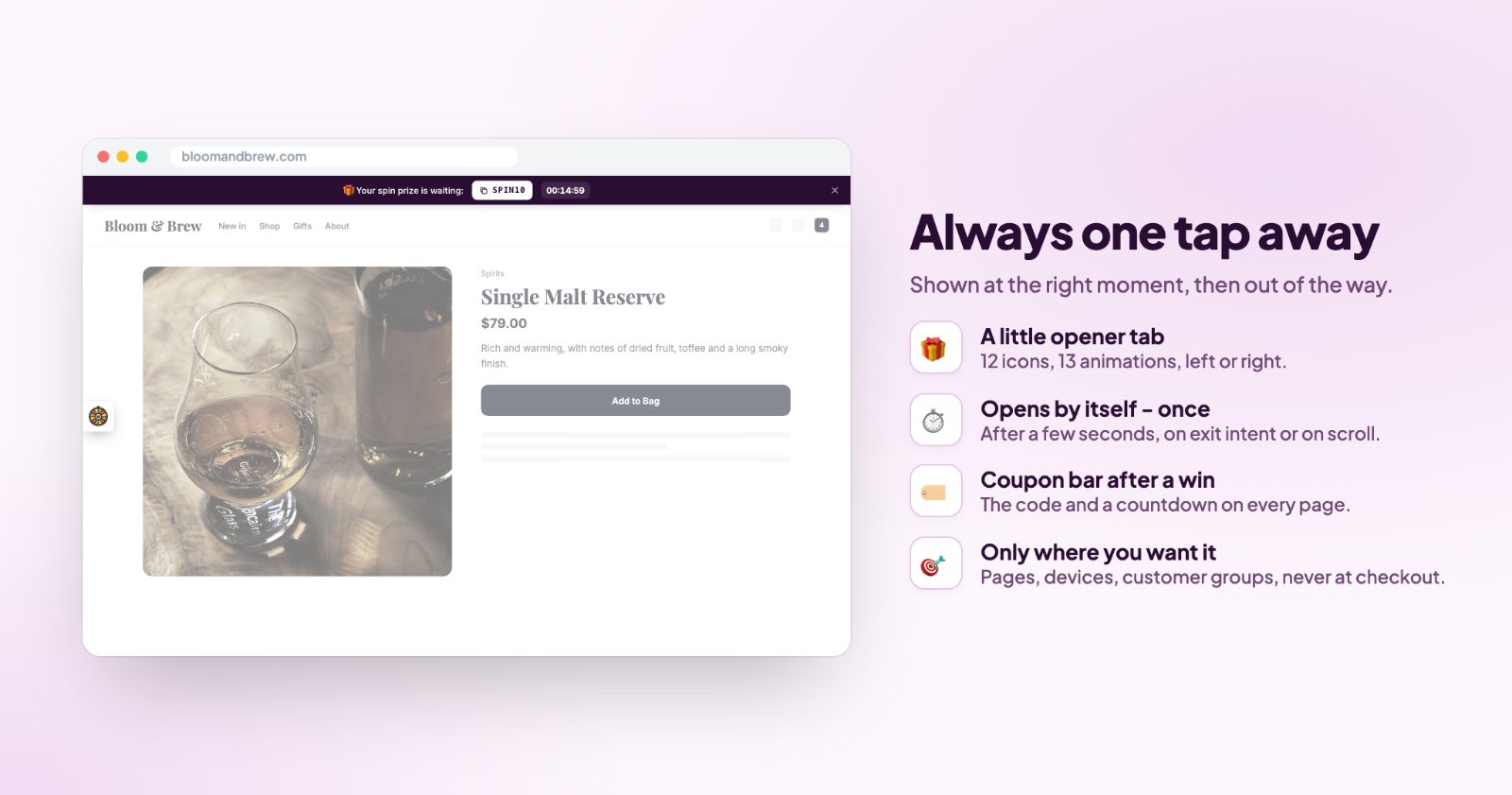
The opener is a small tab at the side of the page that opens the wheel, on every page until the shopper has spun. Pick its icon, animation and position, and turn on Hide the opener once they've spun. The Coupon bar after a win keeps the code at the top or bottom of every page, one tap to copy, with a Countdown of the length you set; the bar ends when the time is up.
7. Texts, tracking and going live
Translations has every text of the wheel (title, button, win and no-win messages, the bar) per store language. Under Advanced, Send events to Google Analytics reports opens, spins, wins and purchases with a won coupon, and Only after the shopper accepted tracking respects your store's cookie banner.
The Preview on the right shows the wheel, the win, the no-win message, the opener and the coupon bar, on desktop or mobile. Try a spin spins it for real; nothing is saved or counted. When you are happy, enable the wheel: the app says Live on storefront.
Common setups
A holiday email list before Black Friday
Black Friday theme, Ask for an email before spinning on, prizes 5%, 10% and free shipping, opens after 10 seconds, Only once per shopper. Email the list on the day your sale starts.
Save shoppers who are leaving
When they are about to leave, on product and cart pages only, with a coupon bar countdown of 15 minutes so the prize is used now.
A quiet wheel that never interrupts
No automatic opening: only the opener tab on the side, which shoppers click when they want to play. Hide it once they have spun.
A VIP wheel
Only for one customer group with your VIP group, bigger prizes, Once a month.
Questions
How do I add prizes?
Create the codes under Marketing → Discount coupons in your store admin first, then enter one code per slice.
How do I set the chances?
Each slice has its own chance. A slice without a code is a "no win".
How often can a shopper spin?
You choose under "Each shopper can spin", for example once, or once a day.
Does it show at checkout?
No. The wheel never opens during checkout.