How it works in short
The holiday season has two dates every store owner has to share: the last day to order for delivery before Christmas, and the days you are closed. Shoppers who don't see them order late, then email you when the parcel doesn't arrive on time.
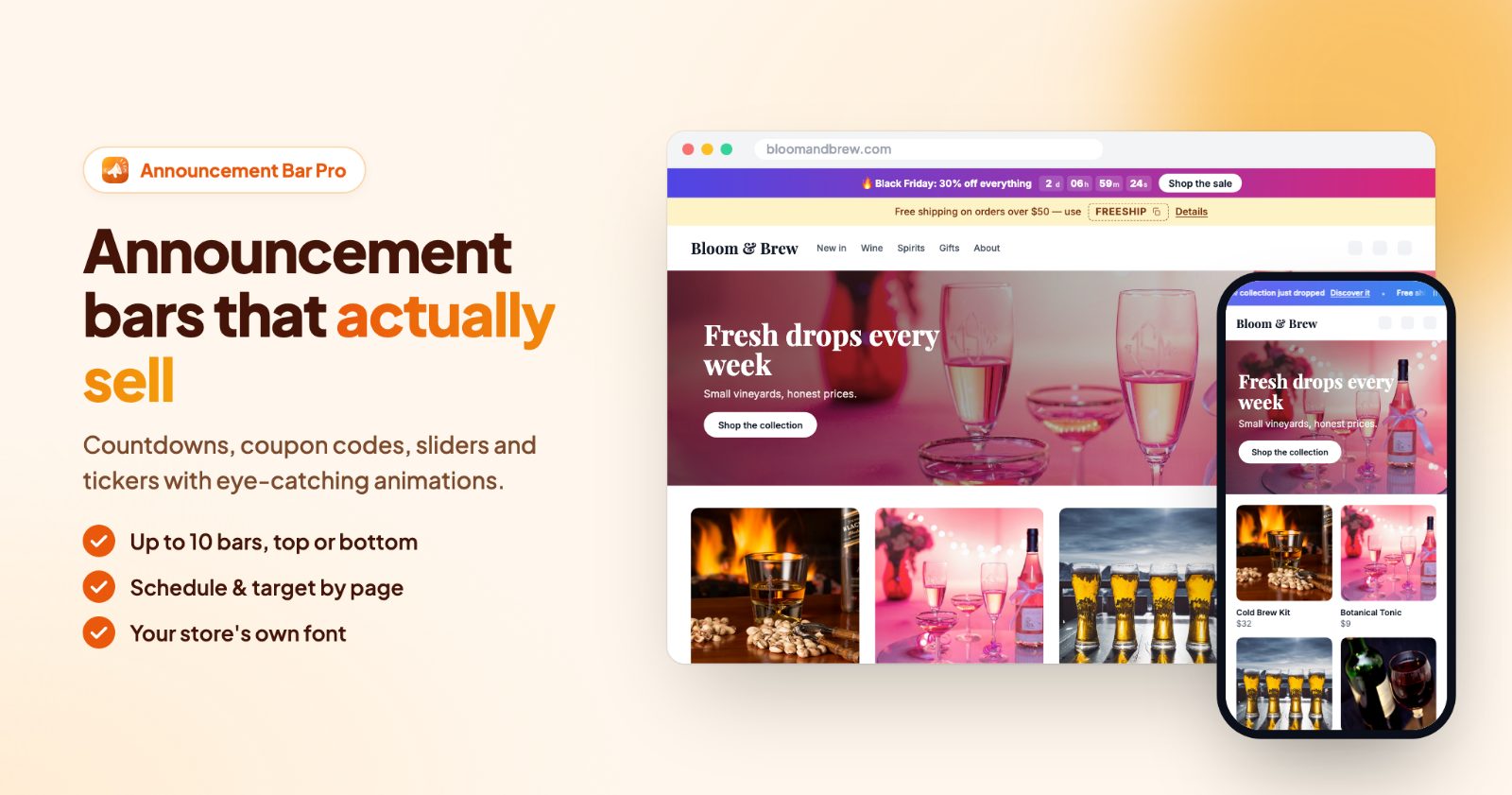
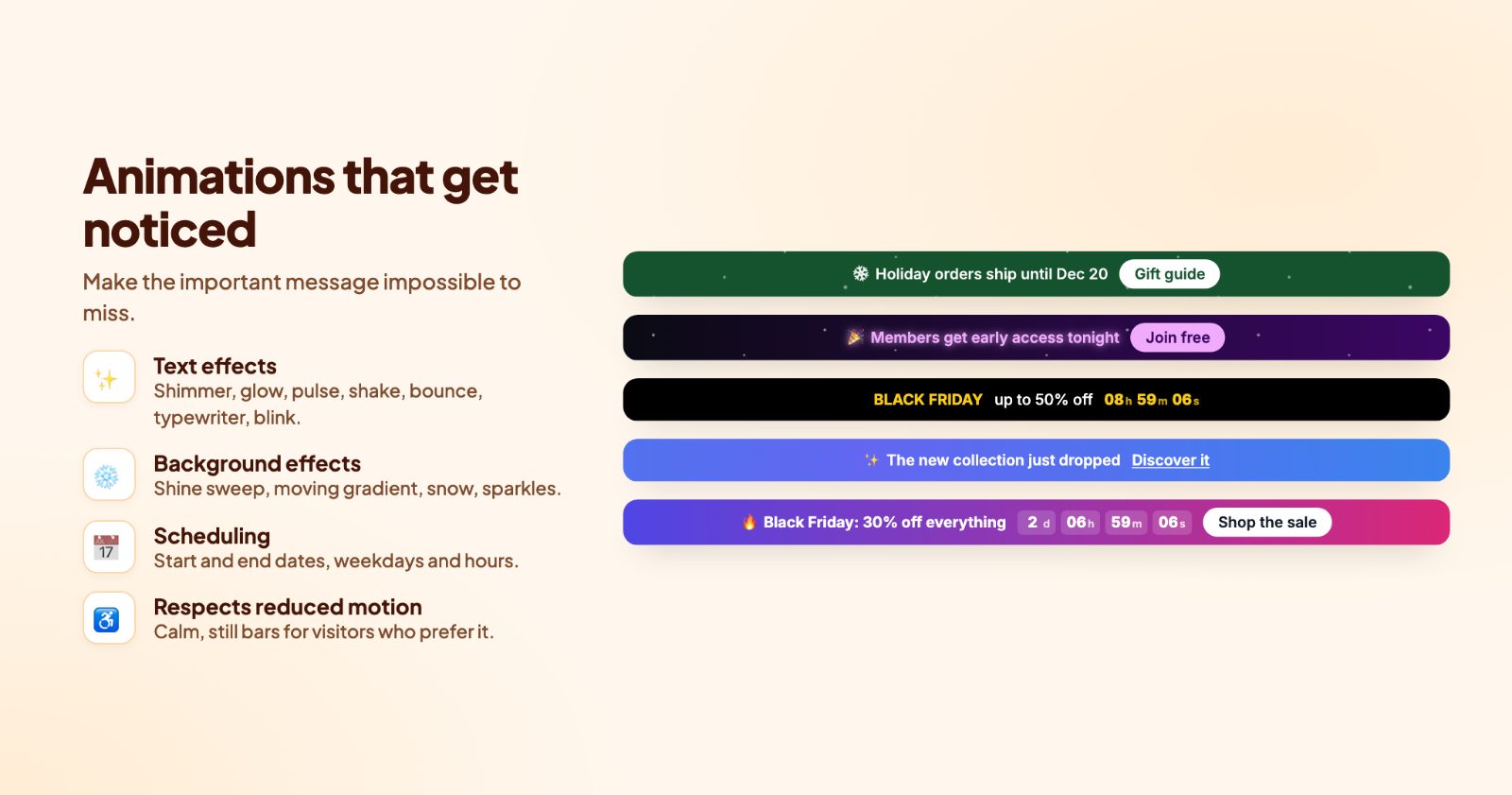
- The "order by" date goes in an announcement bar at the top of every page, with a countdown to your cutoff. It disappears by itself when the date has passed.
- The days you are closed go into We're Closed: your weekly opening hours, holidays that repeat every year, and vacation mode with the date you are back.
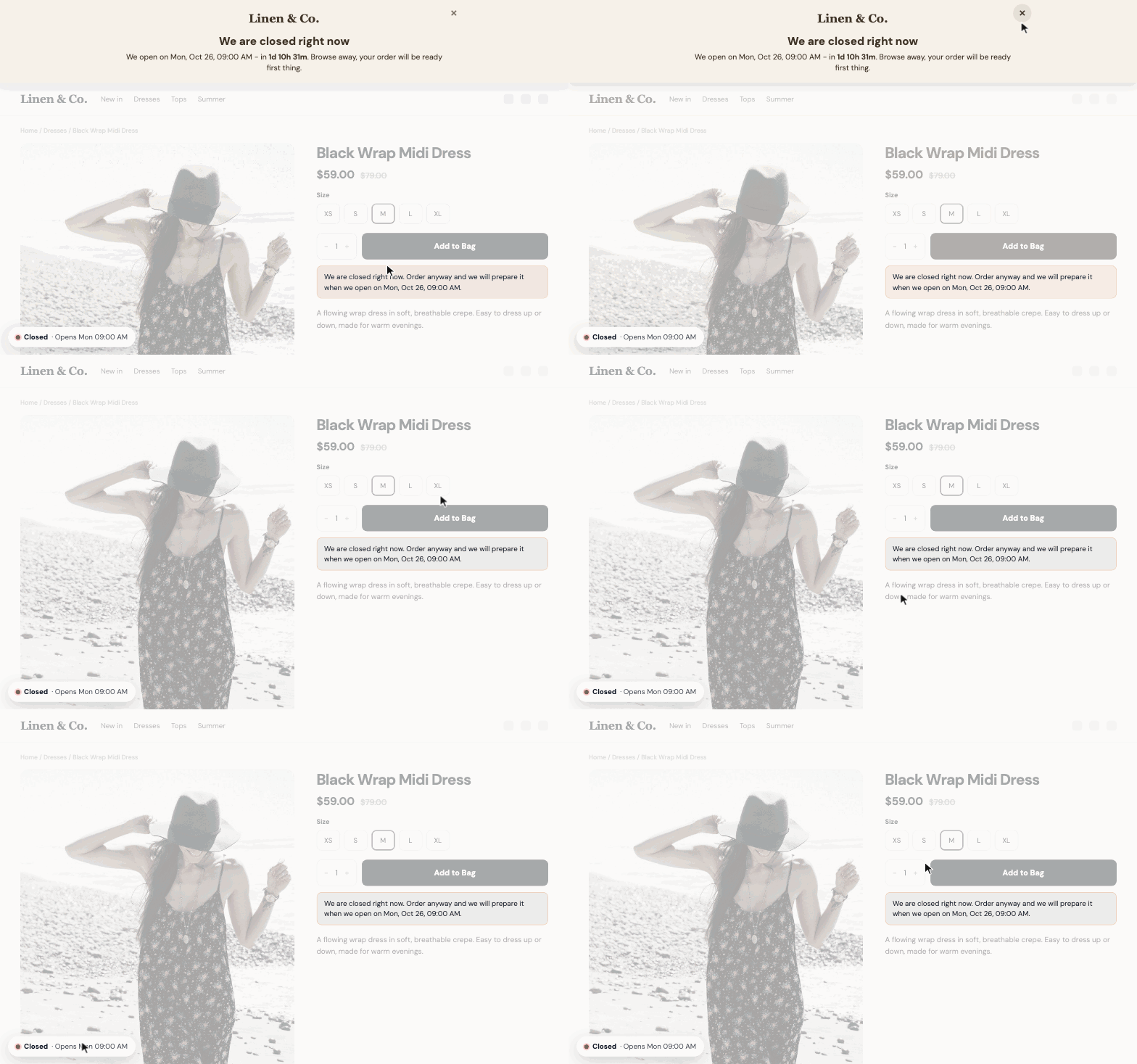
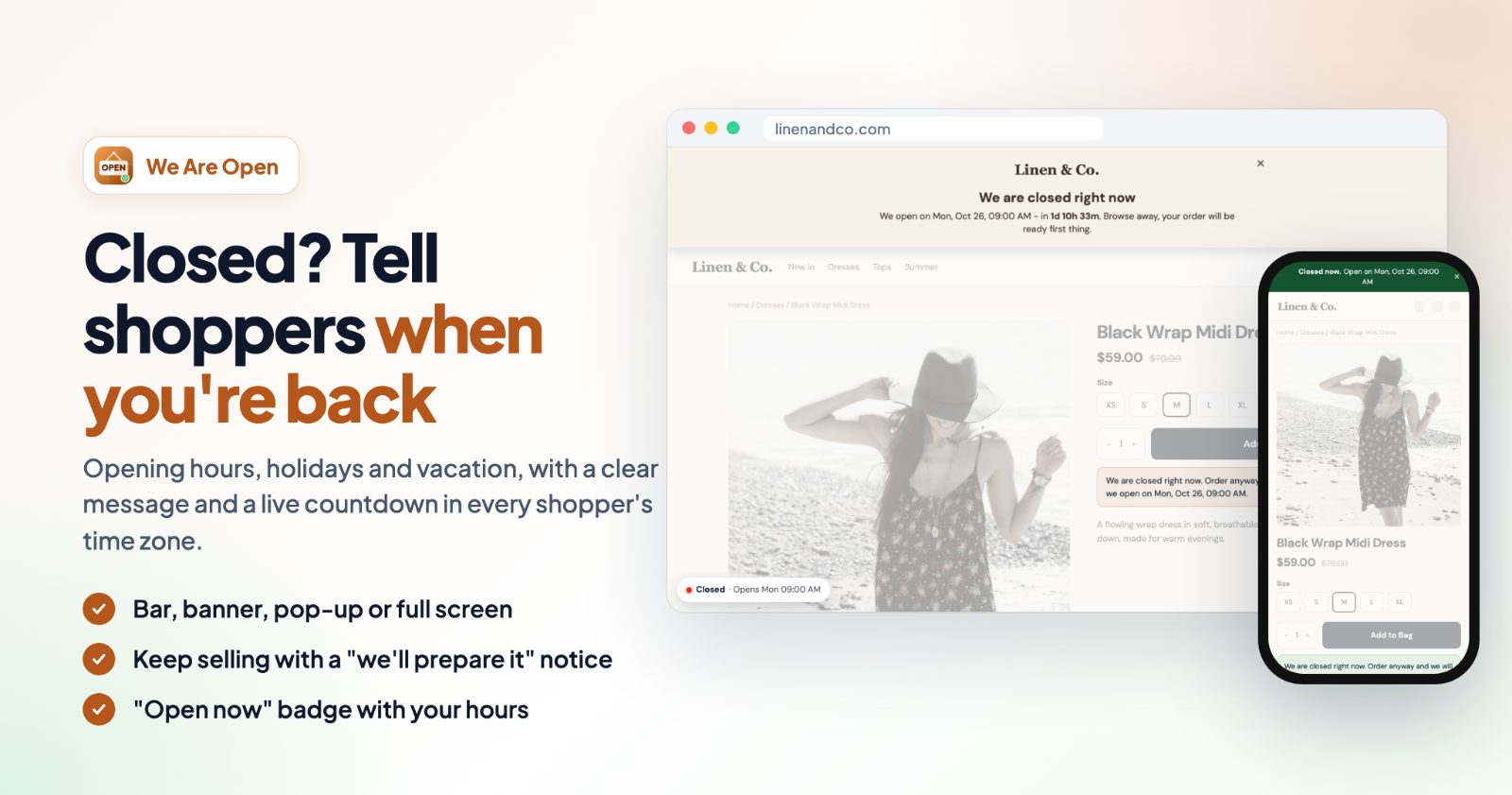
- While you are closed, shoppers see a message with your next opening time. You choose whether they can still order, with a note that says when the order will be prepared.
One thing this post can't give you is the deadline itself. Every carrier and every destination has its own last shipping day for Christmas, and they change every year. Check your carrier's holiday dates, add the days you need to pack, and use that date in the steps below.
Part 1: the "order by" date for Christmas delivery
1. Add a bar with your cutoff
Open Announcements Bar Pro and click + Add bar. Start from the Sale countdown template or from Blank. On the Content tab, add a Text block with your message, for example "Order by December 18 for Christmas delivery", and if you like a Button or Link to your gift category.
2. Count down to the last order day
Add a Countdown block and set Ends at to your last order day and hour. Pick the Blocks or Inline style. Under When it ends choose Hide the bar, or Show a text such as "Orders placed now ship after the holidays", so the bar never promises a delivery date you can't keep. Times are in your store's time zone.
3. Give it a holiday look and a schedule
On the Style tab, the Snow background effect suits a Christmas message. On the Schedule tab, set Start showing to the day you want the message up (for example right after Cyber Monday, November 30) and Stop showing to your cutoff. You can also add a second bar for after the cutoff, scheduled from then until you close.
Part 2: holidays, vacation and opening hours
4. Set your opening hours (Opening hours)
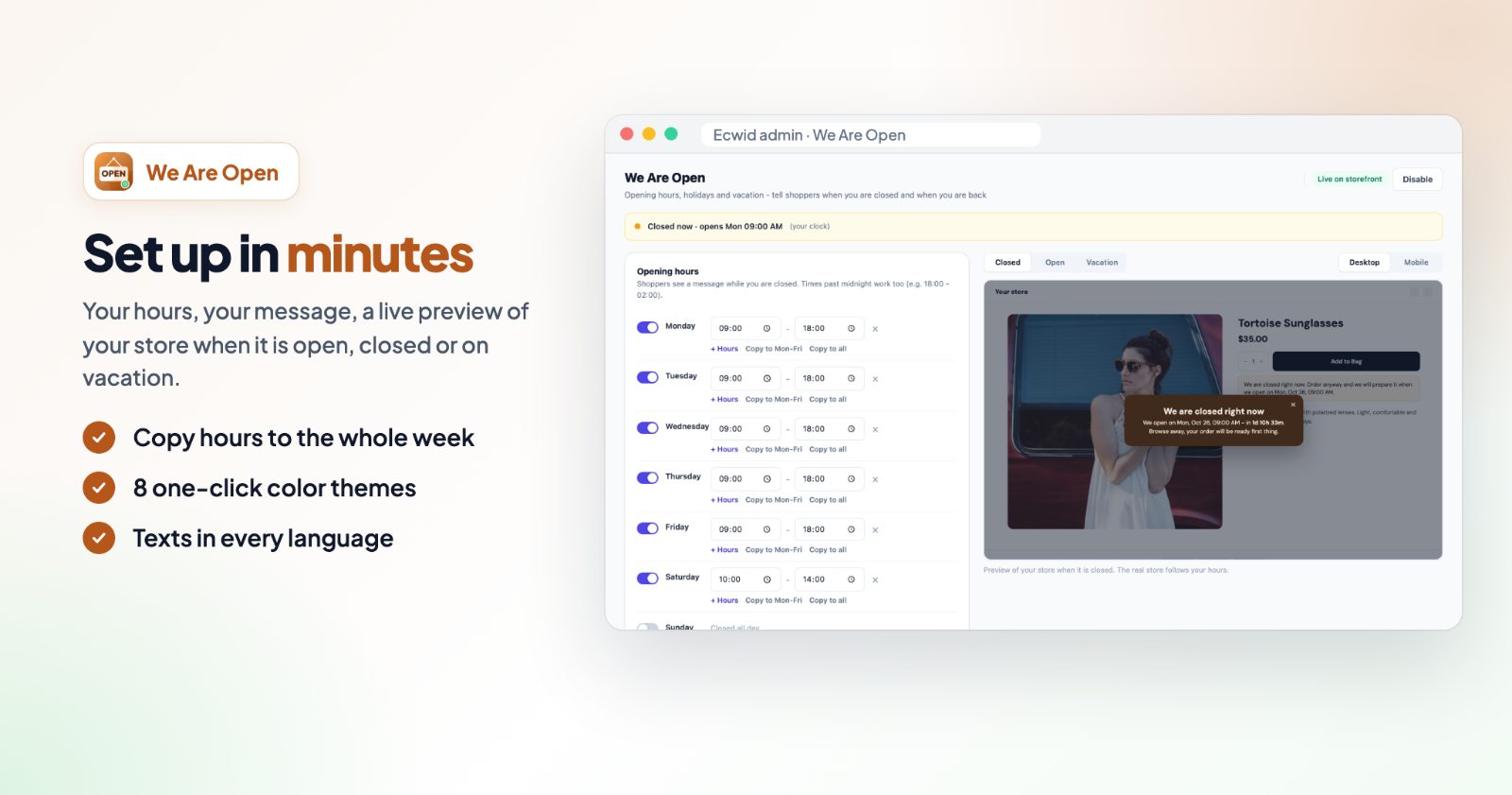
Open We're Closed. In Opening hours, switch each day on or off and set its hours. A day can have several time ranges with + Hours, and times past midnight work too (18:00 - 02:00). Copy to Mon-Fri and Copy to all copy one day to the others. Under Clock, keep Store time zone so the times are the same for every visitor, wherever they are.
If you sell online only and don't keep hours, you can skip the weekly hours and use only the holidays and vacation mode below.
5. Add the holidays (Holidays & special days)
Click + Add a special day and pick the date. Choose Closed all day, or Special hours for a short day like Christmas Eve. Tick Every year for dates that come back, such as December 25, December 26 and January 1, and you never have to add them again. Each special day is one date; for a longer break, use vacation mode.
6. Turn on vacation mode with the date you are back (Vacation mode)
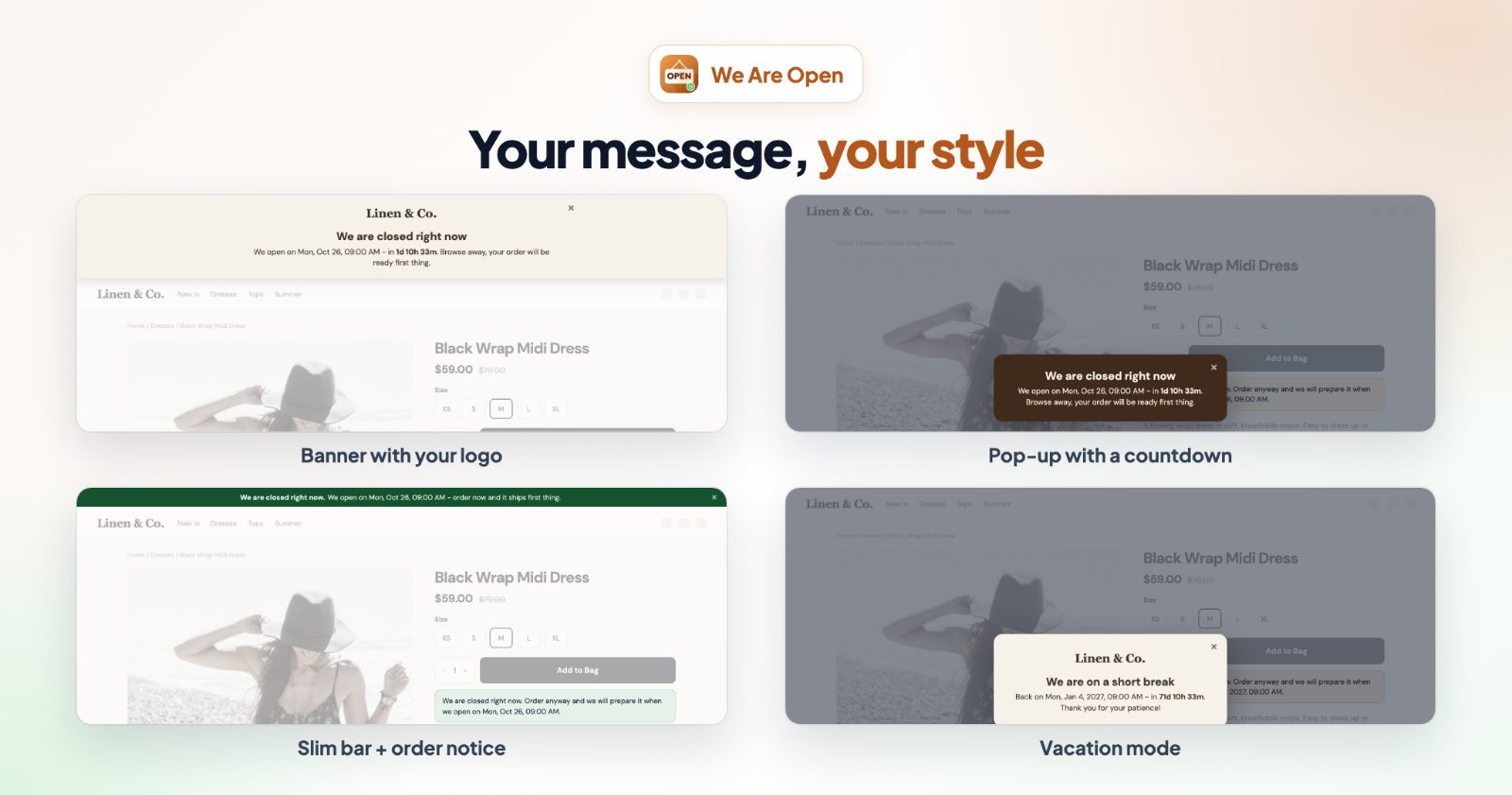
Switch on On vacation. It overrides your opening hours for the dates you set: the First day closed and the Last day closed. Leave the last day empty to stay closed until you switch it off. Write a Vacation message, and use the Opening time and Countdown buttons to put the day you are back into the text, for example "We are on a short break. Back on Mon, Jan 4 - in 7d 10h 33m". The opening time is shown in the shopper's language.
7. Choose the message shoppers see (Message while closed)
With Show a message on, pick how it looks: Slim bar (one line at the top or bottom), Banner (a bigger block with your logo), Pop-up (a card in the middle of the page) or Full screen (covers the whole store). Write the Message, choose one of the 8 Colors or your own, and turn on the Close button so shoppers can close it and keep browsing. Every text can be translated into your store's languages.
8. Decide about orders while you are closed (Buying while closed)
- Hide the buy buttons: Add to Cart, Buy now and checkout are hidden until you open. Good when you really can't ship, for example during a long vacation.
- Keep selling, with a notice: a note at the buy button and in the cart says when the order will be prepared, like "Orders placed now ship on Monday". Good for a short holiday break: you still get the orders.
- Keep selling, no notice: only the message you set above.
9. Show your hours and go live
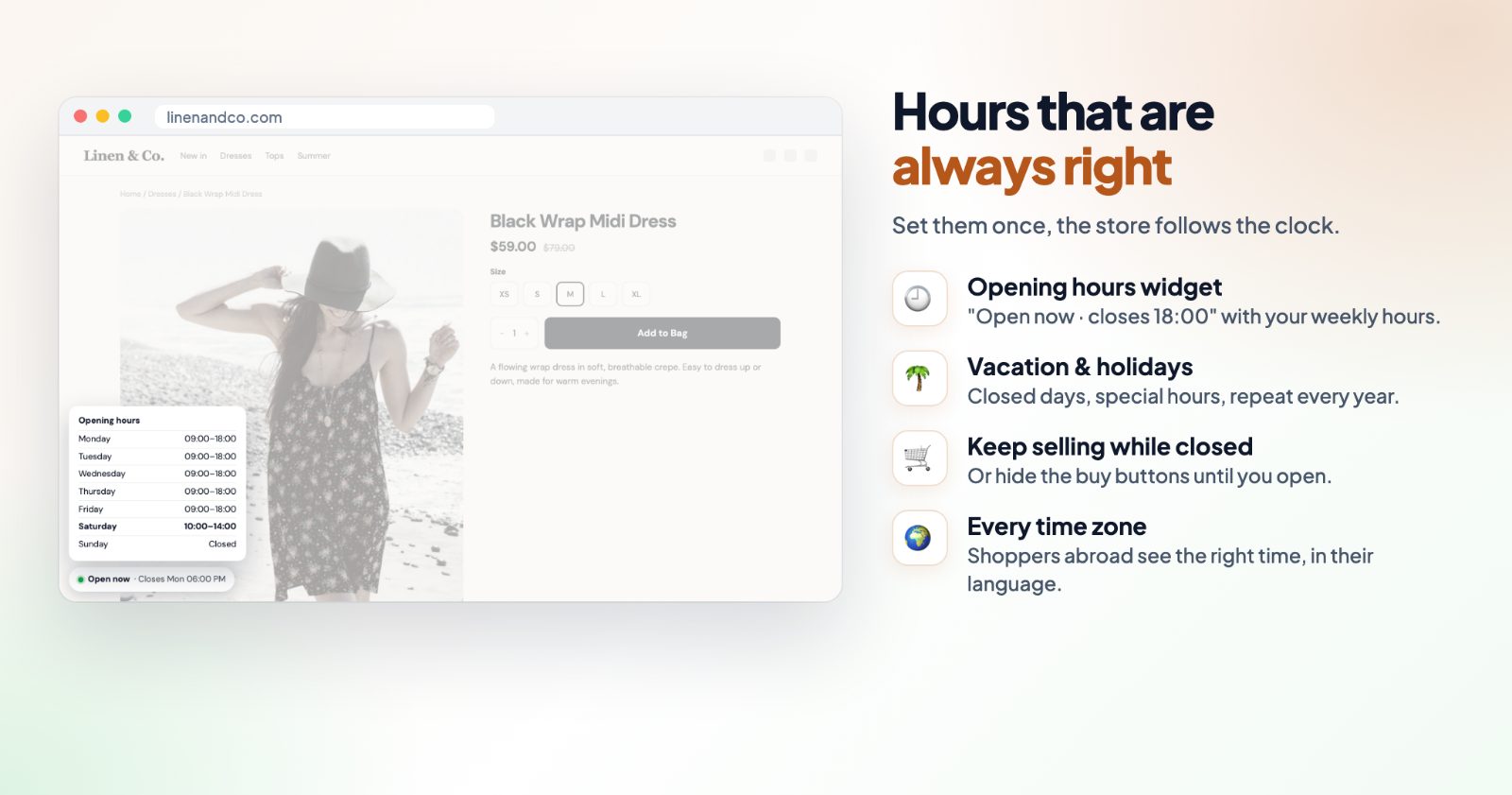
The Opening hours widget adds an "Open now" badge with your weekly hours: as a floating badge in a corner, in the footer, on the product page under the description, or after an element you choose. The Preview on the right shows your store Closed, Open or on Vacation, on desktop or mobile. Click Save, then Enable: the app says Live on storefront.
Common setups
Last order day for Christmas, then a short break
An announcement bar "Order by December 18 for Christmas delivery" with a countdown, scheduled from November 30 to your cutoff. In We're Closed, December 24 with Special hours, December 25 and 26 Closed all day, all with Every year.
Closed between Christmas and New Year, still taking orders
Vacation mode from December 24 to January 3, a pop-up with "Back on {opening time}", and Keep selling, with a notice so shoppers know their order ships when you are back.
A real vacation, no orders
Vacation mode with no last day (you switch it off when you are back), a Full screen message, and Hide the buy buttons. Your products stay visible but can't be ordered.
A local shop with holiday hours
Weekly hours, a few Special hours days for late shopping before Christmas, the Slim bar while closed, and the opening hours widget in the footer.
Questions
What is the right date for the "order by" message?
It depends on your carrier, the destination and how long you need to pack. Check your carrier's holiday shipping dates for this year and enter your own date in the countdown.
Do I have to add Christmas again next year?
No. Tick Every year on the special day and it repeats by itself.
Which time zone is used?
Your store's time zone, so opening times are the same for every visitor wherever they are. The announcement bar's countdown uses your store's time zone too, and its schedule can use your store's time zone or the visitor's.
Does hiding the buy buttons stop all orders?
It hides Add to Cart, Buy now and checkout on your storefront until you open. Your store itself keeps taking orders either way; the setting decides what shoppers see.
More for the season: the Black Friday and Cyber Monday apps kit and how to pick a free shipping threshold.