How it works in short
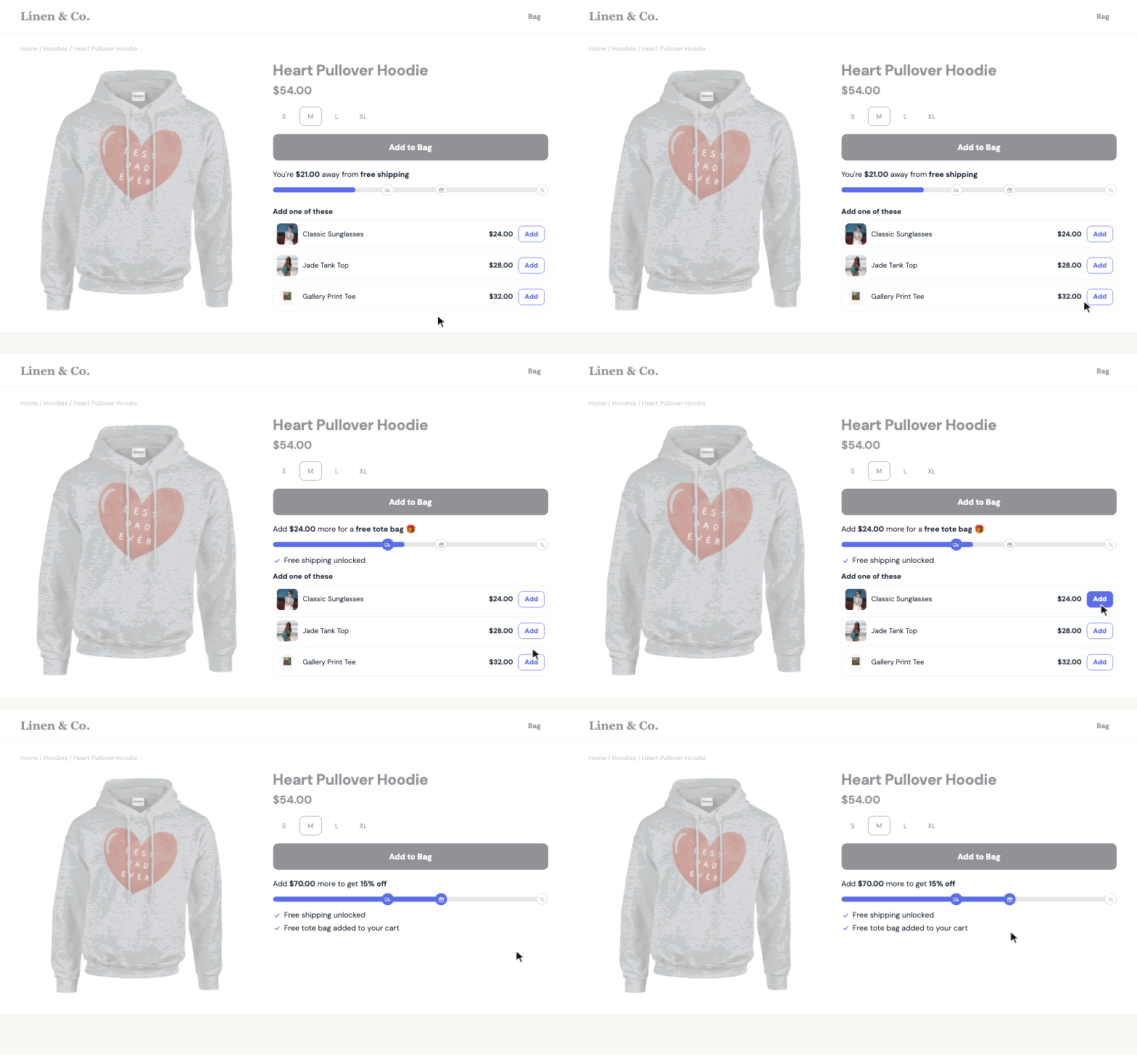
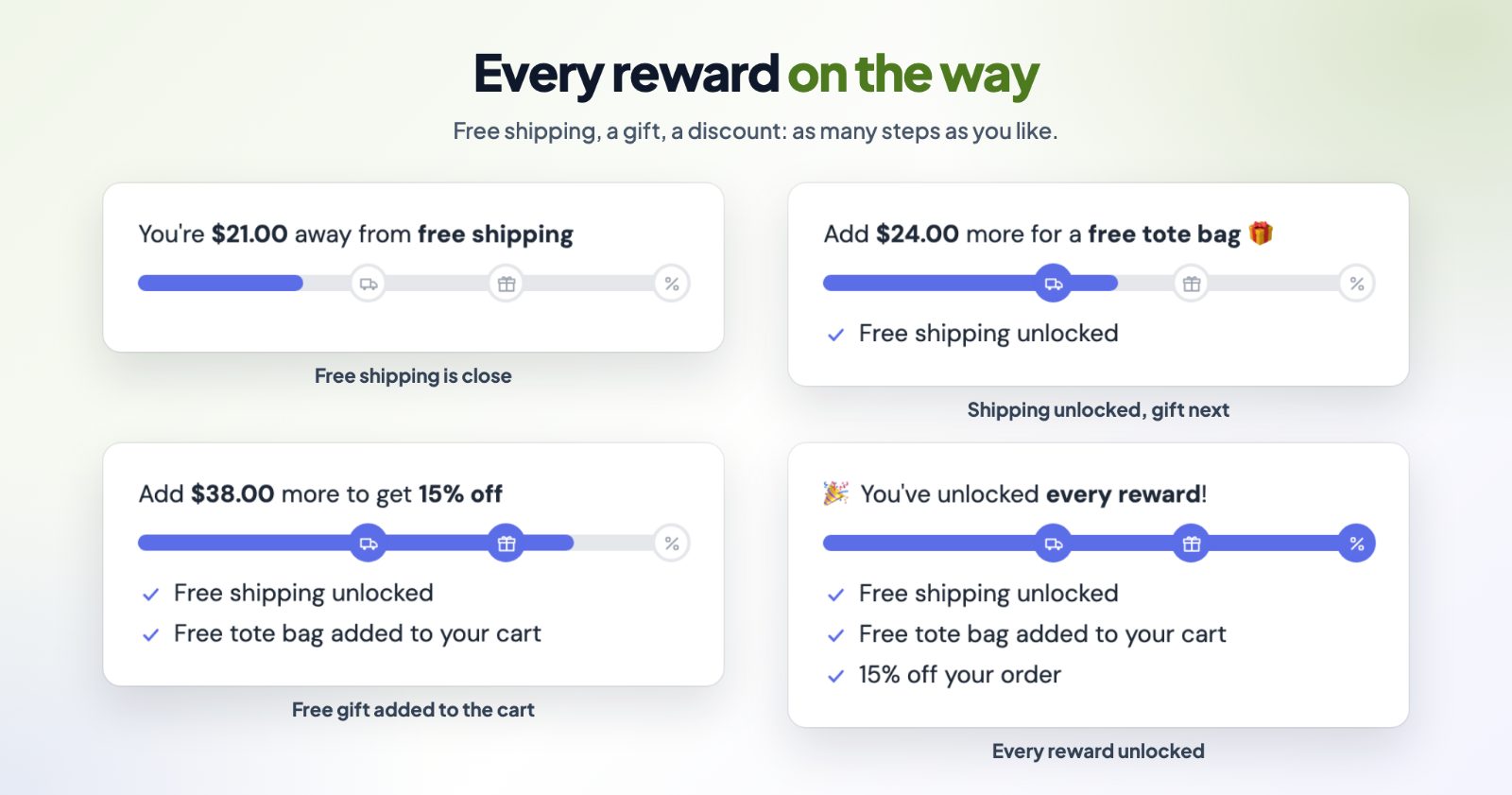
The bar shows how far the cart is from the next reward: free shipping, a free gift or a discount. You set up to 6 steps. As the shopper adds products, the bar fills, each reached step is ticked, and the text moves on to the next one. Under the bar, a few products priced close to what is missing can be added in one click.
One thing to know first: the bar shows the way, your store gives the reward. For each step, create the matching free shipping rule or discount in your store settings (for example free shipping on orders over $50), so the amount in the bar and in your store are the same.
1. Pick the threshold
There is no magic number, but there is a simple way to find yours:
- Find your usual order. Take your orders of the last few months and look at a typical order value: your total sales divided by the number of orders, or the middle order if a few big ones pull the average up.
- Set the threshold a little above it. If most orders are around $40, $50 is in reach with one more small product. $100 is not, and shoppers ignore a goal they can't reach.
- Check that it pays for the shipping. The extra items in a bigger order should cover the shipping you no longer charge. If your shipping costs you $8, the difference between your usual order and the threshold should bring in at least that much margin.
- Make sure there are products to close the gap. If shoppers are $12 short, they need something around $12 to add. The bar suggests those products for you (step 4 below).
Then watch it for a few weeks: the Stats tab counts how many shoppers saw the bar, reached each step and placed an order. If almost nobody reaches the step, it is too high; if almost every order already does, it is too low to make a difference.
2. Add your steps (Steps)
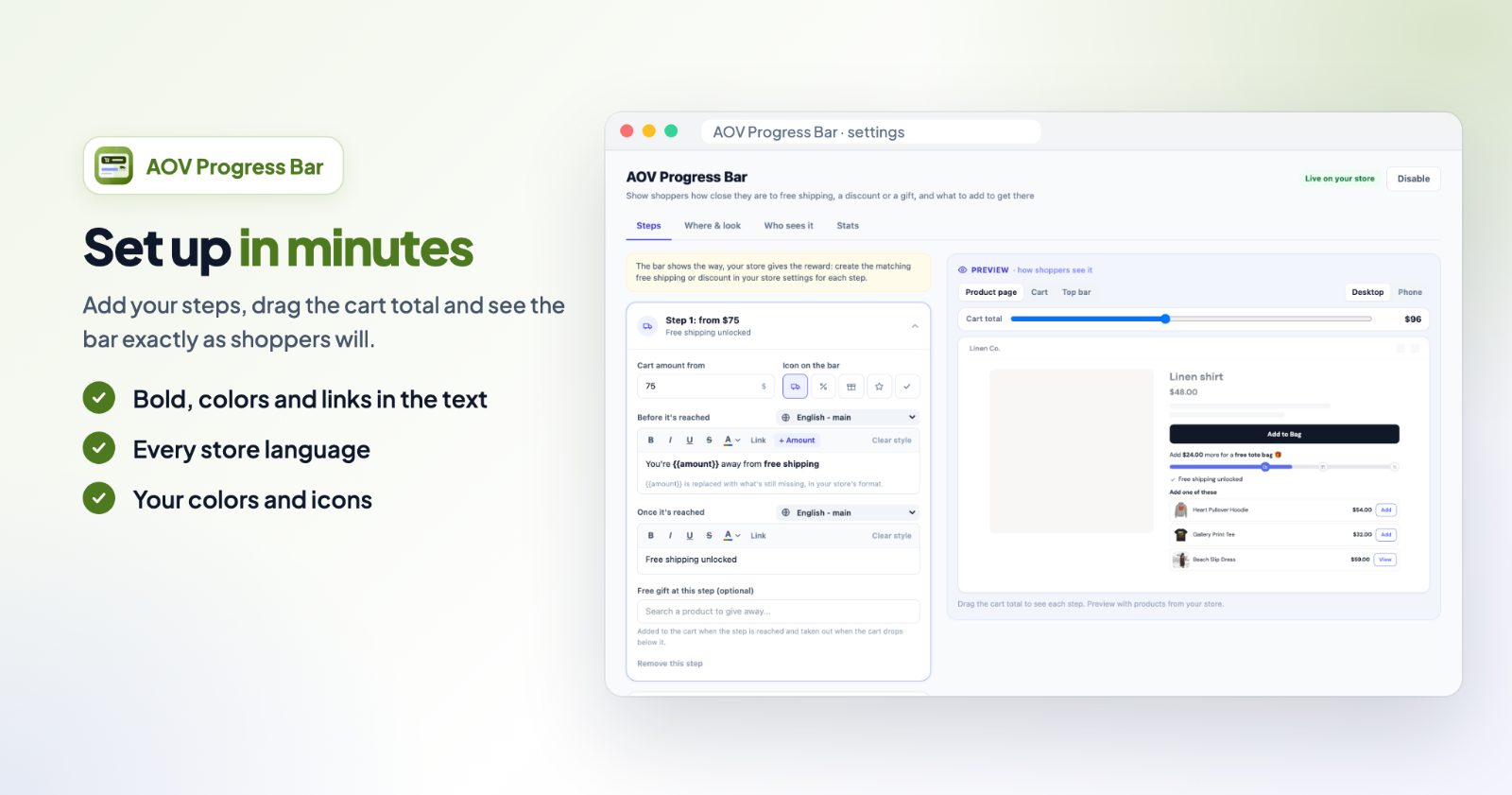
Open the app. On Steps, each step has a Cart amount from, an Icon on the bar (shipping, discount, gift, star or check), and two texts:
- Before it's reached, for example "You're {{amount}} away from free shipping". {{amount}} is replaced with what is still missing, in your store's format.
- Once it's reached, for example "Free shipping unlocked".
The texts can have bold, colors and links, with a field per store language. + Add a step adds the next reward; a common ladder is free shipping, then a free gift, then a discount.
Under the steps, choose what the bar counts: the Subtotal (the products, before shipping), the Subtotal after discounts or the Order total, and whether to Include taxes. Pick the one your free shipping rule uses, so the bar never says "unlocked" when the checkout doesn't agree.
3. A free gift at a step (optional)
Open a step and search the product under Free gift at this step. Set that product's price to 0 in your catalog, without options. It is added to the cart when the step is reached and taken out again if the cart drops below it. Switch on Hide gift products from category pages so shoppers don't find it on its own. Free gift products don't count toward the amount.
4. Where it shows and what it suggests (Where & look)
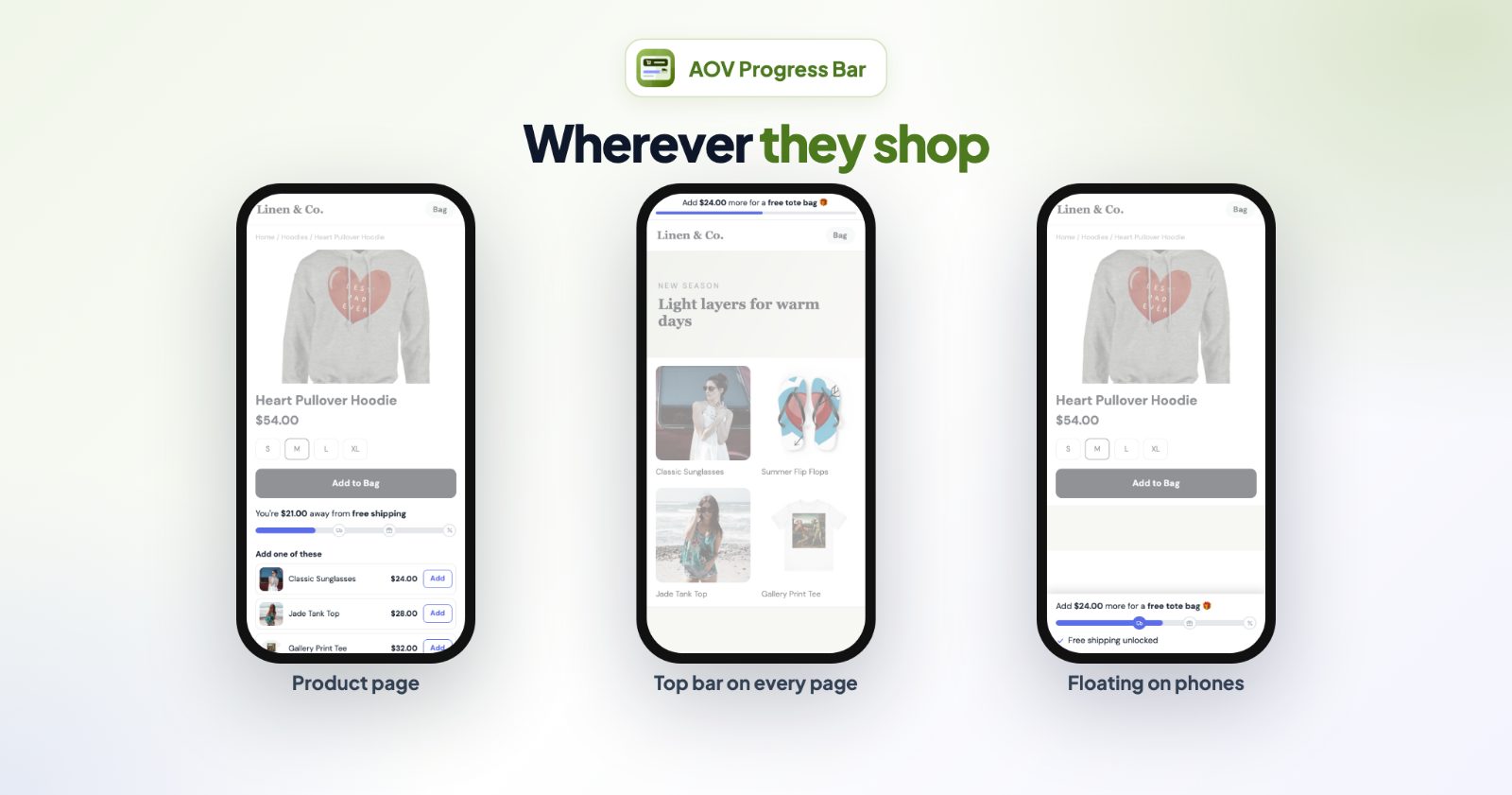
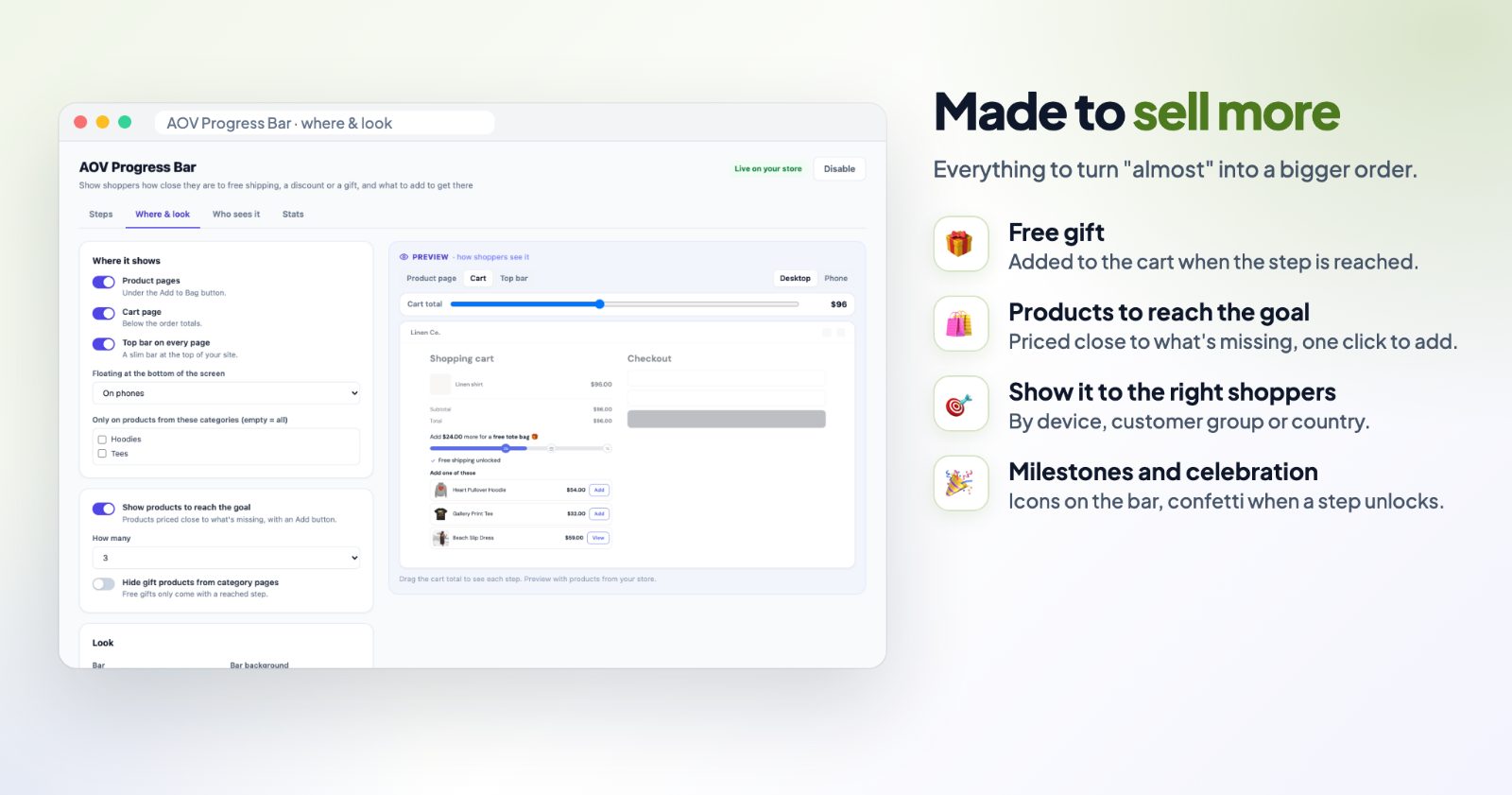
- Product pages: under the Add to Bag button.
- Cart page: below the order totals.
- Top bar on every page: a slim bar at the top of your site.
- Floating at the bottom of the screen: on phones, computers or every device.
Show products to reach the goal lists products priced close to what is missing, with an Add button. Choose How many, and where they come from: Related to the shopper's products (recommended: from the categories of the product being viewed and of the cart), Cheapest that fit from the whole store, or Products you pick. Products already in the cart and gift products are left out; products with options open their page.
The look has the bar shape, colors, text size and Milestone icons on the bar, and Celebrate when a step is reached adds a little confetti. You can also hide the bar once every step is reached, or show a final message instead.
5. Who sees it, and checking it
Who sees it limits the bar by device, customer group and country (the country is known once a shopper is logged in or has entered an address; until then the bar shows). If you offer free shipping only in some countries, show the bar only there.
The Preview shows the product page, cart and top bar on desktop or phone. Drag the Cart total slider to see every step, with products from your store.
Common setups
Free shipping only
One step at your threshold, with the shipping icon, on product pages and the cart page. Create the free shipping rule with the same amount in your shipping settings.
Free shipping, then a gift
Step 1 free shipping at $50, step 2 a free tote bag at $75 (a $0 product hidden from category pages).
A holiday ladder
Free shipping at $50, 10% off at $100, 15% at $150, with the top bar on every page for the season. The discounts themselves come from your store, for example with Cart Discounts (Spend more, save more).
Only for one country
Under Who sees it, pick the country where you offer free shipping, so shoppers elsewhere are not promised something they won't get.
Questions
Does the bar give the discount or free shipping?
No - the bar shows the way, your store gives the reward. For each step, create the matching free shipping rule or discount in your store settings.
I don't see the bar. What should I check?
That the app is enabled, that at least one step has an amount and both texts, and that the places you want are switched on under Where & look. If you chose categories, the bar only shows on products from those categories.
Can the texts be in my store's languages?
Yes. Every text has a field per store language. {{amount}} is shown in each shopper's currency if you use our Currency Converter.
What do the stats count?
Each shopper once: when they saw the bar, when they reached every step and when they placed an order.