How it works in short
Gift options are product options like any other. You put them in an option set
(the options, their prices and the rules between them) and apply the set to the products you sell as
gifts. Every option you add is saved on the product as a real product option, so the cart, the
checkout, the order and the invoice show the gift wrap, the message, the engraving text and the date,
and charge their prices. "Your choices" under the price lists each extra with its price while the
shopper picks.
New to option sets? The step-by-step guide
shows how to create one, add options and apply it to products. Below are the gift options, one by one.
1. Gift wrap as a paid option
Open your option set on 1. Create options and add an option of the type
Checkbox, titled for example "Gift wrap". Give it one value, "Wrap it as a gift",
and open the value: under Price modifier set the price, as an amount (for example $4)
or as a % of the product price. Shoppers tick it, and the price on the page goes up by that amount.
Want several wraps? Use Radio Button or Image/Color Swatch instead,
with a value per paper ("No wrap", "Red paper", "Gold paper"), each with its own price and image.
A Badge on a value (Sale, New, Popular or your own text) points shoppers to the one
you recommend.
2. A gift message with a character limit
Add a Text box (one line) or a Multi-line text box (for a longer
note), titled for example "Gift message". In its settings:
- Maximum input characters: how long the message can be, for example 150 so it fits
your card.
- Show a character counter (for example 12/100): shoppers see how much room is left.
- Shoppers can type: leave it on Anything for a message, or pick
Anything except emojis if your printer can't print them.
Under More settings you can add a description, shown as a tooltip (?) next to the
title or as text under it, for example "We write it by hand on a card".
3. Show the message only when gift wrap is picked
A product page with a message box nobody needs looks long. Go to 2. Set rules, click
Start from a template and pick Show an option when a value is picked.
Then make the sentence: "When Gift wrap is Wrap it as a gift → show
Gift message". The message field is hidden until the shopper ticks gift wrap.
Should every gift have a message? Add a second action to the same rule, require
Gift message. A required option is only asked for while it is shown, so shoppers who don't
want wrapping are never blocked. An option a rule hides goes with the order as "Not selected".
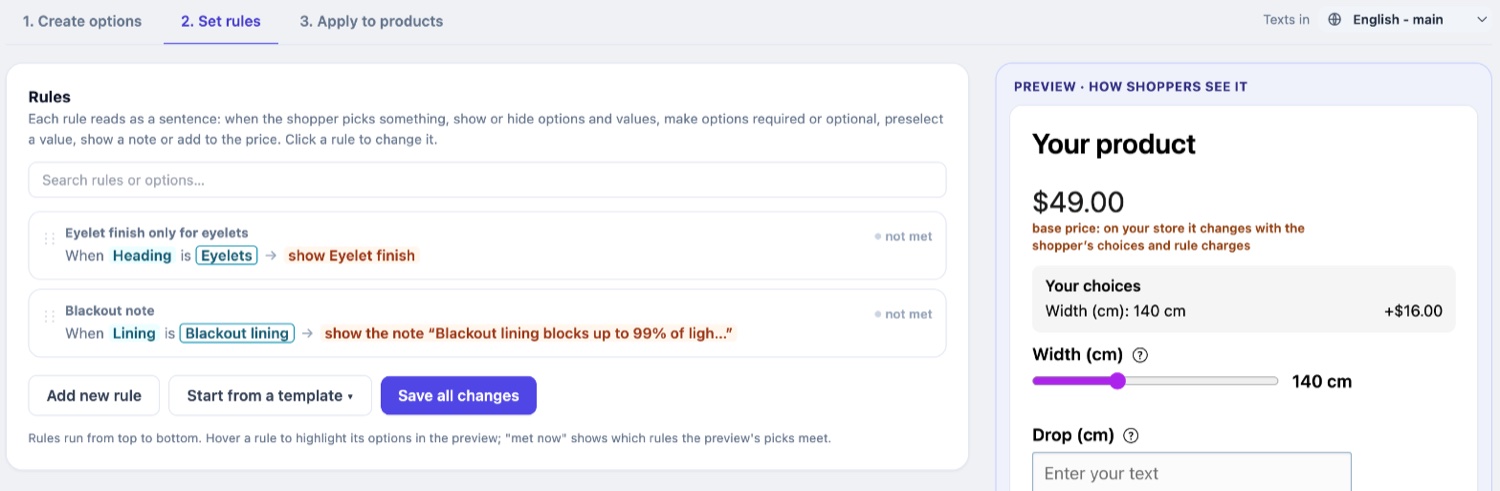
The live preview on the right runs your options and rules while you edit. Tick gift wrap there and
the rule shows "met now", so you can see the message box appear before shoppers do.
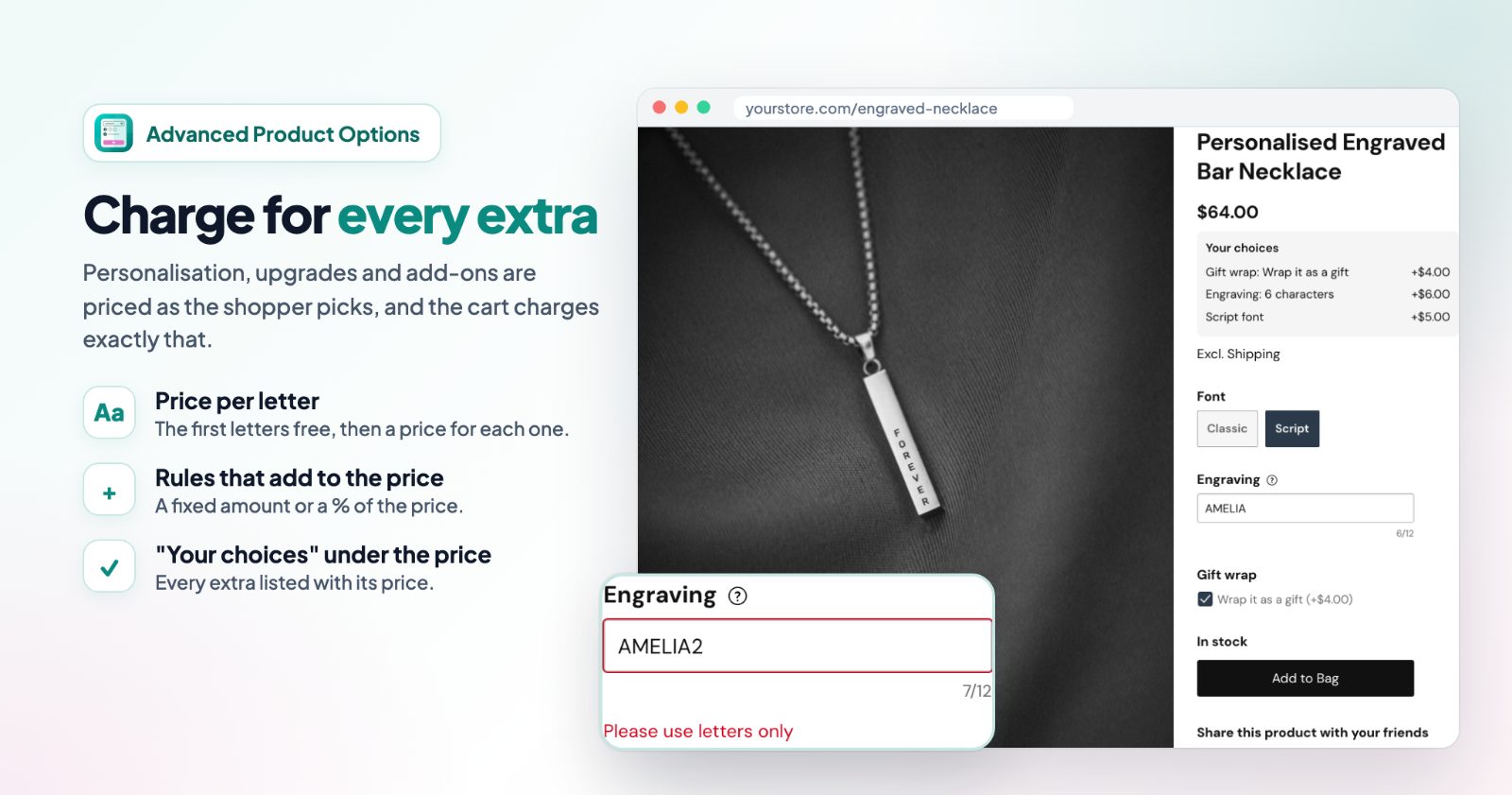
4. Engraving priced per letter
Add a Text box titled "Engraving". In its settings, under Price per
character (for engraving, embroidery...):
- Price per character: for example $1.
- Free characters: letters included in the price, for example the first 3.
- Maximum input characters: the most that fits, for example 12. Up to 100
characters can be charged.
Spaces aren't counted. "Your choices" shows the count and the price ("Engraving: 6 characters"), and
the order shows the number too. For names and initials, set Shoppers can type to
Letters only and turn on Turn the text into capitals as shoppers type:
the product can't be added to the cart until the text is right, and the message shows at the field.
A font choice next to the engraving (a Button / Size option with Classic and Script)
can cost extra with a rule: "When Font is Script → add to the
price $5". Rules work on text options too: "When Engraving is filled →
show a note Engraving adds 2 days to the delivery time."
5. A "deliver on" date
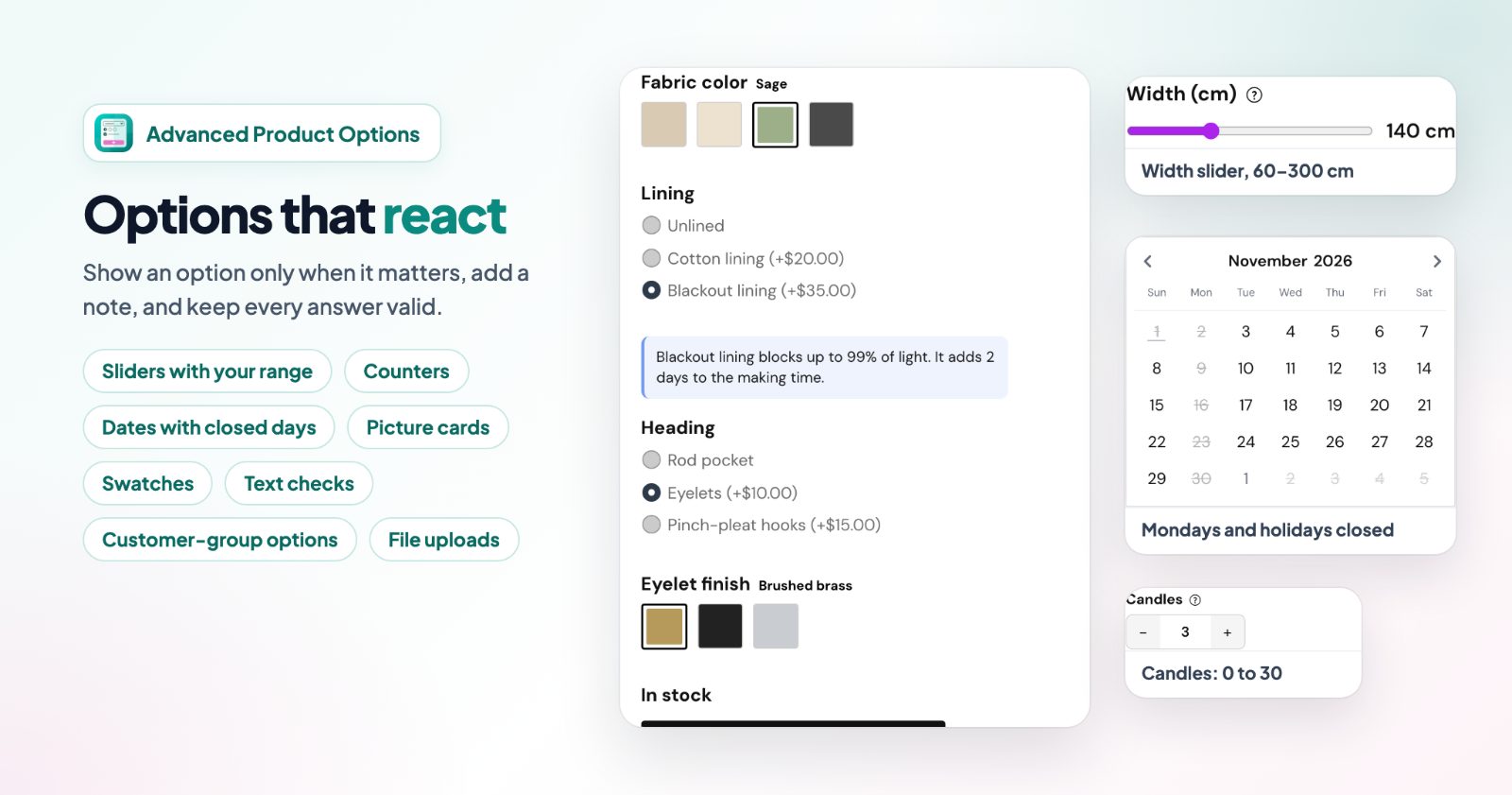
Add a Date picker titled for example "Deliver on". Its settings, under
Dates shoppers can pick, keep the dates to ones you can really do:
- No dates in the past.
- Earliest, in days from today: your lead time, for example 2 days to wrap and ship.
- Latest, in days from today, or a From date and an
Until date.
- Days of the week shoppers can't pick: for example Sunday, if you don't deliver then.
- Other dates shoppers can't pick (holidays): dates like 2026-12-25, 2027-01-01,
shown crossed out in the calendar.
For your shipping cut-off dates and time off over the holidays, see
holiday shipping deadlines and vacation mode.
6. Add-ons: a card, a box, a ribbon
A value can add another product of your store to the cart. Open the value, click
Add-on product and enter that product's ID. When the shopper picks the value, the
product goes to the cart too, at its own price and with its own stock. Turn on Shoppers choose
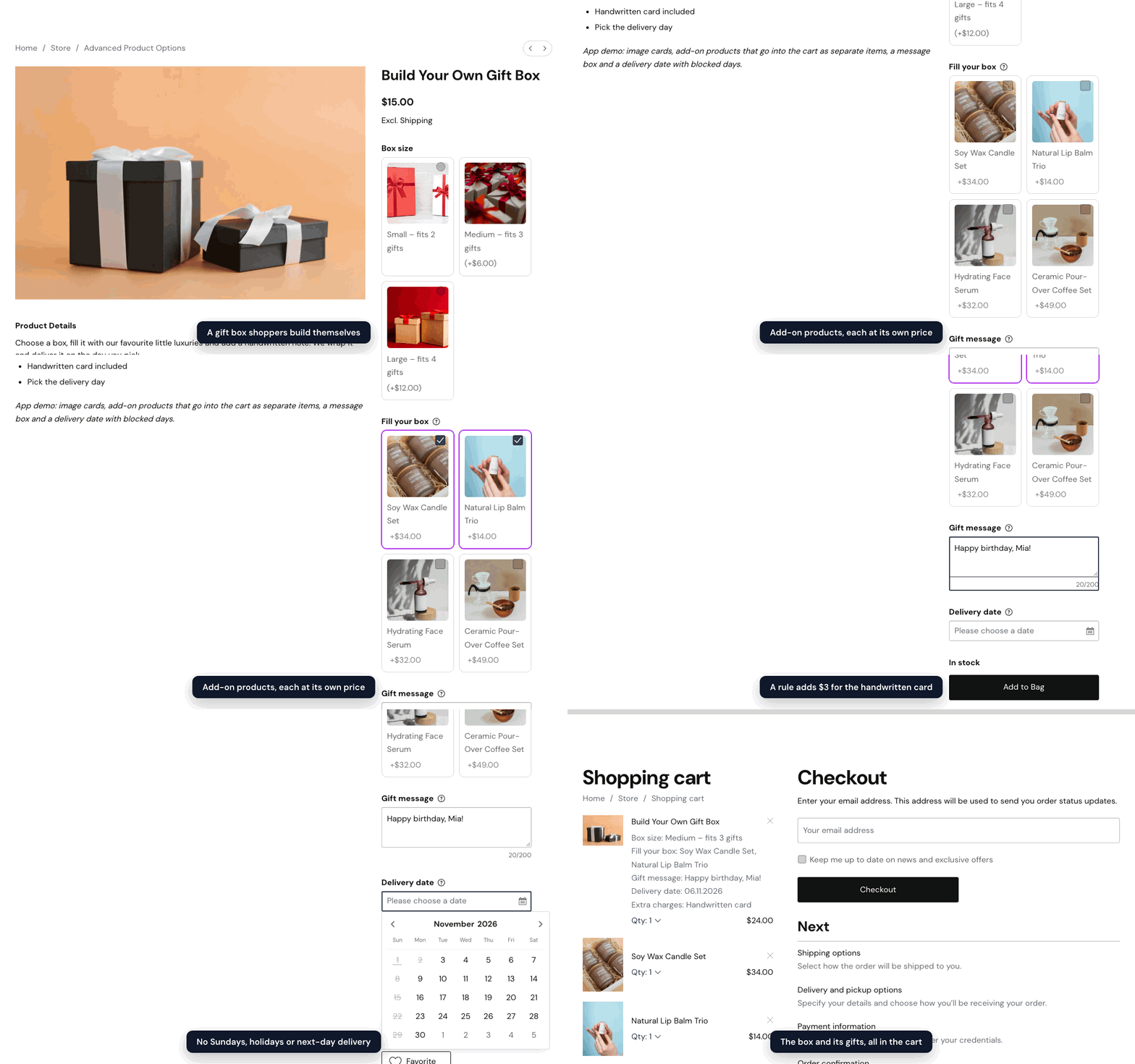
how many for a − / + counter, for example for 3 gift boxes. This is how the gift box in
the demo above adds the gifts to the cart.
When you are done, press Save all changes, then pick the products on
3. Apply to products: by hand, or Automatically, by conditions (for
example a category "Gifts"), so new gift products get the options too.
Common setups
Jewelry
Engraving as a Text box with Letters only, capitals, 3 free characters and a price per character; a
Font button with a rule that adds $5 for Script; a Gift wrap checkbox.
Flowers and cakes
A required "Deliver on" Date picker with the earliest day 1, your closed weekdays and holidays; a
Multi-line text box "Card message" with a 200-character limit and a counter.
Any product as a gift
A Gift wrap checkbox (+$4), and a rule: when Gift wrap is picked, show and require "Gift message".
Apply the set automatically to every product over a price, or to a gift category.
Build-your-own gift box
Image cards for the box size, each with a price; values with add-on products for the gifts; a message
field and a delivery date. That is the box in the demo GIF.
Questions
Do the gift wrap and engraving prices really reach the cart?
Yes. Every option and charge is saved on the product as a real product option, so the cart, checkout,
order and invoice show it and charge it.
Where do I see the message and the date?
In the order, next to the product, like any other option the shopper picked.
Can gift options be only for some customers?
Yes. Under an option's More settings, choose who sees it: everyone, signed-in customers, or customer
groups you name.
Can I see how much gift options add?
Yes. The tab Sales Analytics shows what your options added to your paid orders (value
prices, price rules, per character), and for text and date options how often they were filled in.
Getting ready for the holidays? See the
last-minute Black Friday checklist.
Install Advanced Product Options