How it works in short
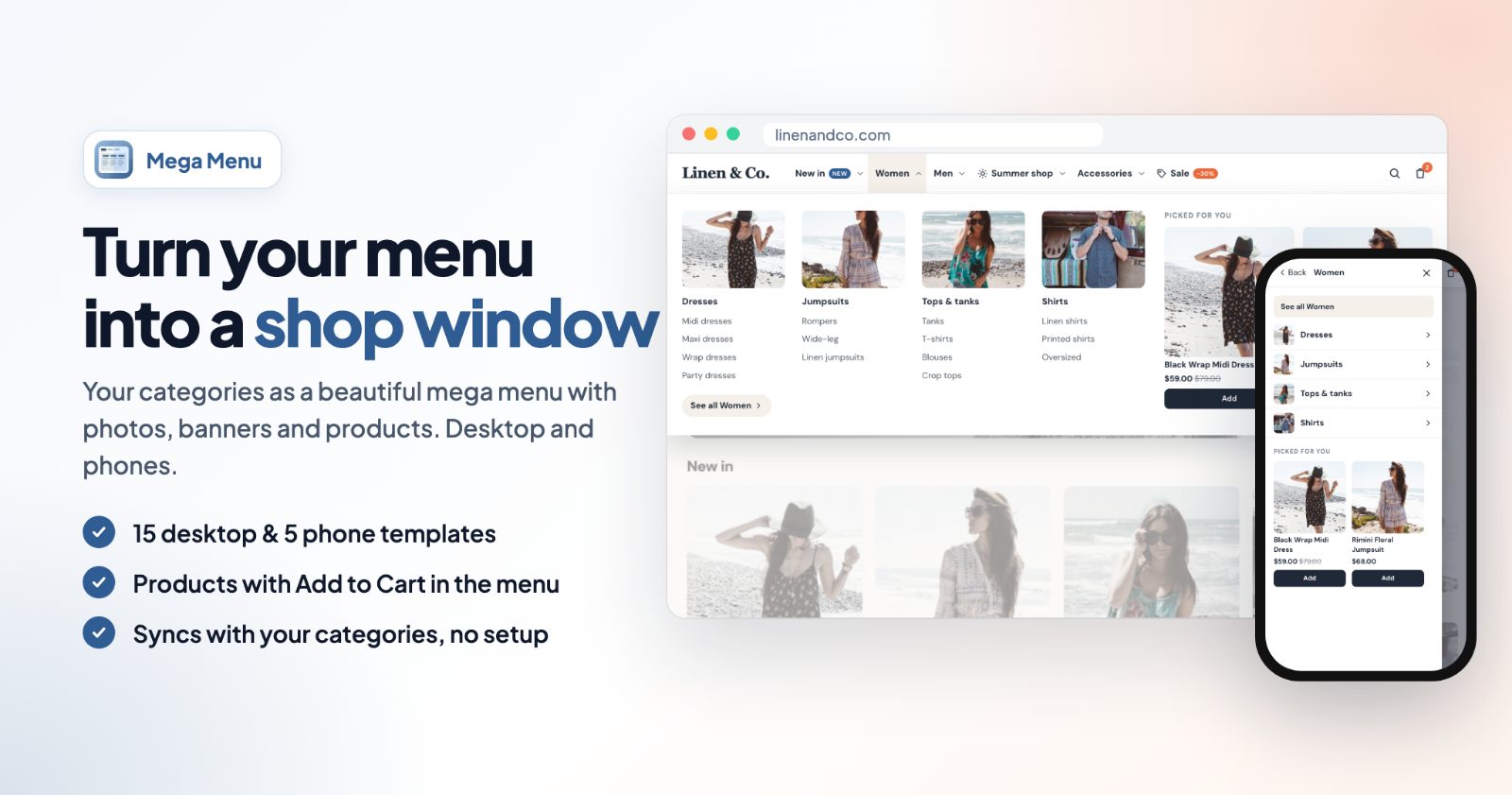
Mega Menu can show search icons: a search shortcut in the menu bar, and Search in the bottom tab bar on phones. Until now they opened your store's search page. Now you can choose what they do:
- Open the search page (the default): the search icons open your store's search page, as before. This keeps any search app you use.
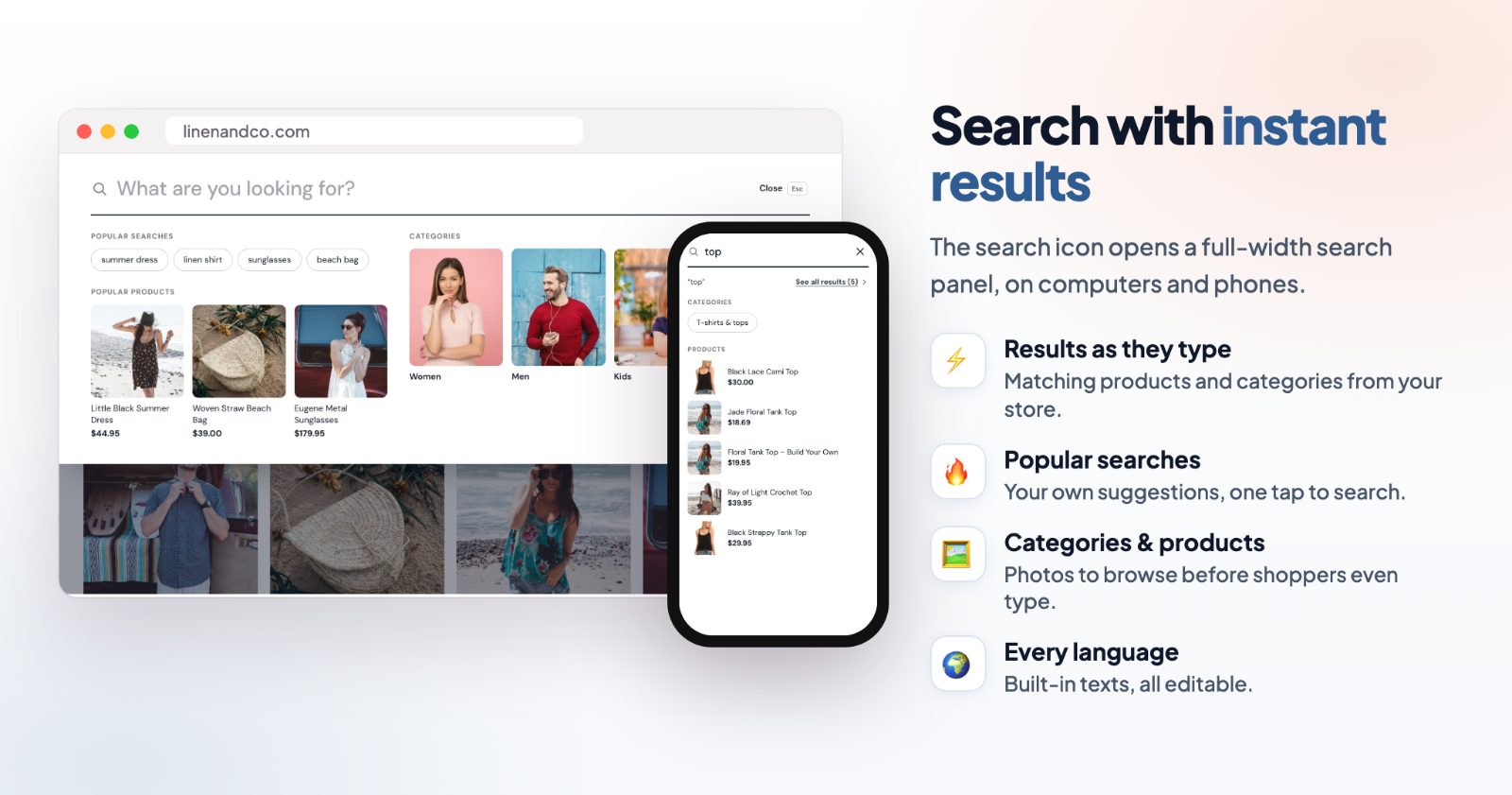
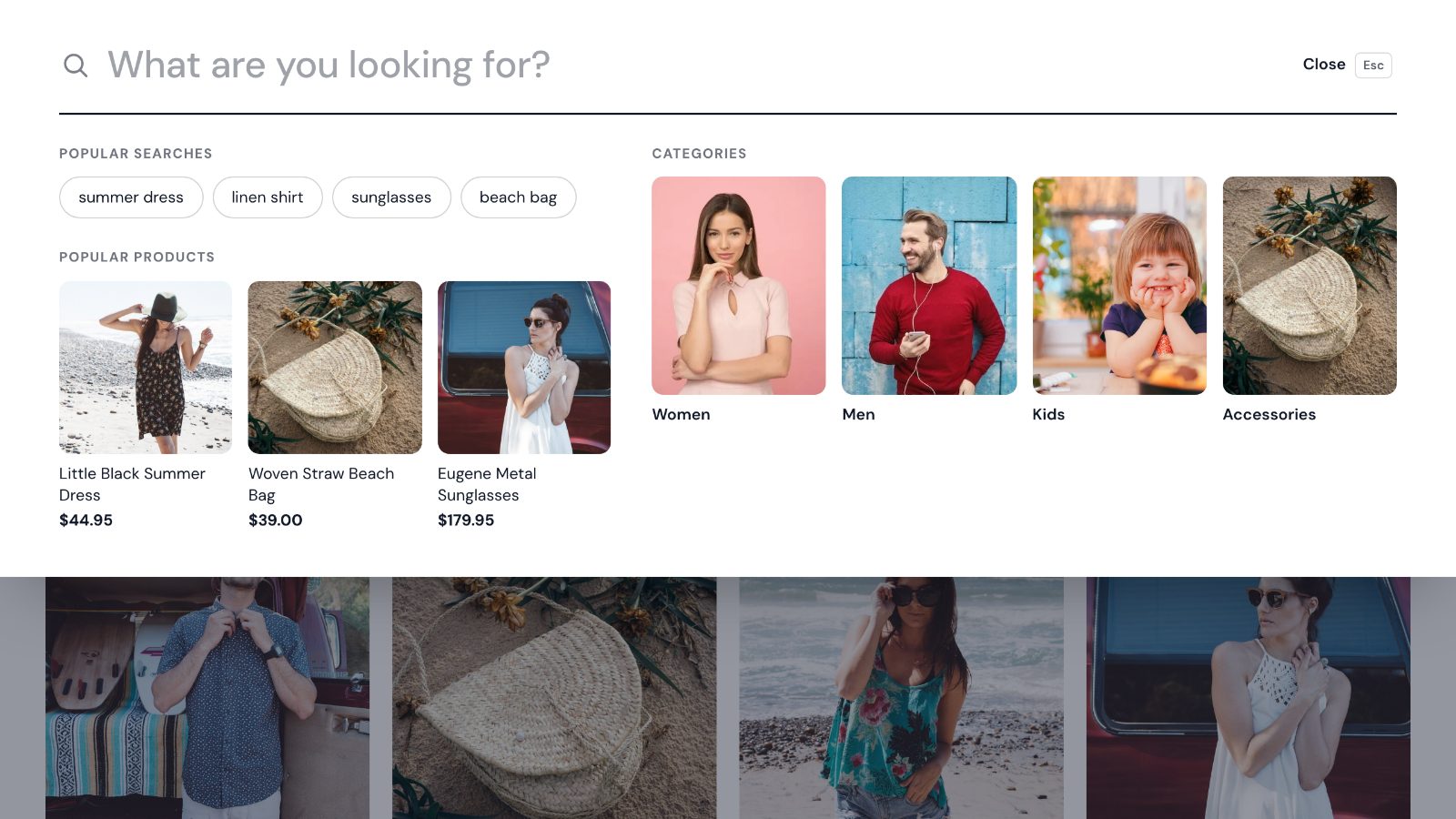
- Search panel: a full-width search opens over the page. Before shoppers type it shows your popular searches, categories and products. While they type it shows matching products and categories.
One thing to know: the results come from your store's own product search, the same one as the search page. The panel shows them faster and in a nicer way, but it doesn't add smart extras such as typo correction or synonyms. If a word finds nothing on your search page, it finds nothing in the panel either.
1. Turn on the search panel
Open the app and go to the Search tab. Under When shoppers tap search, pick Search panel. The panel works with both search icons: the search shortcut in the bar (switch it on under Design, In the bar, Search) and the tab bar's Search (under Mobile extras, Bottom tab bar on phones).
While you are on the Search tab, the preview on the right shows the panel open, so you see each change as you make it.
2. Fill what shoppers see before they type
An empty search box doesn't help anyone. The panel fills that space with three things, all optional:
- Popular searches: your own suggestions, comma separated, up to 12, for example "gift sets, dark roast, sale". They show as buttons, and a tap searches for that word.
- Categories: Top-level categories shows the first 6 top-level categories in the menu's order, with their photos. Choose lets you pick up to 8 yourself. Off hides them.
- Popular products: pick up to 8 products to show with photo and price.
You can also change the Placeholder of the field ("What are you looking for?").
3. Results as shoppers type
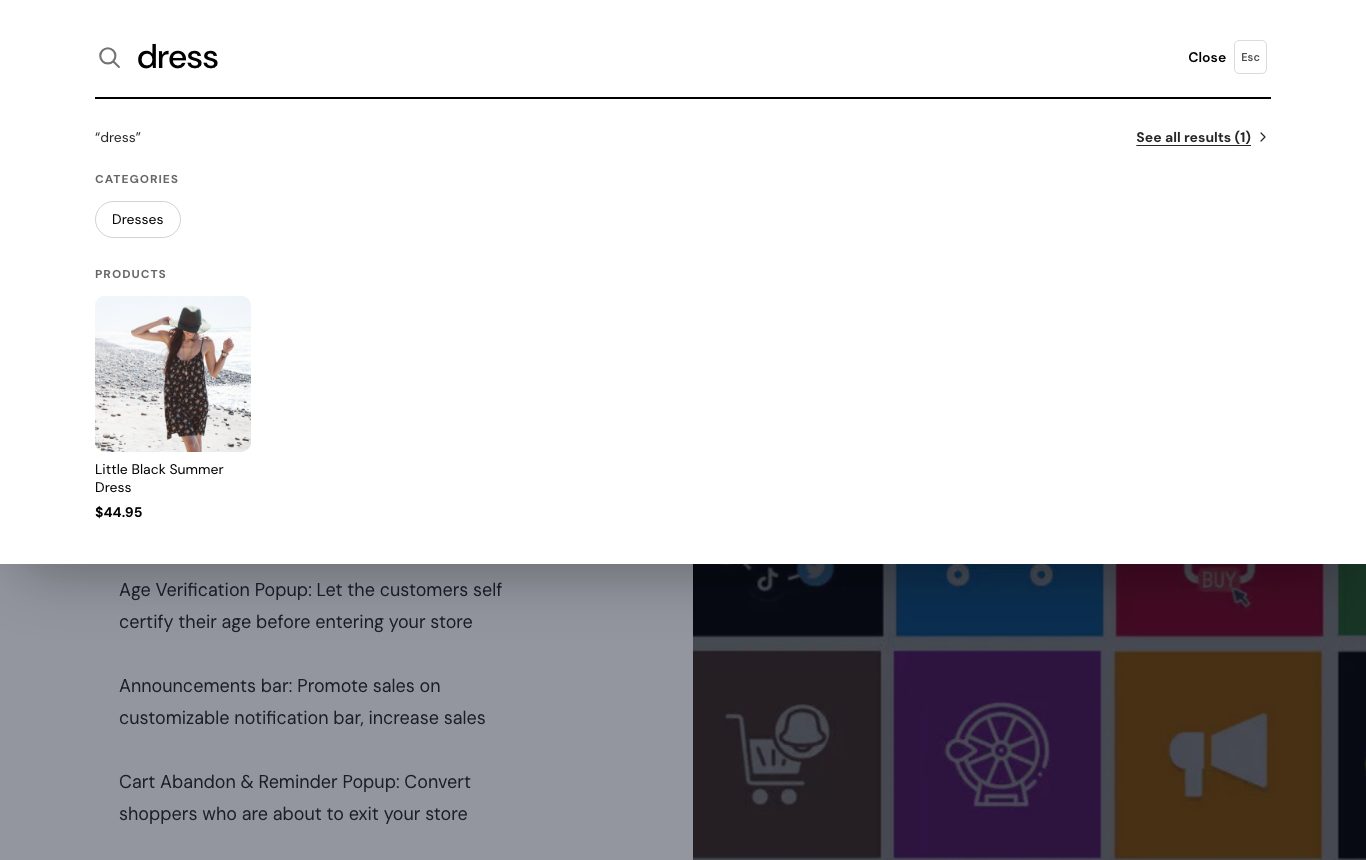
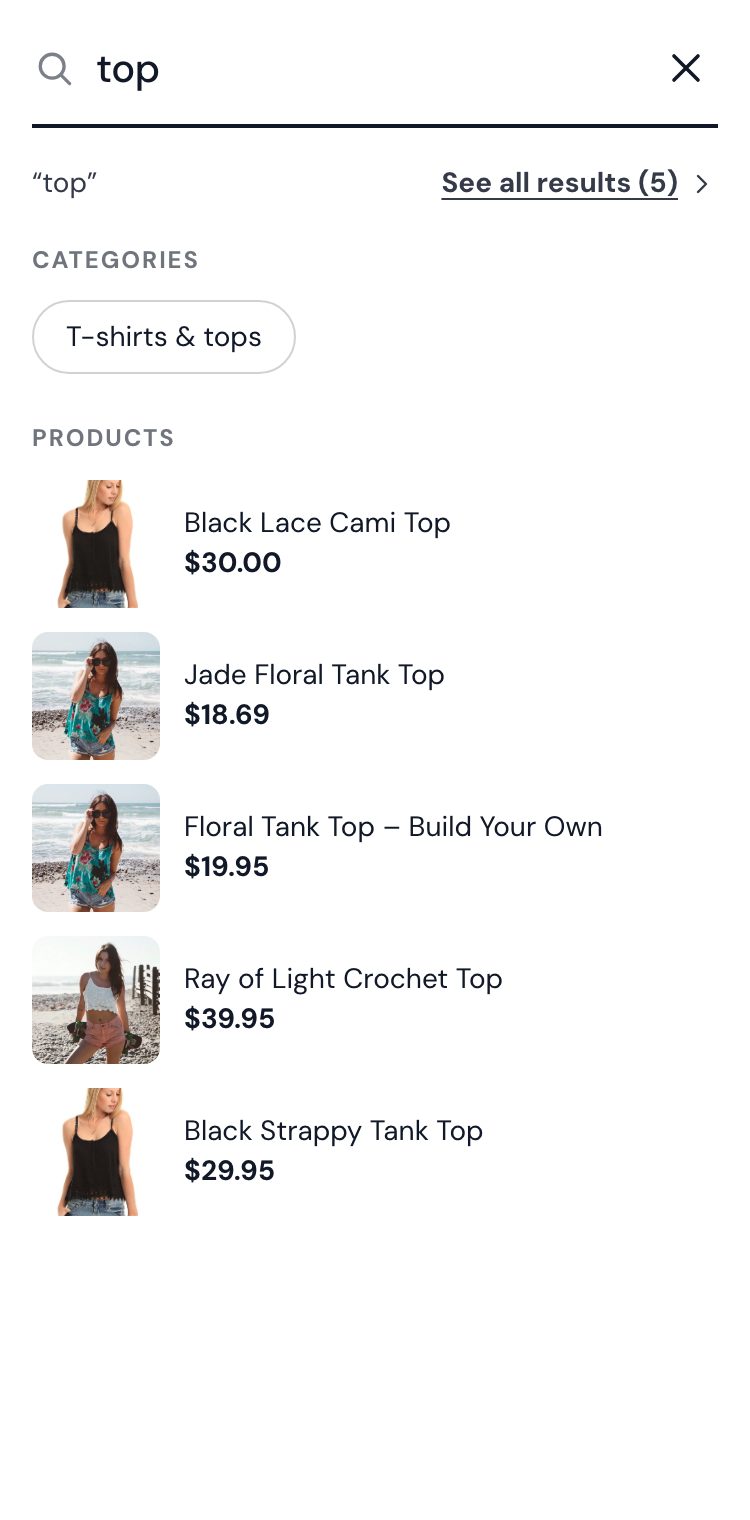
Keep Results as shoppers type on (it is on by default). From the second letter, the panel shows the matching products from your store's search, up to 8, with photo and price, and the categories whose name matches the words. At the top, See all results shows how many products were found and opens the full search page. Pressing Enter opens the search page too.
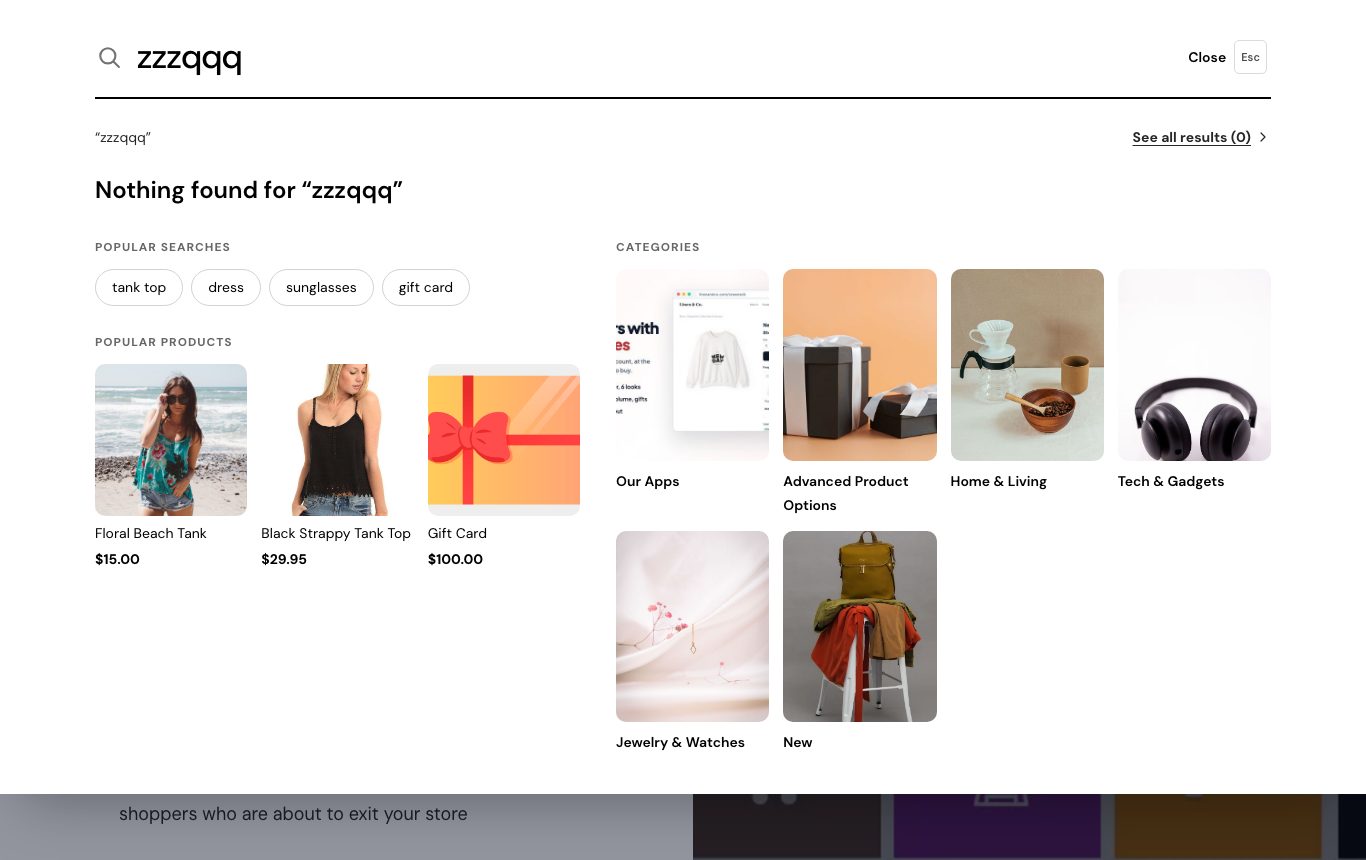
If nothing matches, shoppers see "Nothing found for" with their words, and under it your popular searches, categories and products, so the search doesn't end in a dead end. Switch Results as shoppers type off and the panel only shows your suggestions; Enter still opens the search page.
4. On phones
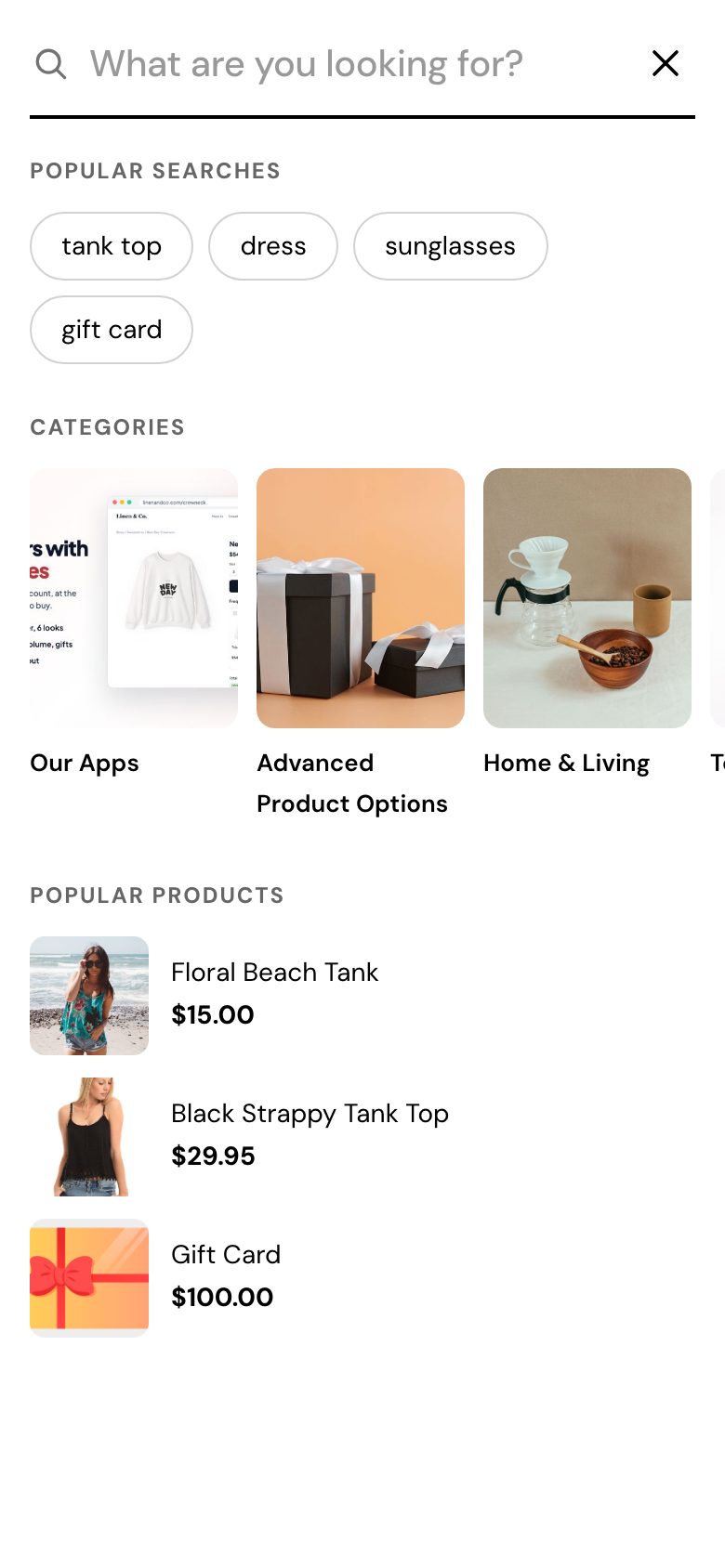
On phones the panel fills the screen with a compact layout: a scrolling row of categories and products as rows with a small photo. The close button sits next to the field. On computers there is a Close button with Esc, and clicking outside the panel closes it.
5. Texts and languages
Under Texts on the Search tab you can change every heading: "Popular searches", "Categories", "Popular products", "Products" (the results), "See all results", "Nothing found for" and the Close button. Texts are built in for German, French, Italian, Spanish, Dutch, Portuguese, Polish, Danish, Swedish, Norwegian and Czech. If your store has more languages, the Translations tab lets you edit them per language, including your popular searches, so a German shopper can get German suggestions. Category and product names come from your catalog in each language.
6. Or keep your store header: "Below the store header"
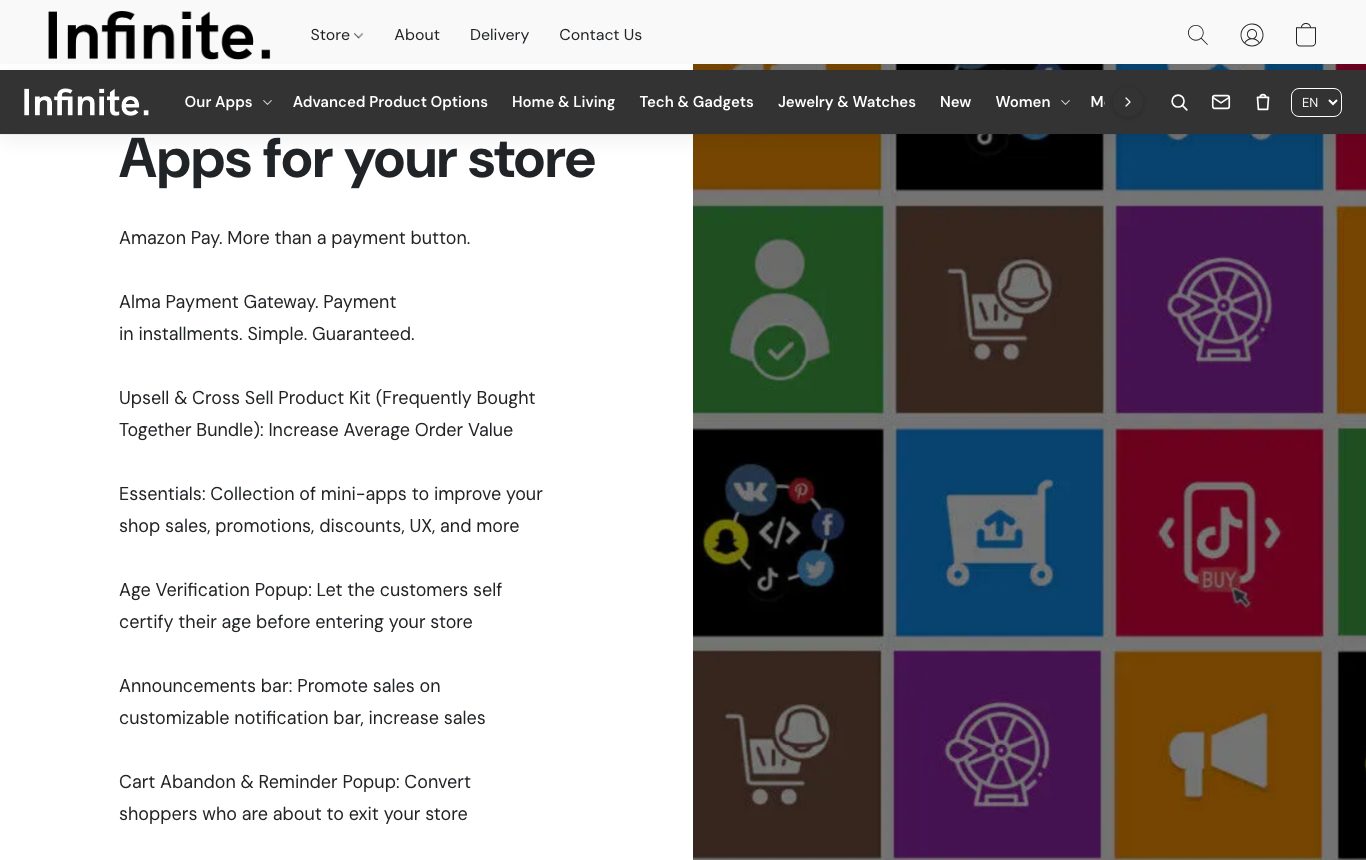
Some stores want the mega menu but also want to keep their store header, for example because a search app puts its own search box there. On the Placement tab, under Where the menu goes, pick Below the store header. The store header stays with its logo, search and account, and the menu sits right under it. You can choose a different position for phones under On phones.
If your header lies on top of the cover image, the page moves down by the menu's height, so the menu doesn't cover the image.
Common setups
You already use a search app
Keep Open the search page, so the search icons lead to the search page your app controls. Or use Below the store header to keep the app's search box in your header with the menu under it.
A clothing store
Popular searches "summer dress, linen shirt, sunglasses, beach bag", Categories on Top-level categories, and three best sellers as Popular products. Shoppers who don't know what to type can start from a photo.
Push a sale or a season
Set Categories to Choose and pick your Sale and new season categories, and add the products you want to sell first to Popular products. Change them when the season changes.
Phone-first store
Turn on the Bottom tab bar on phones with Search in it, and pick Search panel. Search is always one tap away at the bottom of the screen.
Questions
Will this replace my search app?
Only if you pick Search panel. The default is Open the search page, which works as before and keeps any search app you use.
Does it find products with typos?
No. The results come from your store's own search, so they are the same products your search page finds for that word. The panel shows them while shoppers type and adds matching categories.
Can shoppers still see all results?
Yes. The panel shows up to 8 products. See all results, with the number found, and the Enter key open your store's full search page.
Where do I set up the rest of the menu?
Templates, banners, products in the menu and the phone layouts are in our Mega Menu guide.