How it works in short
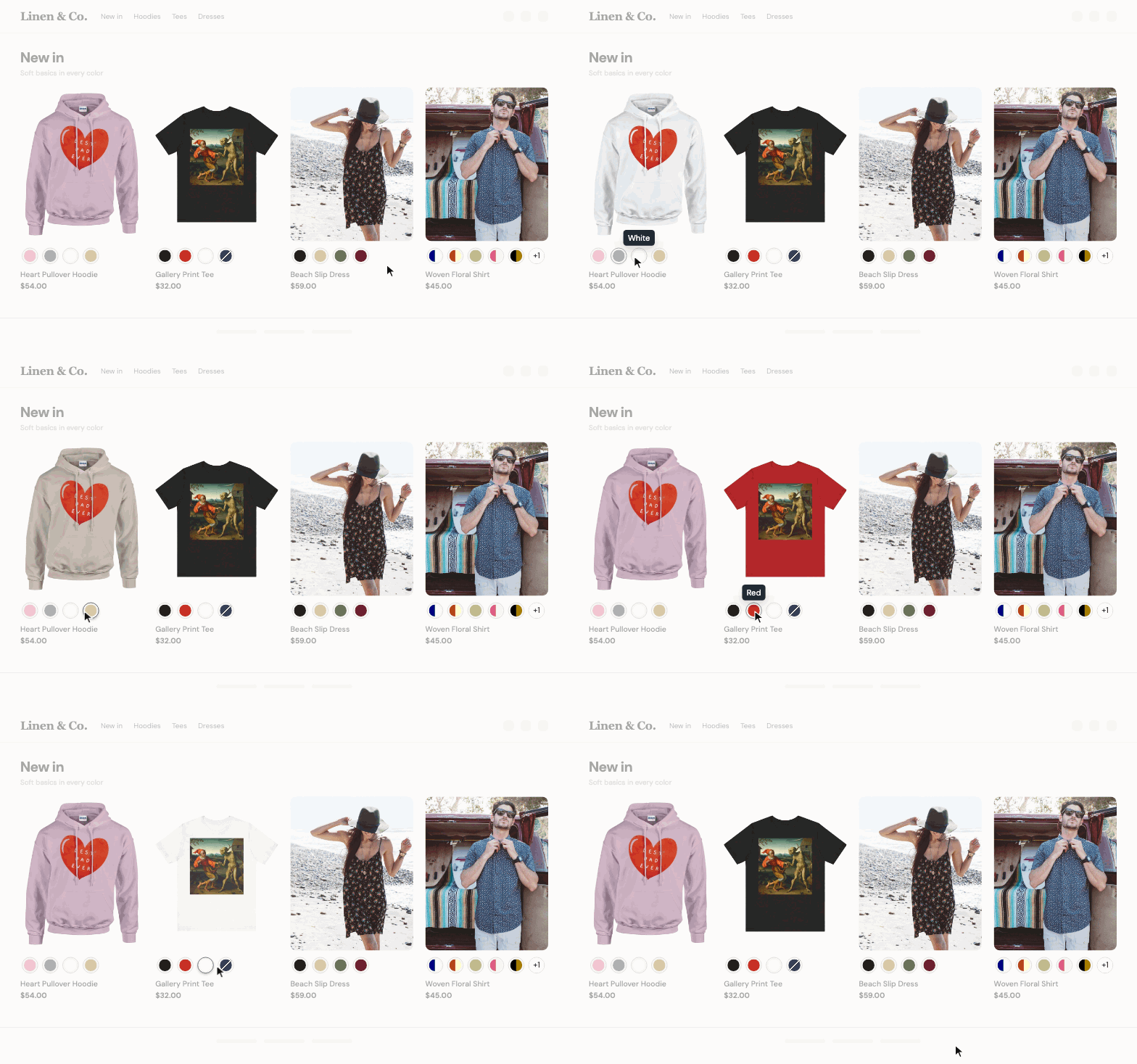
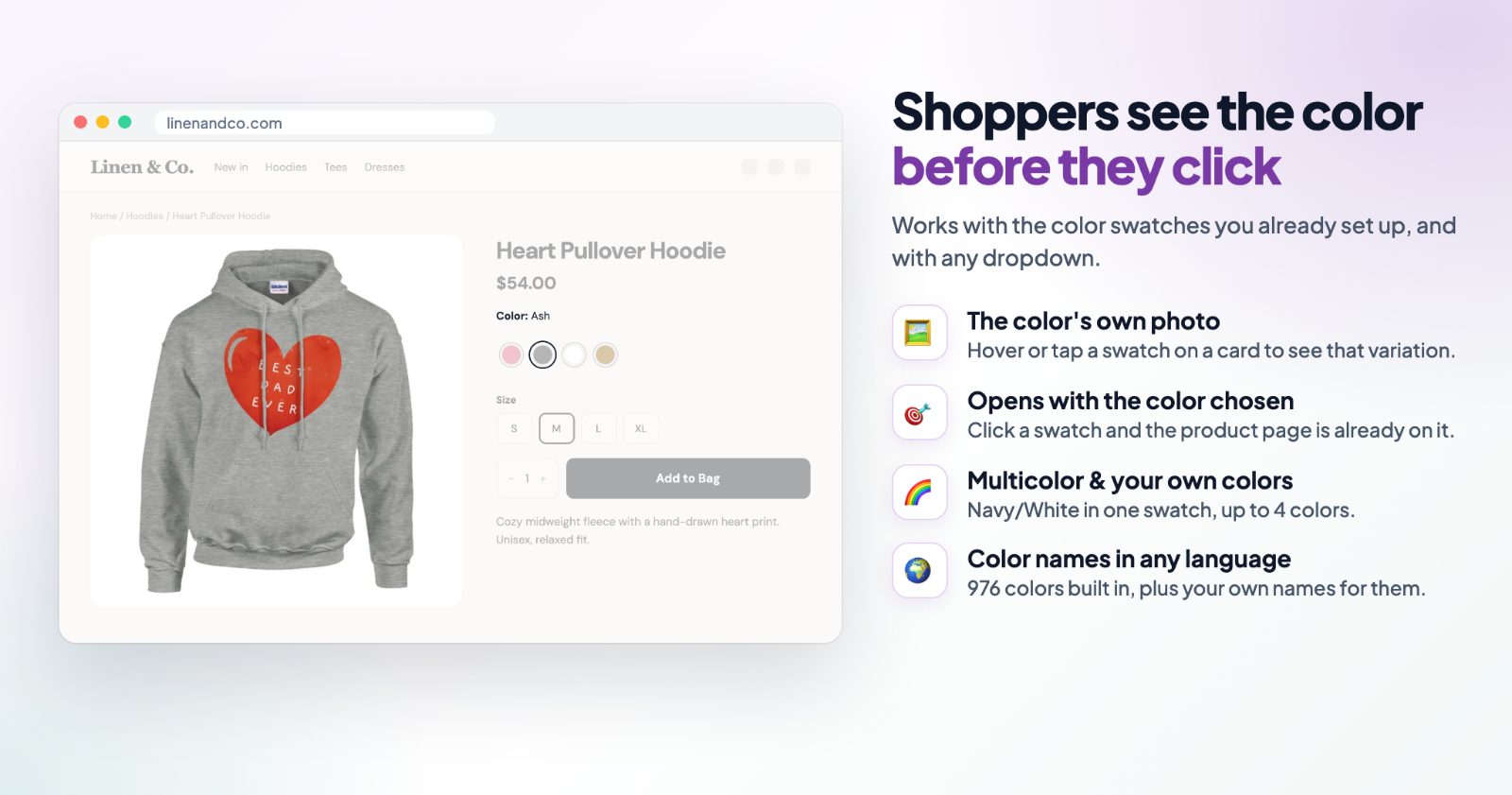
A dropdown that says "Color: Navy, Sand, Ash" makes shoppers open it to find out what you sell. The app shows the colors themselves instead, as small swatches. They appear in two places:
- Product pages: swatches instead of the option's dropdown, buttons or your store's own swatches.
- Product cards: categories, search, home page sections, related products and recently viewed. Shoppers see which colors a product comes in before they open it.
The app knows 976 colors by name, so a choice called "Navy" or "Sand" gets the right color without any work. For names it doesn't know, you add your own colors.
1. Choose which options become swatches
Open the app. The first box, Which options become swatches, has two parts:
- Options set up as color swatches: options you created with the Color swatches type, with the colors you picked for them. Switch it on and they use the app's look.
- Dropdowns and buttons with these names: type option names such as Color or Colour. Each choice gets the color its name says: Navy, Red, Navy/White. Under Add from your products the app lists option names it found in your products, so you can add them with one click. A name that no product uses is marked "not in your products".
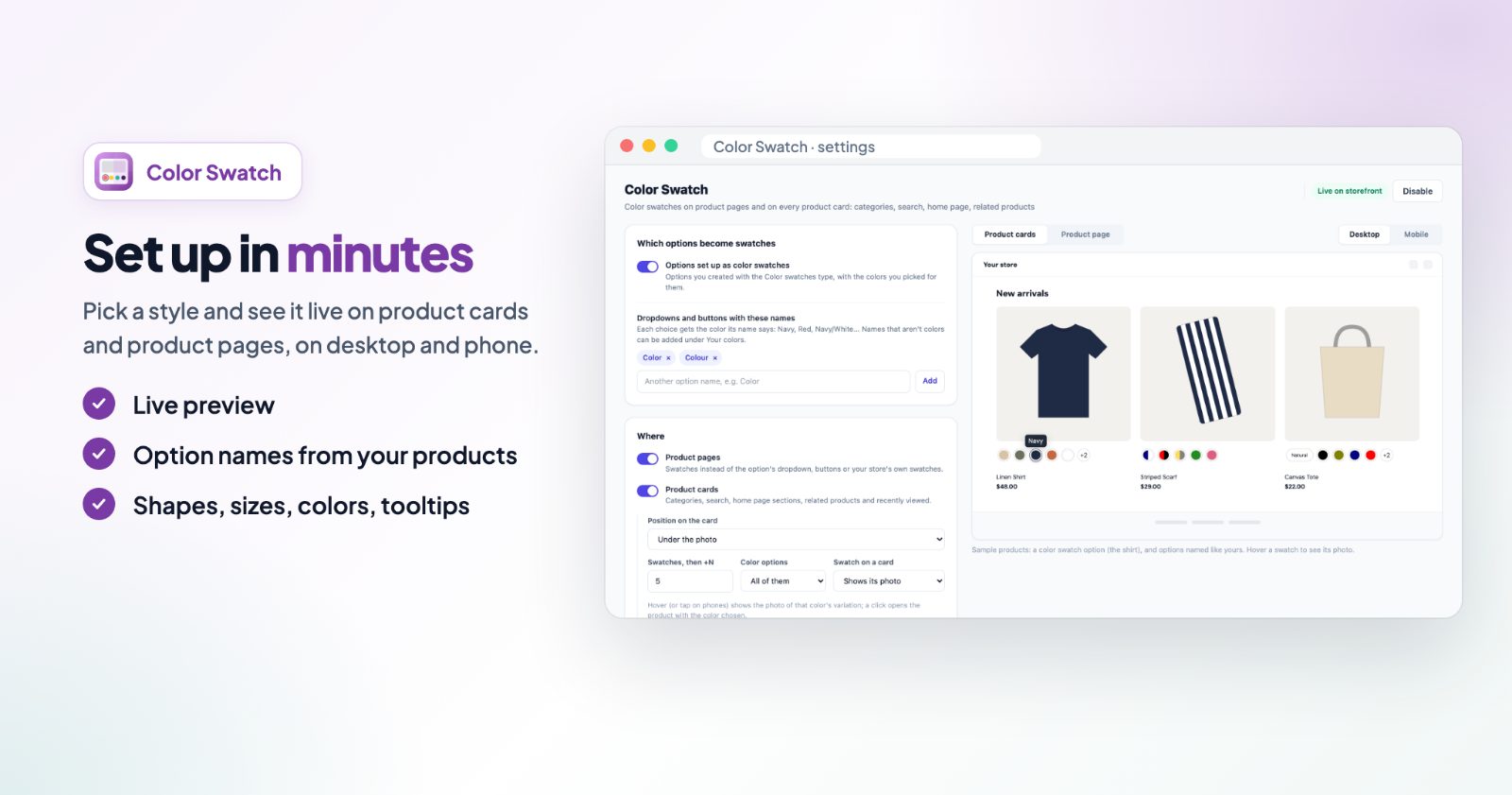
2. Pick where the swatches show
In the Where box, switch on Product pages, Product cards or both. For product cards you also choose:
- Position on the card: Automatic (where your store shows its swatches, else at the bottom), Under the photo, Under the name, Under the price, or At the bottom of the card.
- Swatches, then +N: how many swatches a card shows before the rest become "+3".
- Color options: All of them, or Only the first, for products with more than one color option.
- Swatch on a card: Shows its photo (hover, or tap on phones, shows the photo of that color's variation) or Opens the product (a click opens the product with the color chosen).
3. Make them look like your store
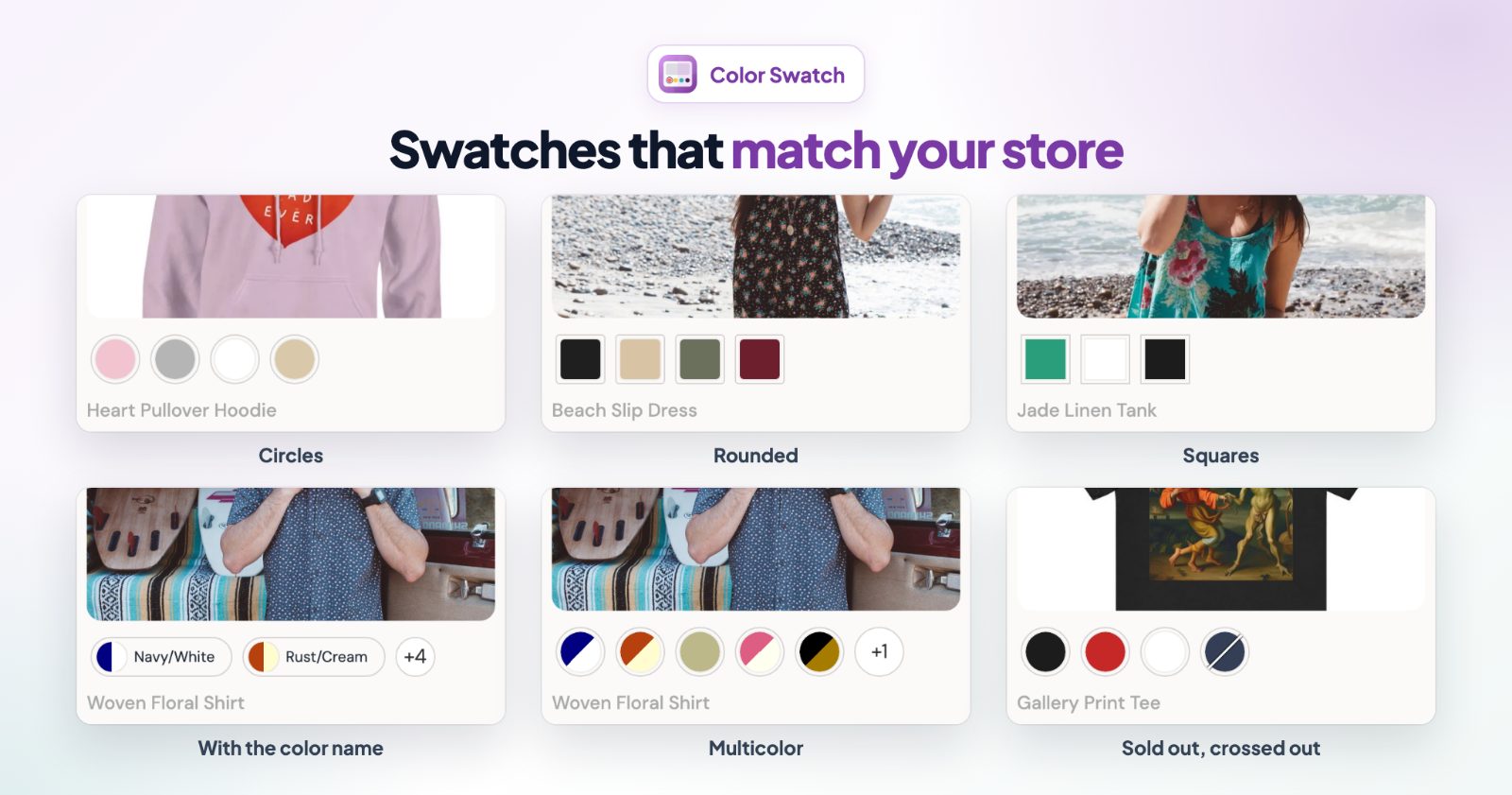
The Look box sets the shape and the details:
- Shape: Circles, Rounded, Squares, or With name (a small pill with the color and its name).
- Size (S, M, L, XL), Align, and how the Chosen color stands out: it Grows or Gets a ring.
- Border and Chosen / hover colors.
- Multicolor: Halves / quarters, or Diagonal / pie.
- Inside the swatch: The color, or The color's product photo.
- Sold out colors: Crossed out, Faded, Hidden on cards, or No change. A color is sold out when all its variations are out of stock.
- Color name on hover with a dark or light tooltip, and Chosen color next to the option name ("Color: Navy") on product pages.
4. Add your own colors and names
If a choice shows as text instead of a swatch, the app couldn't find a color for that name. Two boxes fix that:
- Your colors: add a name exactly as it is in your products ("Ocean", "Heather Grey") and pick its color, or up to 4 colors for a multicolor swatch. Check a color name shows the swatch shoppers will see for any name. Two colors in one name, split at sets the character that splits a name: with /, "Navy/White" shows both colors.
- Color list: the 976 colors the app knows. If your products use other names (another language, your own names), type them next to the color, for example Rood next to Red.
5. Check the preview and switch it on
The Preview on the right shows sample products with your settings. Switch between Product cards and Product page, and between Desktop and Mobile. Click Save, then Enable; the label at the top says Live on storefront. Disable turns the swatches off again at any time.
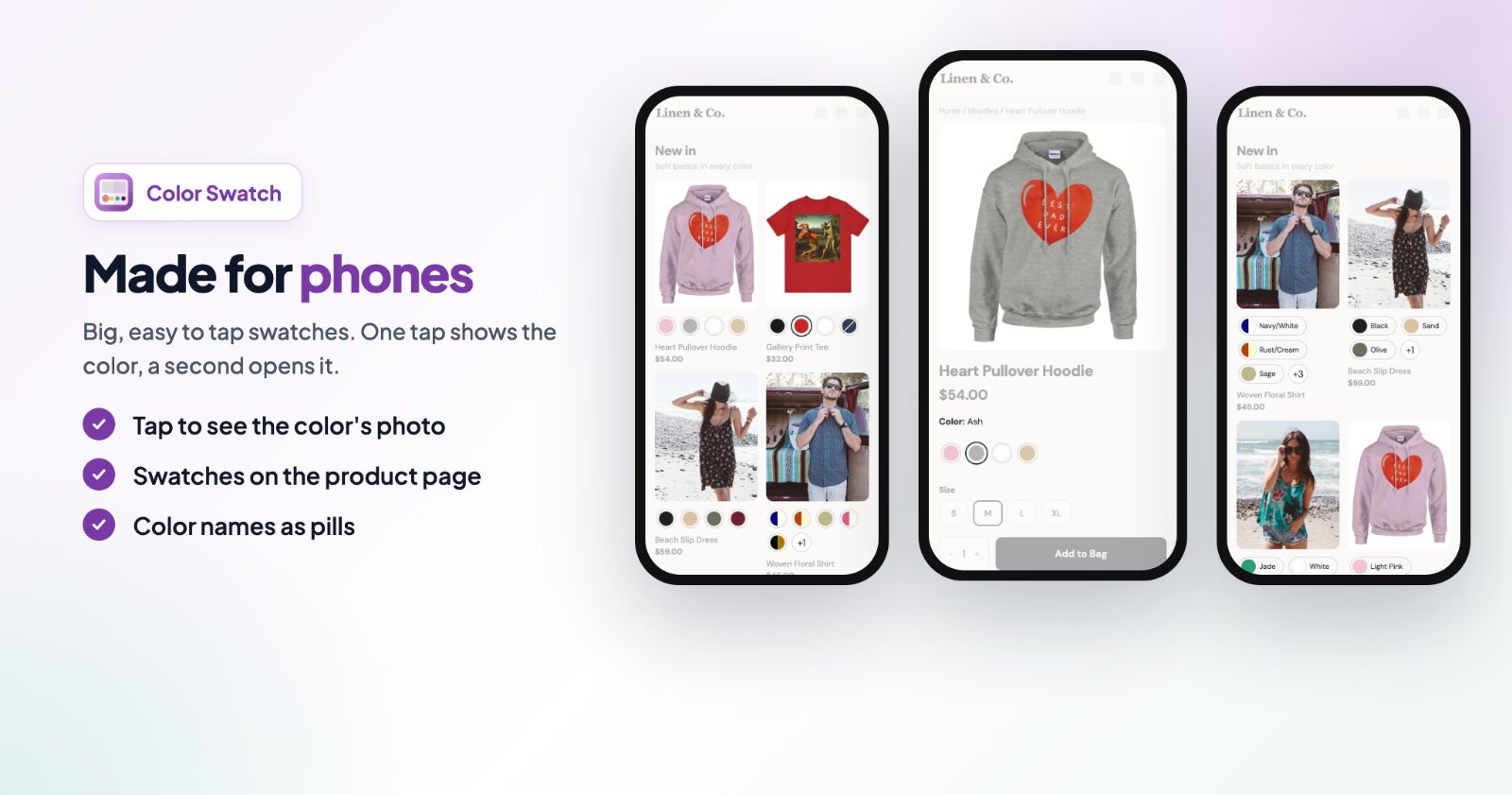
On phones the swatches are big enough to tap. One tap shows the color, a second tap opens the product.
Common setups
Clothing with a Color option
Add "Color" under Dropdowns and buttons with these names, switch on Product pages and Product cards, and keep Swatch on a card on Shows its photo. Shoppers hover a color on a category page and see that hoodie or tee in that color.
A store in another language
Your choices are called "Rood", "Blauw" and "Zwart"? Search the Color list for Red, Blue and Black and type your names next to them. The swatches then work for every product that uses those names.
Two-color products
Name the choice with both colors, like "Navy/White". For a fixed mix with its own name, add it under Your colors with up to 4 colors, and pick Halves / quarters or Diagonal / pie.
Prints and patterns
A flat color doesn't show a floral print. Set Inside the swatch to The color's product photo, so each swatch shows the photo of that variation.
Hide what you can't ship
Set Sold out colors to Hidden on cards so category pages only show colors you have, or Crossed out to show that a color exists but is sold out.
Questions
Which options become swatches?
Options you created with the Color swatches type, and dropdowns or buttons whose name you add under Dropdowns and buttons with these names, for example Color or Colour.
A color shows as text instead of a swatch. Why?
The app couldn't find a color for that name. Add it under Your colors, or type your name next to the matching color in the Color list.
Can I keep swatches off some products?
Yes. Under Advanced, Don't show on these products or pages takes product IDs or links to pages, separated by commas. A category link hides the swatches on that page. There is also a Custom CSS field.
What happens with sold out colors?
You choose: crossed out, faded, hidden on cards, or no change.
Want shoppers to pick a color without leaving the category page? See the Quick View guide. For long product descriptions, see product description tabs.