How it works in short
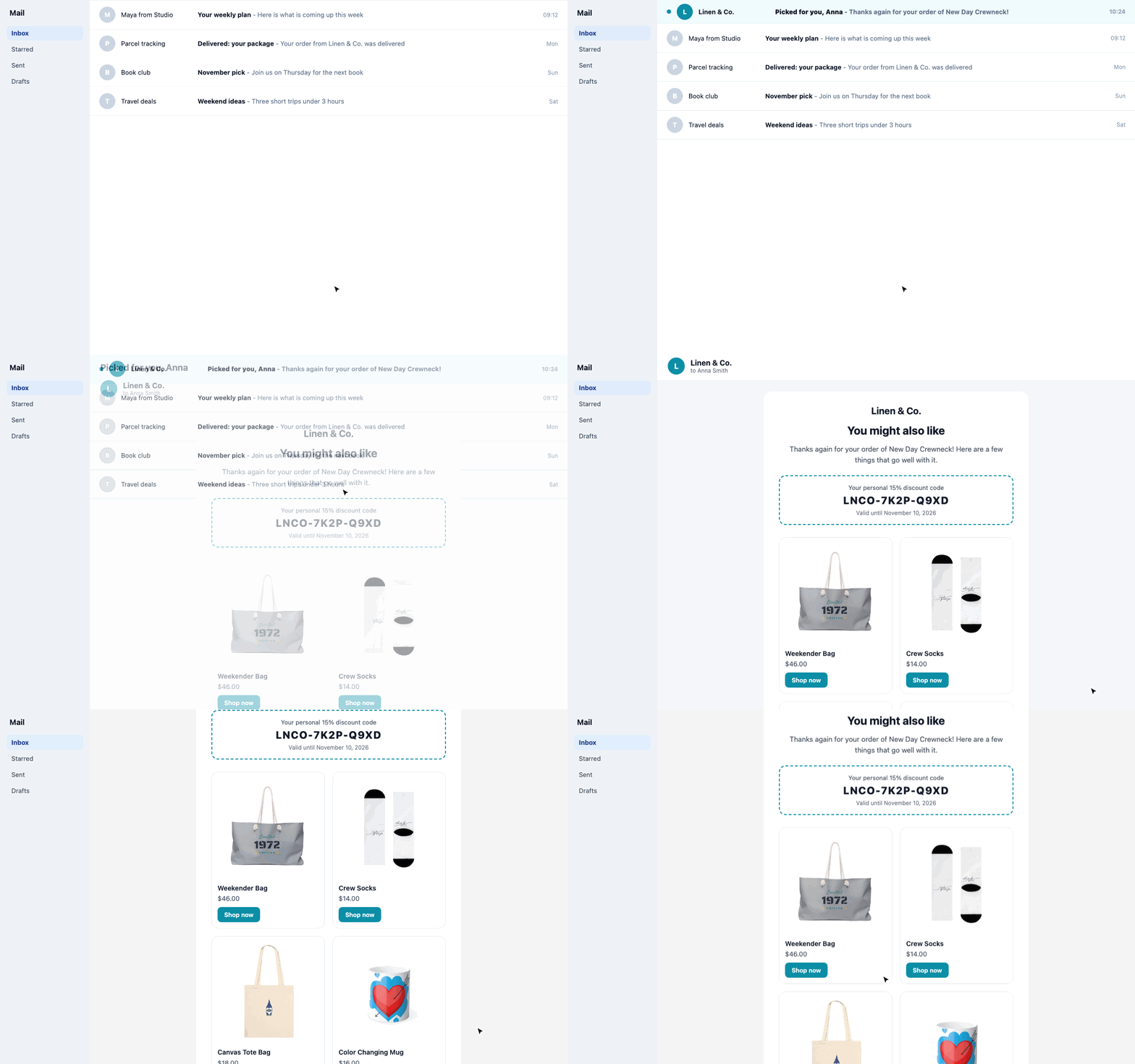
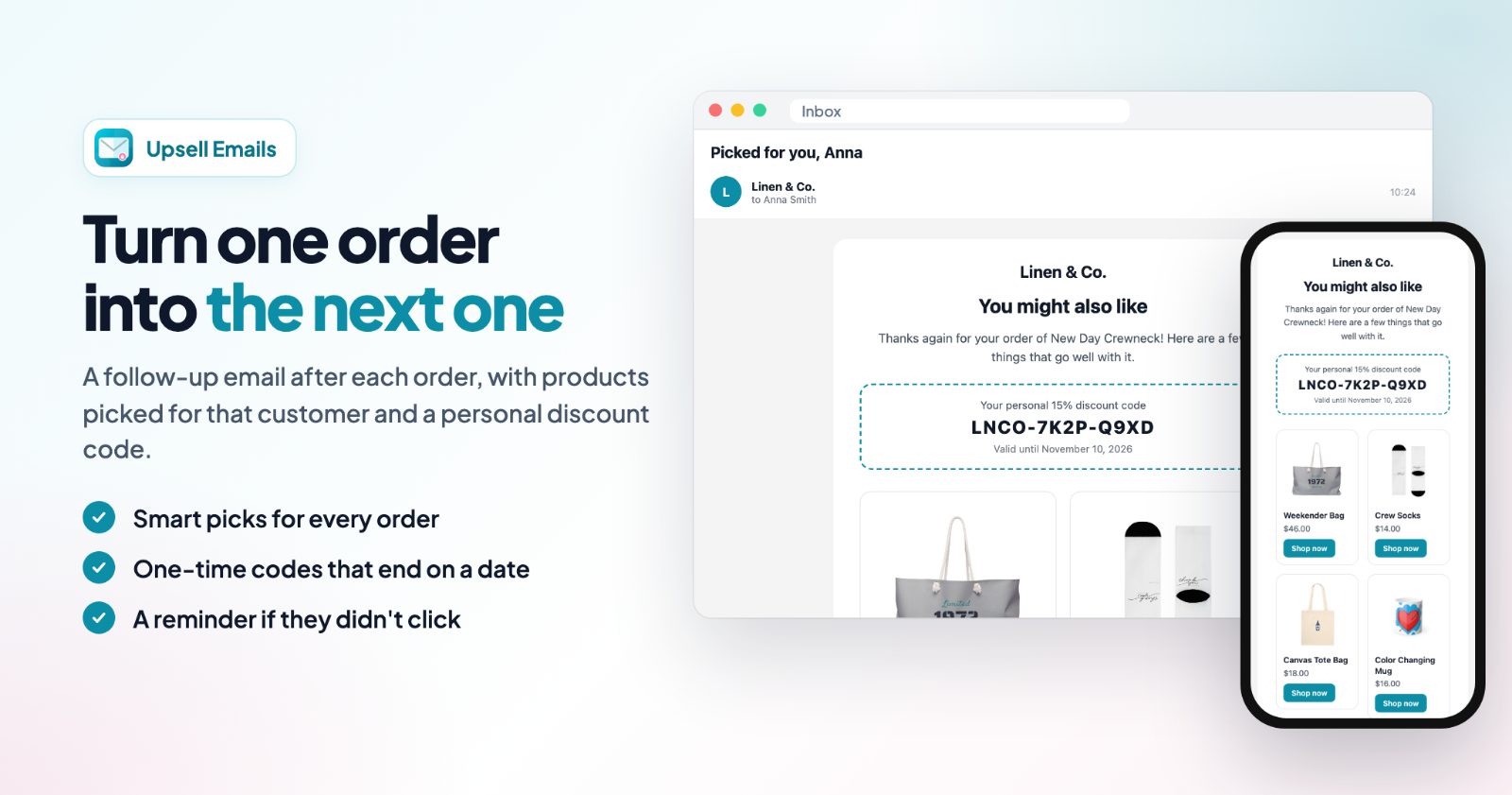
Black Friday and Cyber Monday bring you many new customers in a few days. Most of them bought one thing and won't come back unless you give them a reason. A follow-up email after their order does that: products that go with what they bought, and a code that is only theirs.
- It is sent by itself: when an order reaches the status you pick (for example Shipped or Delivered), the customer gets one email after the number of days you set.
- Every email has its own products: smart picks for each order, or products you choose.
- Every customer gets their own code: a new one-time discount code, with an end date if you want one.
- A reminder goes out a few days later if the first email wasn't clicked.
Only orders that reach your status while the app is on get an email. So switch it on before your sale starts (Black Friday is November 27, 2026), and every holiday order is covered.
1. Pick a design and your texts (Email)
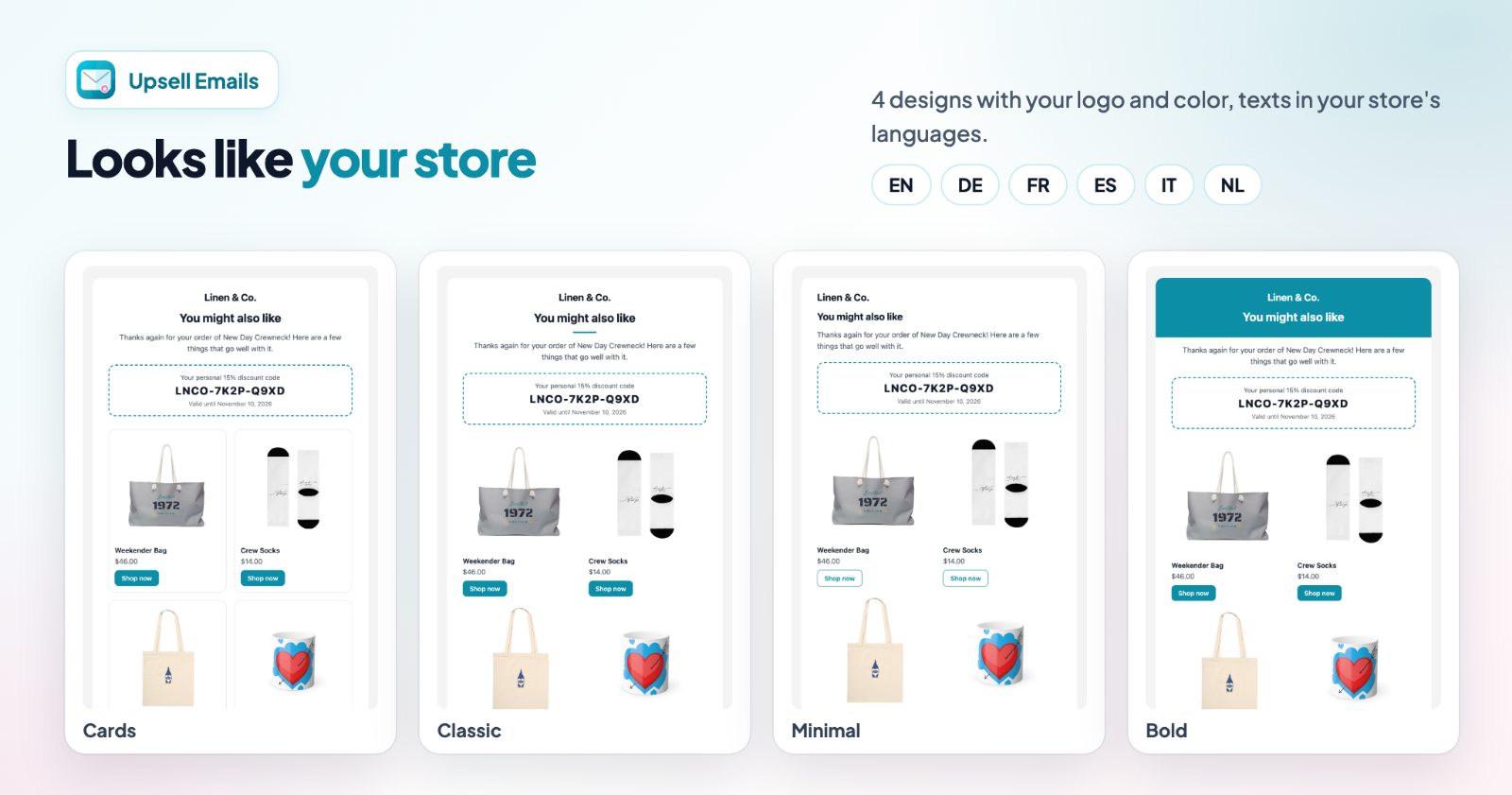
Open the app. On the Email tab, choose one of the 4 designs: Cards (products in cards), Classic (centered, with a color line), Minimal (plain and personal) or Bold (a colored header band). Set the Color and upload your Logo; without one, the email uses your store's email logo, or else its name.
Under Texts you can change the Subject, Heading, Message, Coupon line, Product button and Small print. Empty fields use our text. A few words are filled in for each customer: {name} is their first name, {product} what they bought, {discount} the coupon value and {date} its end date. Pick the Email language (English, German, French, Spanish, Italian or Dutch), set the Sender name, and add the email address under Replies go to so customers can answer you.
For the holidays, a subject like "{name}, picked for you after your order" and a message that thanks them for shopping in your sale works well. If you edited your own email HTML before, it stays under Your own HTML.
2. Choose the products (Products)
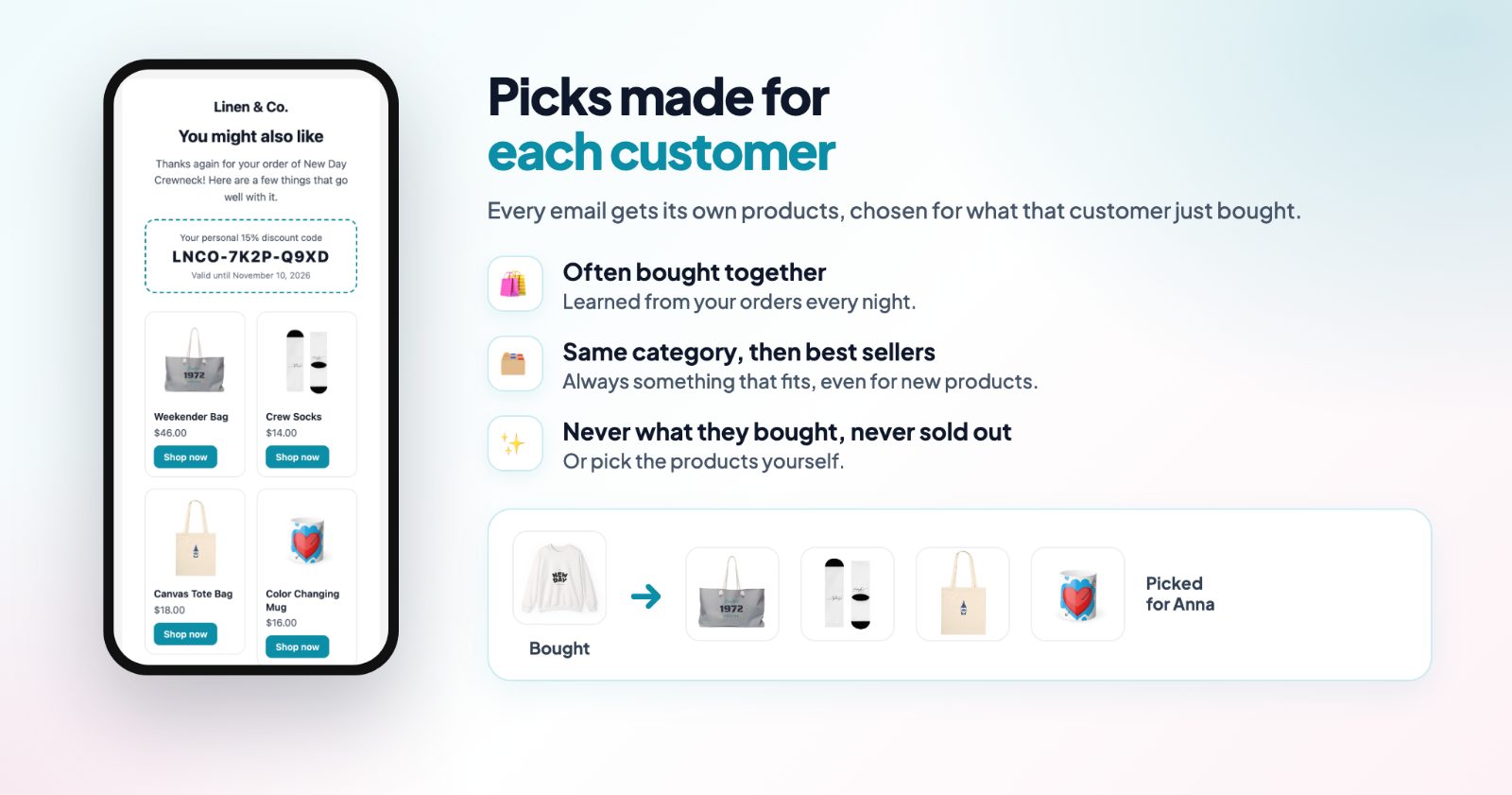
Under Products in the email, choose Smart picks or Products I choose.
- Smart picks are chosen for each order: products often bought together with what the customer bought, then products from the same categories, then your best sellers. Never what they already bought, never sold out. Under How many, pick 2, 4, 6 or 8.
- Products I choose: search your products and add them, for example your January new arrivals or the items you have most stock of after the holidays. Under In each email, show all of them or 1 to 4 of them at random.
3. Add a personal discount code (Coupon)
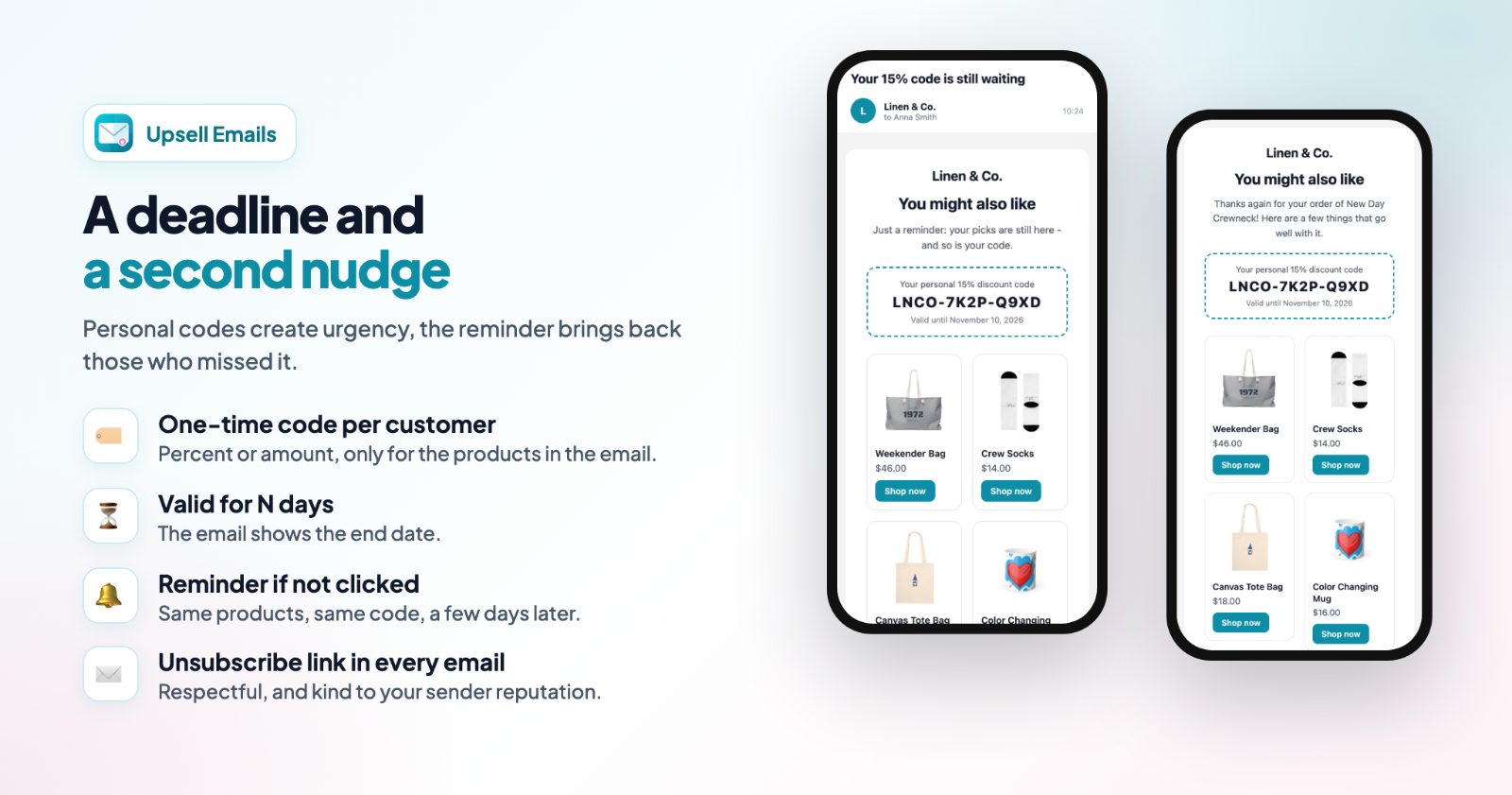
Turn on A personal discount code in every email. Each customer gets a new one-time code, valid for the products in their email (or your whole store when the email has no products). Choose the Type, Percent or Amount, and the Discount. Set Valid for in days: the email then shows the end date. With 0 the code never ends.
After Black Friday, a smaller code than your sale discount is usually enough: the customer already knows your store. A code valid for 10 or 14 days gives them time to come back before Christmas.
4. Decide when it goes out (When)
Under When an order is, pick the order status: Processing, Shipped, Out for delivery, Delivered, Dispatched, or one of your custom fulfillment statuses. Pick a status your store really sets on its orders. Then Send it after a number of days. Emails go out every 15 minutes.
"When an order is Shipped, after 3 days" reaches customers around the time the parcel arrives. "Delivered, after 2 days" waits until they have the product in their hands. An email that has waited more than 30 days (for example while the app was off) is not sent anymore, so keep the number of days short.
5. Turn on the reminder
Still on When, switch on Reminder email: a short second email with the same products and the same code, only if the first one wasn't clicked. Set Days after the first email. The reminder has its own Reminder subject and Reminder message on the Email tab, and the preview has a Reminder button to see it. Every email has an unsubscribe link at the bottom; customers who unsubscribe get no more emails from the app.
6. Test it, switch it on, and watch the results
The Preview shows the real email with your products and a sample code, on Desktop or Phone. Send me a test sends it to you. At the top, a single line sums up your setup, for example "Sent 3 days after an order is shipped, with 4 smart picks and a 10% code, reminder 4 days later." Click Save, then Enable.
The Results tab shows the last 30 days: Emails sent, Opened, Clicked, Orders with the code and Revenue from them. Below are the emails Waiting to be sent, each with Send now and Don't send, and the ones Recently sent.
Common setups
The classic after-sale email
Shipped, after 3 days, 4 smart picks, a 10% code valid for 14 days, reminder after 4 days. Switched on before November 27, it covers every Black Friday and Cyber Monday order.
Back for Christmas gifts
Products I choose with your best gift items, 2 of them at random, a fixed amount off, and a message that mentions your last order date for Christmas delivery.
Refills and accessories
For stores where customers come back for more of the same kind: smart picks from the same categories, Delivered, after 7 days, a 15% code valid for 10 days.
No discount, just good picks
Coupon off, 6 smart picks, the Minimal design for a plain, personal email. Fine when your margins after the sale are thin.
Questions
Are emails sent for orders placed before I installed it?
No. Only orders that reach your status while the app is on get an email. Turn it on before your sale.
Can a customer use the code for anything in my store?
The code is valid for the products in their email. When the email has no products, it works for your whole store.
How many emails does a customer get?
One email per order, plus the reminder if you turned it on and they didn't click the first one.
Can customers unsubscribe?
Yes, every email has an unsubscribe link at the bottom.
More for the season: the Black Friday and Cyber Monday apps kit, and review request emails for the same holiday orders.