How it works in short
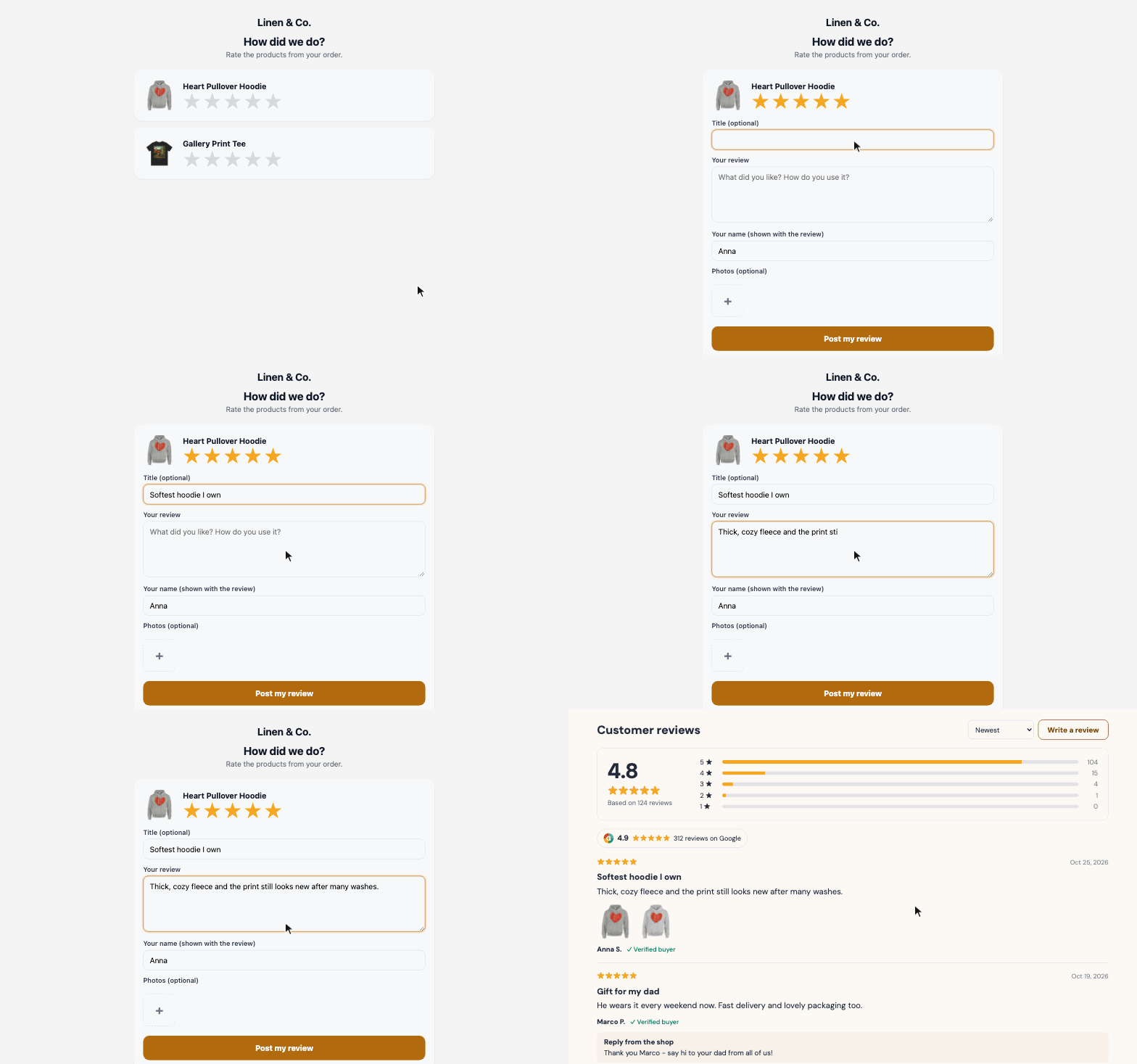
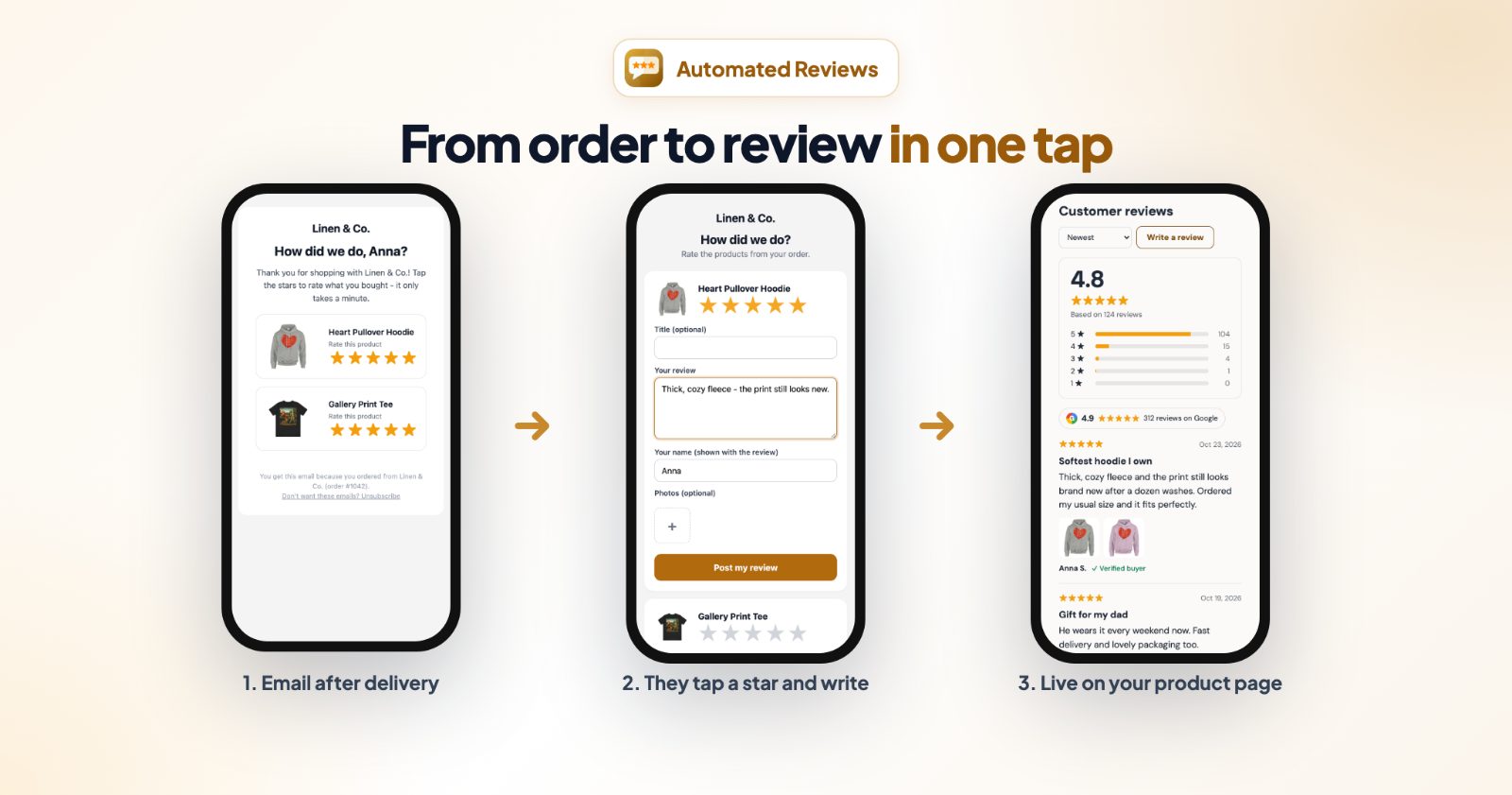
- After the order: when an order reaches the status you choose (for example Delivered), your customer gets an email with the products they bought and 5 stars to tap.
- They tap a star: a short page opens where they write the review and can add photos. Ratings below your threshold open a private message to you instead, so you can make it right. Nothing is published.
- On your store: the review shows on the product page, marked Verified buyer, with stars under the product name and on product cards.
Happy customers can then also be invited to review you on Google, Facebook or other sites you add.
1. Choose when the email goes out (Request email)
Open the app and go to Request email. Under When it goes out:
- When the order is: Delivered, Shipped, Out for delivery, Processing, or one of your own order statuses.
- Then wait: how many days after that status the email is sent. Give the customer time to unpack and use the product.
- Email language.
- One reminder, if nobody tapped the stars, a number of days later.
The Sending switch turns the emails on or off. The same box shows how many emails were sent this month out of the number your plan includes.
2. Decide what happens with low ratings (Unhappy customers)
Review form from sets which ratings open the review form: 5 stars only, 4 stars and up (the default), 3 stars and up or Every rating. Lower ratings open a private message to you instead. Enter the address under Private messages to and Your name.
Publish reviews right away puts reviews from your emails on your store at once. Switch it off and they wait in Reviews for your OK.
Your Google / Facebook... links chooses where the links to your review pages on other sites show: After their review, Next to the review form, Instead of the review form, or Hide them. Add the links themselves lower down, under Your Google, Facebook... links (for example your Google review page), with + Add a link. Empty links are left out.
3. Make the email look like your store (Design)
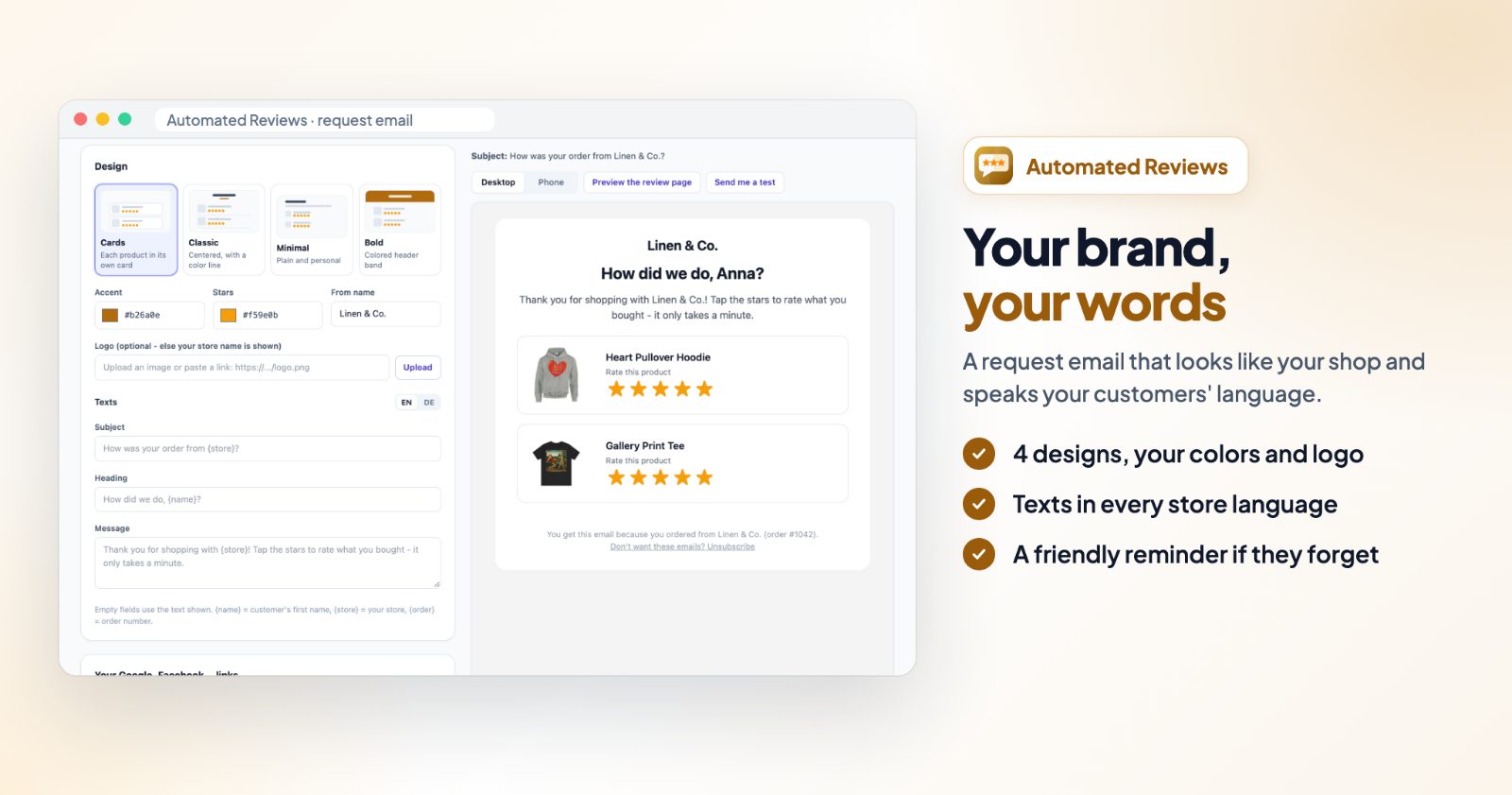
Pick a Design: Cards (each product in its own card), Classic (centered, with a color line), Minimal (plain and personal) or Bold (colored header band). Set the Accent and Stars colors, the From name and your Logo (optional; without one, your store name is shown).
Under Texts, write the Subject, Heading and Message for each language. {name} is the customer's first name, {store} your store and {order} the order number. Empty fields use the text shown. The preview on the right shows the email on desktop or phone, Preview the review page shows what customers see after tapping a star, and Send me a test sends one to your address under Private messages to.
The Queue at the bottom lists the emails waiting to go out. Send now sends one early, Don't send skips it.
4. Show reviews on your store (On your store)
On On your store, turn on Show reviews on my store, then pick what shows:
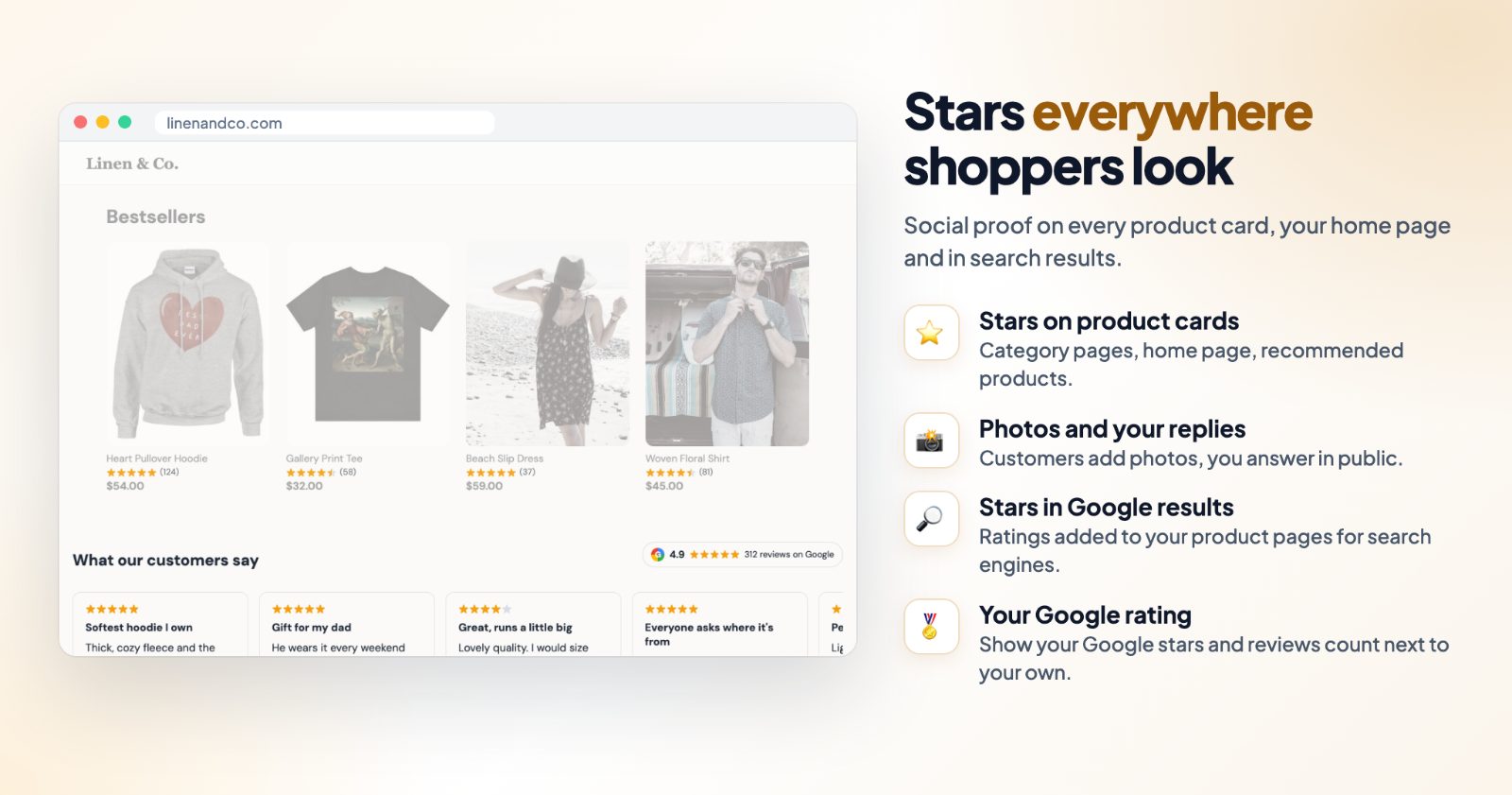
- Reviews section on product pages: the average, a star breakdown, reviews, photos and your replies.
- Stars under the product name.
- Stars on product cards: categories, search, home page, related products.
- Newest reviews on the home page, under a Home page title such as "What our customers say".
- 'Write a review' on product pages: anyone can write one; it waits in Reviews for your OK.
- Stars in Google results: adds the rating to your product pages for search engines.
Under Look, choose the colors of the stars and buttons, List or Cards for the reviews and Rounded or Square corners. Google rating shows your Google stars next to your reviews: search for your business name and city and pick your business. It is updated once a day.
5. Answer and approve (Reviews)
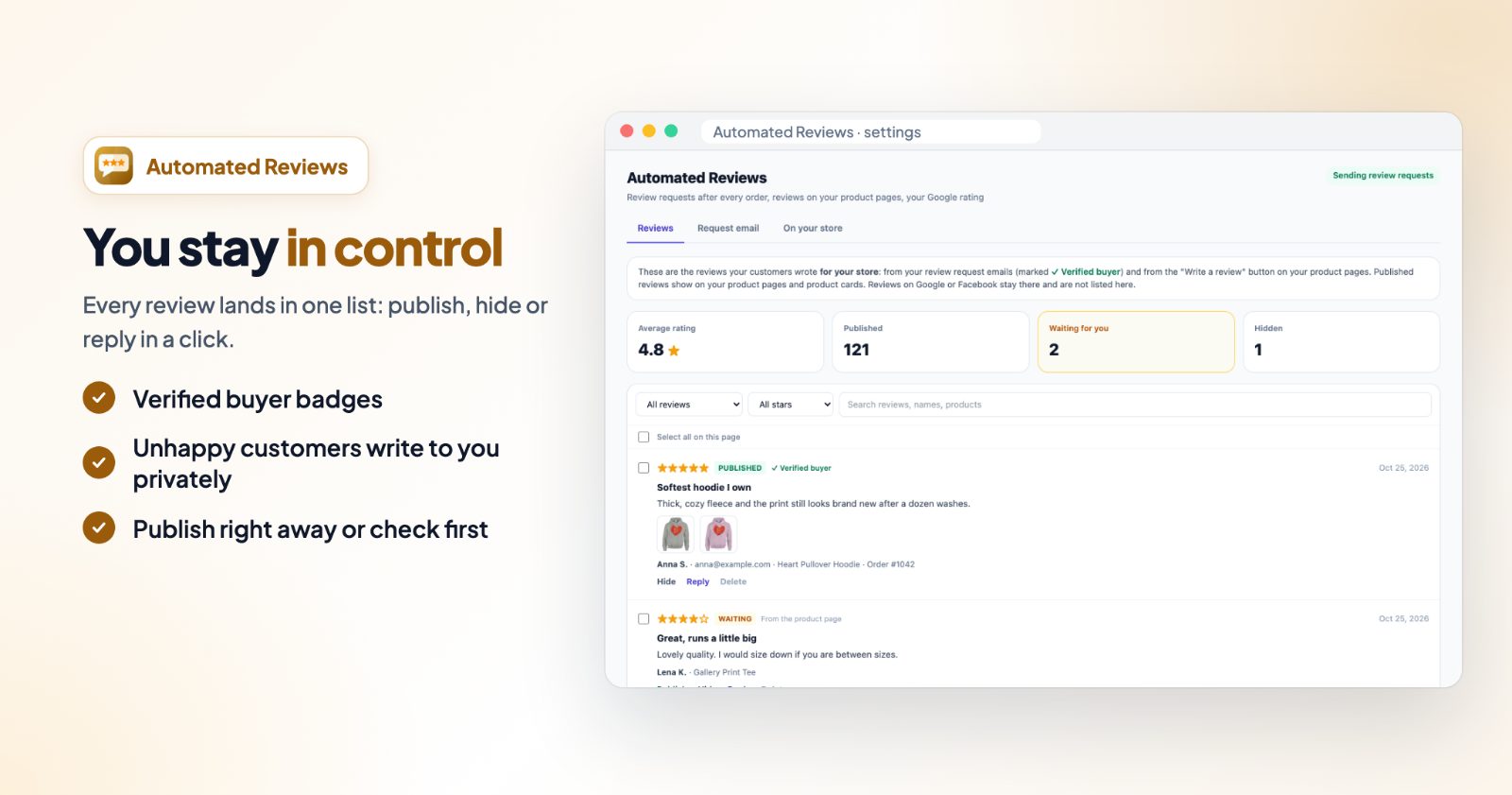
The Reviews tab lists every review your customers wrote for your store, with the Average rating and how many are Published, Waiting for you or Hidden. Filter by status or stars, or search reviews, names and products. For each review you can Publish, Hide, reply (shown under the review on your store) or Delete.
A short, kind reply to a so-so review often says more about your store than the review itself.
Reviews from your holiday customers
Holiday orders often come from people who buy from you for the first time, and many of them are gifts. Those orders are a good chance to collect reviews for next year's shoppers, if you set the timing right:
- Wait a little longer. A gift is opened on the holiday, not the day it arrives. Raise Then wait for the season so the email comes after the gift was given.
- Turn on One reminder. In a busy week the first email is easy to miss.
- Say thank you in the Message. A line like "Thank you for choosing {store} for your holiday shopping" fits the season. Change it back in January.
- Check Waiting for you more often. If you approve reviews by hand, more orders means more reviews to look at.
Common setups
Reviews on your product pages
Delivered, wait 5 days, one reminder, Review form from 4 stars and up, Publish reviews right away, and all On your store options on.
Grow your Google reviews
Add your Google review link and show it After their review, and turn on the Google rating badge.
Check everything first
Publish reviews right away off. Every review waits under Reviews until you publish it.
Google and Facebook only
Links set to Instead of the review form. Nothing is added to your store from the emails; reviews written with the Write a review button on your product pages still are.
Questions
Which reviews are in the Reviews list?
Only the reviews your customers wrote for your store: from your review request emails (marked Verified buyer) and from the "Write a review" button on your product pages. Google or Facebook reviews stay on those sites.
What happens with low ratings?
Ratings below your threshold (4 stars by default) open a private message to you instead of the review form, so you can make it right. Nothing is published.
Do I have to approve reviews?
Reviews from your emails can be published right away ("Publish reviews right away"). Reviews from the product page form always wait for you under Reviews.
How many emails can I send?
The number of emails included in your plan is shown under "When it goes out" and resets every month. See the app page for the plans.