How it works in short
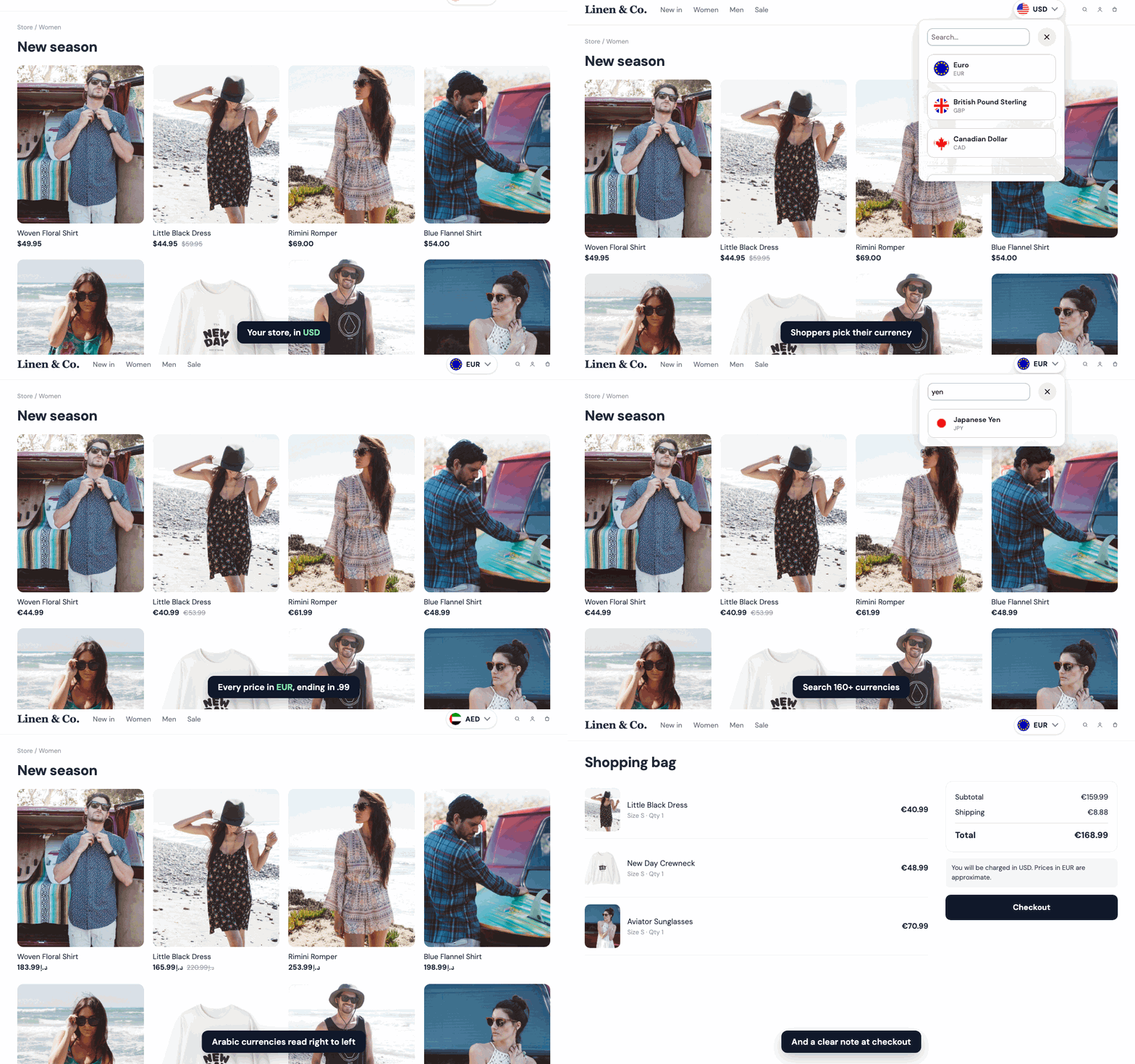
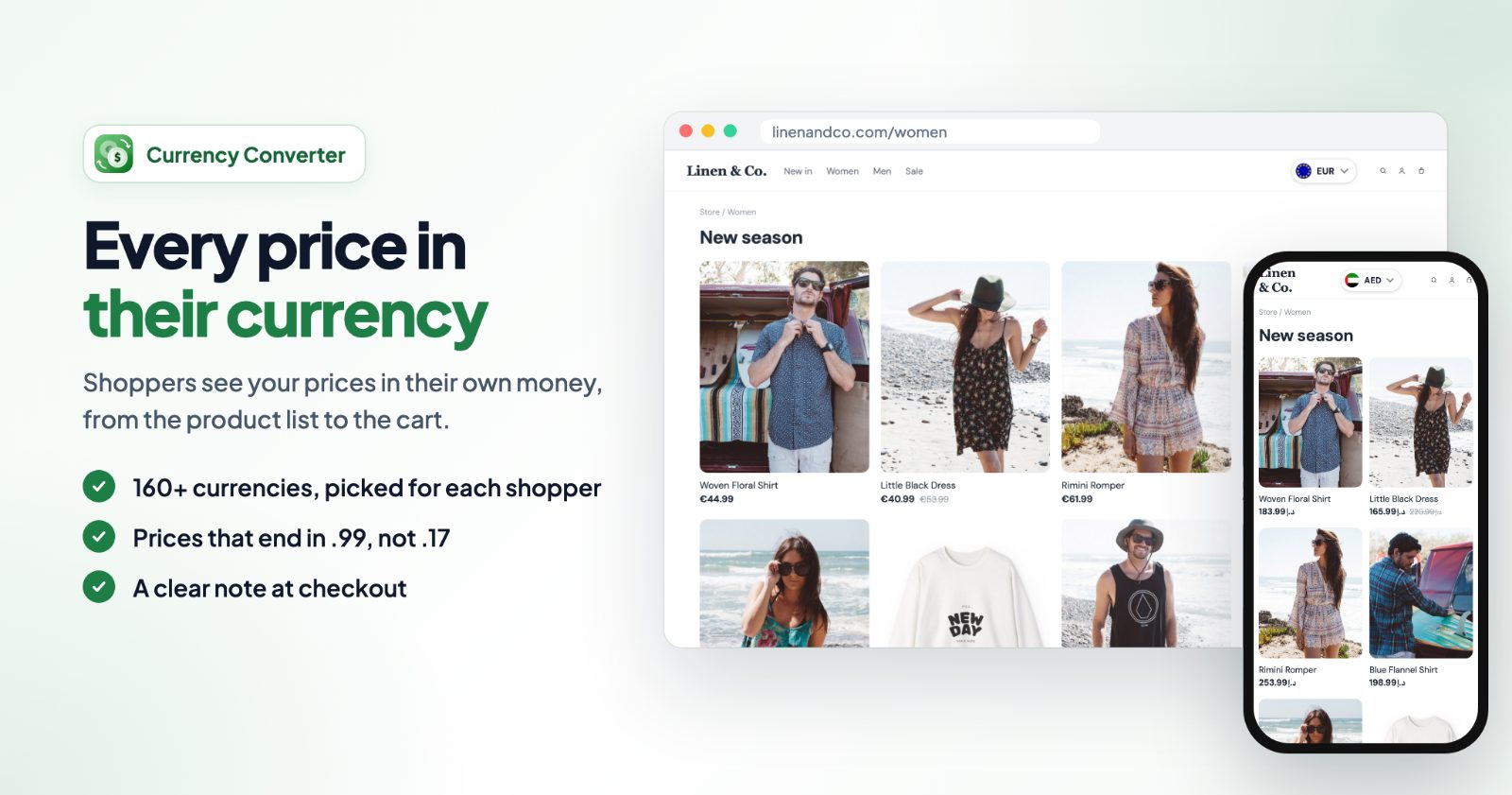
The app shows every price in your store in the shopper's own currency: product lists, product pages, the cart and checkout. It picks the currency for each shopper by their country, or by your storefront language. A currency the shopper picks in the switcher always wins.
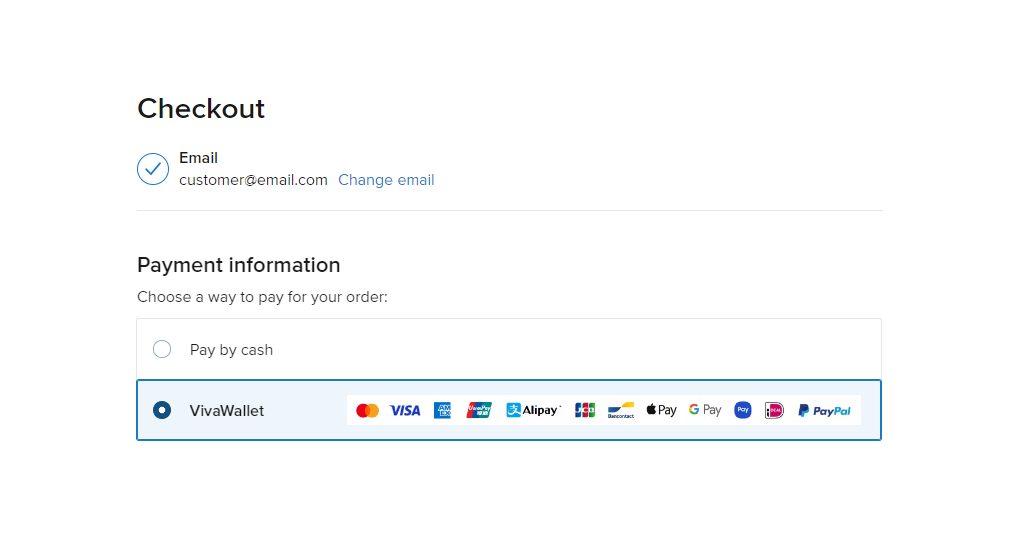
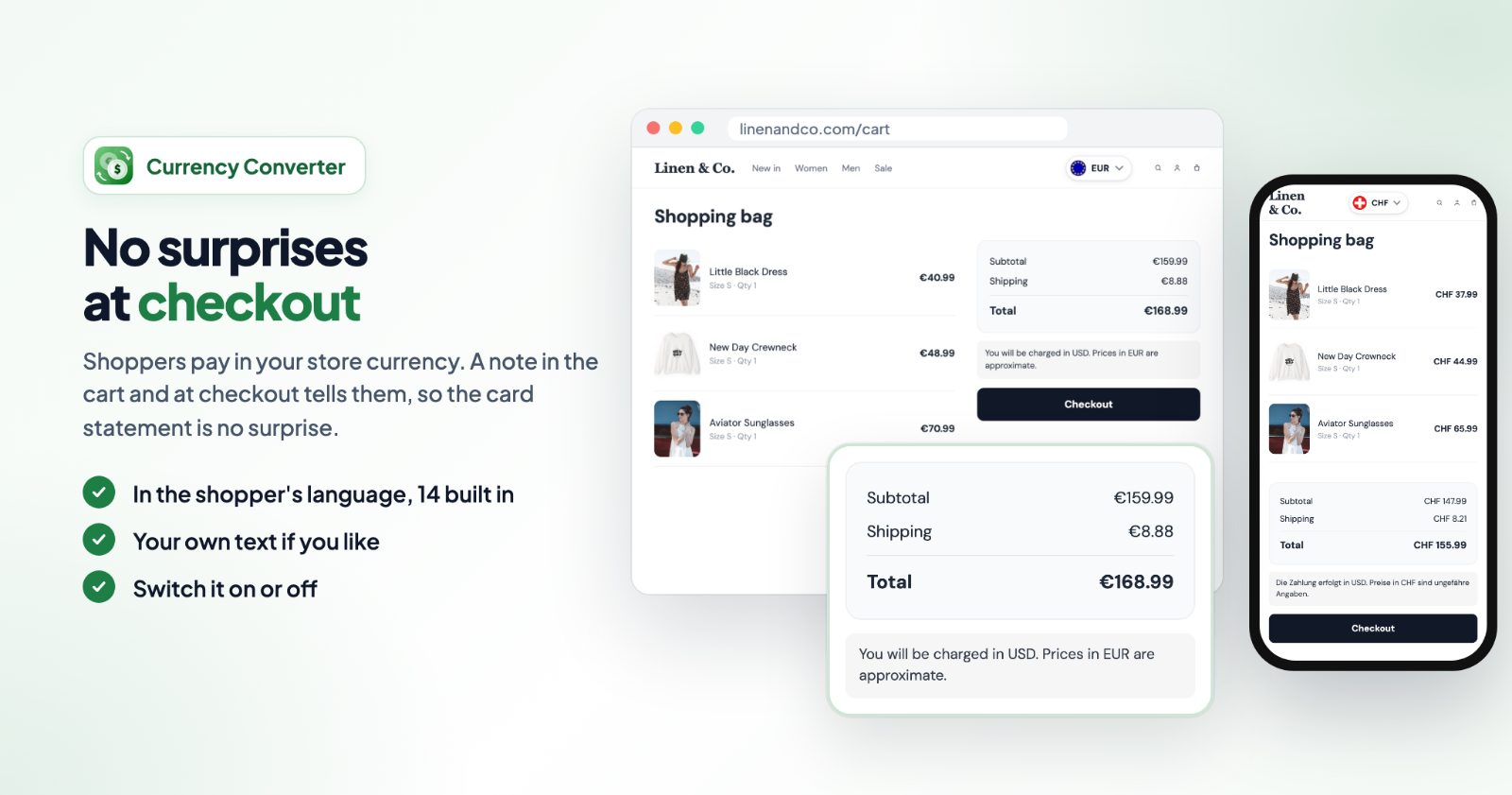
One thing to know first: shoppers always pay in your store currency. The converted prices help shoppers understand your prices; checkout and payment don't change the currency, and the payment provider converts at its own rate. The app can say so in the cart and at checkout, so the card statement is no surprise.
1. Install the app and look at the recommended settings
Add the app to your store and open it. On the first open, the app fills in recommended settings: the Pill switcher, converted prices and the checkout note. Look around the tabs (Currencies, Prices, Switcher, Checkout, Advanced), then press Save at the top to use them.
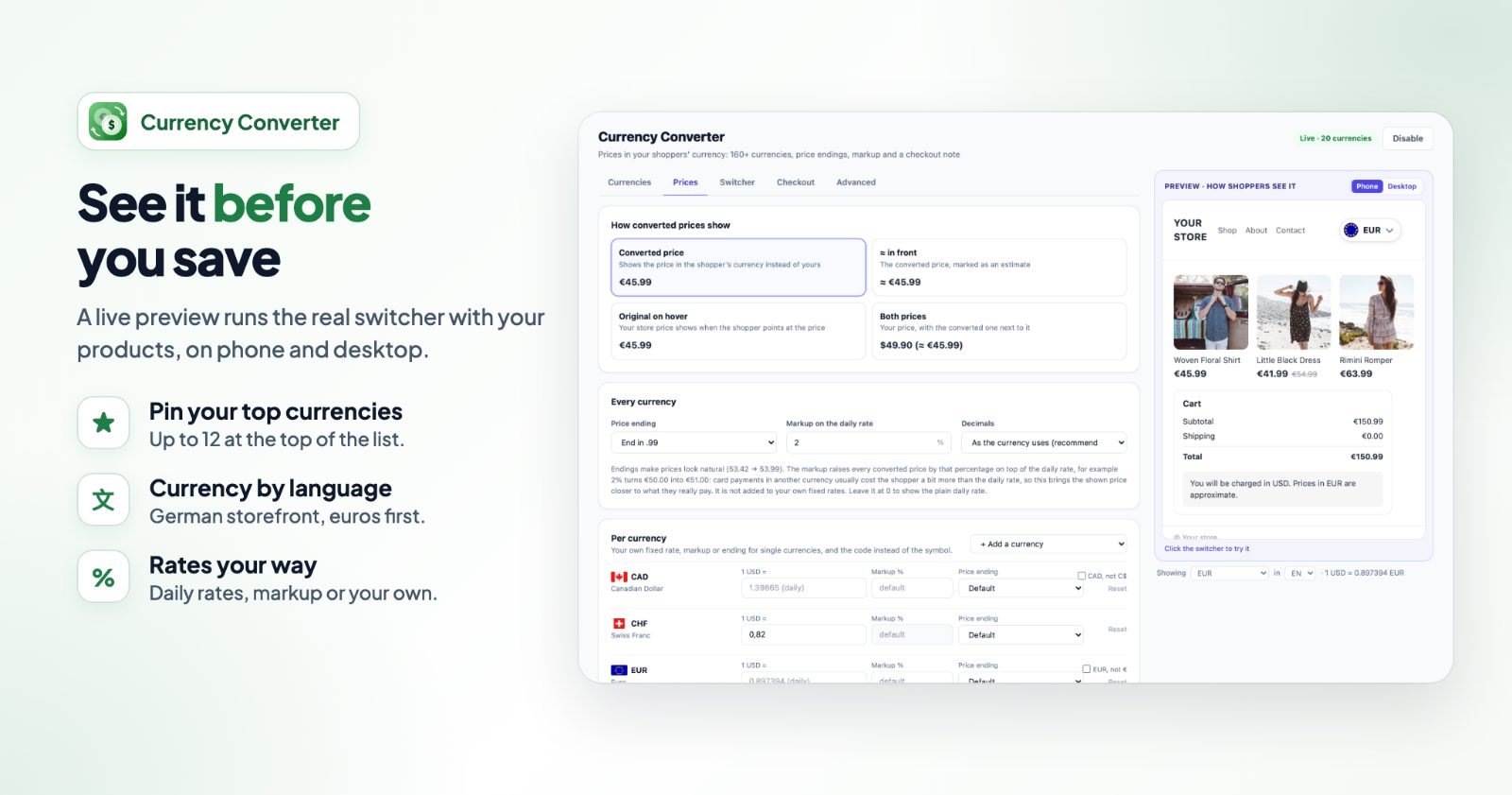
The live preview next to the settings runs the real switcher with your own products, on Phone or Desktop. Every change shows there before you save.
2. Choose the currencies shoppers can pick
On the Currencies tab:
- Currencies shoppers can pick: tick the ones you want. Popular 20, All and None are shortcuts, and the search finds a currency or country code.
- The star pins a currency to the top of the list, up to 12, in the order you pin them.
- Exchange rates shows the date of the rates in use. They are updated daily from a public exchange-rate source, based on your store currency.
3. Decide which currency a shopper starts with
- Pick by the shopper's country: a shopper from Germany sees EUR, from Japan JPY, when you offer that currency. Switch it off and everyone starts in your store currency.
- By storefront language (optional): choose a currency for each language of your store, for example German → EUR. It is used before the country, until the shopper picks a currency in the switcher.
4. Make converted prices look like prices
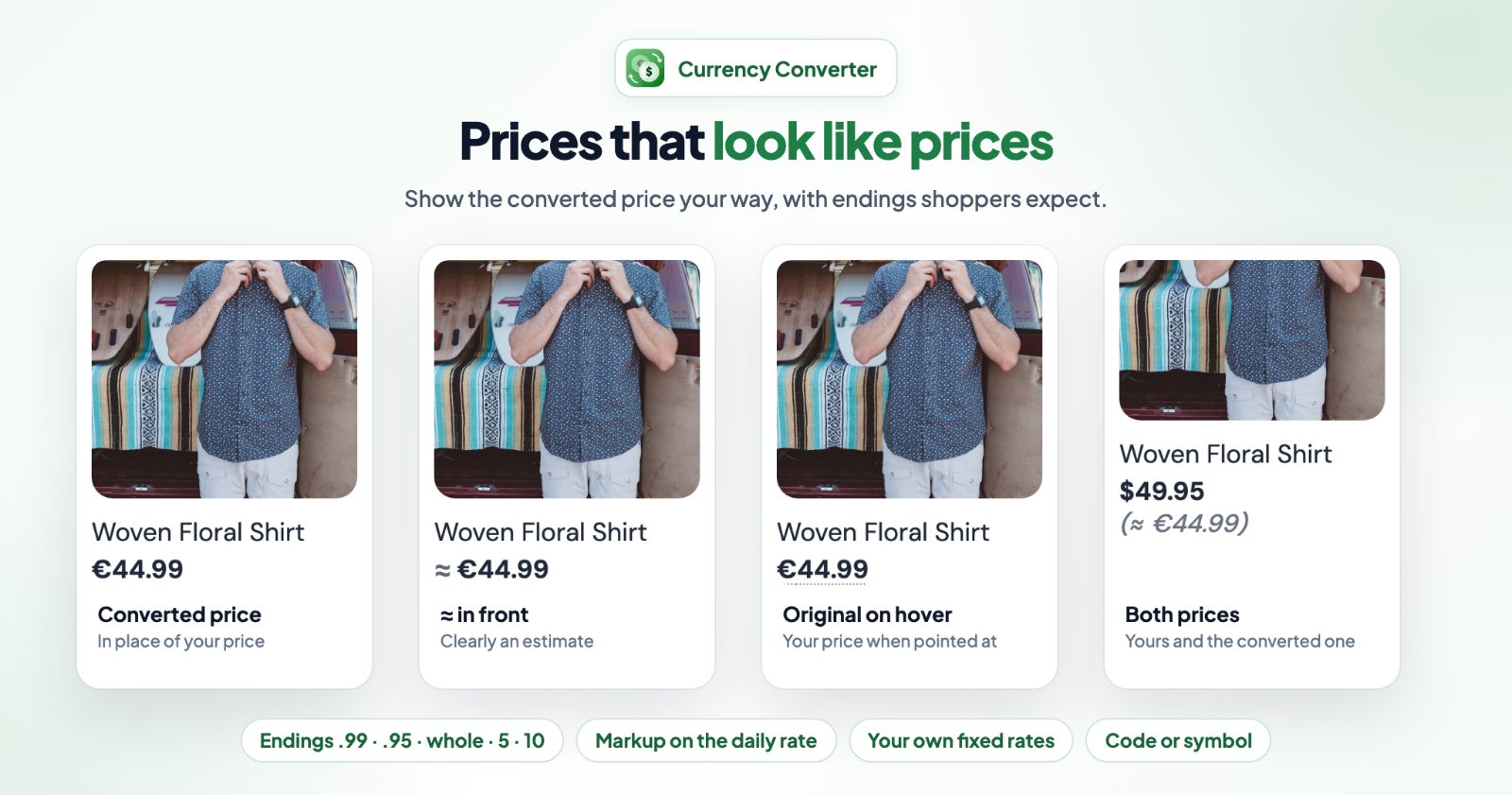
On the Prices tab, How converted prices show has four choices:
- Converted price: the price in the shopper's currency instead of yours. The cleanest.
- ≈ in front: the converted price, marked as an estimate.
- Original on hover: your store price shows when the shopper points at the price.
- Both prices: your price, with the converted one next to it. Smaller, italic converted price makes clear which one is real.
Under Every currency:
- Price ending: Exact (no rounding), End in .99, End in .95, Whole numbers, Round to 5 or Round to 10. With .99, 53.42 becomes 53.99. Shipping, taxes and discounts stay exact.
- Markup on the daily rate: raises every converted price by a percentage. Card payments in another currency usually cost the shopper a bit more than the daily rate, so 1-3% brings the shown price closer to what they really pay.
- Decimals: as the currency uses (recommended), or a fixed number.
Under Per currency, + Add a currency gives one currency its own fixed rate, markup or price ending. Where several currencies use the same symbol, tick the option to show the code instead (for example CAD 1,234 instead of $1,234).
5. Style and place the switcher
On the Switcher tab:
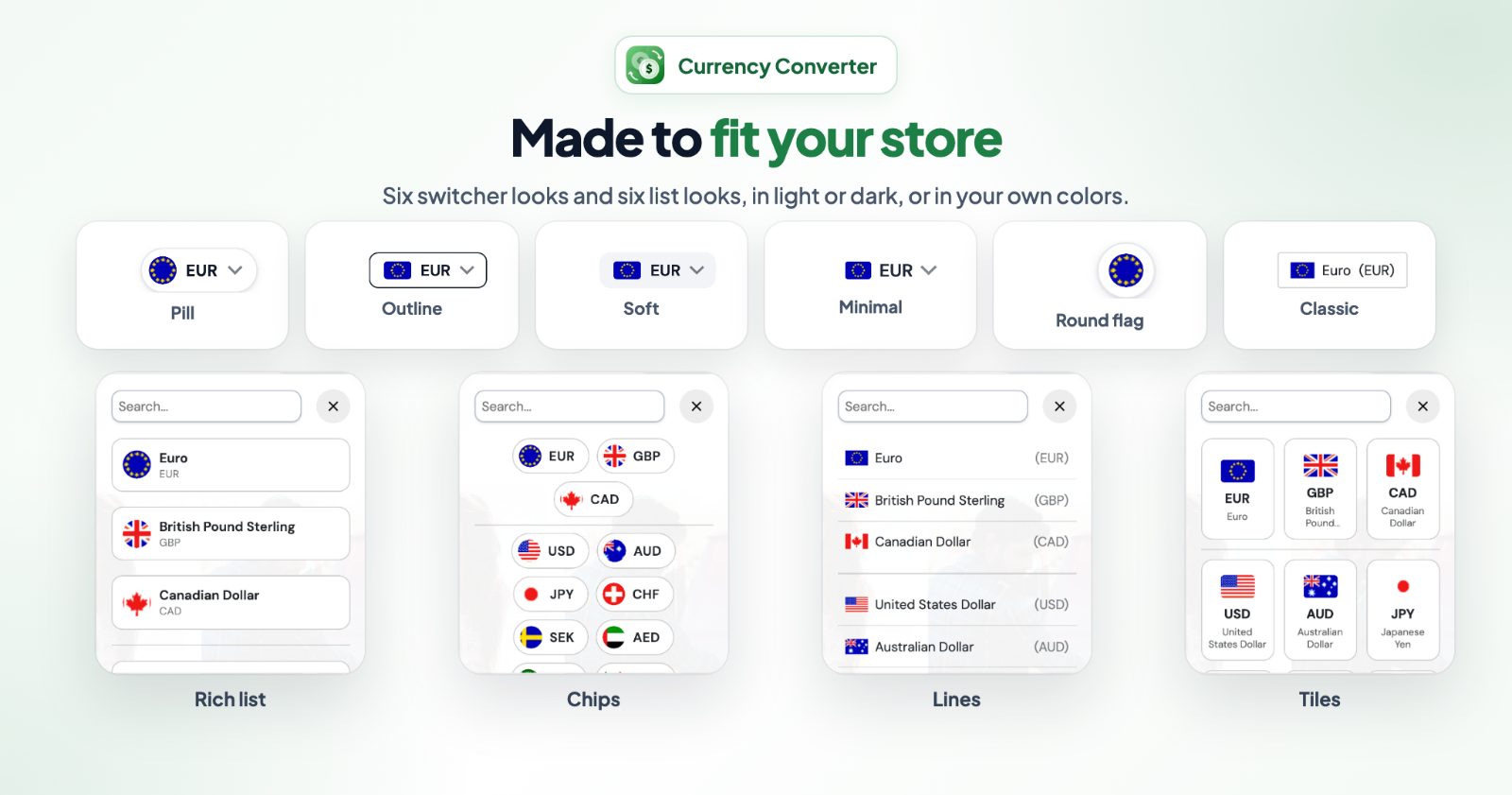
- Look: Pill, Outline, Soft, Minimal, Round flag or Classic, in Light or Dark Colors or My own colors, with Text size, Currency name and Flag on the button.
- Text in front of the button: for example "Select your currency:", in each of your store languages.
- Where: In the page (above or below the products, in the header next to the icons, in the footer, or before or after an element) or Floating in a corner.
- Hide the switcher on some pages, like Cart & checkout. Prices still convert there.
- The currency list: Cards, List, Lines, Rich, Chips or Tiles, as a Dropdown under the button or Full screen, with flags and a Search field.
6. Tell shoppers at checkout which currency they pay in
On the Checkout tab:
- Note in the cart and at checkout: tells shoppers who see another currency that they pay in your store currency. The default text is "You will be charged in {store_currency}. Prices in {currency} are approximate.", already translated into 14 languages. You can write your own.
- Save the shopper's currency on the order: adds "Selected currency" (and the converted total) to the order details you see.
- Hide prices until converted: no flash of your store-currency price before the converted one shows (at most 1.5 seconds).
If your store is added to another website (WordPress, Wix and others), set Where your store runs on the Advanced tab. There is also a field for your own CSS.
Common setups
A US store selling to Canada and Europe
Tick CAD, EUR and GBP, pin them with the star, keep Pick by the shopper's country on and set Price ending to End in .99. Tick the code option for CAD so shoppers don't mix up the two dollars.
A store with several languages
Under By storefront language, set German → EUR and French → EUR, for example. The currency follows the language the shopper reads your store in.
Prices close to the card statement
Set Markup on the daily rate to 2% and choose ≈ in front, so the price reads as an estimate that is close to what the card will show.
A quiet header
Choose the Minimal look in the header, or Floating in a corner at the bottom right, and hide the switcher on Cart & checkout.
With a free shipping bar
The AOV Progress Bar shows its amount ("Add $21.00 more for free shipping") in each shopper's currency when the converter is on. See how to pick the free shipping threshold.
Questions
In which currency do my customers pay?
Always in your store currency. Checkout and payment can't change it; the payment provider converts at its own rate. Switch on the checkout note so shoppers know. For the payment methods our apps add, see our payment gateways compared.
How does the app pick the shopper's currency?
A currency the shopper picked in the switcher always wins. Otherwise the one for your storefront language, if you set one; otherwise the currency of the shopper's country.
Why doesn't a cart total match the sum of the rounded prices?
Each price is rounded on its own, so a total can differ slightly from the sum of its rounded prices. Prices under 1 (or under 5 and 10 for those endings) are left as they are.
Are my own rates changed by the markup?
No. The markup is added to the daily rate only; your own fixed rates are used exactly as you enter them.
The switcher doesn't show up. Why?
Check that the app is enabled, the place is not Hidden, and the switcher is not hidden on that page (Switcher tab). With before or after an element, the element you entered must exist on the page.