How it works in short
The app saves your product pictures again as WebP, the modern image format, at about half the weight with the same look. It works on the main, gallery and variation pictures of your products, and on your category pictures. A picture is only replaced when the new copy is smaller, so nothing gets heavier.
The work runs on our server, so you can close the app while it goes on. Switch on the nightly run and the products you add or change are done for you. Next to the pictures there is an SEO audit of your catalog and a Page speed report to see the difference.
One thing to know first: the original files are not kept. An optimized picture replaces the original in your store. Check a picture before and after first (step 2), and keep your own copies if you may need the originals again.
1. Find your heavy pictures
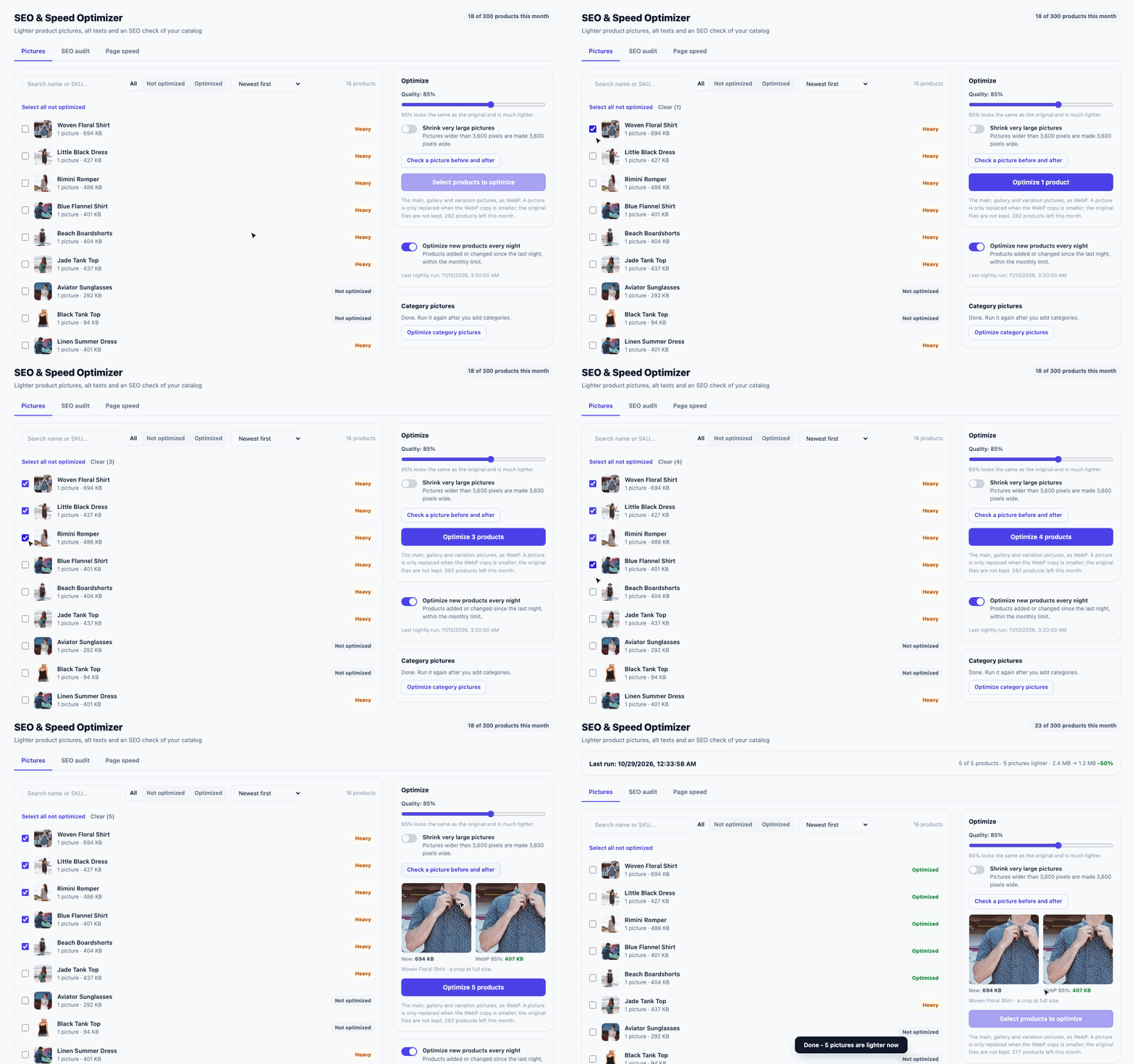
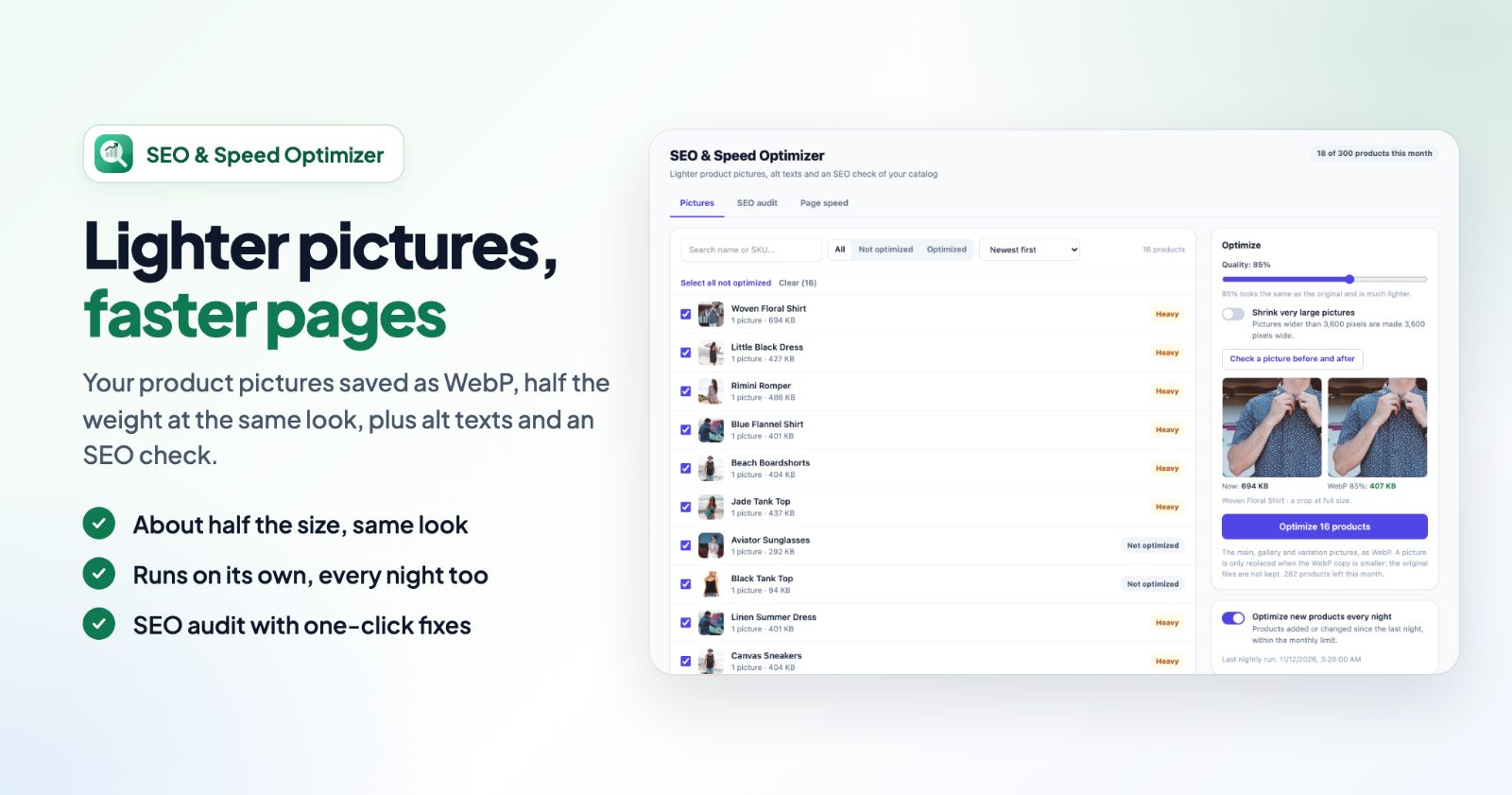
Open the app. The Pictures tab lists your products with the number of pictures and their weight. Products with a picture over 400 KB are marked Heavy; those not done yet are Not optimized. Filter with All, Not optimized and Optimized, sort by Heaviest first to start where it helps most, or search by name or SKU.
2. Pick the quality and check a picture
In the Optimize panel, set Quality. 85% looks the same as the original for almost every photo and is much lighter. Go lower for even lighter pictures, higher for pictures with fine text or patterns.
Shrink very large pictures also makes pictures wider than 3,600 pixels 3,600 pixels wide. Then press Check a picture before and after: you see a crop of the same picture at full size, now and as WebP at your quality, with both file sizes. If a picture would not get smaller, the app tells you it would stay as it is.
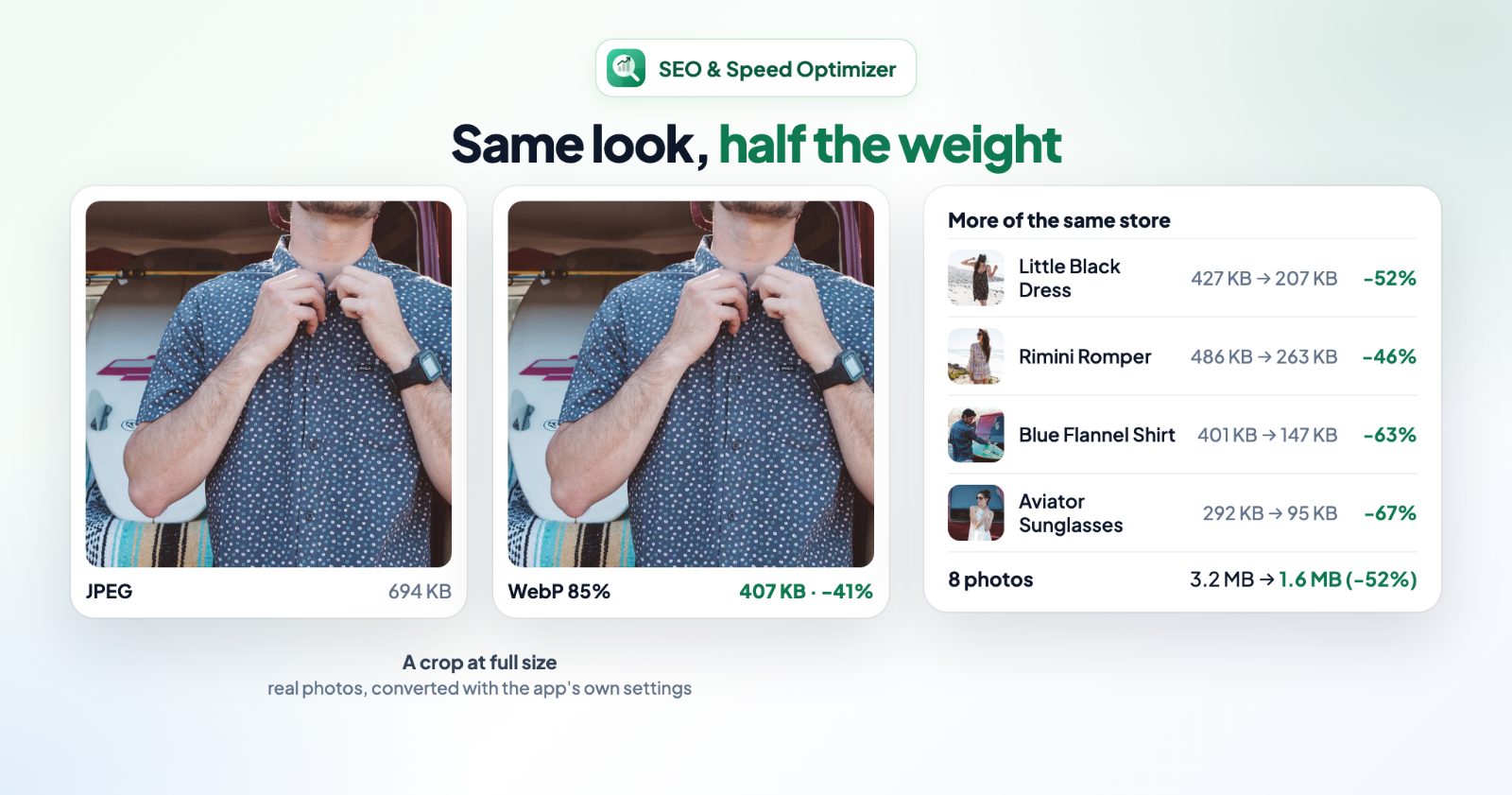
The picture above shows real photos converted with the app's own settings: one shirt photo goes from 694 KB to 407 KB, and eight photos of the same store from 3.2 MB to 1.6 MB. Your own photos will differ, which is why the check is there.
3. Optimize, and let it run every night
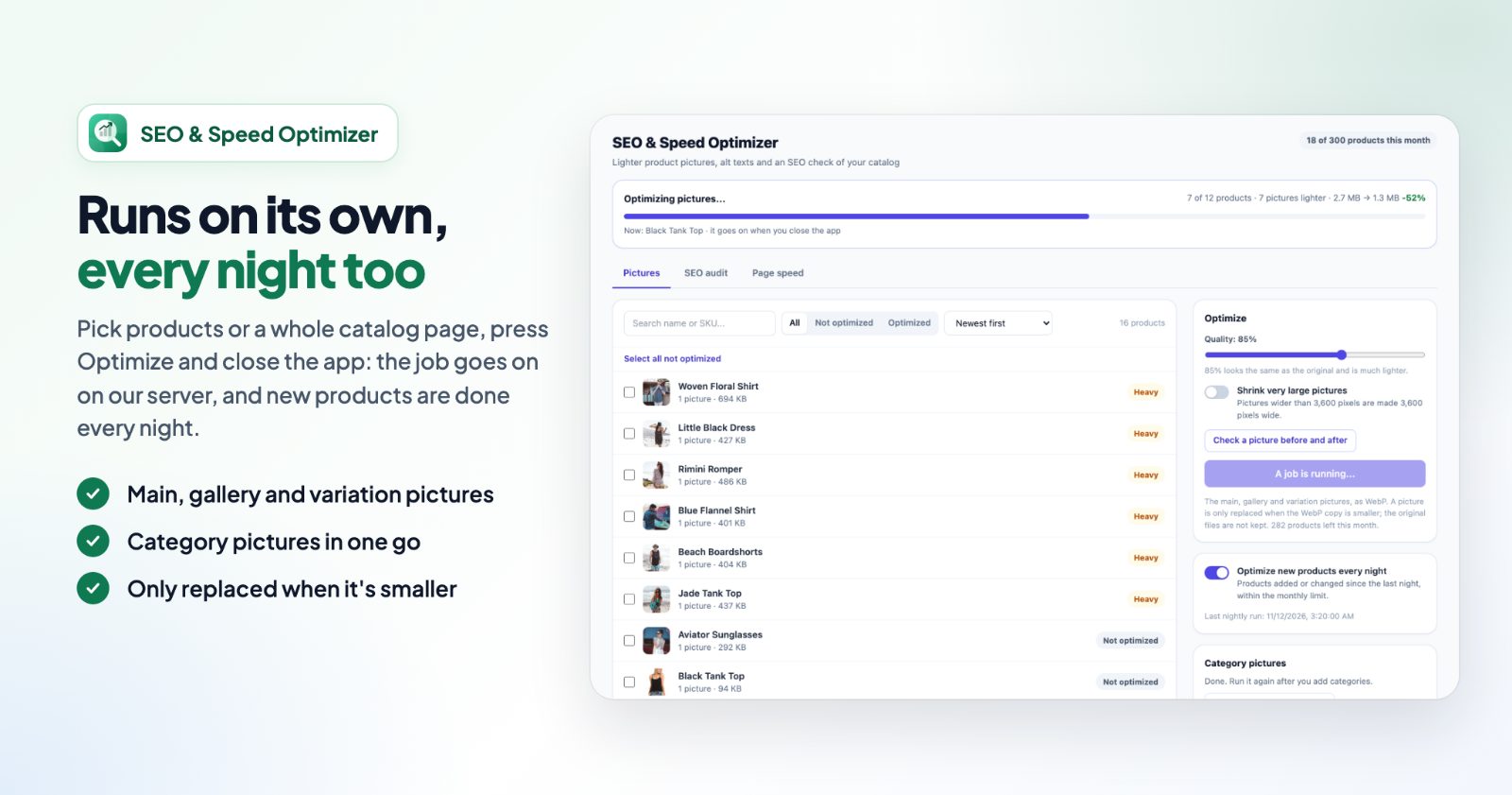
Tick the products (or Select all not optimized) and press Optimize. A progress bar shows the job; it runs in the background, so you can close the app. If it is interrupted, it goes on by itself a few minutes later. When it's done, Replaced pictures lists every changed picture with its size before and after.
Switch on Optimize new products every night: every night the products you added or changed since the last night are optimized with your quality setting. You can optimize up to 300 products a month, nightly runs included.
Optimize category pictures does the pictures of all your categories in one go; they are not counted in the monthly limit. Run it again after you add categories.
4. Run the SEO audit
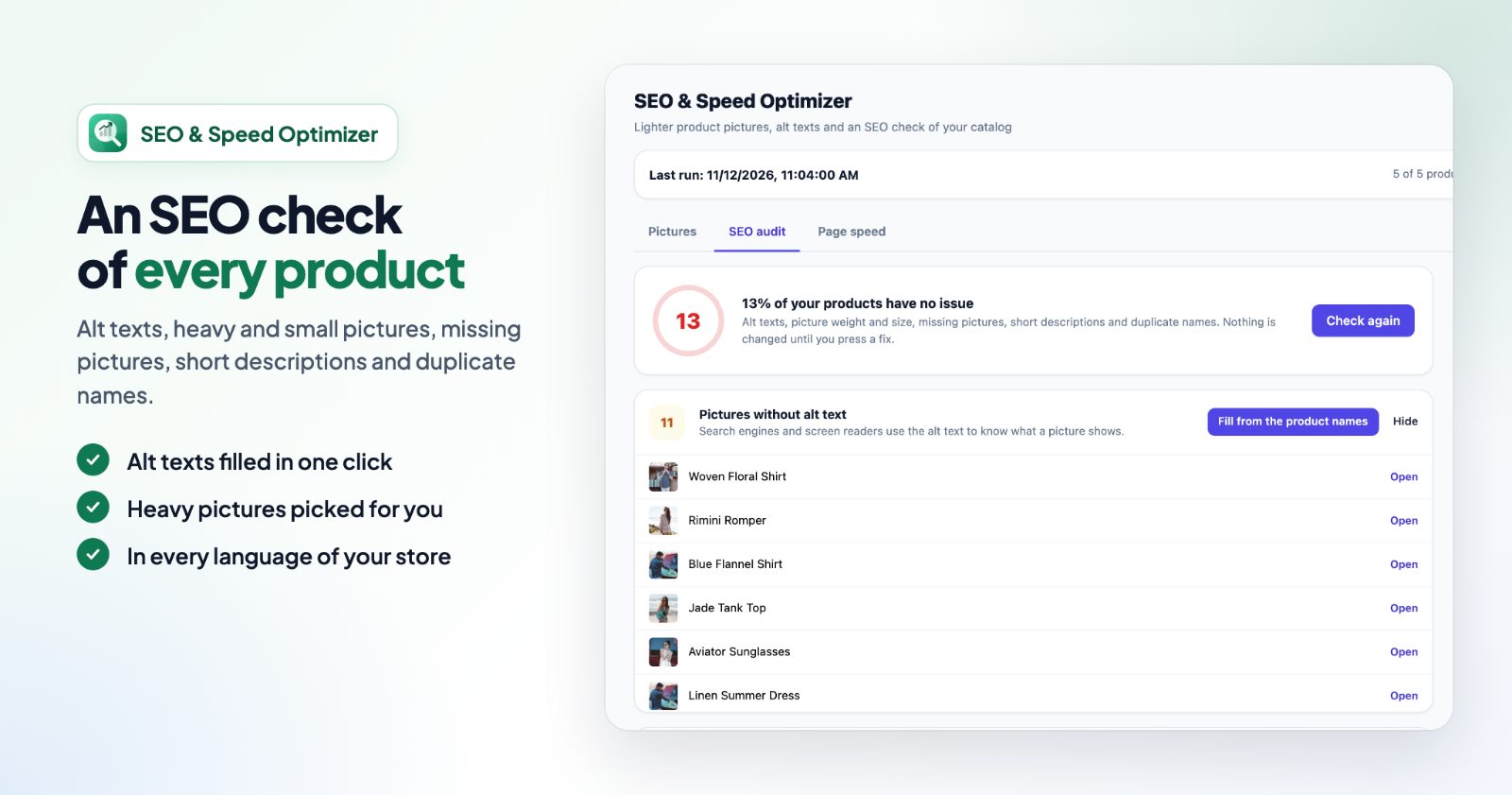
The SEO audit tab checks your whole catalog and shows how many of your products have no issue. Nothing is changed until you press a fix. It looks for:
- Pictures without alt text: search engines and screen readers use the alt text to know what a picture shows. Fill from the product names fills them in one click, in every language the name has. Alt texts you already wrote are never changed.
- Heavy pictures: over 400 KB. Select them to optimize.
- Small main picture: main pictures under 800 pixels look blurry when shoppers zoom in.
- No pictures: products without a picture are rarely clicked and don't show in image search.
- Short description: under 120 characters of text. A few more lines help shoppers and search engines.
- Same name as another product: products with the same name compete with each other in search results.
For the last few, press Open next to the product and change it in your store.
5. See the difference with the page speed report
The Page speed tab gets Google's scores (Performance, Accessibility, SEO) for your Home page or A product page, on a phone. Pick a product from your catalog and press Run the report, once before you optimize it and once after. Optimized pictures mostly raise Performance, and scores change a little from run to run, so compare a couple of runs. You can run up to 20 reports a day.
Common setups
First clean-up of an existing store
Sort by Heaviest first, check one picture at 85%, then optimize the heavy products first. Run the category pictures once.
Keep a growing catalog light
Switch on Optimize new products every night. Every product you add is done the next night, within the monthly limit.
Products with fine print or patterns
Check those pictures before and after at 85%. If the detail suffers, raise the quality for them before you optimize.
A quick SEO pass
Run the audit, press Fill from the product names for the missing alt texts, then open the products with short descriptions or the same name and fix them one by one.
Questions
Will my pictures look different?
At 85% quality they look the same for almost every photo. Check a picture before and after first.
Are my original pictures kept?
No: an optimized picture replaces the original, and only when the WebP copy is smaller. Keep your own copies if you may need the originals again; Replaced pictures shows what was changed.
What about SEO titles and descriptions?
Your store fills those in automatically from the product name and description. You can change them on the product's page in your store admin.
Are galleries with videos changed?
No, galleries with videos are left as they are. Your alt texts and picture order are kept.