18 option types
Dropdowns, radio buttons, checkboxes, buttons, color and image swatches, picture cards, text boxes, number fields, sliders with your own range, counters, dates, file uploads, email, phone and a color picker. Headings, text and images can sit between the options to explain them. You build an option set once and apply it to any number of products, by hand or automatically by category, price or date added.
Options that react to every pick
A rule checks what the shopper picked and then can hide or show options and values, make an option required or optional, preselect a value, show a message, or add to the price. Shoppers only see the options that fit their choices, so product pages stay short. Rules read like sentences in the admin, and the live preview shows which ones are met while you edit.
A price for every extra
- Value prices: a fixed amount or a % of the product price.
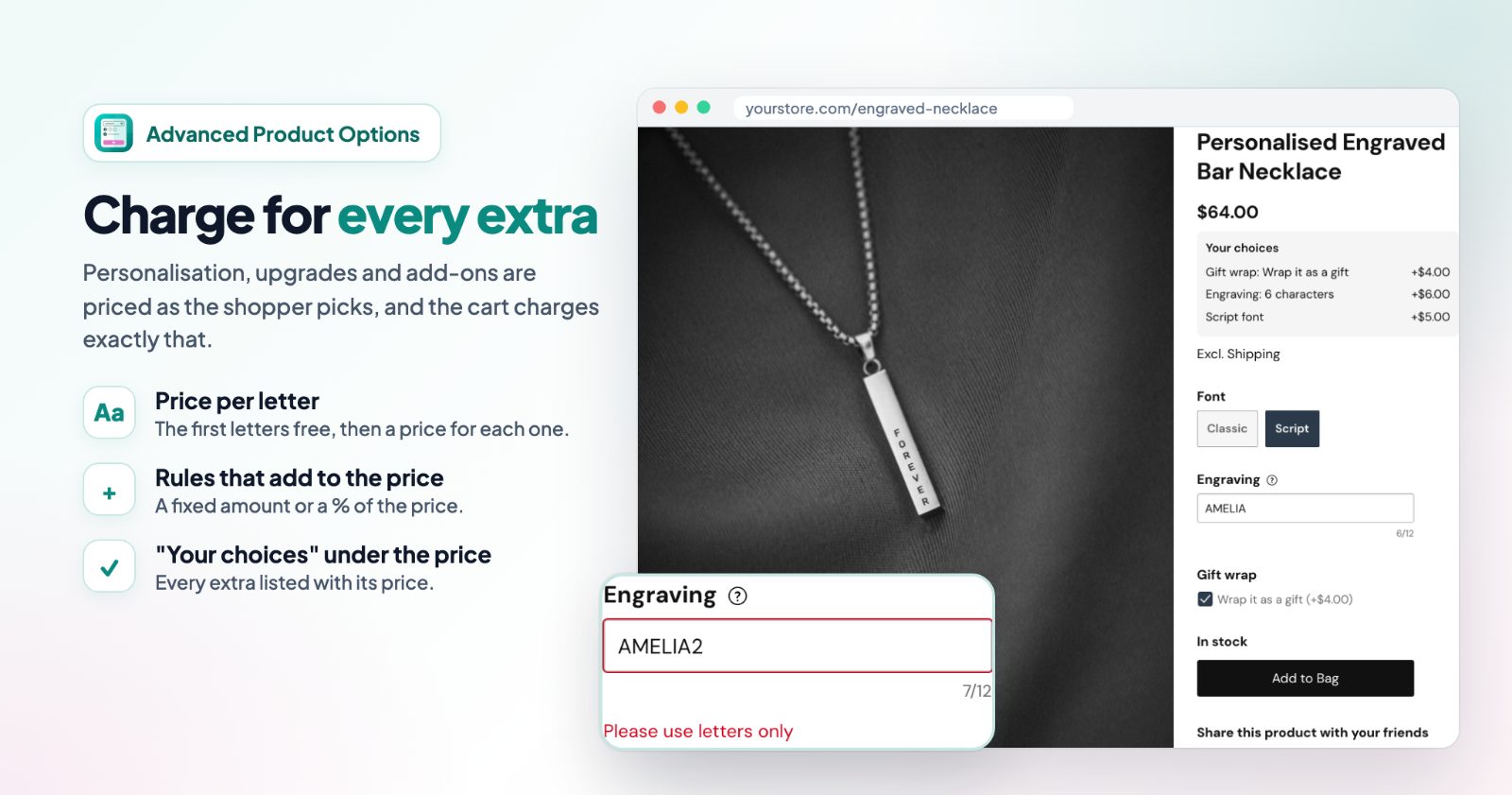
- Price per letter: for engraving or embroidery, with free characters first (spaces are not counted).
- Price per unit: per cm, per kg or per person, with units included in the price, for made-to-measure products.
- Rule charges: a combination of choices adds an amount or a %, with the name the cart and the order show.
Your choices under the price lists every extra, and the cart charges exactly that, because every option and charge is saved on the product as a real product option.
Add-on products
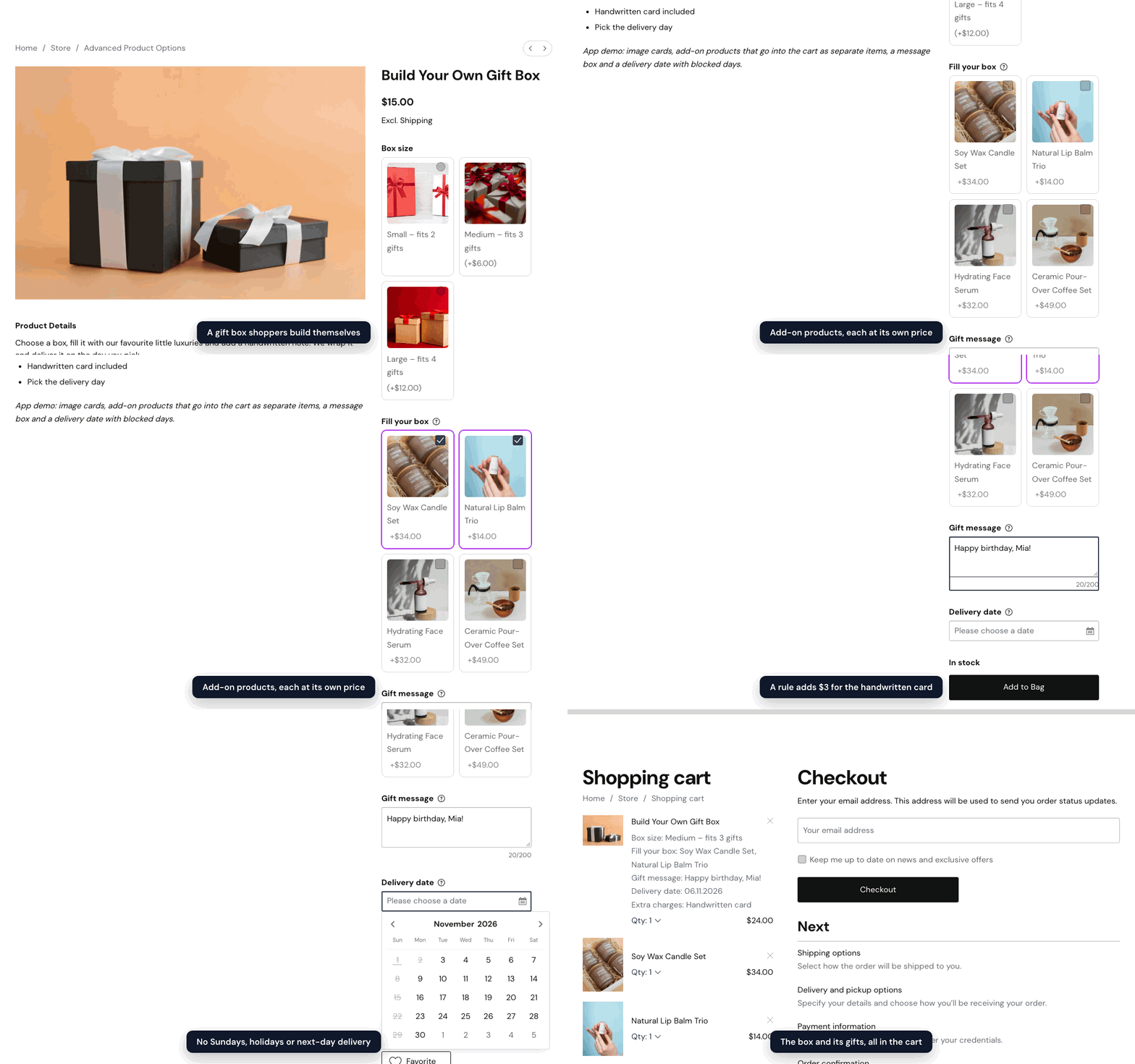
A value can add another product of your store to the cart, as its own line with its own price and stock: gift wrapping, accessories, the gifts in a build-your-own box. With Shoppers choose how many, a counter lets them take several.
Bundles and kits
Put add-on products together to let shoppers build their own bundle: a knife with a sharpening stone and a holder that fits it, shown by rules. A value whose add-on product is out of stock is greyed out with "Out of stock" and can't be picked, so the cart never gets only part of a bundle. See product bundles with add-on products.
The total before add to cart
Add-on products are their own lines in the cart, so the product price doesn't include them. With List the choices under the price on, Your choices also lists each picked add-on with its price (and how many) and a Total: the product with its options, times the quantity, plus the add-ons. See how to show the total price of options and add-ons.
Long option lists as steps
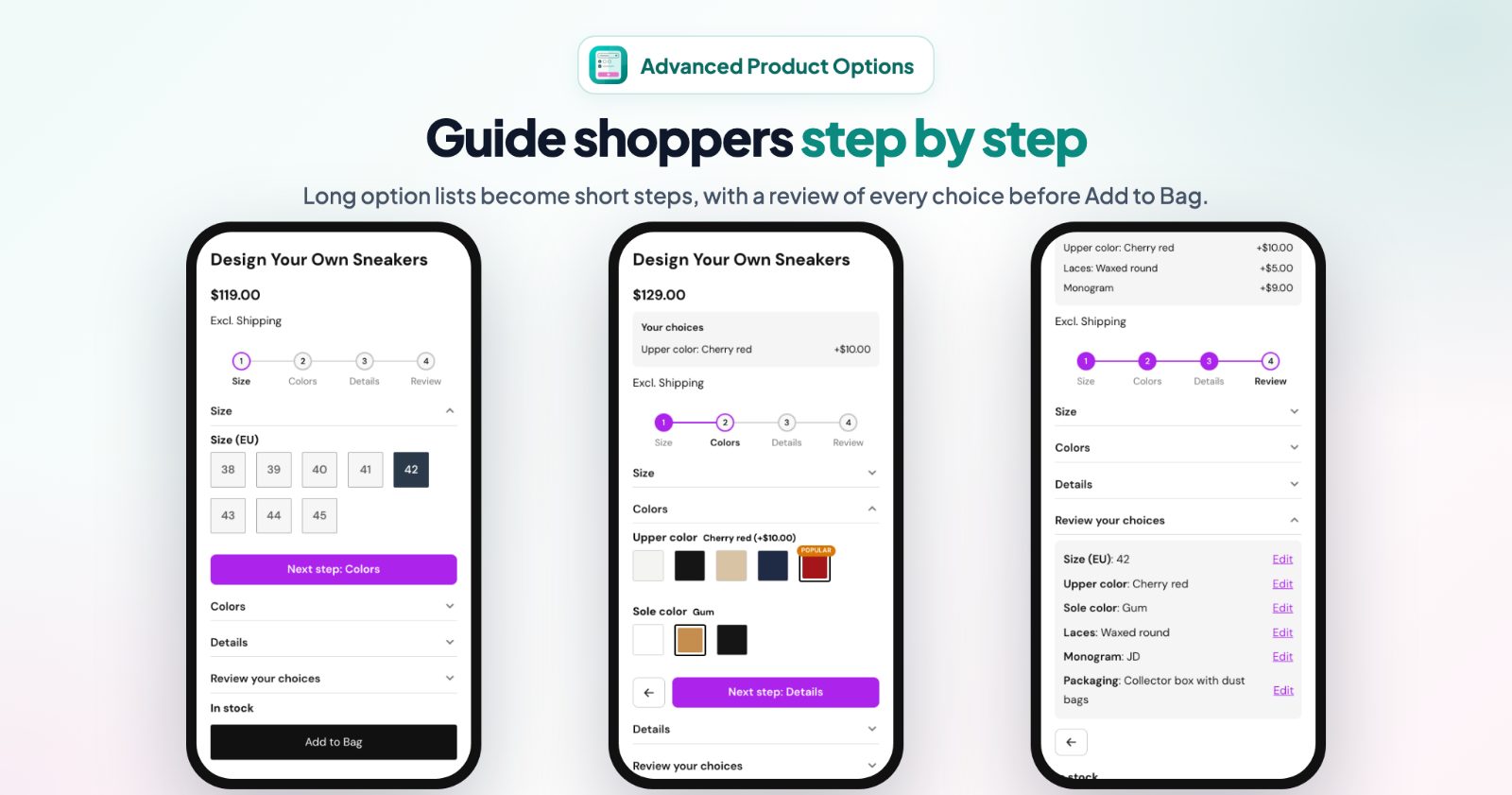
Group options into steps with numbered dots and Next step / Back buttons, and finish with a review of every choice before Add to Bag. Or show the groups as headings.
Answers you can use
- Text checks: letters only, numbers only, no emojis or your own pattern, capitals as shoppers type, and a character counter.
- Date limits: no past dates, the earliest and latest day, closed weekdays and single dates.
- Least and most picks for checkboxes and multi-select swatches.
- Fonts: shoppers pick a font for their engraving and see their text in it.
For the right shoppers, in your store's look
An option can show only to signed-in customers, to guests, or to customer groups such as Wholesale. Use your store's own look or Modern, Pills or Cards, add Sale, New or Popular badges to values, and let swatches and picture cards change the product photo. Texts shoppers see come in 15 languages and follow the shopper's language.
Easy to keep up to date
Edit all values in a table / CSV changes many prices at once, or in a spreadsheet. Option sets are backed up automatically for 30 days, so a change or a deleted set can be brought back. Sales Analytics shows what the options added to your paid orders of the last 7, 30 or 90 days, and which values shoppers pick most.
Set it up
The step-by-step guide to conditional product options walks through a first option set with screenshots: create the options, set the rules, apply the set to products, and the common tasks after that.
Questions
Do the extra prices really reach the cart?
Yes. The cart, checkout, order and invoice show every option and charge, and the store charges it.
Does it work with my theme?
Yes. It uses your store's own option fields, so it fits any theme; you can also pick one of three looks.
Can I keep my existing option sets?
Yes. They stay as they are and keep working; the new options are there when you open a set.