How it works in short
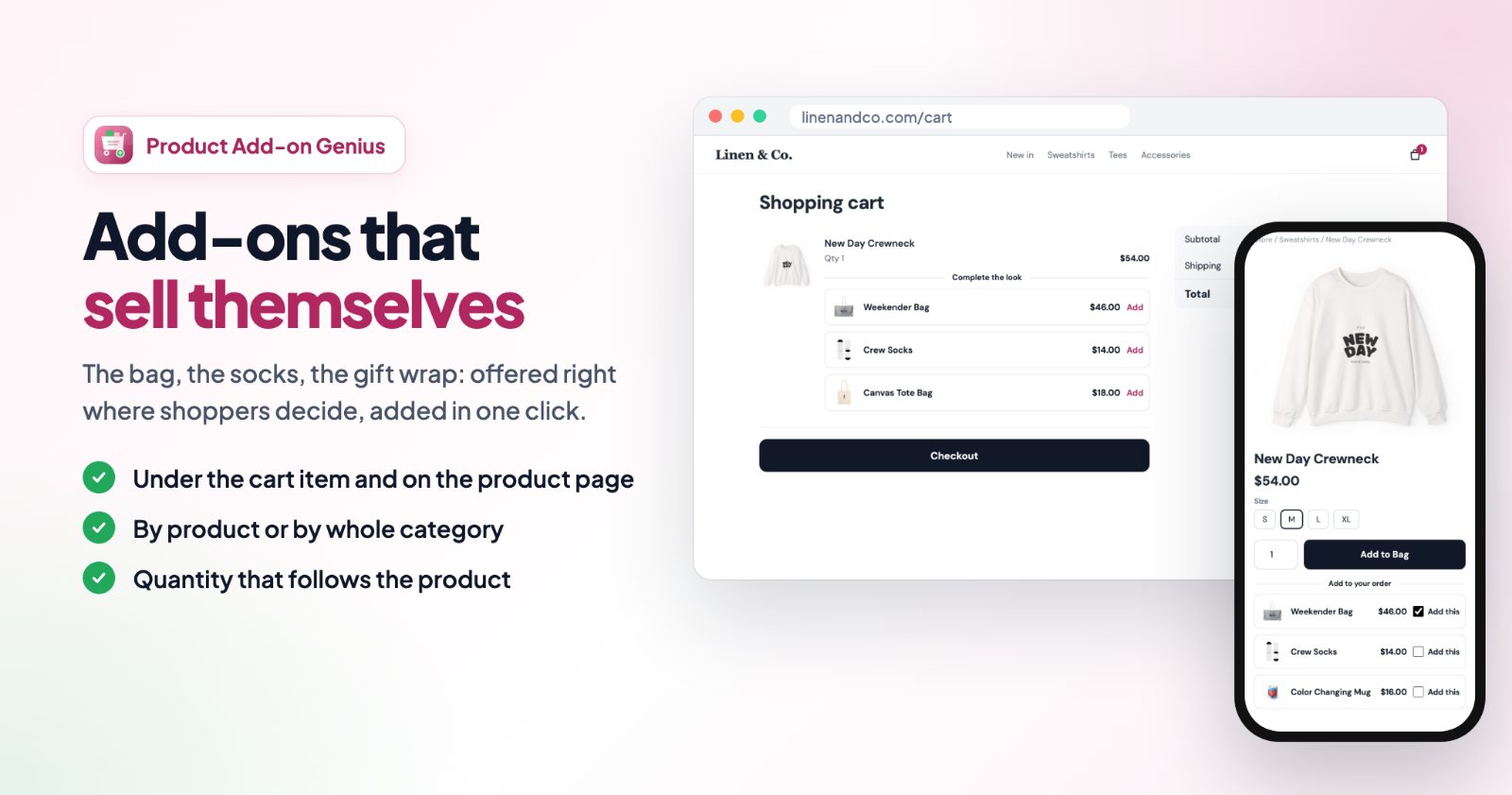
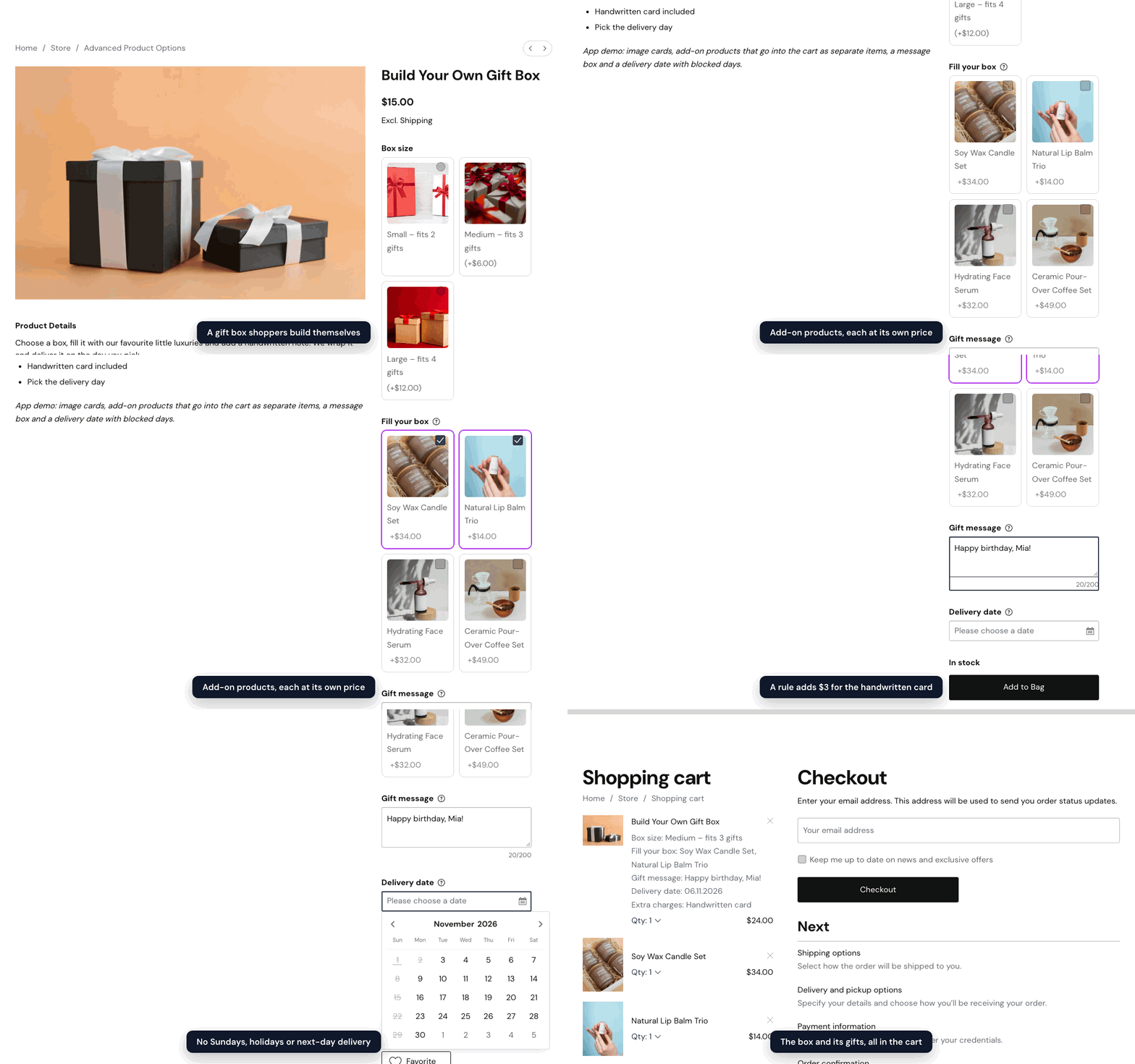
Every part of the bundle stays a normal product in your store. On the main product you add an option, and each of its values points to one of those products: an add-on product. When a shopper picks the value and adds the main product to the cart, the add-on product is added too.
- Its own cart line: the add-on keeps its own name, price and stock, so your orders and stock counts stay right.
- Its price on the choice: the value shows the add-on product's price, for example +$15.00, so shoppers see what each part costs.
- Only parts that are there: a value whose add-on product is out of stock is greyed out with "Out of stock" and can't be picked, so an order never arrives with half a kit.
- The right parts for each choice: rules show an option or single values only after a matching pick, for example only the stone holder that fits the chosen stone.
New to the app? The tour of Advanced Product Options shows what else it does, and the step-by-step guide walks through a first option set.
1. Make every part a product
Create the main product (the knife) and one product for each part shoppers can add: each sharpening stone, each stone holder, the gift wrap. Give each part its price and stock as usual.
One limit: a product with required options of its own can't be added this way, because it needs choices the shopper never makes. Keep add-on products without required options.
2. Point a value to the add-on product
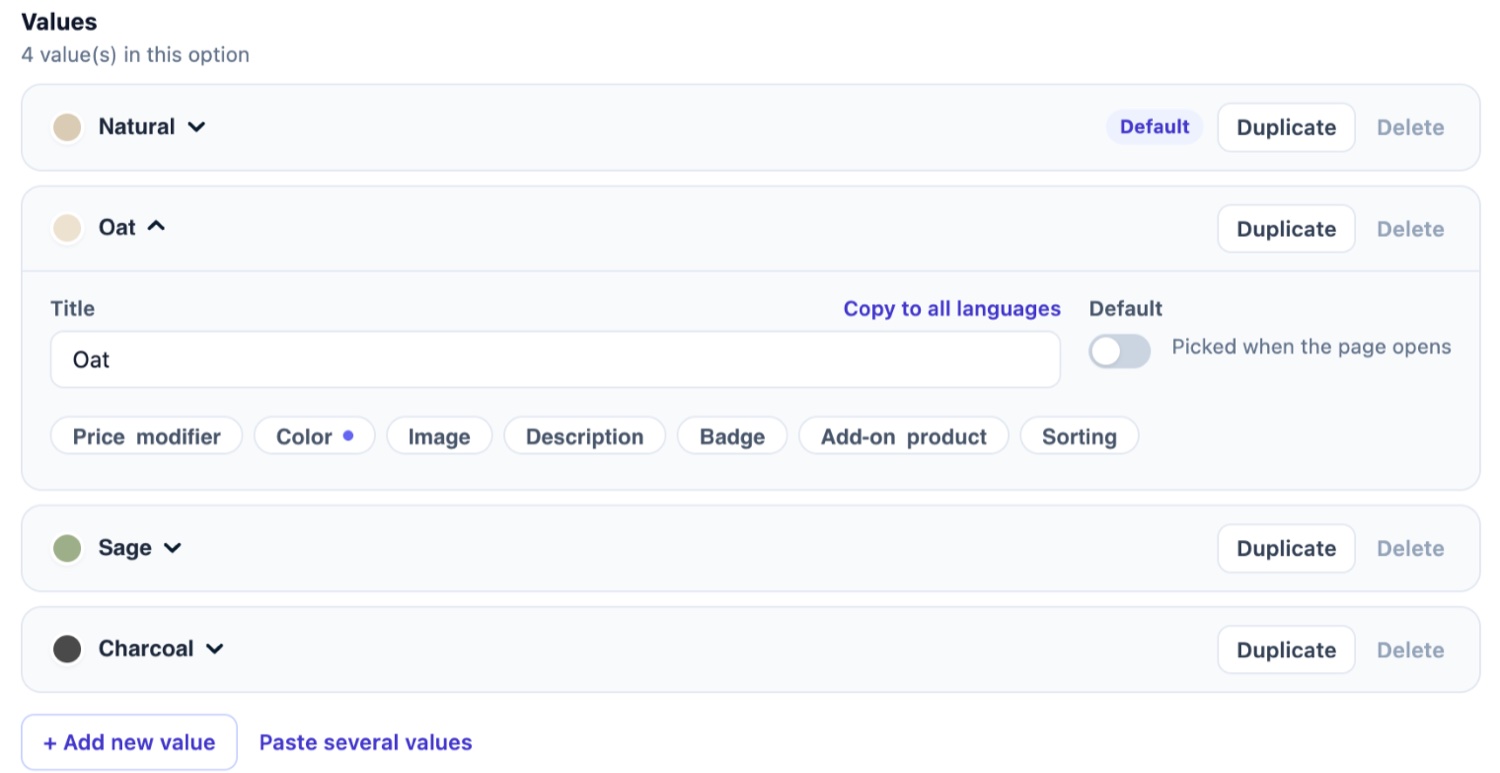
In the app, open an option set for the main product and add an option for the part, for example "Sharpening stone" as picture cards, buttons, radio buttons or a dropdown, with a value for each stone. For several parts that can be taken together, use checkboxes. Then open a value and press Add-on product:
- Product ID: the add-on product's ID. Open the product in your store admin: the ID is the number after "id=" in the address bar.
- Quantity: how many go to the cart. Leave it empty for the same quantity as the main product, so two knives come with two stones.
Keep the value's Price modifier at 0. The add-on product brings its own price to the cart, so a price on the value too would charge it twice.
3. Let shoppers choose how many
For parts people take more than one of (gift boxes, spare blades, refills), turn on Shoppers choose how many on the value and set At most (10 when you leave it empty, up to 99). While the value is picked, a − / + counter with the total price shows under the option, and that many go to the cart.
4. Show the right add-ons with rules
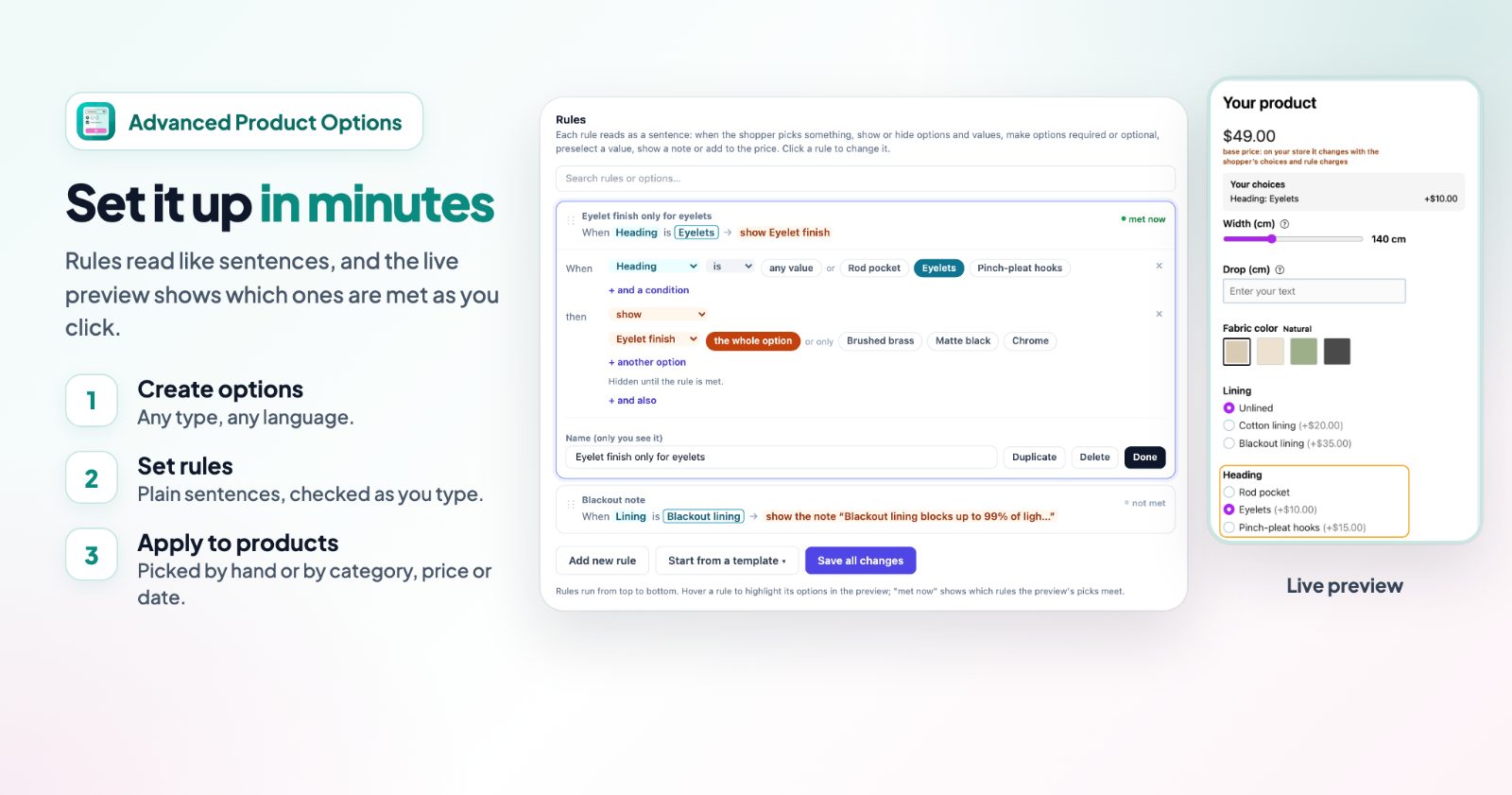
A stone holder only makes sense with a stone, and only one that fits it. Go to 2. Set rules and start from the template Show an option when a value is picked:
- When Sharpening stone is the stone, show the Stone holder option.
- Pick the whole option, or click single values after or only to show just the holders that fit this stone.
- The option or values stay hidden until the rule is met. Add one rule per stone.
Show rules add up: an option or value shows when any of its show rules is met. So one rule can show the whole holder option for one stone while another shows a single holder for a different stone. A met hide rule still hides. Add-ons in options that are hidden at the moment of Add to Bag don't go to the cart. The live preview next to the rules shows which ones are met as you click.
5. What shoppers see
Each value shows the add-on product's price next to it, with the quantity when there is one ("+2 × $5.00"). After Add to Bag, the main product goes to the cart first and the add-ons follow, each as its own line.
When an add-on product is out of stock, its value is greyed out with Out of stock and can't be picked; in a dropdown the choice can't be selected. A product that is disabled or deleted counts as out of stock too. Products that allow pre-orders stay available. If an out of stock value was picked (a default value, for example), the next available value is picked instead, and a ticked checkbox is unticked. So the cart never ends up with only part of a bundle.
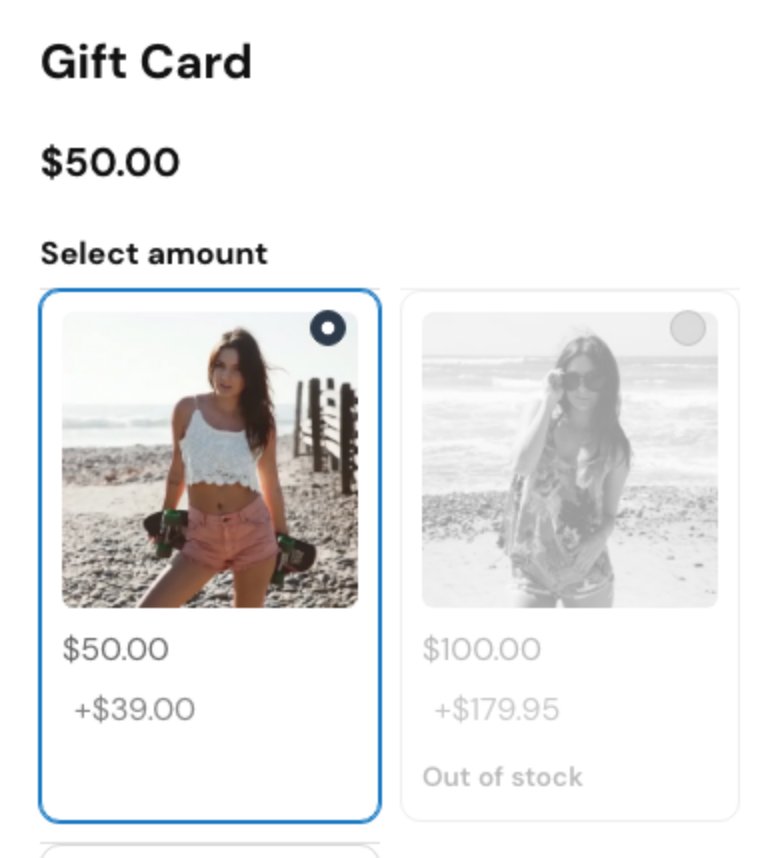
The words "Out of stock" come in 14 languages and follow the shopper's language. To write your own, open Look, texts and settings and change it under Texts shoppers see.
Common setups
- Knife kit: the knife, an option "Sharpening stone" with a value per stone (each an add-on product), and "Stone holder" shown by rules with only the holders that fit the chosen stone.
- Build your own gift box: box sizes as picture cards, the gifts as checkboxes that are add-on products, with Shoppers choose how many on gifts people take several of.
- Gift wrapping: a "Gift wrap" checkbox whose value adds your gift wrap product, so wrap stock is counted like any product. See also gift wrap, gift messages and engraving.
- Accessories with the main item: a camera with a memory card and a case, each value an add-on product, with Quantity left empty so the parts follow the number of cameras.
- Refill packs: a "Refills" value with Shoppers choose how many and At most set to the most you want to ship in one order.
Questions
Is the bundle one product or several in the order?
Several: the main product with its options, and each add-on as its own line with its own price and stock. That keeps your stock right for every part.
Can the bundle have a discount?
The add-ons keep their own prices. For a bundle discount in the cart, see automatic cart discounts.
What happens when an add-on product sells out?
Its value is greyed out with "Out of stock" and can't be picked, on the product page, until the product is back in stock. Pre-order products stay available.
Can I change many add-on products at once?
Yes. Edit all values in a table / CSV above the options lets you change add-on products of every value in place, or in a spreadsheet.