How it works in short
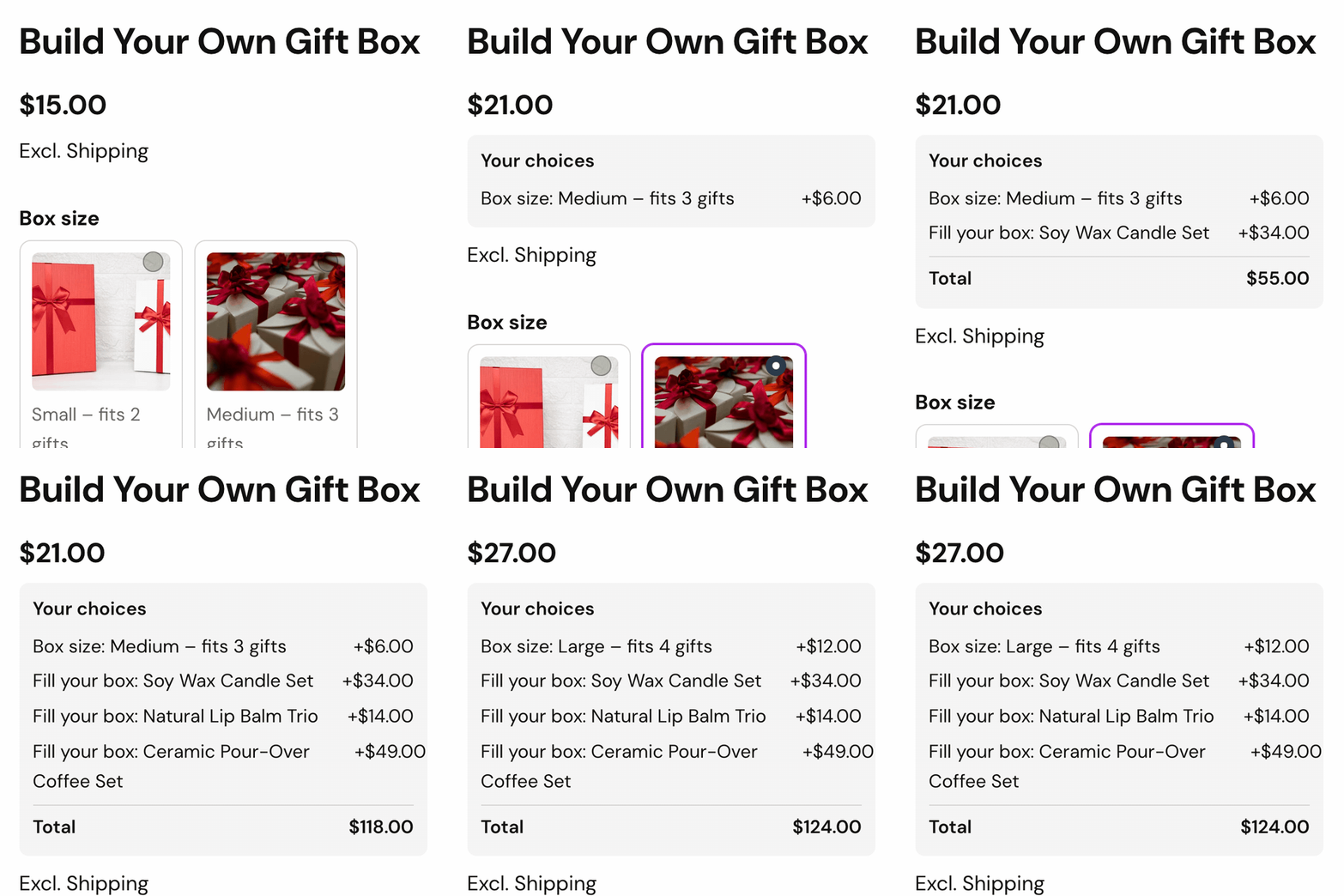
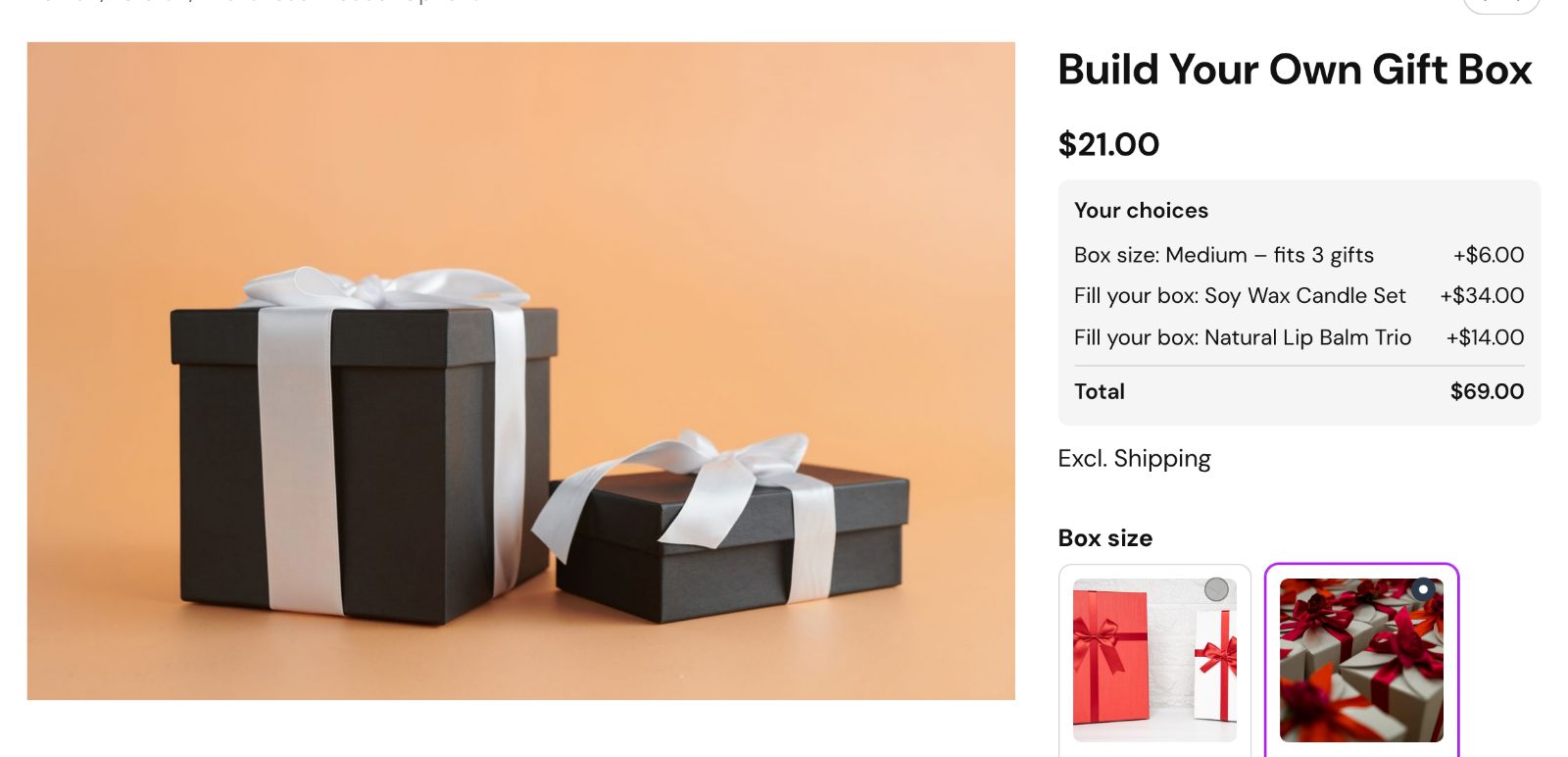
An add-on product is a value that adds another product of your store to the cart, as its own line. That keeps your stock right, but it has one side effect: the price on the product page only counts the product and its options. A gift box with three gifts can show $21.00 while the cart will ask for much more.
The option set switch List the choices under the price fixes that. Under the price, Your choices lists:
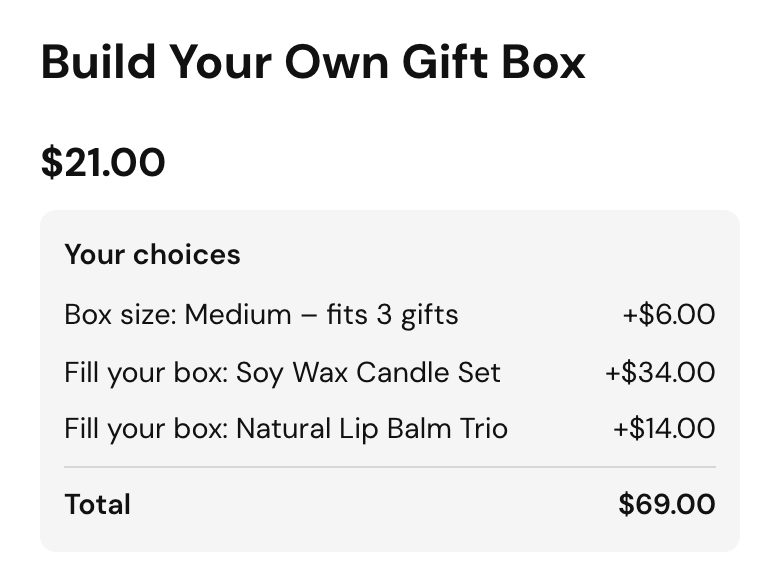
- Each chosen option with its price change, for example "Box size: Medium +$6.00".
- Each picked add-on product with its price, and "2 × $14.00" when more than one goes to the cart.
- A Total when add-on products are picked: the product price with the options, times the quantity, plus the add-ons.
The list follows every pick. Tick another gift and its line and the new Total show right away; change the quantity and the Total changes with it. Without add-on products there is no Total row, because the product price already says it all.
New to add-on products? The guide to product bundles with add-on products shows how to set them up, and the tour of Advanced Product Options shows what else the app does.
1. Set up the add-on products
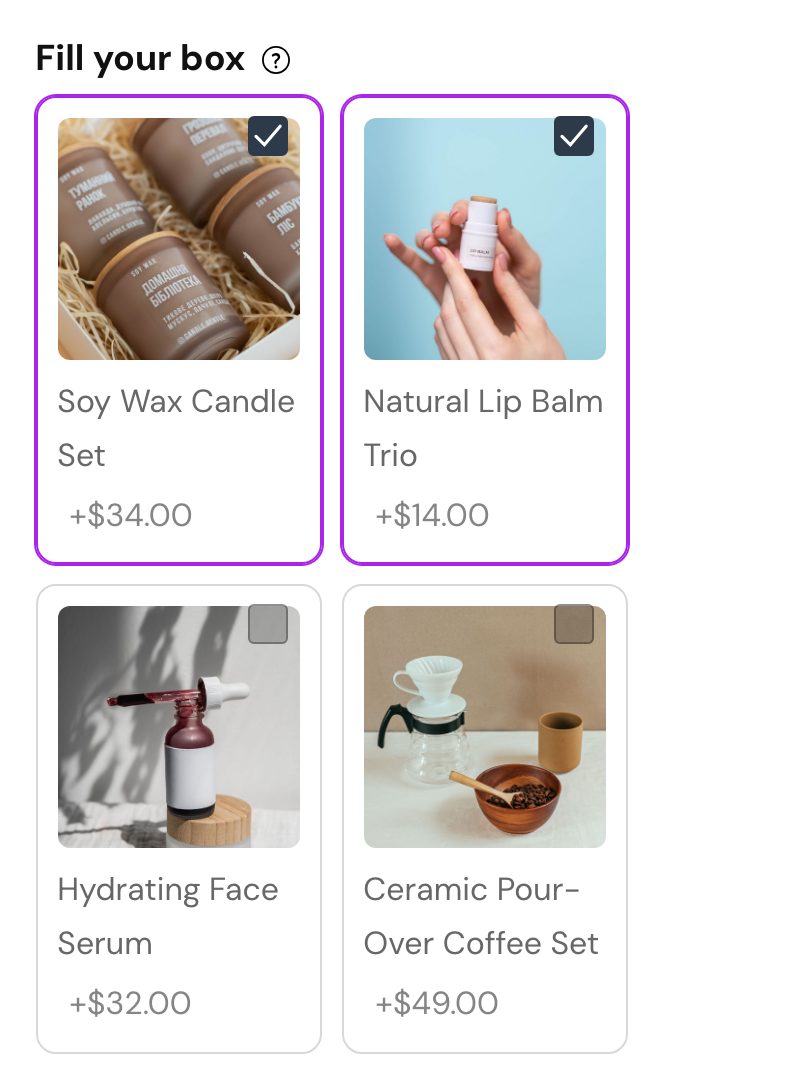
Each part shoppers can add stays a normal product in your store, with its own price and stock. In your option set, open a value and press Add-on product:
- Product ID: the product that goes to the cart with this value.
- Quantity: how many go to the cart. Leave it empty for the same quantity as the main product.
- Shoppers choose how many: a − / + counter lets shoppers pick the number, up to At most.
Keep the value's Price modifier at 0. The add-on product brings its own price, and that is the price the list shows next to it.
2. Turn on the list under the price
Open the option set and stay on 1. Create options. Below the options, open the Product page layout panel (it applies to the whole option set). Under Extras, turn on List the choices under the price. The admin describes it as: "Your choices": each chosen option with its price change; with add-on products, also the total to pay.
Your edits are saved as you go. If you also changed options or values, press Save all changes so the products get them too. The switch is per option set, so you can use it on your kits and bundles and leave simple products as they are.
3. Check what shoppers see
Open the product in your store, pick a few options and an add-on product, and do the sum yourself once. In the gift box above, the box is $15.00 and the Medium size adds $6.00, so the price shows $21.00. The candle set ($34.00) and the lip balm ($14.00) are add-ons, so the Total is $21.00 + $34.00 + $14.00 = $69.00. That is what the cart will charge for the box and its two gifts, before shipping and taxes.
How the quantity counts:
- The product price with its options is multiplied by the quantity in the quantity field.
- An add-on with an empty Quantity follows that quantity too: two boxes, two candle sets.
- An add-on with a fixed Quantity, or with Shoppers choose how many, counts that number, and its line shows it, for example "+2 × $14.00".
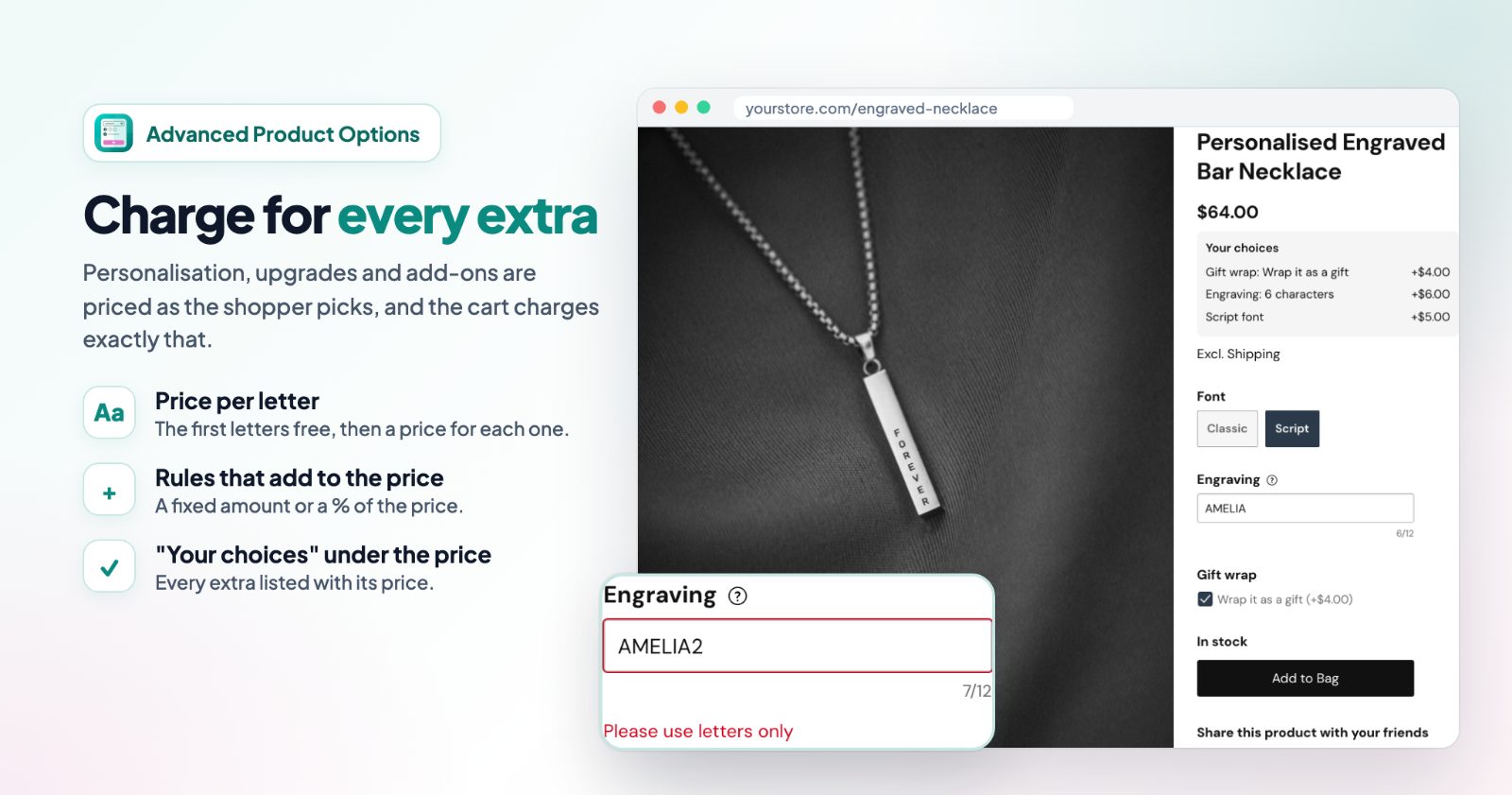
The list also shows the other charges the app adds: a price per letter (as "Engraving: 6 characters"), a price per unit for made-to-measure products, and rule charges.
4. Change the words if you like
"Your choices" and "Total" come in 15 languages and follow the shopper's language. To write your own, open the tab Look, texts and settings and go to Texts shoppers see:
- Heading of the chosen options under the price (default "Your choices"), for example "Your box".
- Total under the chosen options, when add-on products are picked (default "Total"), for example "Box total".
When your store has several languages, pick the language next to Texts in first, then press Save.
Common setups
- Build your own gift box: box sizes with a price change, the gifts as picture cards that are add-on products. The Total shows the box with everything in it.
- Kit with accessories: a camera with a memory card and a case as add-ons, with Quantity left empty, so two cameras show two cards and two cases in the Total.
- Refill packs: a "Refills" value with Shoppers choose how many; the line shows "+3 × $8.00" and the Total adds all three.
- Gift wrap as a product: a "Gift wrap" checkbox that adds your wrap product, listed with its price. See gift wrap, gift messages and engraving.
- Engraved jewelry without add-ons: the list shows the font, the letters and the gift wrap with their prices, and no Total, since the product price already includes them.
Questions
Why doesn't the product price include the add-ons?
Each add-on is its own product in the cart, with its own price and stock. The product price shows the main product and its options only; the Total under the list adds the add-ons for the shopper.
Why don't I see a Total?
The Total shows only while at least one add-on product is picked. Without add-ons, the list shows the choices and their prices, and the product price is already the amount to pay.
Does the Total include shipping, taxes or discounts?
No. It is the product with its options plus the add-on products. Shipping, taxes and cart discounts are worked out at checkout as usual.
Can I turn it on only for some products?
Yes. The switch belongs to an option set, so it is on for the products of that set only.