How it works in short
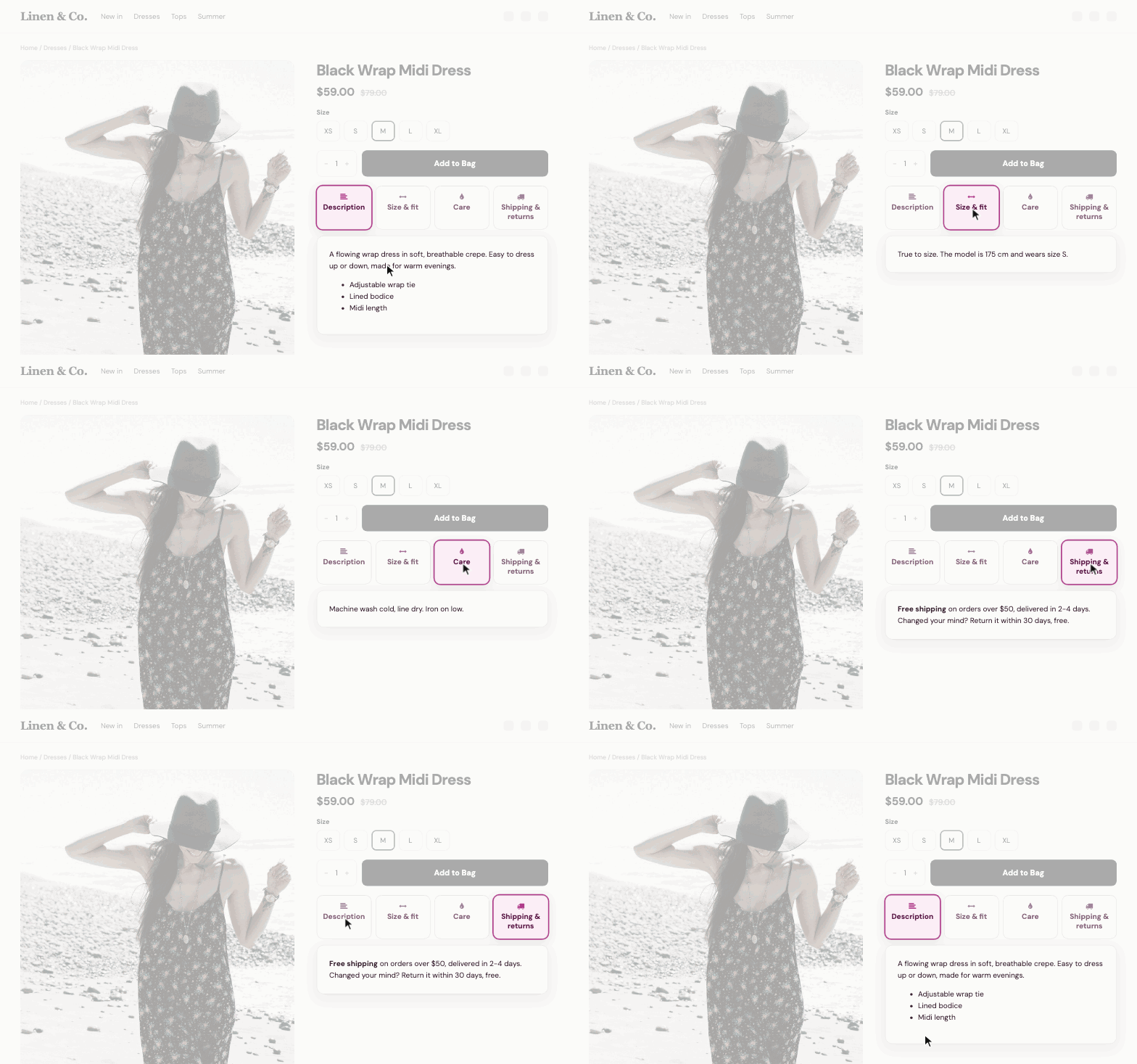
A long description makes shoppers scroll past the details they came for. Tabber puts the description, size and fit, care and shipping each in their own tab, one click away. Tabs come from two places:
- Tabs from the product description: short lines like
[tab name='Care']in a product's description. Everything until the next line becomes that tab. - Tabs on every product: write a tab once (shipping, returns, warranty) and it shows on all products, or only in chosen categories.
1. Pick a layout
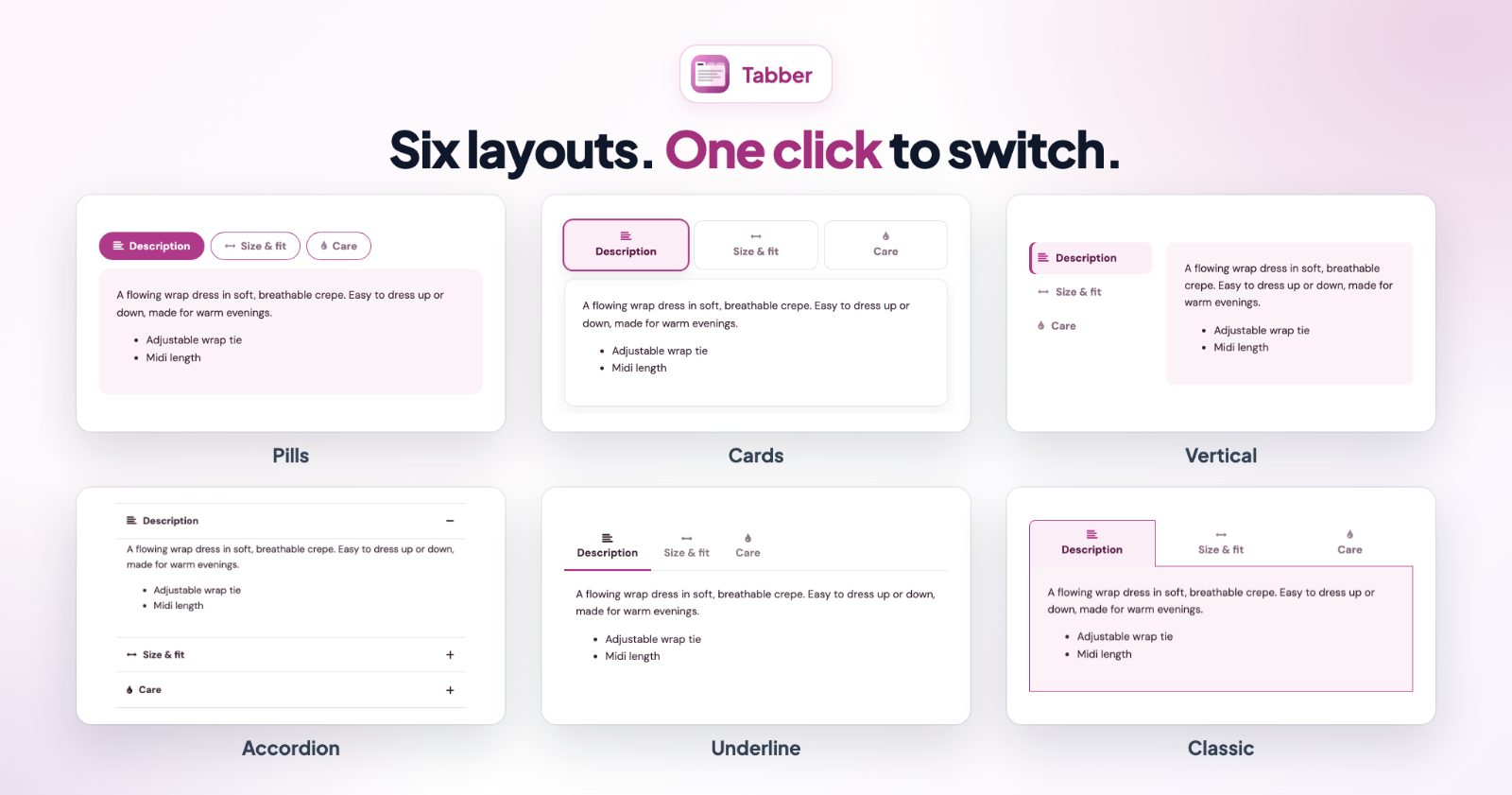
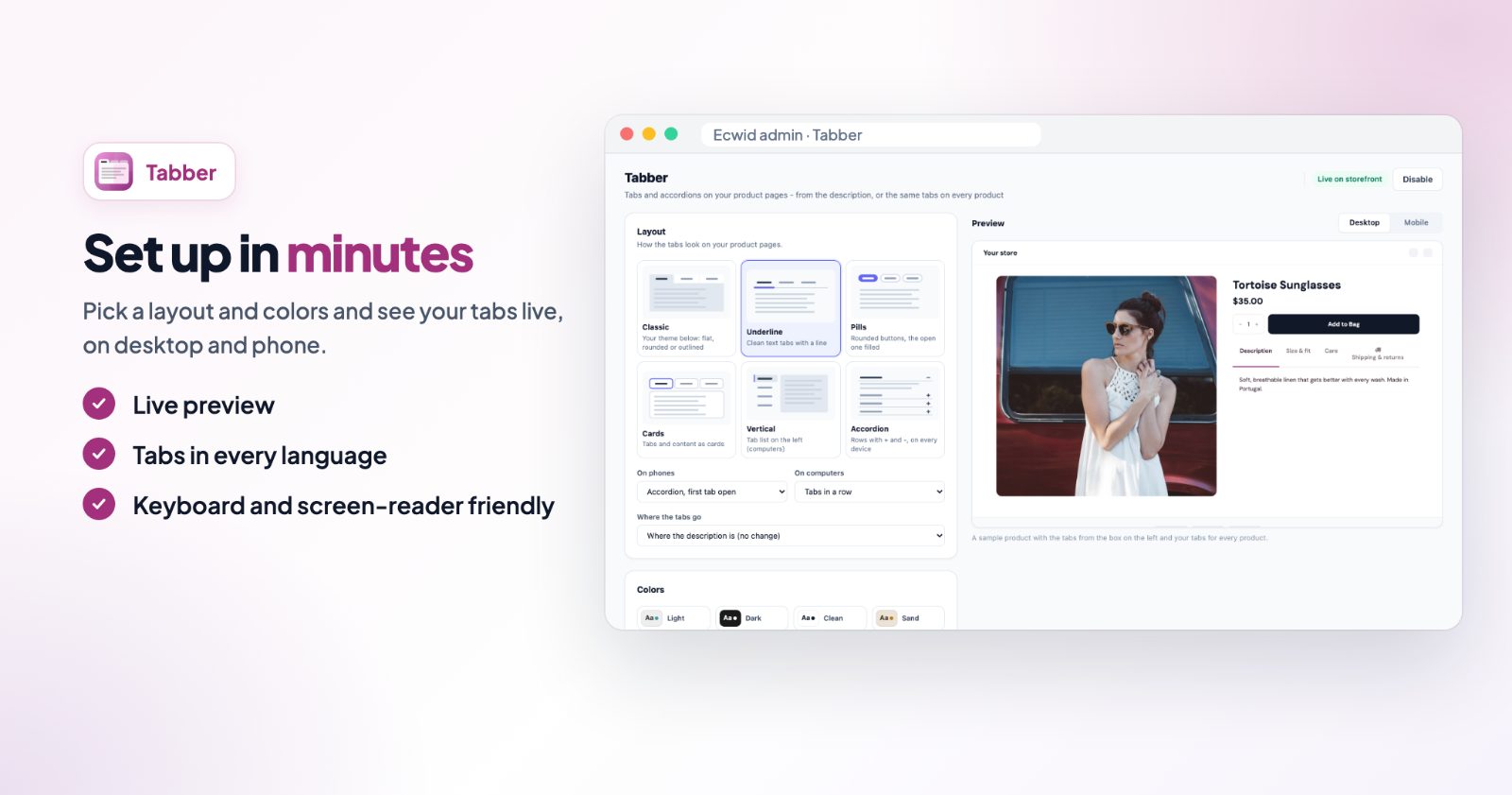
Open the app. The Layout box has six layouts:
- Classic: with a theme below it: Flat, Rounded, Outlined, Rounded outline, Top line or Bottom line.
- Underline: clean text tabs with a line.
- Pills: rounded buttons, the open one filled.
- Cards: tabs and content as cards.
- Vertical: the tab list on the left (computers).
- Accordion: rows with + and -, on every device.
Under the layouts, set how it works on each screen and where it goes:
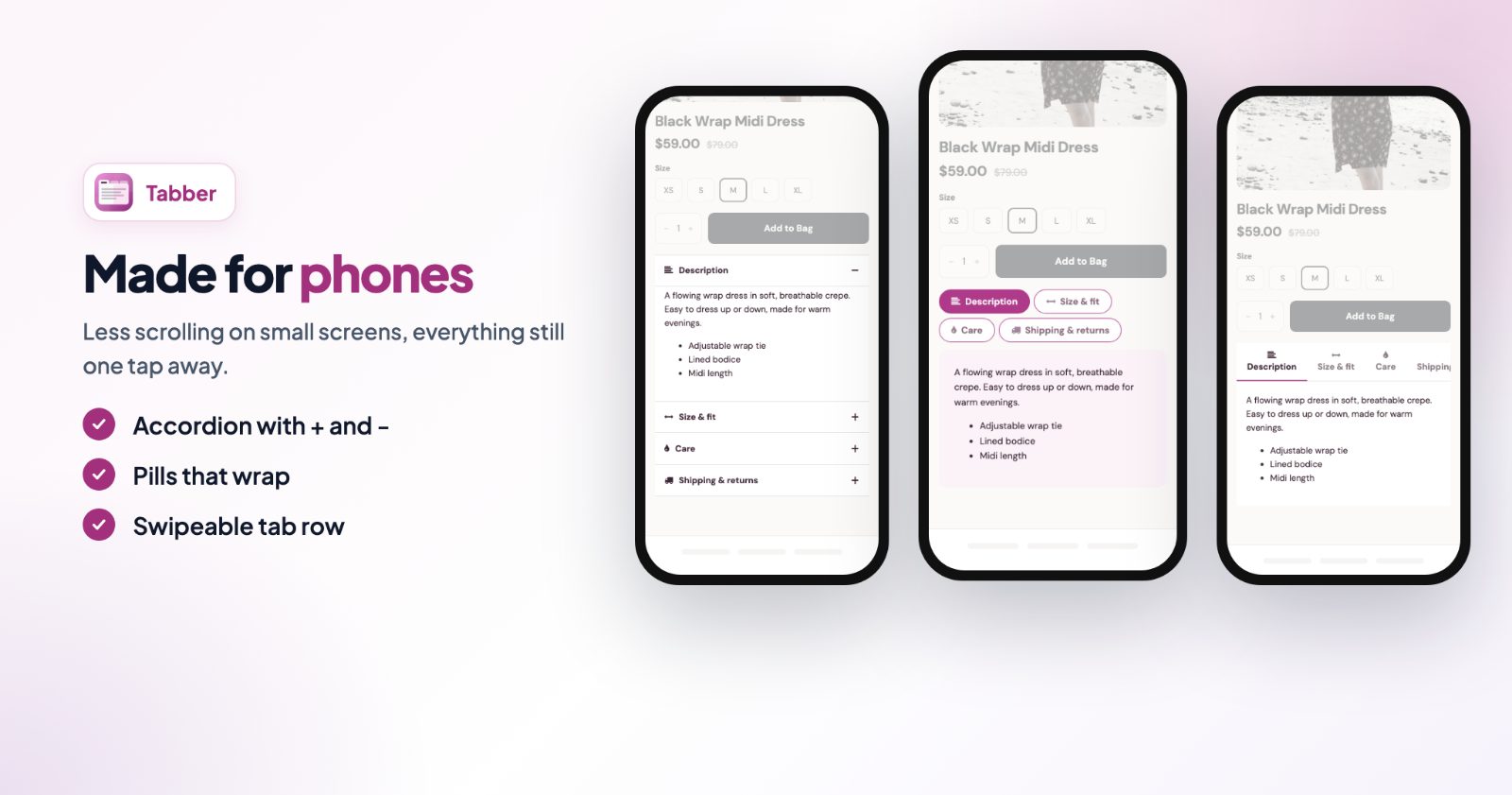
- On phones: Tabs stacked above the content, Accordion, first tab open, or Accordion, all closed.
- On computers: Tabs in a row, or Same as on phones.
- Where the tabs go: Where the description is (no change), Under the product photos, In the side column, or Full width under the product.
2. Colors, text and icons
In Colors, one click sets a look: Light, Dark, Clean, Sand, Ocean, Mint, Blush or Midnight. You can then change each color: tab text and background, the open tab, the accent for lines and borders, icons, and the content text and background.
In Text & icons, set the Tab text size, the Open tab
size and Align. Icon on every tab puts one icon before every
tab name. Icons are Font Awesome 4 names, for example fa-truck or
fa-info-circle, and a tab can set its own.
3. Add tabs to a product's description
In your store admin, open a product and add these lines to its description. Everything between two lines
becomes one tab, and [endtab] closes the last one:
[tab name='Description']
Soft, breathable linen that gets better with every wash.
[tab name='Size & fit']
True to size. The model is 175 cm and wears size S.
[tab name='Care']
Machine wash cold, line dry. Iron on low.
[endtab]
A tab can have its own color and icon: [tab name='Shipping' icon='fa-truck'] or
color='#e11d48'. The box Tabs from the product description in the app has
these lines with a Copy button. Edit them there to try your own tabs in the preview.
4. Add tabs to every product
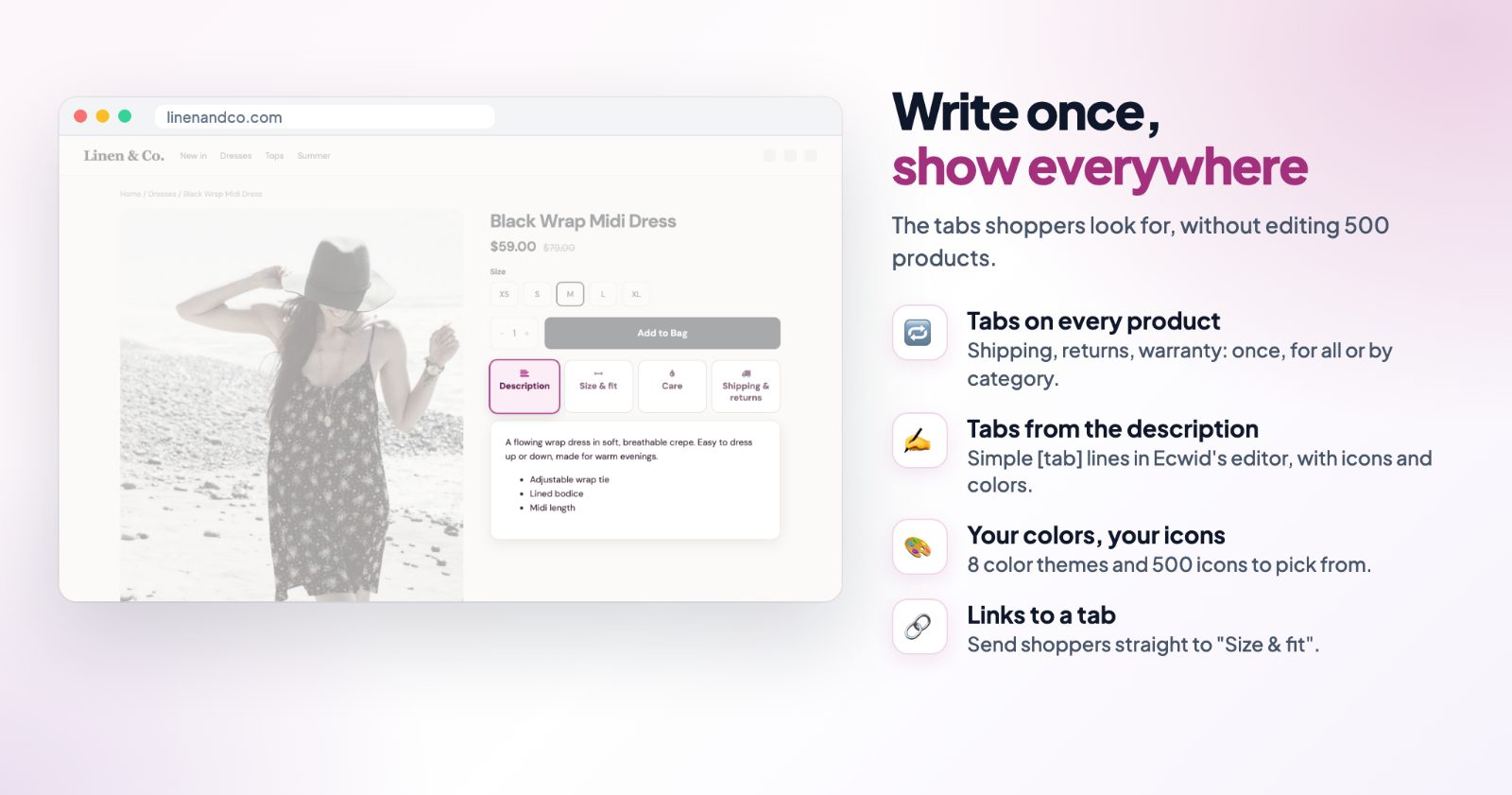
Some tabs are the same for every product: shipping, returns, warranty. Under Tabs on every product, click + Add a tab for every product and fill in:
- Tab name and Content, in every language of your store.
- Position: before the product's own tabs, or after them.
- Show on: All products, or Only in a category (pick one or more).
Each of these tabs has its own switch, and the arrows set their order. Name of the description's tab is for products without their own tabs: their description becomes the first tab, with this name. So you can add a Shipping tab to your whole catalog without touching a single description.
5. Check the preview and switch it on
The Preview shows a sample product with the tabs from the box on the left and your tabs for every product, on Desktop and Mobile. Click Save, then Enable. The label at the top says Live on storefront.
Common setups
Clothing: description, size and care
Add [tab name='Size & fit'] and [tab name='Care'] lines to each product
description. Use Underline on computers and Accordion, first tab open
on phones.
One shipping and returns tab for the whole store
Add a tab for every product called "Shipping & returns", write your terms once, set Position to after the product's tabs and Show on to All products. When your terms change, you edit one tab.
A warranty tab for one category
Add a tab for every product called "Warranty", and under Show on pick only your Electronics category.
Send shoppers straight to a tab
Add #tab- and the tab name to a product link, for example #tab-care. The page
opens with that tab. Handy in an email or an answer to a customer question.
Questions
How do I create tabs?
Add lines like [tab name='Size & fit'] to a product's description in your store admin.
Everything until the next [tab ...] line or [endtab] becomes that tab.
Can I add the same tab to every product?
Yes. Under Tabs on every product, write a tab once and show it on all products or only in chosen categories.
How do tabs look on phones?
You choose: tabs stacked above the content, or an accordion with the first tab open or all closed.
Can I link to a tab?
Yes. Add #tab-name to the product link, for example #tab-care, and the page opens with that tab.
More for your product pages: color swatches instead of a color dropdown, and advanced product options.