How it works in short
Cart Discounts applies its discounts in the cart and at checkout, and product pages keep your normal prices. That stays the default. But for quantity breaks, many shoppers want to see the price per item before they decide how many to buy. Two new options came from a merchant who asked for exactly that:
- Product page: show the quantity tiers. Under the price, one line per tier with the price per item and the saving, for the variant the shopper picked.
- One after the other. A new way for discounts to work together: each discount comes off the price the ones above it in your list left.
Both are off until you switch them on, so nothing changes in your store by itself. You can watch both in our 1-minute Cart Discounts demo.
1. Make a quantity break
In the app, click + Add a discount and pick Quantity breaks ("Buy 3 get 10%, 6 get 15%, mix and match") or Case pricing ("12+ of the same product 10% off, 24+ 15%"). Choose the products, categories or brands it is for, and set your tiers, for example From 2 items get 10% off and From 4 items get 20% off.
With Count each product on its own off, the products mix and match: 2 of one and 1 of another count as 3. Switch it on when only the same product should count, as for case pricing.
2. Switch on the tiers on the product page
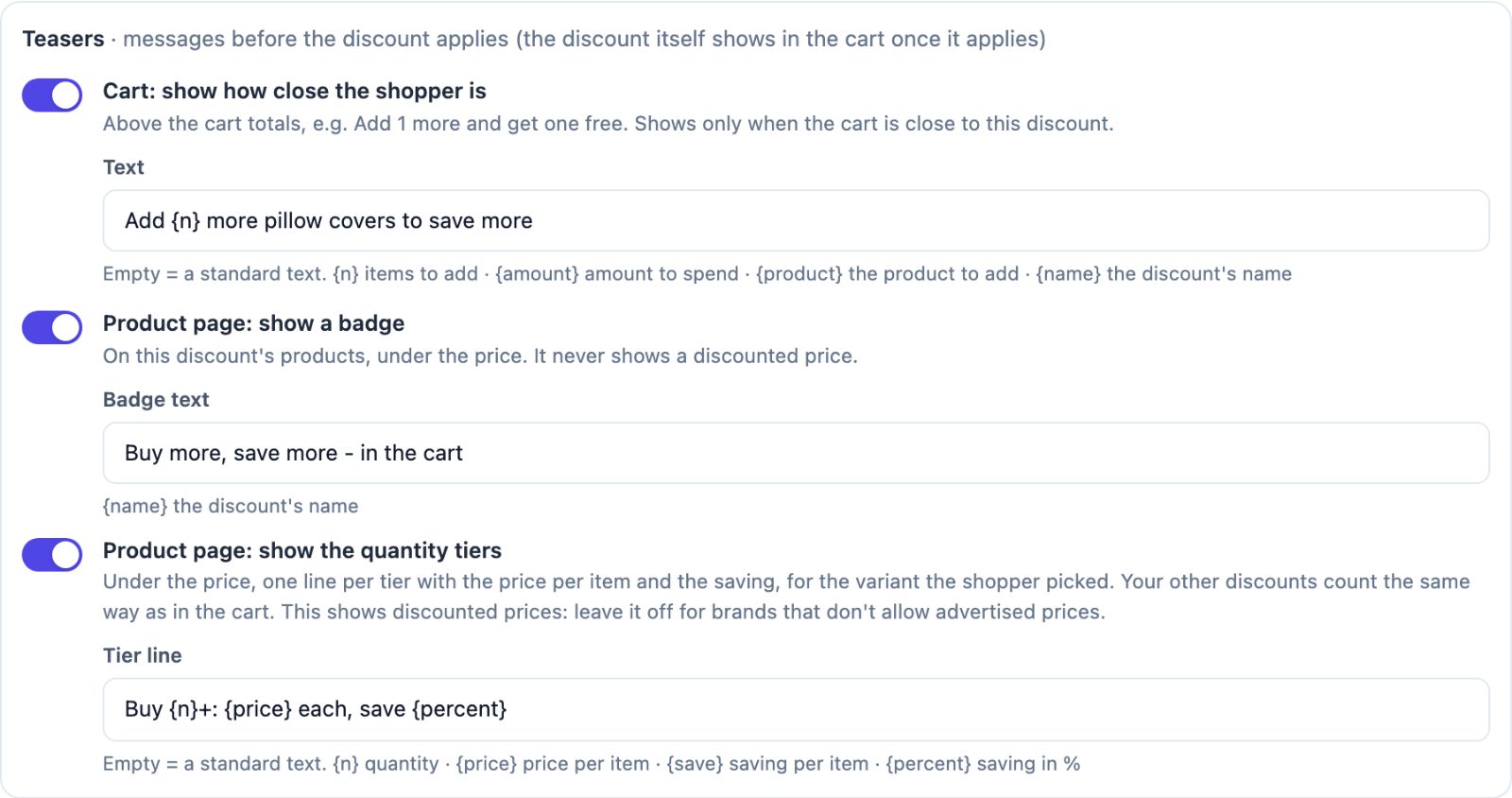
Open the discount and go to Teasers. Next to the cart message and the badge there is a new toggle, Product page: show the quantity tiers. Switch it on, and change the Tier line if you like. The standard text is "Buy {n}+: {price} each, save {percent}", where {n} is the quantity, {price} the price per item, {save} the saving per item and {percent} the saving in %. Like every teaser text, you can write it in each language your store uses.
3. What shoppers see
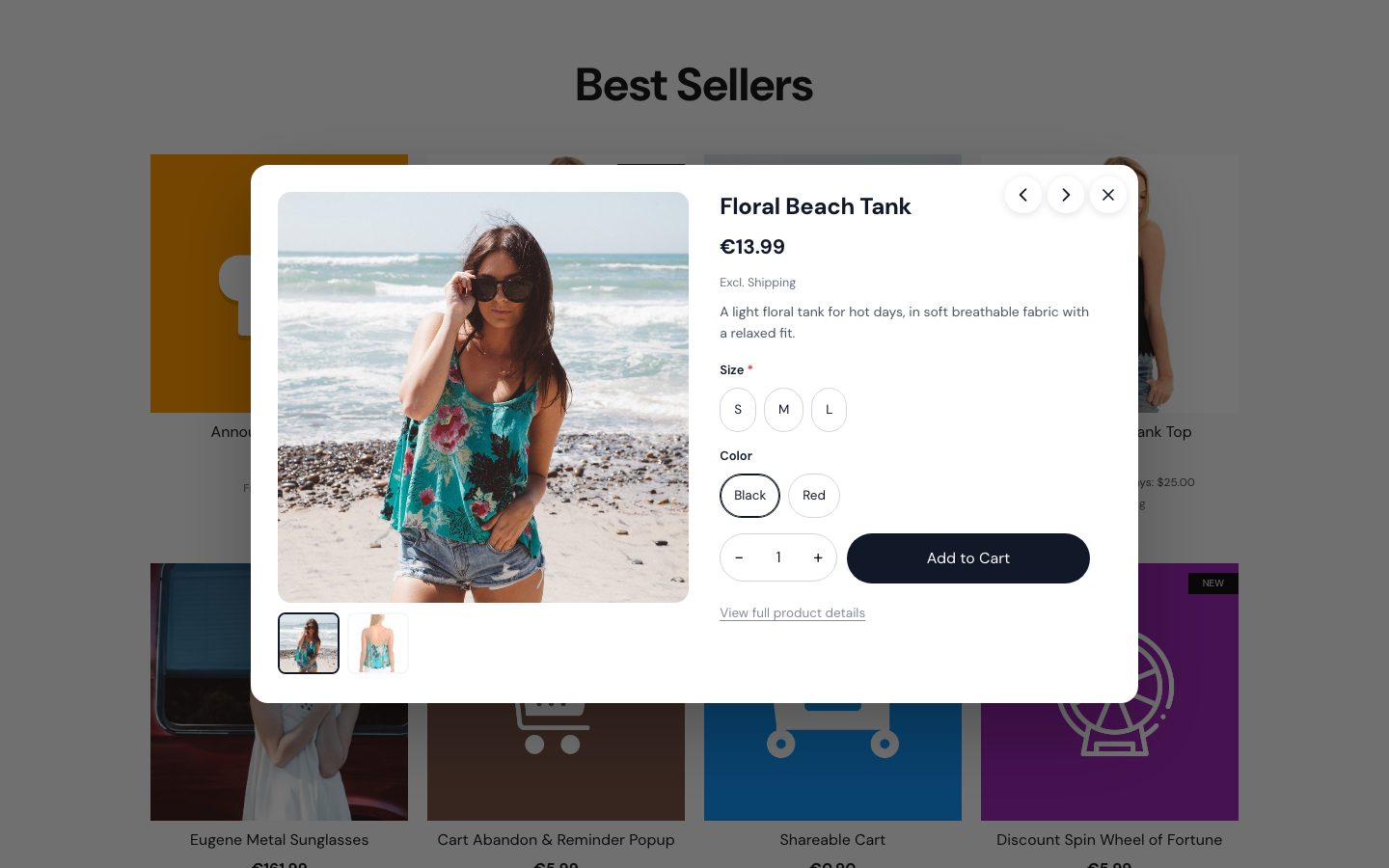
On the product page, the tiers show under the price, below the badge if the discount has one. The page keeps its normal price; the tiers only say what each item will cost in the cart.
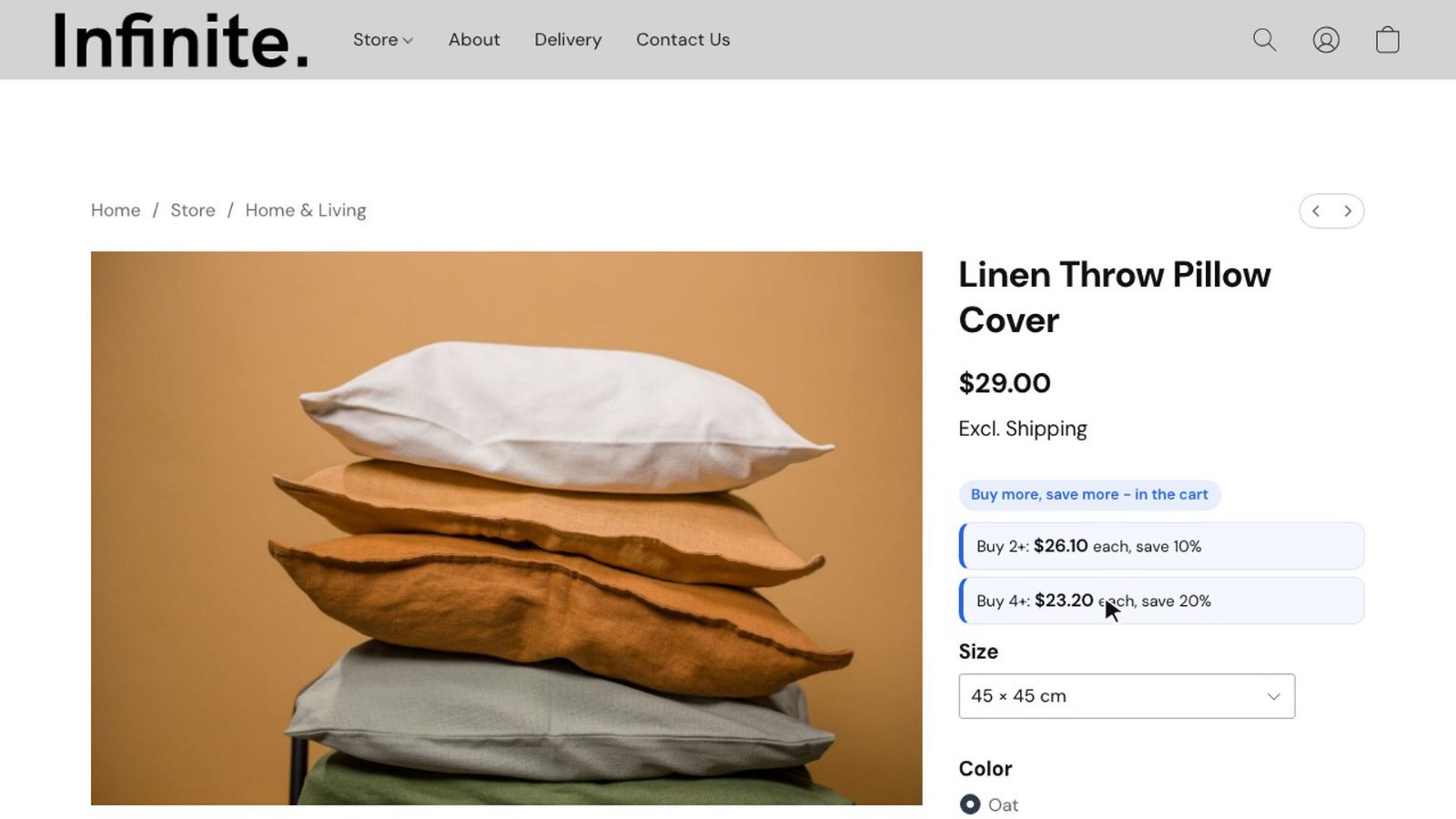
The amounts are worked out the same way as in the cart, so they are what the shopper will really pay:
- The variant the shopper picked. When a size or color has another price, the tiers are worked out again for it.
- Your other discounts count. If the product is in another discount too, the tiers follow your setting under How discounts work together, the same as the cart.
- The shopper's currency. With our Ultimate Currency Converter, the tier prices and the amount in the cart message show in the currency the shopper picked, like the page's own prices.
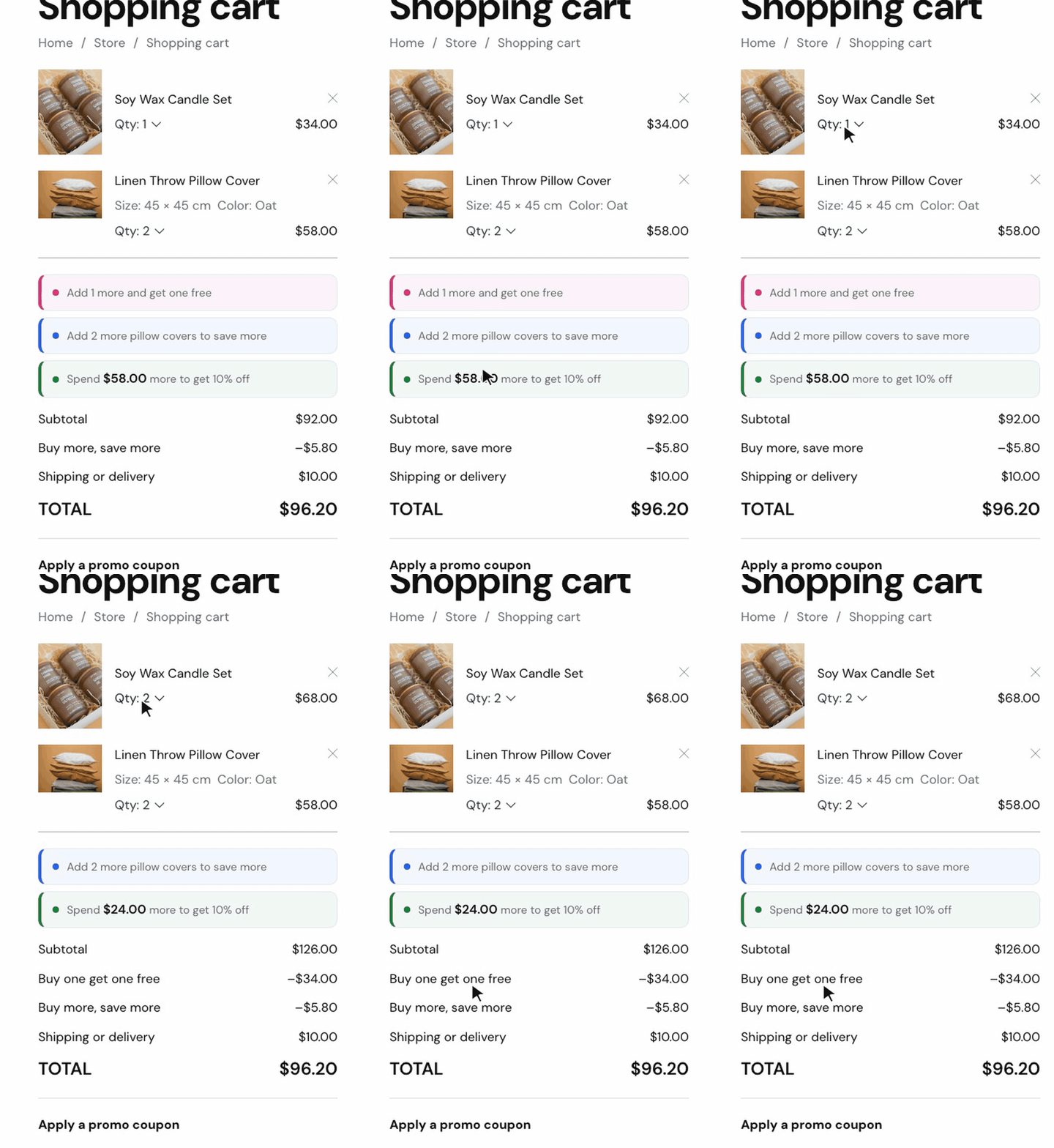
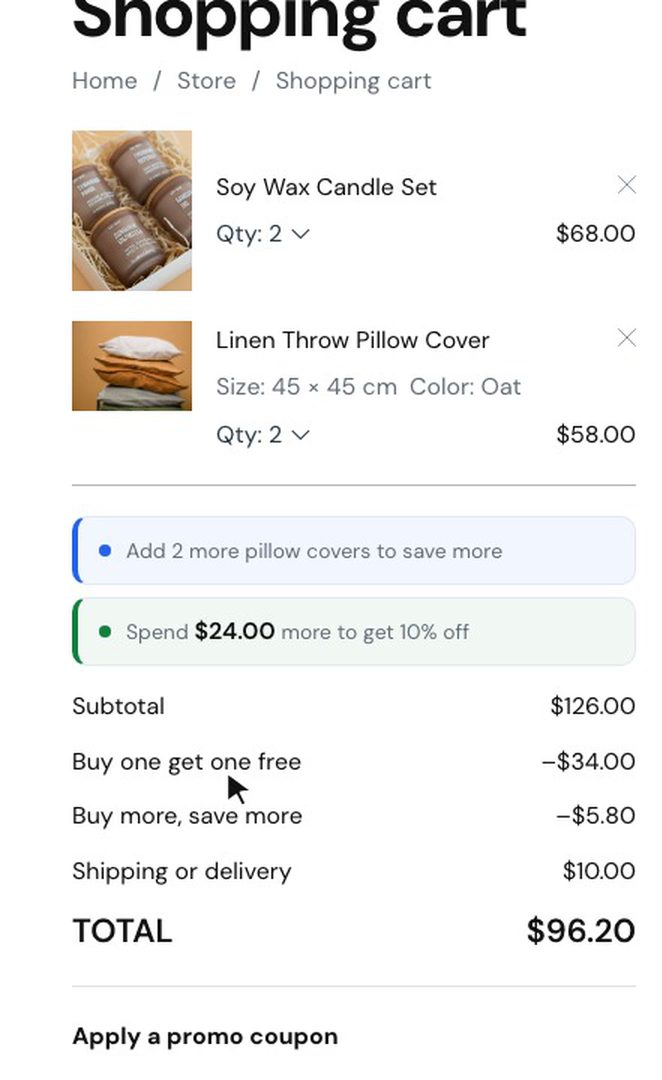
In the cart, the discount shows as its own line, and the cart message tells the shopper how many more they need for the next tier.
4. Choose how discounts add up
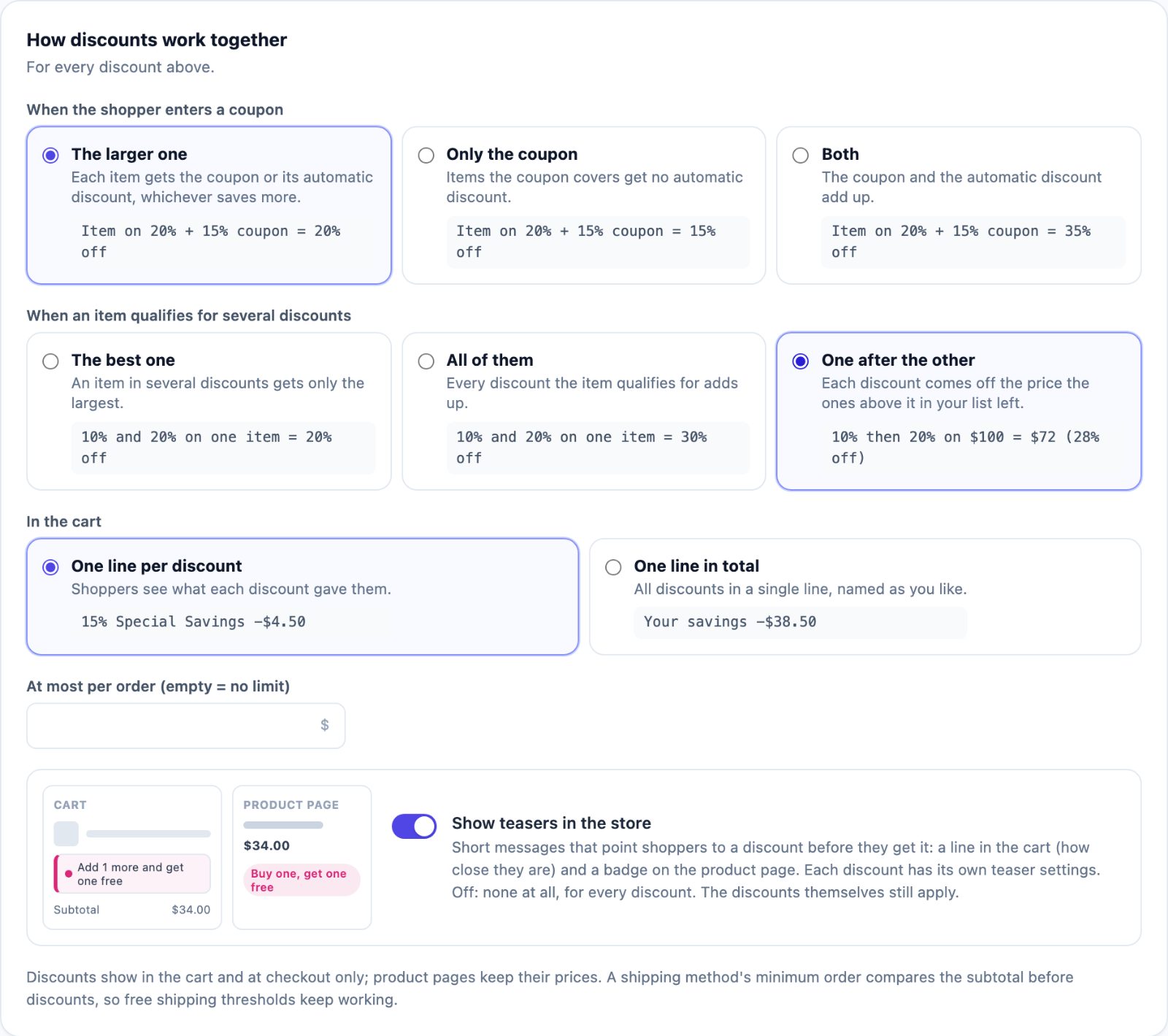
When an item is in more than one discount, the setting When an item qualifies for several discounts (under How discounts work together) decides what it gets:
- The best one: only the largest. 10% and 20% on one item = 20% off. This is the default.
- All of them: every discount adds up. 10% and 20% on one item = 30% off.
- One after the other (new): each discount comes off the price the ones above it in your list left. 10% then 20% on $100 = $72, that is 28% off.
With One after the other, the order of your list matters: use the arrows next to each discount to put them in the order they should come off. It suits stores that give, say, 10% to a customer group and then a quantity break on top, and want the second one counted from the already lower price. The quantity tiers on the product page follow this setting too.
5. Check it on a phone
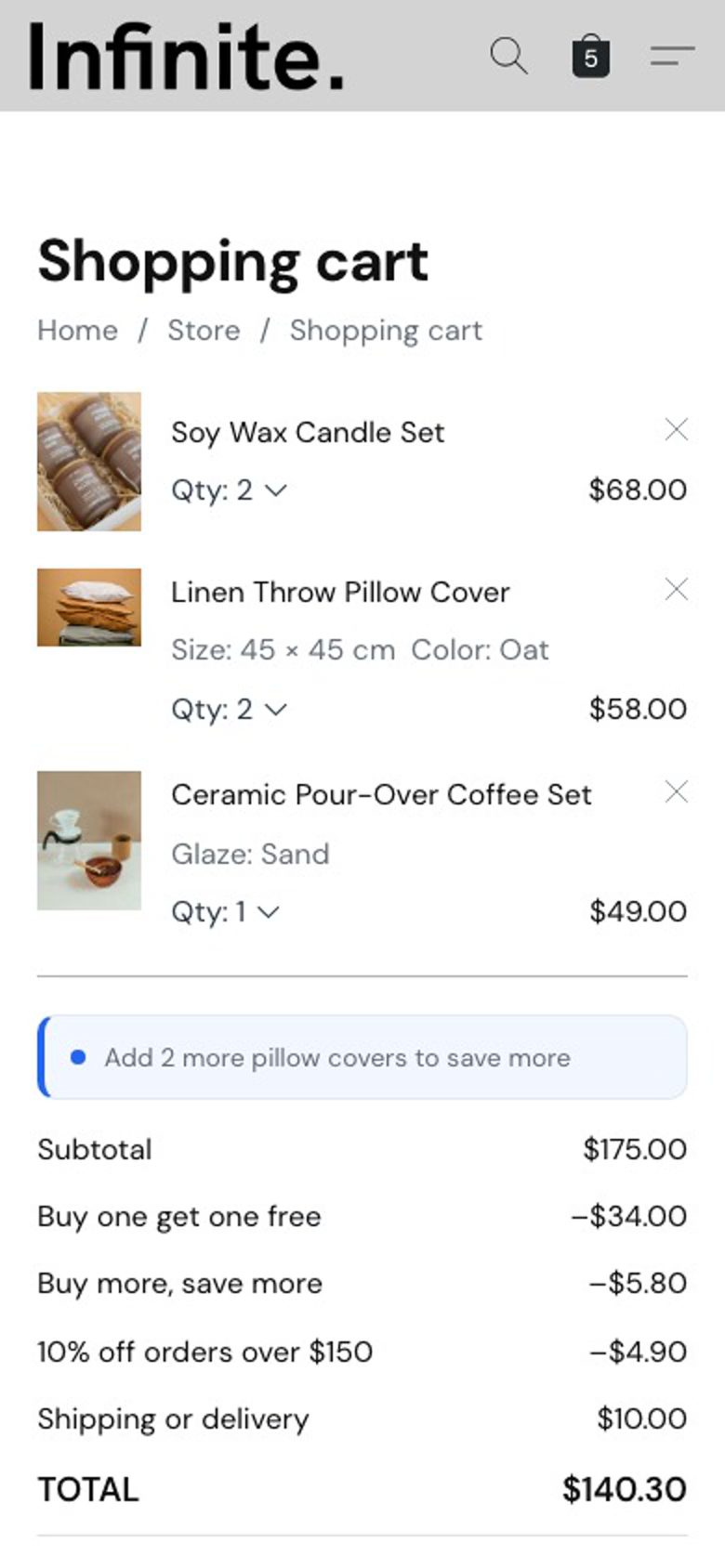
The tiers, the badge and the cart messages work the same on phones. In the cart every discount still shows as its own line, or as one line if you chose One line in total.
Common setups
Buy more, pay less per item
A Quantity breaks discount on a category, 2+ at 10% and 4+ at 20%, with the tiers on the product page and the cart message on. Shoppers see the price per item before they choose a quantity, and the cart tells them how many more they need.
Case prices for drinks or consumables
Case pricing with 12+ and 24+ tiers and Count each product on its own on. Change the Tier line to something like "{n} or more: {price} a bottle".
Brands that don't allow advertised prices
Leave Product page: show the quantity tiers off, as the admin suggests: it shows discounted prices. Keep the badge ("Buy more, save more - in the cart"), which never shows a price.
A group discount plus a quantity break
Put the customer group discount first in the list and the quantity break below it, and choose One after the other. A wholesale buyer gets their group price, and the quantity break comes off that price.
Questions
Does this change my product prices?
No. The page keeps the price you set. The tier lines say what each item costs in the cart, and the discount itself applies in the cart and at checkout.
Which discounts can show tiers?
Discounts with quantity tiers, like Quantity breaks and Case pricing. Spend tiers (by cart total) and offers like buy one get one show a badge and a cart message instead.
What if a product has variants with different prices?
The tiers follow the variant the shopper picks. When the price changes, the tier lines are worked out again for the new price.
Will "One after the other" change my current discounts?
Only if you choose it. The default stays The best one, and stores that chose All of them keep adding up as before.
New to the app? The full setup, from buy one get one to bundles and who gets which discount, is in the Cart Discounts guide.