How it works in short
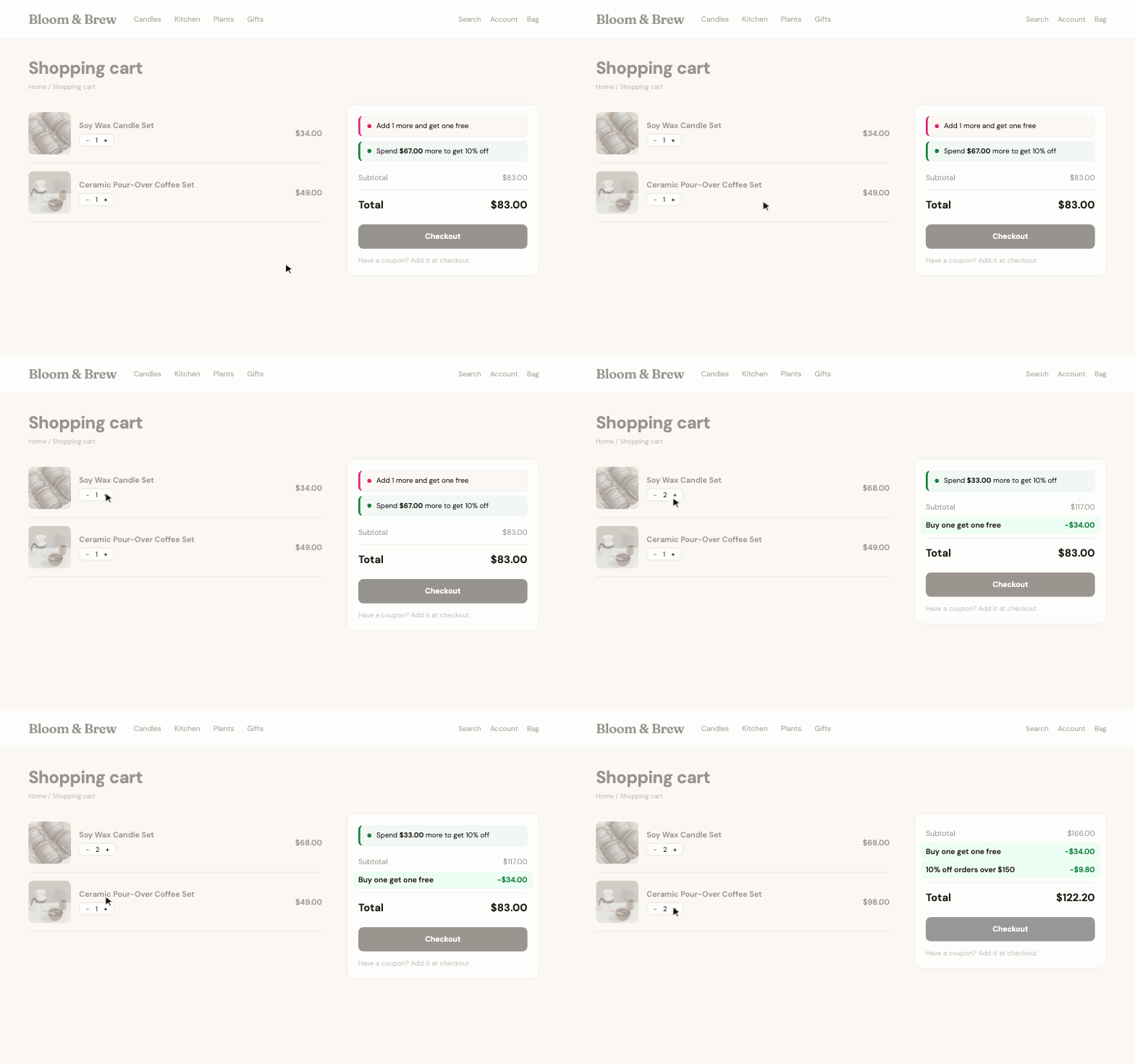
You make a list of discounts in the app. Every time a shopper changes their cart, the discounts that fit are worked out and shown in the cart and at checkout as their own lines, with the names you give them ("Buy one get one free", "Welcome: 10% off your first order"). When a cart is close to a discount, a short message tells the shopper what is missing, for example "Add 1 more and get one free".
- No coupon codes: the discount applies as soon as the cart qualifies.
- Product pages keep their prices. Discounts show in the cart and at checkout only, which suits brands that don't allow advertised discounts.
- Free shipping keeps working: a shipping method's minimum order compares the subtotal before discounts, so an order that qualified for free shipping still does.
1. Pick a discount
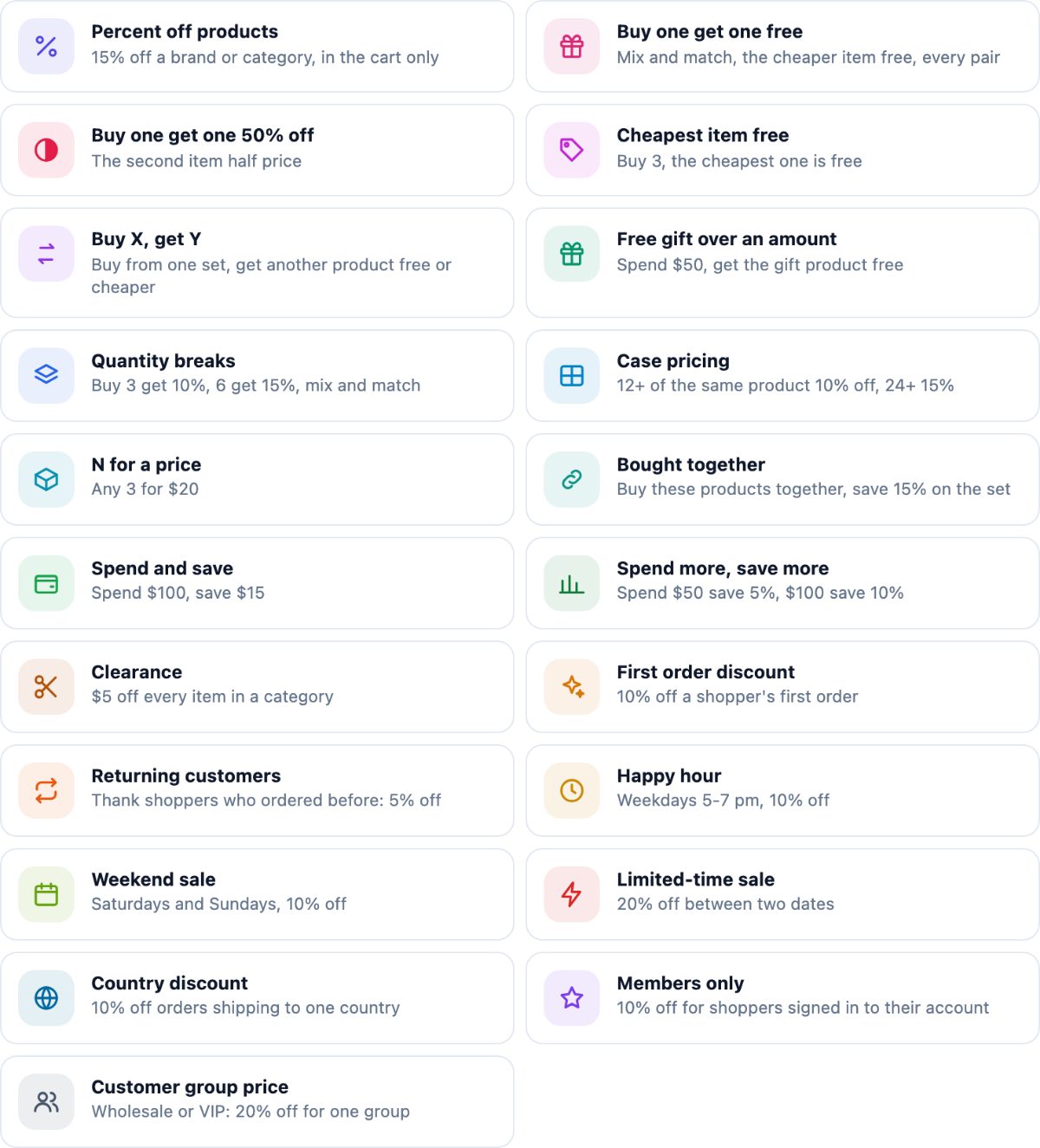
Open the app and click Add a discount. You get 21 ready-made discounts to start from. Each one is filled in with an example you can change, so pick the closest and adjust it:
- Buy one get one: Buy one get one free, Buy one get one 50% off, Cheapest item free (buy 3, the cheapest one is free), Buy X get Y.
- Quantity and bundles: Quantity breaks (buy 3 get 10%, 6 get 15%), Case pricing, N for a price (any 3 for $20), Bought together (save on a set).
- Order value: Spend and save ($15 off over $100), Spend more save more (5% over $50, 10% over $100), Free gift over an amount.
- Who and when: First order, Returning customers, Members only, Customer group price (wholesale or VIP), Country discount, Happy hour, Weekend sale, Limited-time sale, Clearance.
2. Set the discount and its products
Every discount opens with the same parts, top to bottom:
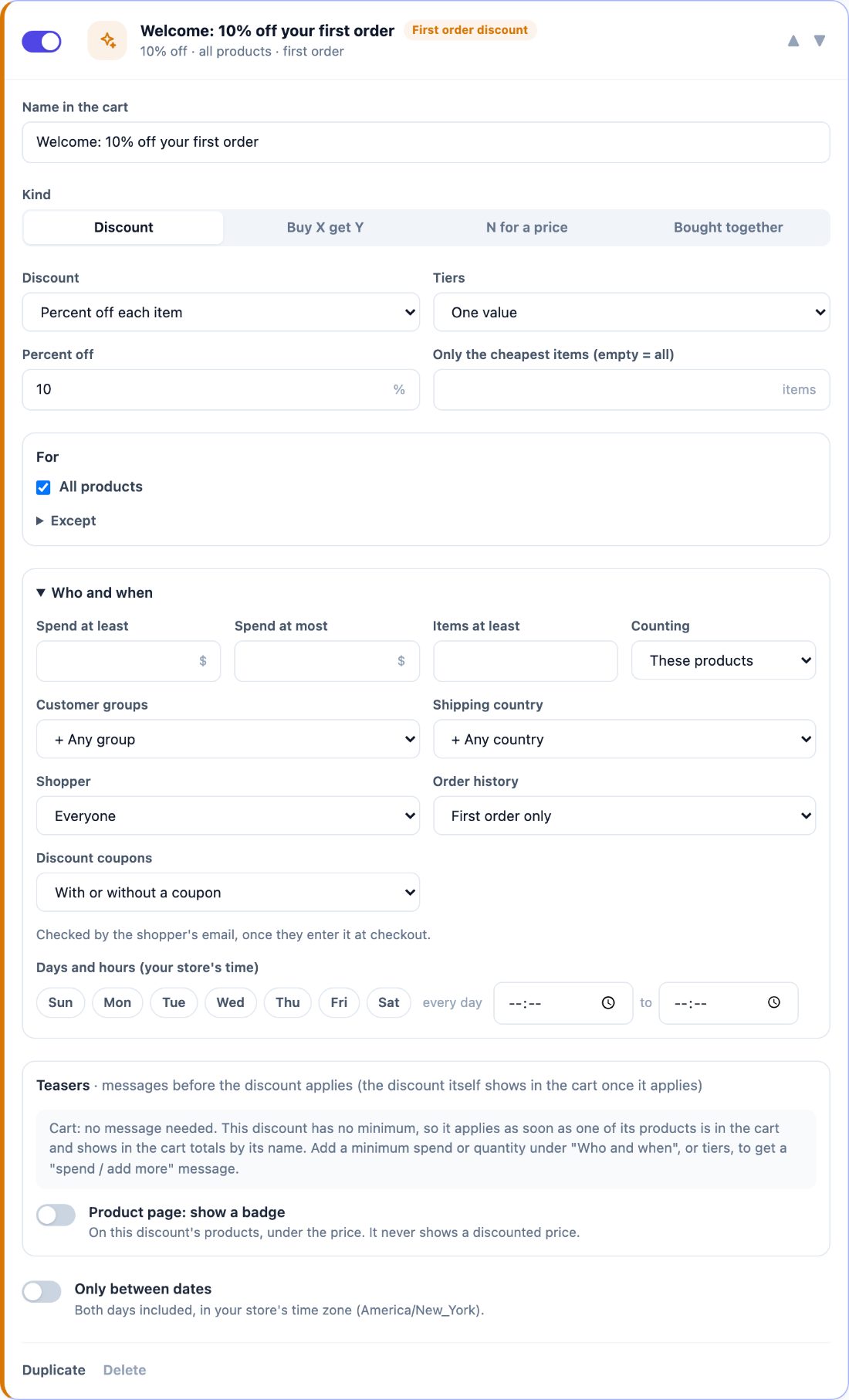
- Name in the cart: what shoppers see next to the amount. You can write it in every language of your store.
- Kind: Discount (percent or amount off), Buy X get Y, N for a price, or Bought together. Tiers turn one value into steps, like 10% from 3 items and 15% from 6.
- For: all products, or chosen products, categories, brands or product attributes, with exceptions under Except.
3. Who and when (optional)
Open Who and when to limit a discount. Leave a field empty and it doesn't limit anything.
- Spend at least / at most and Items at least, counting only the discount's products or the whole cart.
- Customer groups (for example Wholesale), Shipping country, signed-in shoppers only, and Order history (first order only, or returning customers). Order history is checked by the shopper's email once they enter it at checkout.
- Discount coupons: with or without a coupon, only without one, or only with one.
- Days and hours in your store's time zone, and Only between dates for a sale with a start and an end.
4. Teasers: tell shoppers what they are missing
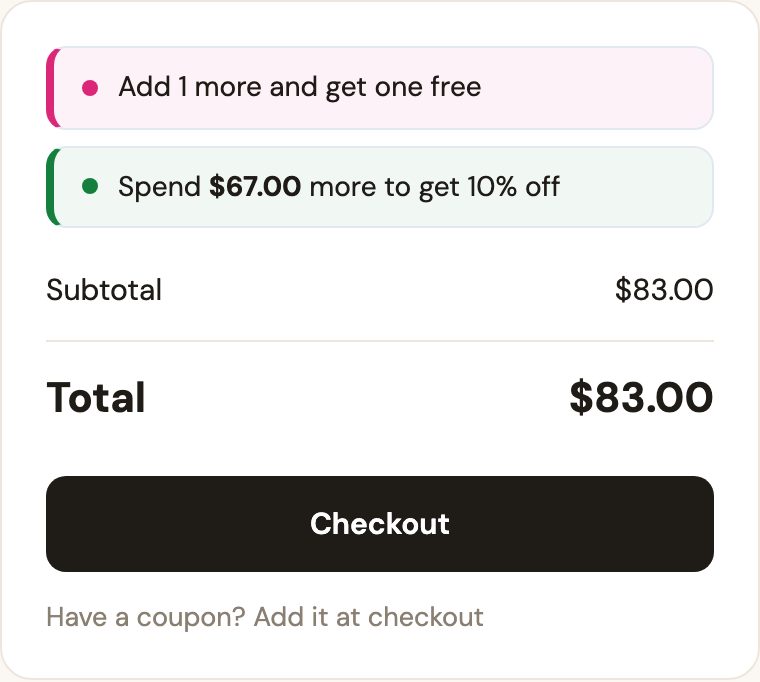
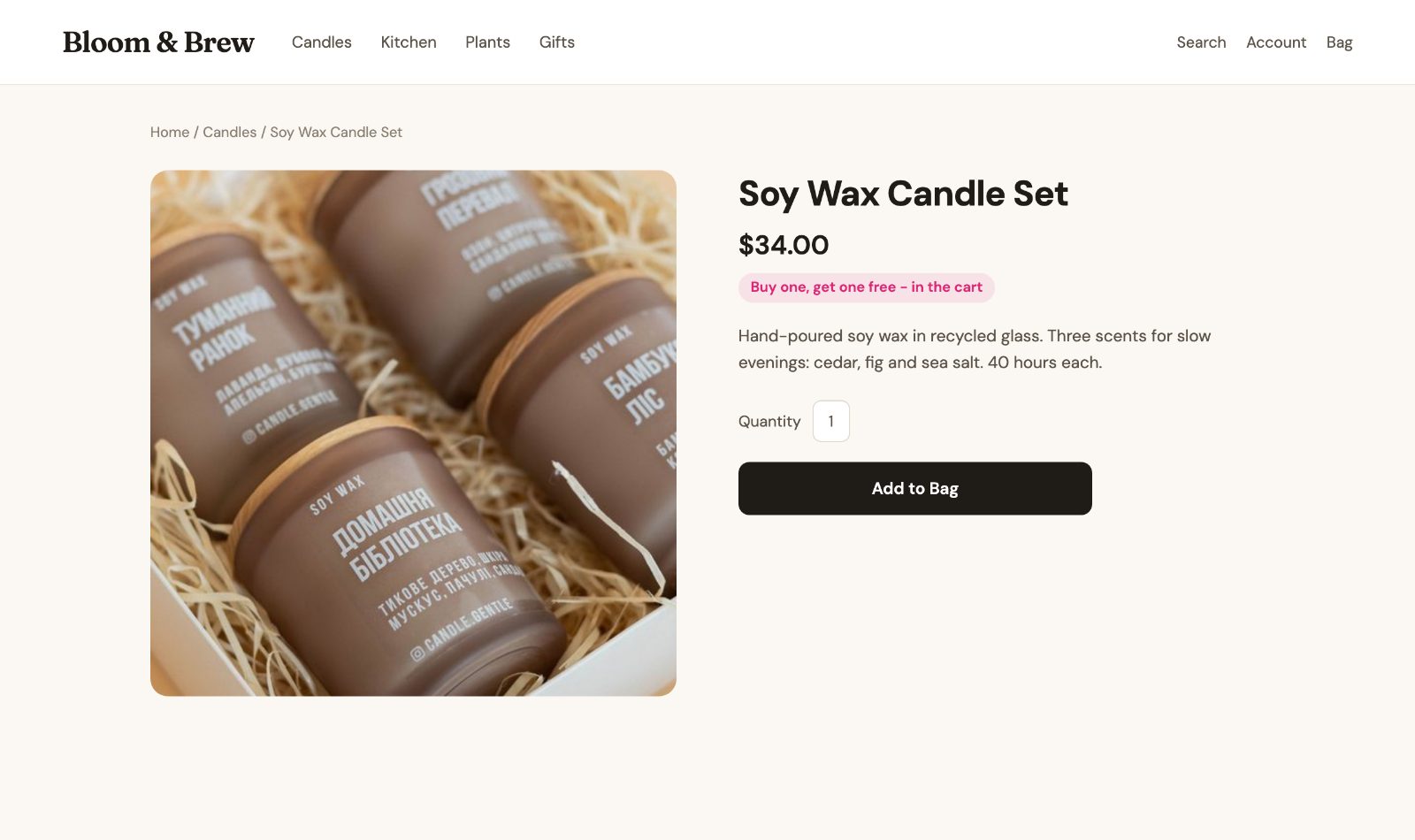
Teasers are short messages before a discount applies. In the cart, a line above the totals says how close the shopper is: "Add 1 more and get one free", "Spend $67.00 more to get 10% off". On product pages, a small badge under the price says the product is part of an offer, for example "Buy one, get one free - in the cart". The badge never shows a discounted price.
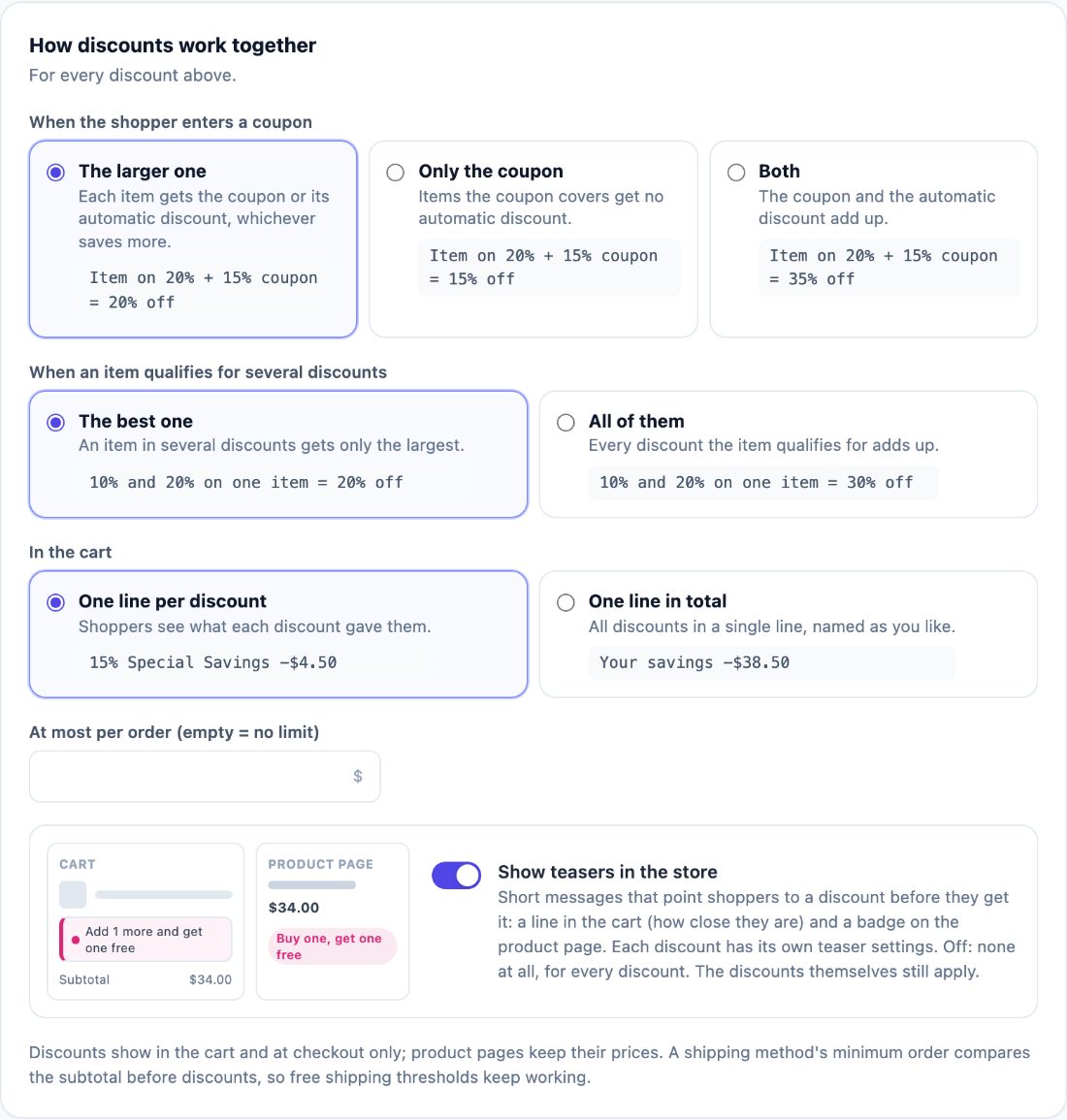
Each discount has its own teaser switches and texts, in every store language. To turn them all off at once, use Show teasers in the store under How discounts work together.
5. How discounts work together
Under the list, one box decides what happens when discounts meet:
- When the shopper enters a coupon: the larger one (each item gets the coupon or the automatic discount, whichever saves more), only the coupon, or both added up.
- When an item qualifies for several discounts: the best one, or all of them added up.
- In the cart: one line per discount, or one line in total with your own name, like "Your savings".
- At most per order: a cap on the total discount, if you want one.
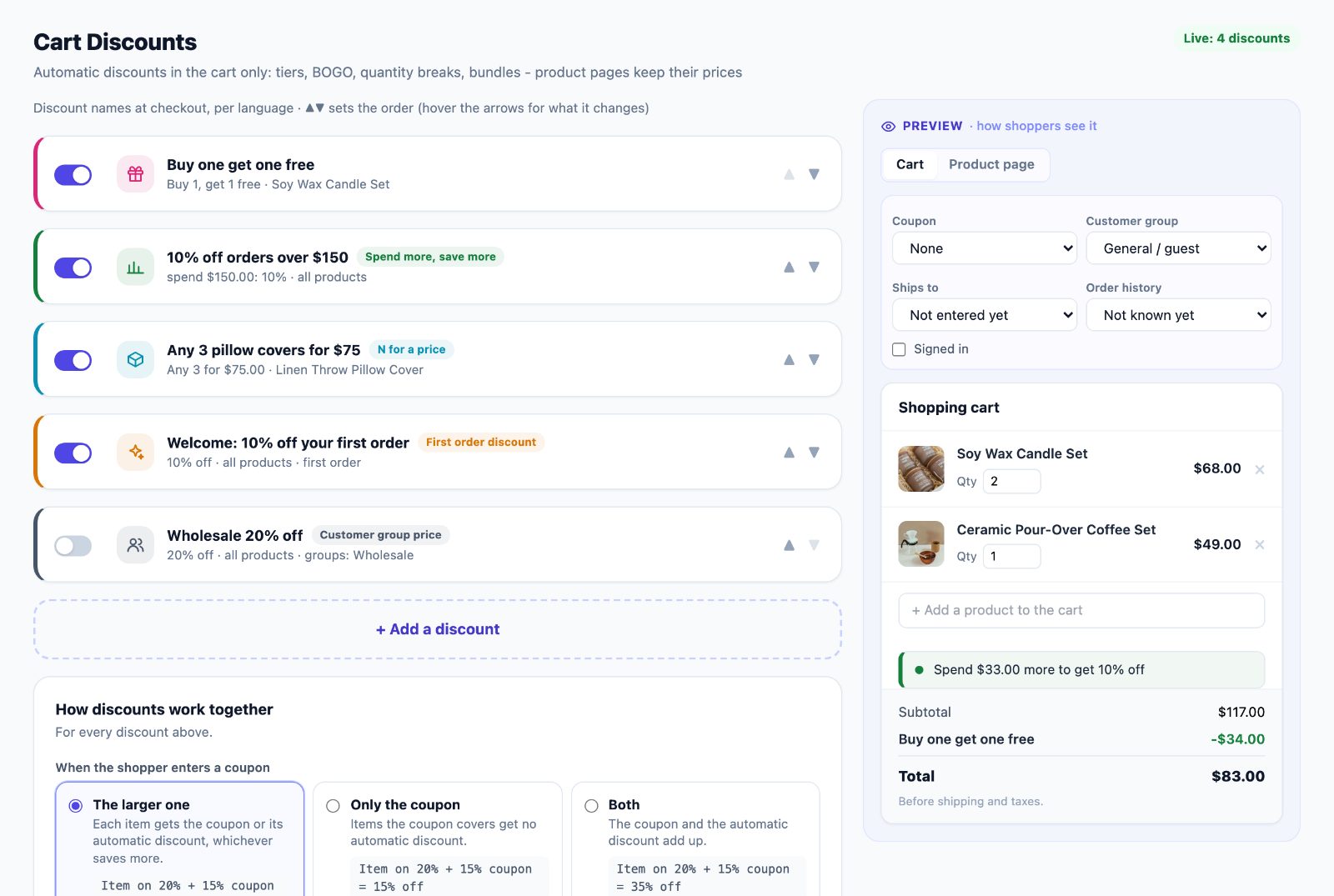
6. Try it in the preview, then switch it on
The Preview on the right is a cart that uses the same rules as your checkout. Add products, change quantities, and pick a coupon, customer group, shipping country or order history to see exactly what that shopper gets. The Product page tab shows the badge. When it looks right, switch the discount on; the switch next to each discount turns it on or off at any time, and the arrows set the order the discounts are listed in.
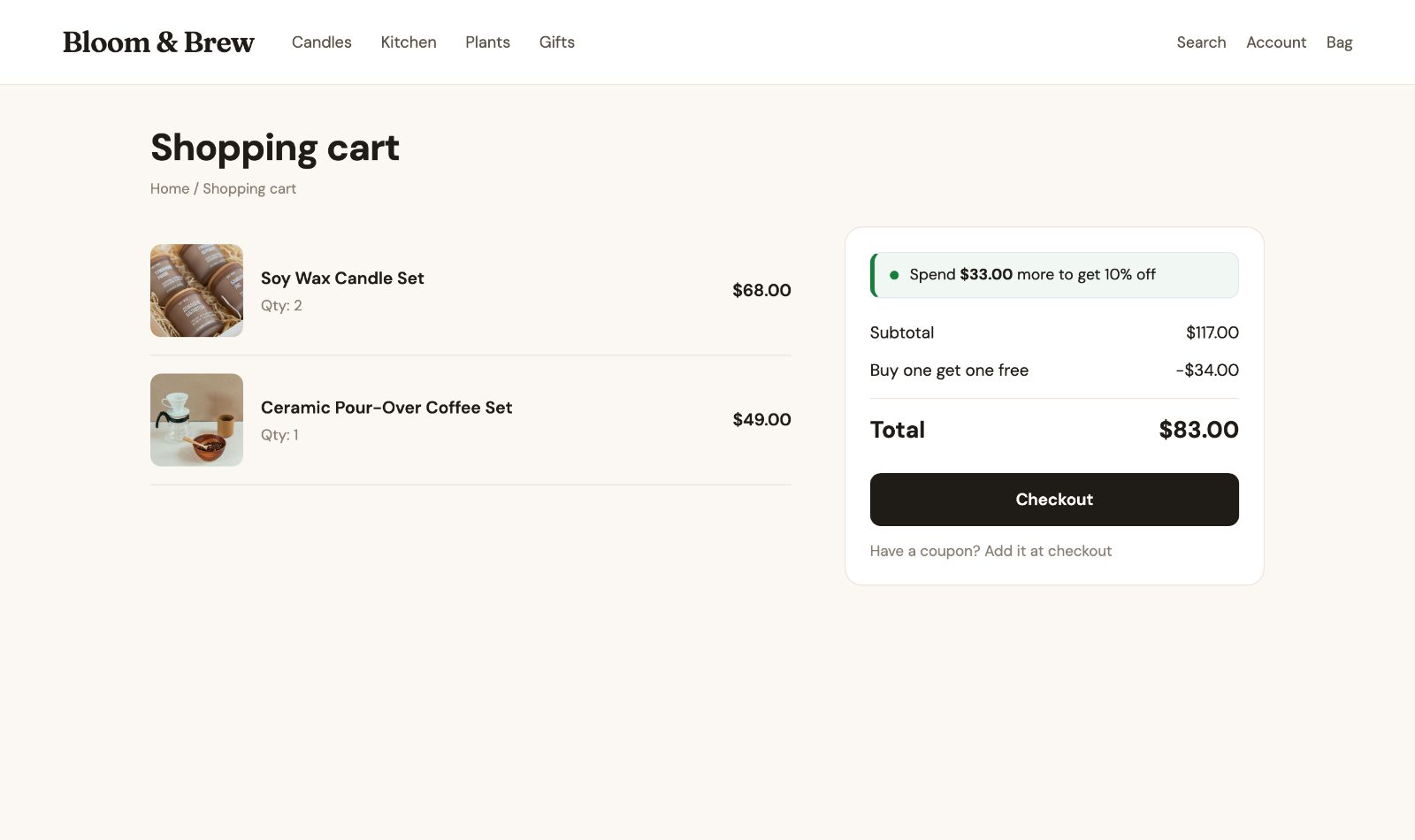
And this is the same cart in the store:
Common setups
Buy one get one free on one product
Add Buy one get one free, and under For pick the product (or a category for mix and match: the cheaper item of each pair is free). Switch on the product page badge so shoppers know before they add it.
Any 3 for a price
Add N for a price, enter 3 and the price (for example $75), and pick the products or category. Shoppers can mix any 3 of them; the cart message tells them how many more they need.
10% off orders over $150
Add Spend more, save more with one step: $150 and 10%. Add more steps (5% over $100, 10% over $150, 15% over $250) to make a bigger cart worth it.
A welcome discount for first orders
Add First order discount. It applies once the shopper enters an email at checkout that has no orders in your store yet.
Wholesale prices for one customer group
Add Customer group price and pick the group under Who and when. Shoppers in that group see the discount in the cart once they sign in; everyone else sees your normal prices.
A Black Friday or weekend sale
Add Limited-time sale and switch on Only between dates (both days included, in your store's time zone): it starts and stops by itself. For every weekend, use Weekend sale; for an evening offer, Happy hour.
Questions
Do shoppers need a coupon code?
No. The discounts apply automatically as soon as the cart qualifies.
Where do shoppers see the discounts?
In the cart and at checkout, as their own lines. Product and category pages keep your normal prices.
What happens when an item qualifies for several discounts?
By default it gets only the best one. You can choose to add them up instead.
Does it work with my discount coupons?
Yes. By default each item gets whichever saves more, the coupon or the automatic discount. You can also give no automatic discount where a coupon applies, or both.
Does it change my free shipping threshold?
No. Orders that qualified for free shipping before the discount still do.