How it works in short
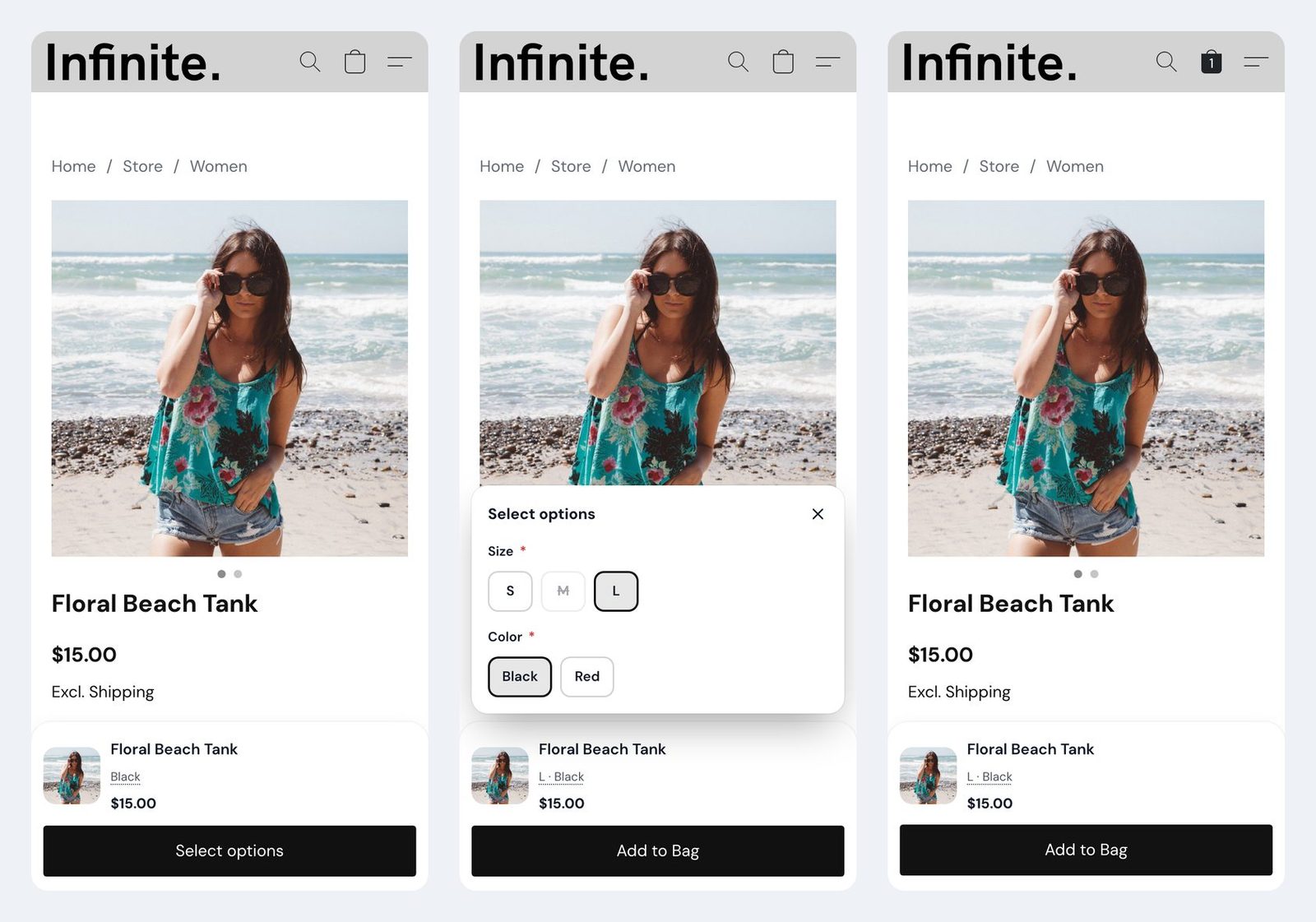
The option picker in the bar lets shoppers choose sizes, colors and flavors without scrolling back up. On a product with a handful of choices that is all you need. With dozens of choices, the picker gets long, and the sold out ones sit in between the ones shoppers can buy. These settings keep it short:
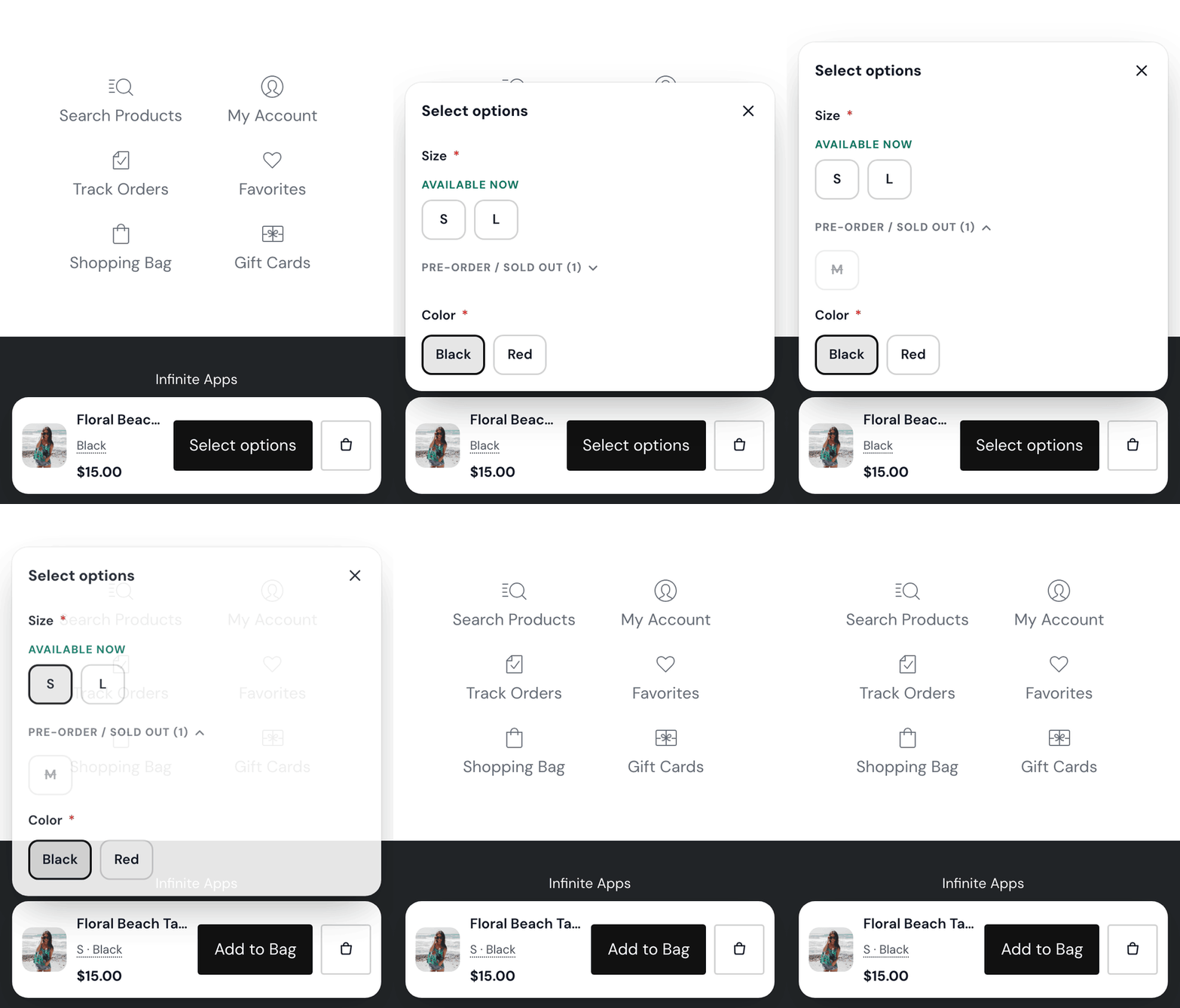
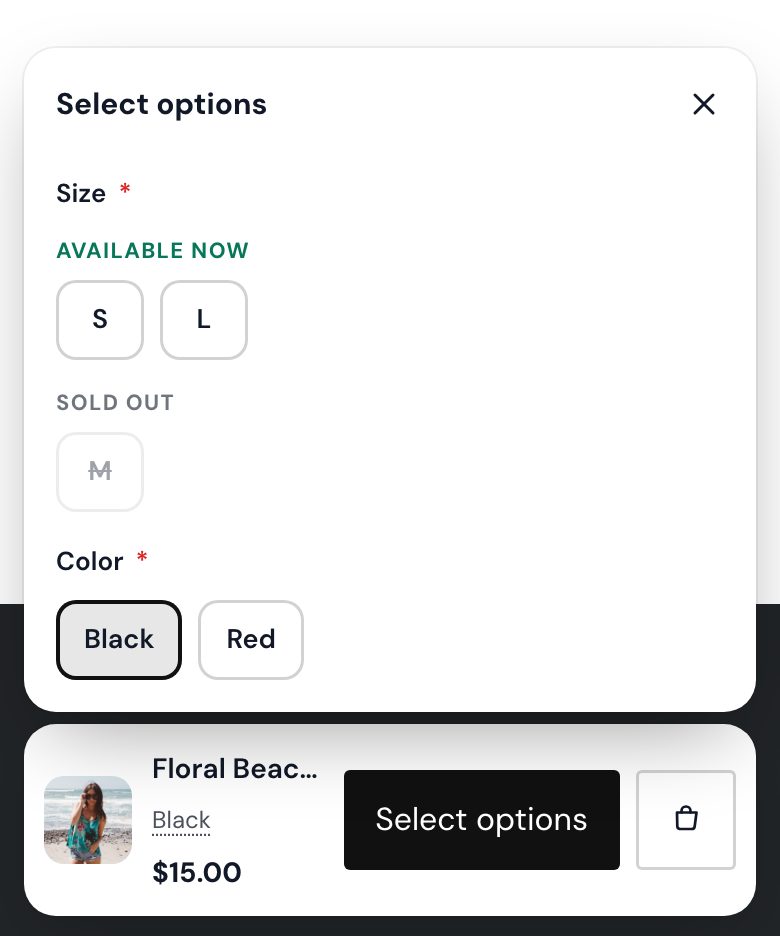
- Group choices by availability: choices in stock come first under "Available now", sold out or pre-order ones are grouped under them with their own heading.
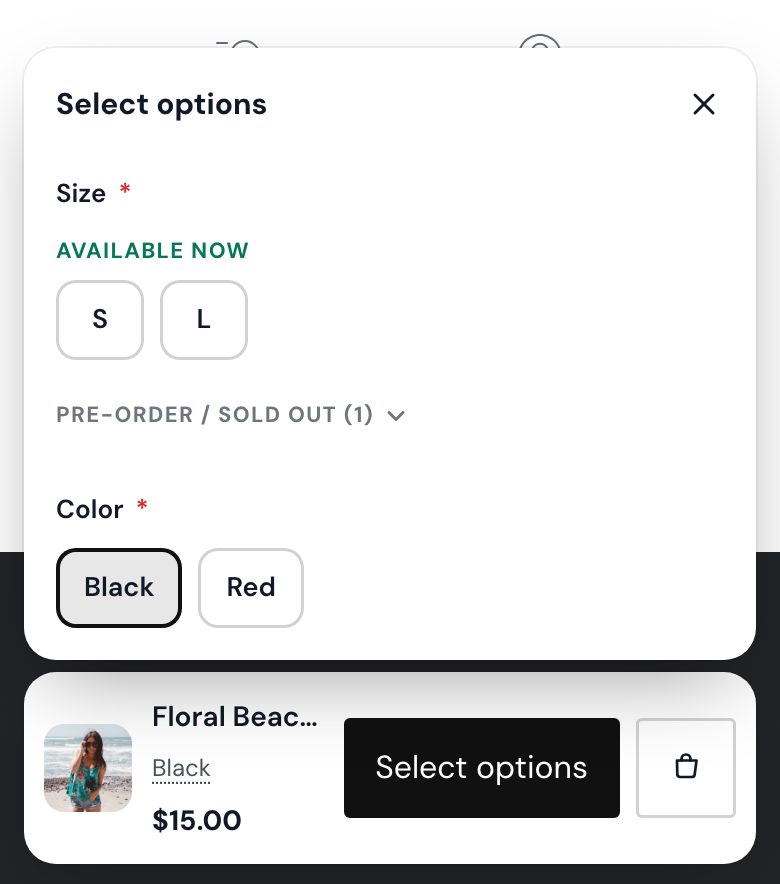
- Fold the sold out choices: that second group shows only its heading with the number of choices, for example "Sold out (16)". Tapping it opens the list.
- Close the picker when done: once every required option is chosen and the choice is in stock, the picker closes, so the next tap is Add to cart.
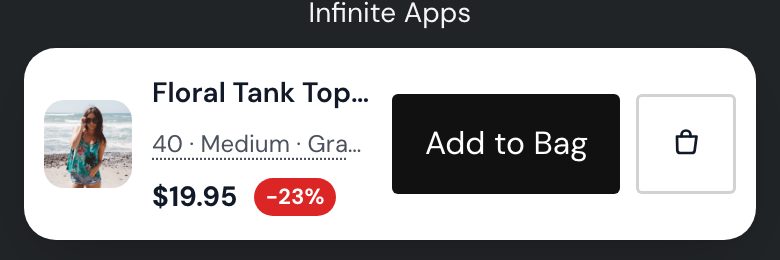
- Selected options on their own line on phones: "40 · Medium · Gray/Blue/Yellow · Denim" gets the full width of the bar instead of being cut off.
All four are off until you turn them on, so your bar stays as it is until then. The picker still sets the options on the product page itself, so prices, stock and sold out choices are always your store's.
1. Turn on the option picker
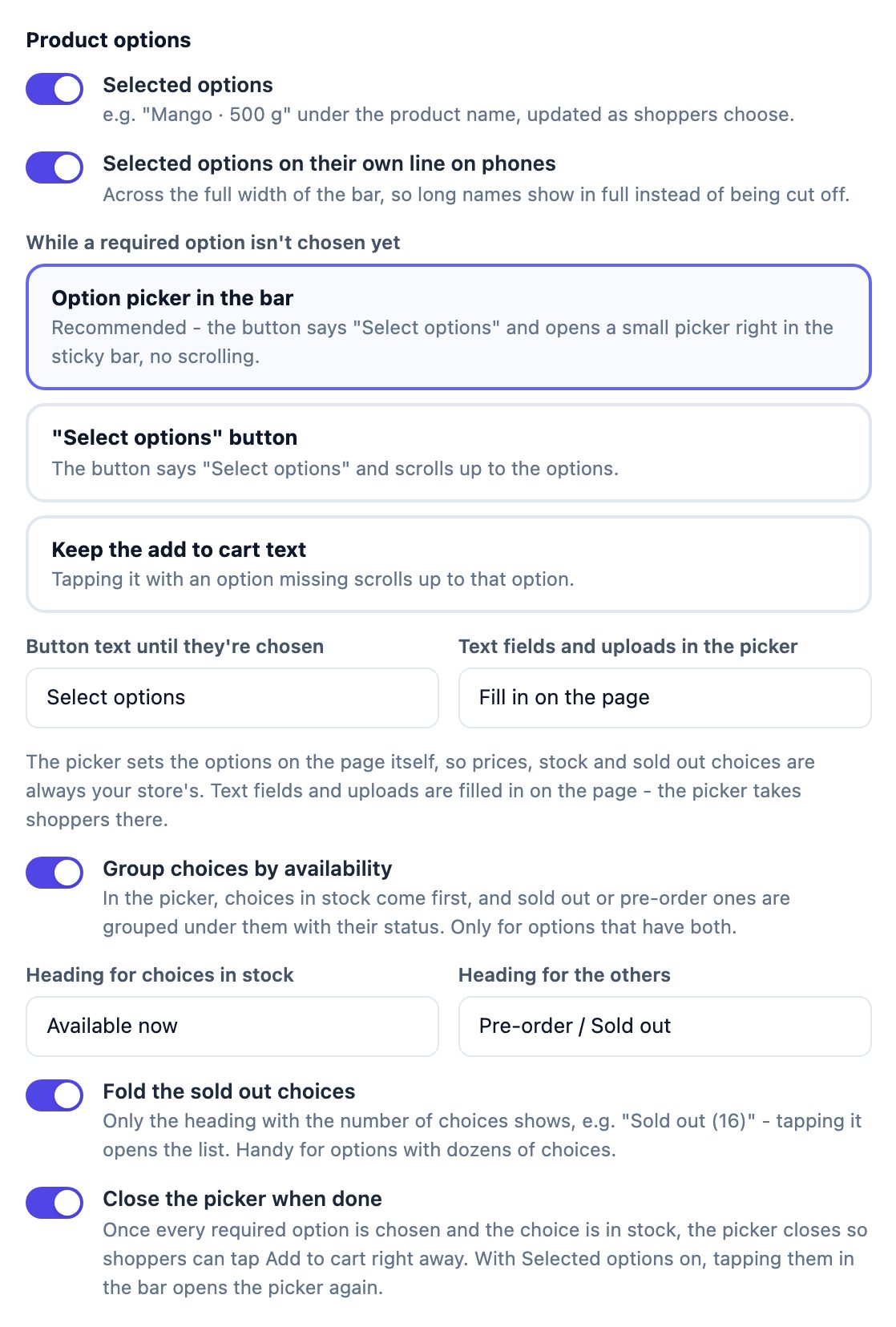
Open the app and go to the Content tab. Under Product options, in While a required option isn't chosen yet, choose Option picker in the bar. The settings below only show with the picker on. Turn on Selected options too, so shoppers see what they picked under the product name.
2. Group choices by availability
Turn on Group choices by availability. In the picker, the choices in stock come first. Sold out and pre-order choices move to a second group under them, a bit greyed out, with the store's own status as a small tag next to the name.
This only happens for options that have both kinds. An option where everything is in stock, or everything is sold out, shows as before, without headings. And the choices keep working the way they do on your product page: a choice your store crosses out stays crossed out, and one your store still lets shoppers pick (a pre-order flavor, for example) can still be picked.
3. Name the two groups
With grouping on, two text fields appear: Heading for choices in stock ("Available now" when left empty) and Heading for the others ("Sold out" when left empty). If some of your flavors are on pre-order and others are sold out, a heading like "Pre-order / Sold out" fits both. Both headings are in Translations for your other store languages.
4. Fold the sold out choices
For options with dozens of choices, turn on Fold the sold out choices. The second group then shows only its heading with the number of choices, for example "Pre-order / Sold out (16)", and a small arrow. Tapping the heading opens the list, tapping it again folds it. If the chosen flavor is one of them, the group stays open, so shoppers always see what they picked. Each time the picker opens, the group starts folded again.
5. Close the picker when done
Turn on Close the picker when done. Once every required option is chosen and the product can be added, the picker closes and the button shows your add to cart text again. The shopper taps once more to add. With Selected options on, tapping the options under the product name opens the picker again to change a flavor.
The picker stays open when it should: after picking a sold out or pre-order choice (so the shopper sees the status and can choose again), while another required option is still missing, and for checkbox options, where shoppers often tick more than one.
6. Selected options on their own line on phones
Long option names don't fit next to the photo, name and price on a phone. In the Floating card they get cut off: "40 · Medium · Gra...". Turn on Selected options on their own line on phones (it shows once Selected options is on) and the options get their own line across the full width of the bar, wrapped instead of cut. It works in the Floating card, the Full-width bar and the Product dock (there the line sits above the big button). The line still opens the picker when tapped. On desktop, where there is room, nothing changes.
Off: the options are cut off
On: their own line, in full
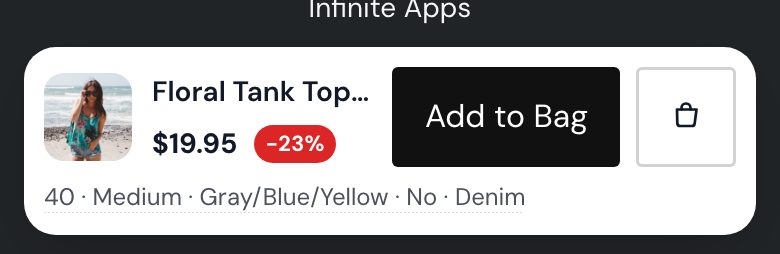
Before you save, the app's Preview has an Options not chosen state: its sample product has a sold out flavor, so you can try the groups, the fold and the closing picker there.
Common setups
Supplements with 50 flavors
Group choices by availability and Fold the sold out choices on, Close the picker when done on, and Selected options on their own line on phones for long flavor names. Shoppers see the flavors they can buy now first, pick one and tap Add to cart.
Pre-orders next to stock
Group on, fold off, and the second heading set to "Pre-order / Sold out" or "Coming soon". Shoppers see right away which colors ship now and which come later.
Clothing in many sizes and colors
Product dock with Close the picker when done on. The picker stays open until both size and color are chosen, then gets out of the way.
A few choices only
With three or four choices per option, leave the fold off: the list is short anyway, and the crossed out choices tell shoppers enough.
Questions
Will these settings change my bar right away?
No. All four are off by default. Your bar works as before until you turn them on under Content > Product options.
Can shoppers still pick a sold out or pre-order choice?
The same as on your product page. The picker sets your store's own option fields, so a choice your store crosses out can't be picked, and one your store allows (like a pre-order) can.
Why don't I see the headings on some products?
Grouping only applies to options that have both choices in stock and sold out or pre-order ones. If everything is in stock, the picker looks as before.
Does the picker close after a checkbox?
No. Checkbox options can have more than one choice, so the picker stays open. It also stays open after a sold out pick.
New to the app? Start with the sticky add to cart guide (layouts, style, when it shows), then the variant picker guide for the basics of options in the bar.