How it works in short
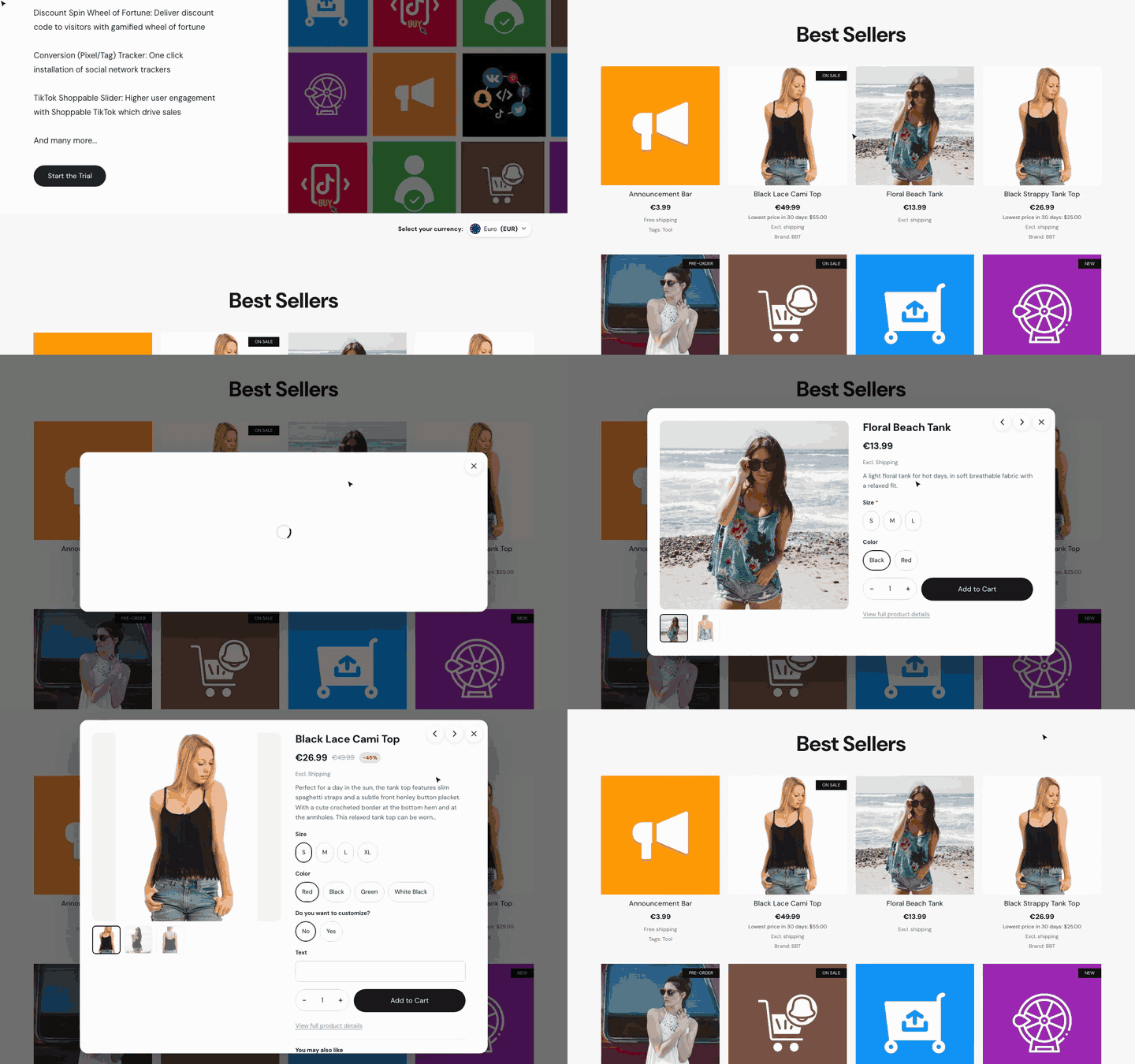
Until now the Quick View button showed on category pages and search results. Many shoppers never get that far: they see a few products on the home page and click one. Now the same button is on the product sections of your site too, so a shopper can look at a product right where they found it.
- Featured products and category product sections on the home page (or any other page of your site) get the button, in every layout of the section.
- The older Featured products section that some stores still use gets it as well.
- Everything you set up works there too: the button look and position, swiping through photos on the cards, and the previous / next arrows in the popup.
- The page stays where it was. When the popup opens, the page behind it doesn't jump to the top, and after closing the shopper is back at the same product.
There is nothing new to switch on. If Quick View is live on your store, your product sections already have the button.
1. Check your home page
Open your store's home page and scroll to a section with products. On a computer, move the mouse over a product photo: the Quick View button shows on it, the same as on your category pages. On a phone it's on every card.
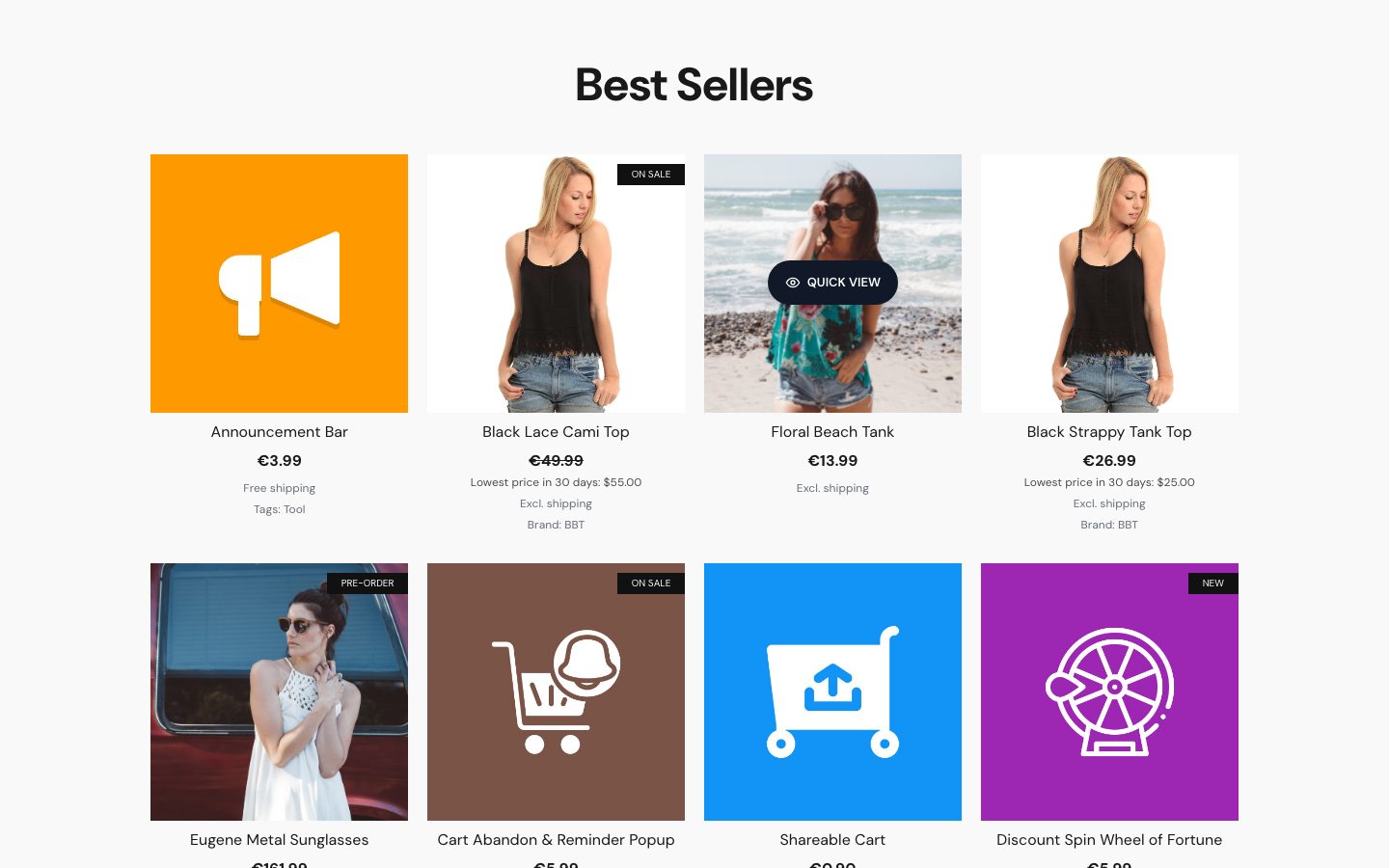
2. Pick where the button sits
The section cards use the settings on the Card button tab of the app, separately for Desktop and Mobile:
- Position: Center of the image, Top of the image, Bottom of the image, Corner icon (top right) or Above the product title.
- Show: On hover, Always or Hidden on desktop; Always or Hidden on phones.
- Swipe through photos on product cards: arrows on hover and swipe on phones show every photo of the product right on the home page card.
The Quick looks at the top of the tab (Classic, Modern, Minimal, Soft and Icon) set the button and the popup in one click. If your home page is busy, the Icon look puts a small icon in the corner of each photo, which keeps the cards clean.
3. What shoppers see in the popup
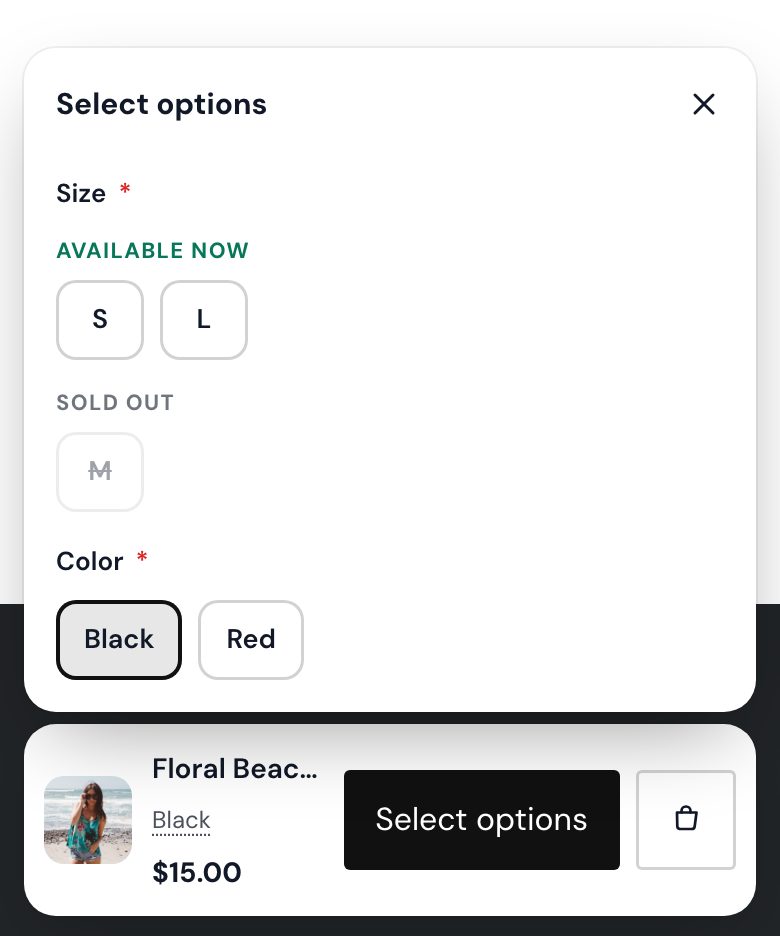
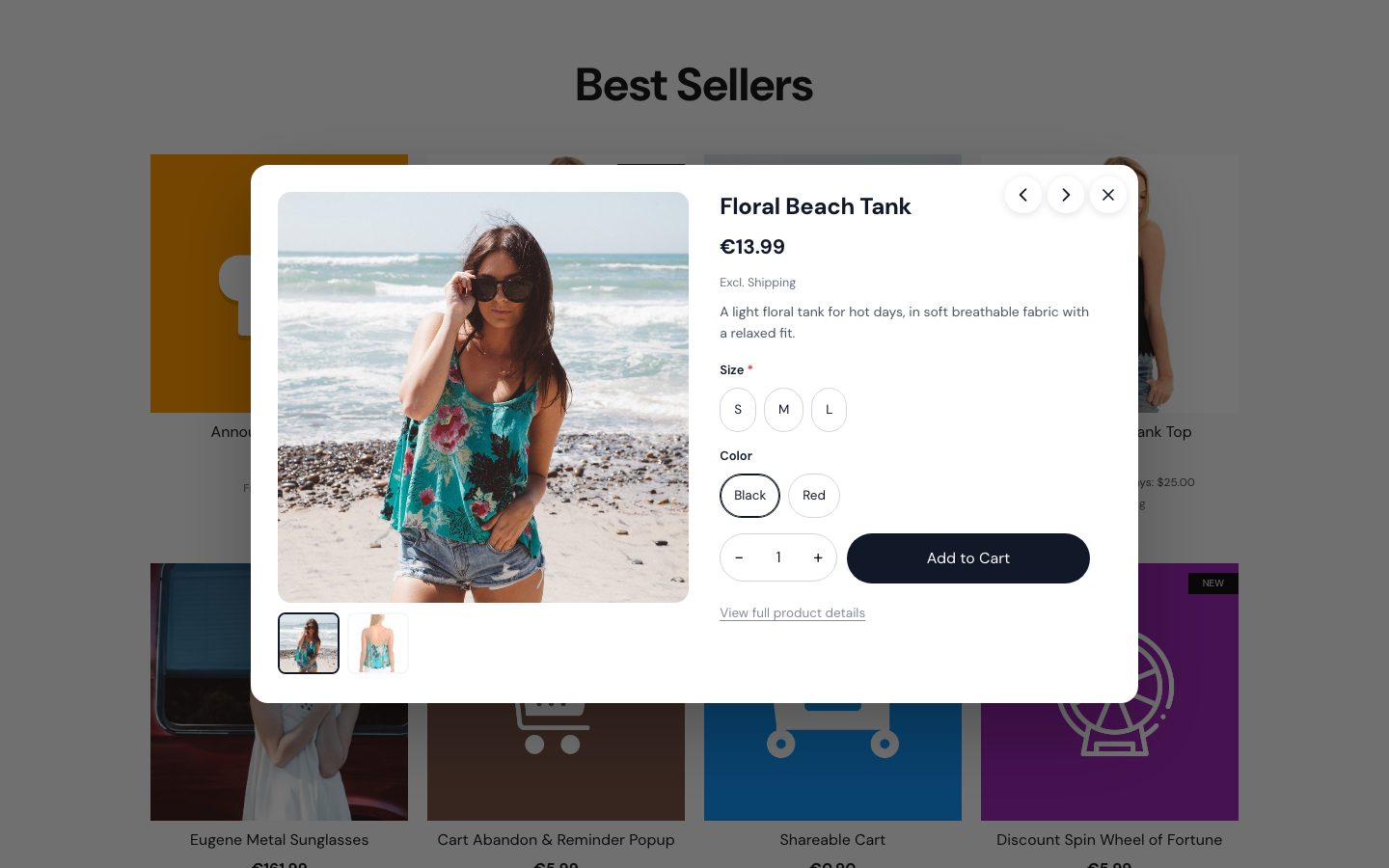
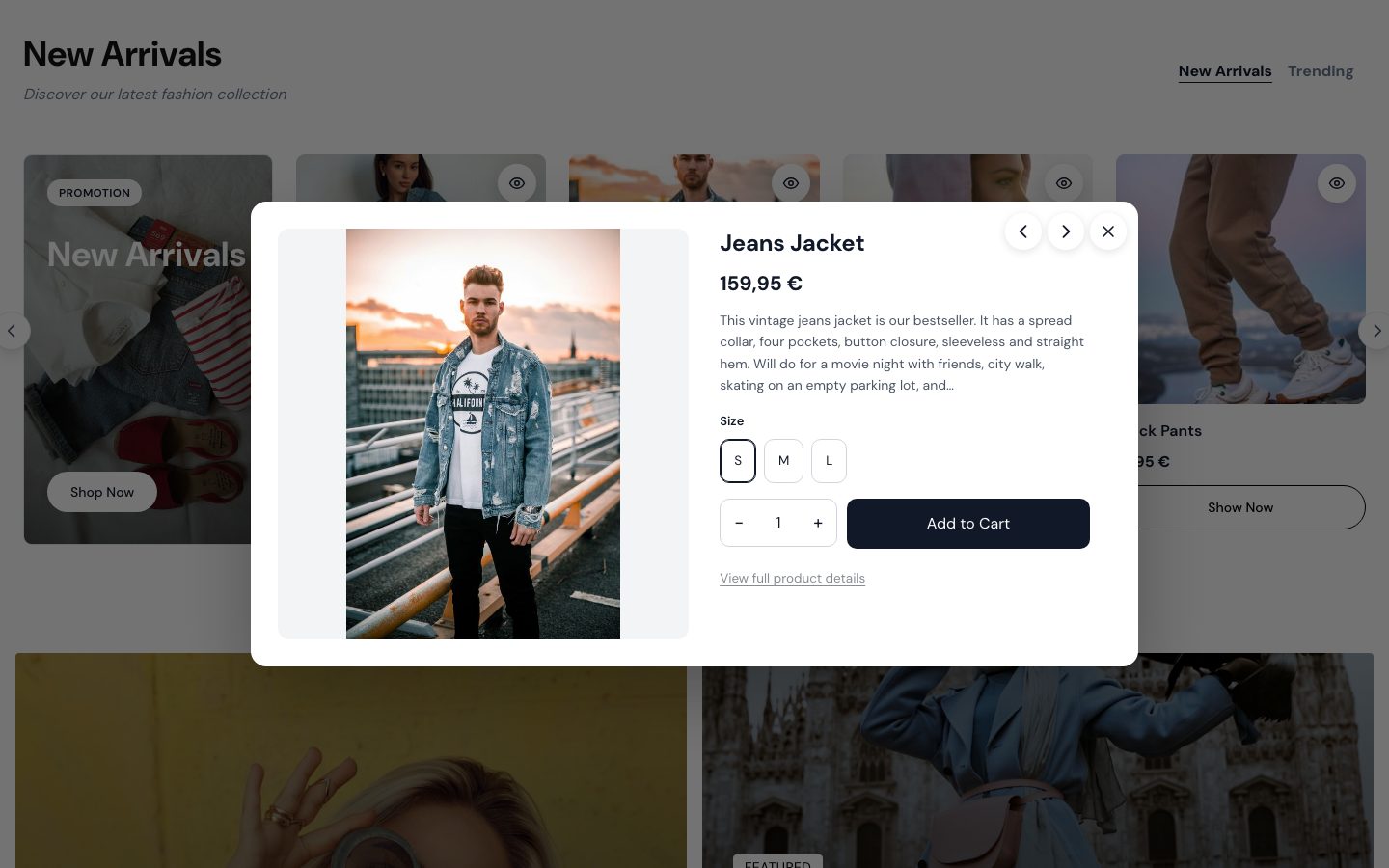
A click opens the same popup as on your category pages: photos, price, product options, stock and Add to cart, with all your settings from the Popup, Content and Buying tabs. The page stays visible behind it.
With Previous / next product arrows switched on, the arrows go through the products shown on the page, so a shopper can look at your whole Best Sellers row without closing the popup. The arrow keys on the keyboard work too.
4. Look at it on a phone
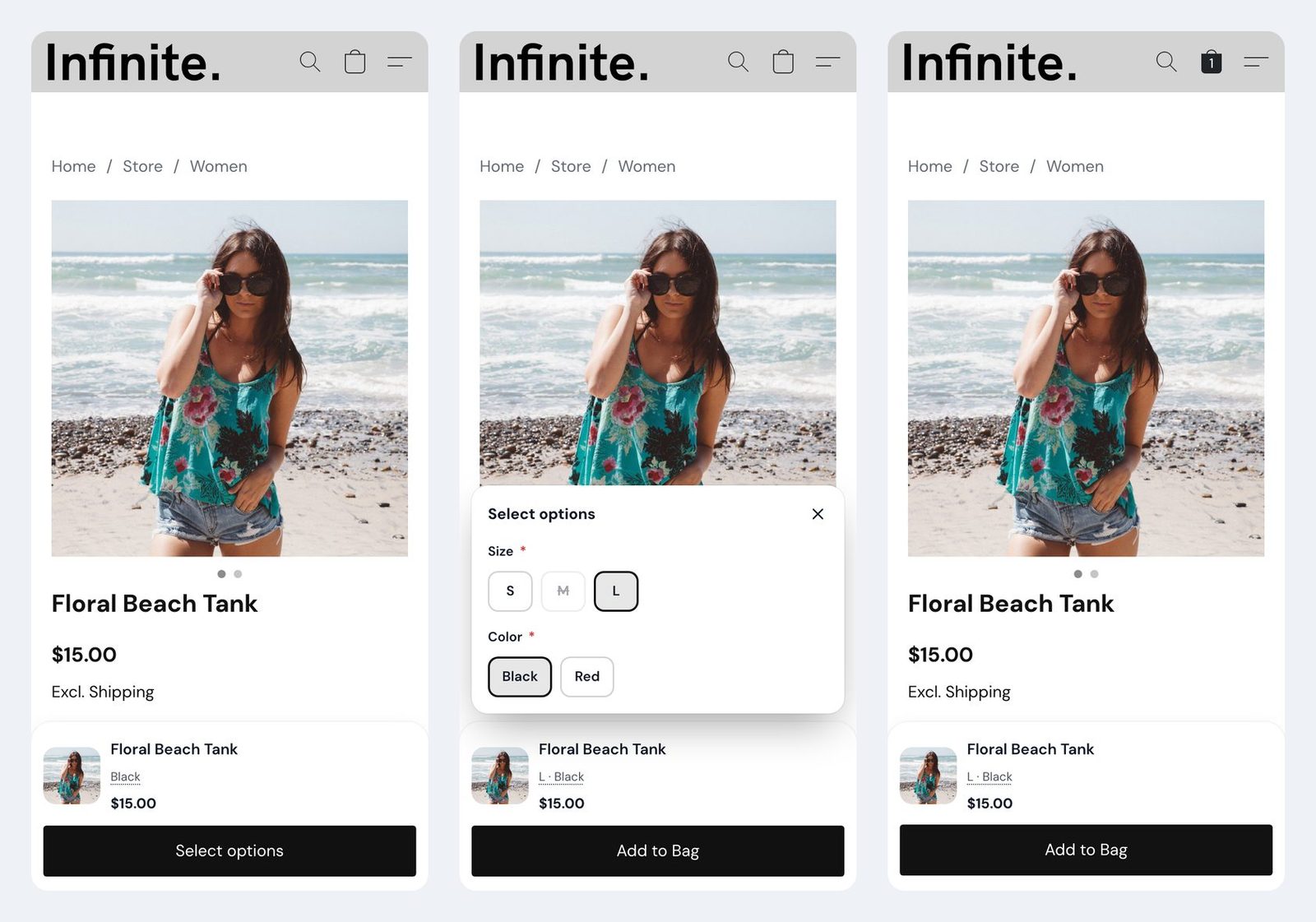
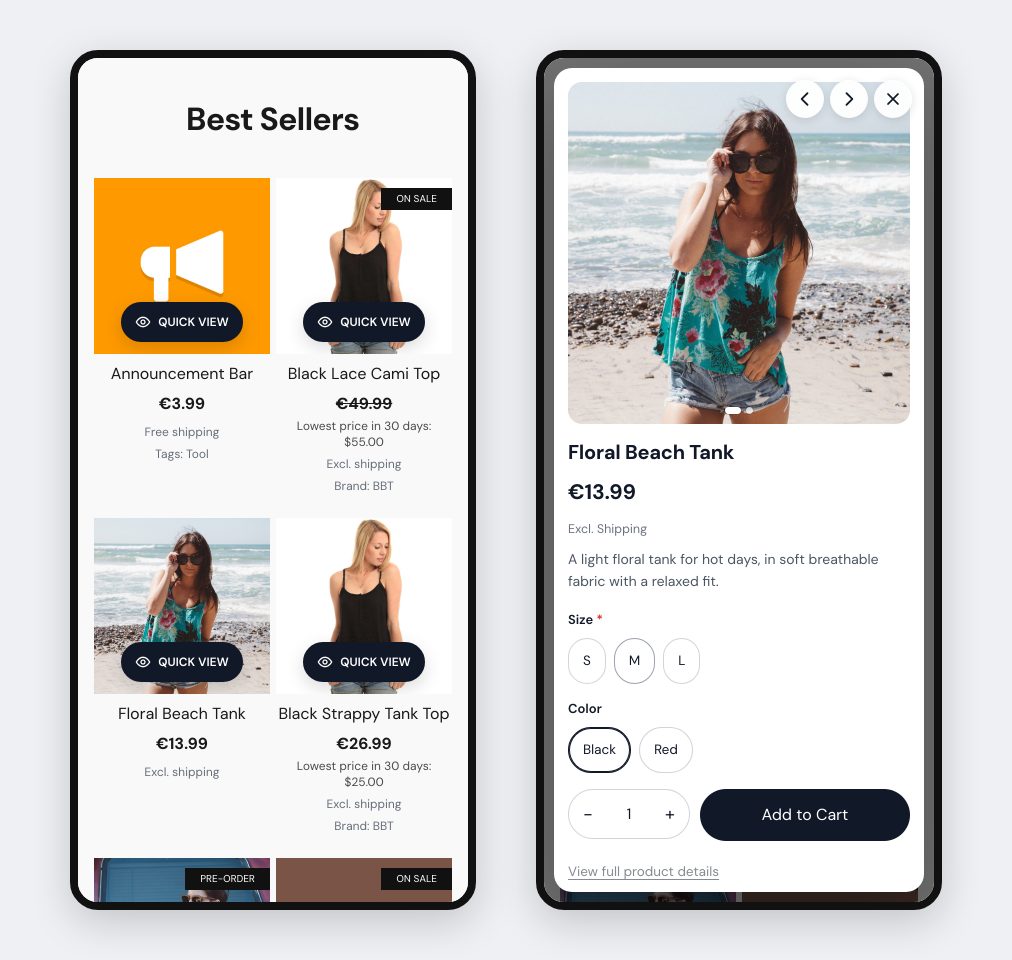
On phones the button follows your Mobile settings. The popup opens as you chose under Layout on phones: Centered popup, or Bottom sheet, which slides up from the bottom with the buy button in reach. When the shopper closes it, they are back at the same spot on the home page.
5. With our store themes
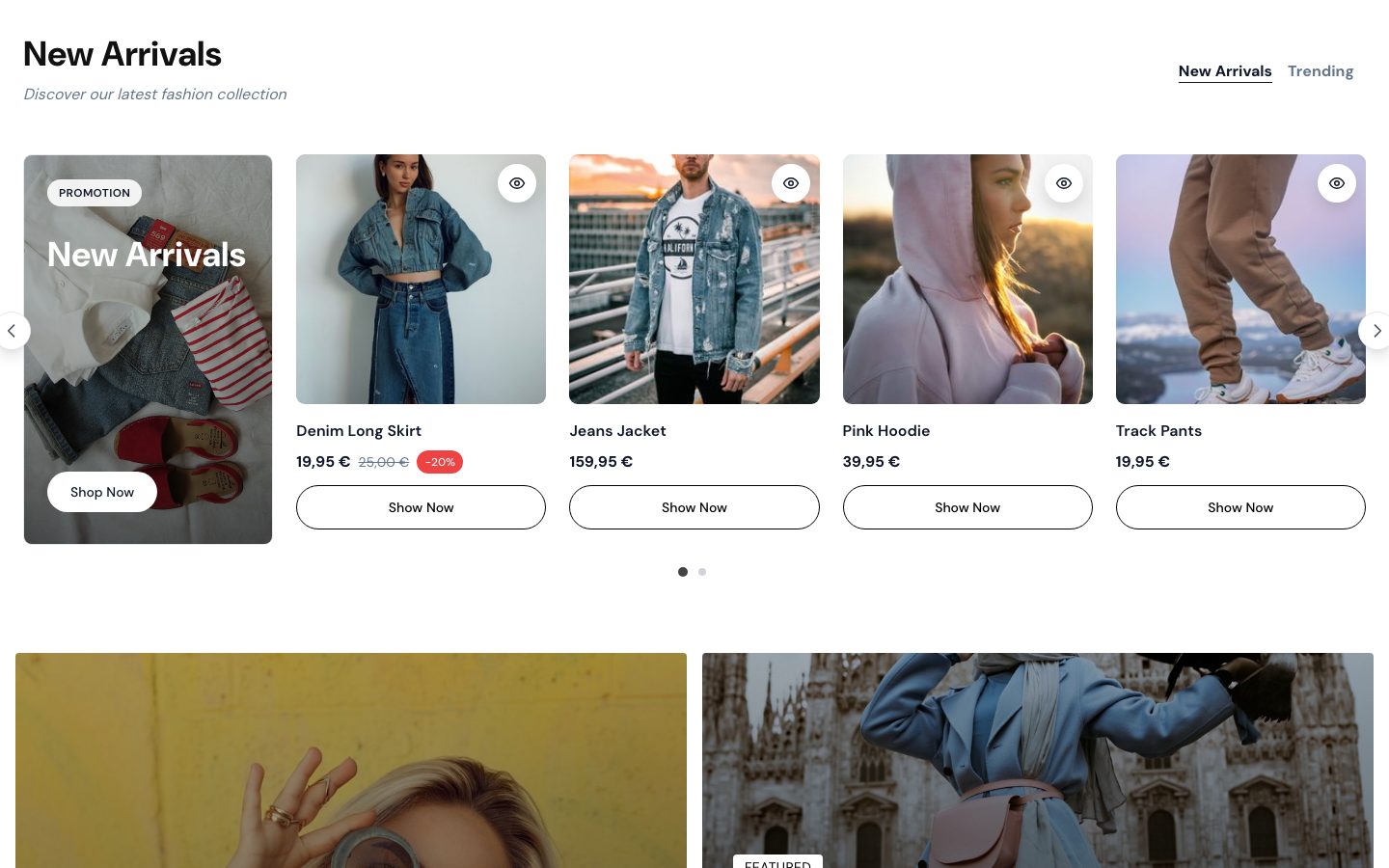
If your store uses one of our themes, such as Aurora or Velo, Quick View also works on the theme's own product sections: product carousels, tabs like New Arrivals and Trending, and product grids. Where a theme already has its own button on the photo, the Quick View button is placed so the two don't cover each other.
These themes also had a small problem we fixed: opening the popup could move the page to the top. Now the page stays where it was, both when the popup opens and after it closes.
Common setups
A home page that sells
Add a Featured products section with your best sellers. Keep Show on On hover for desktop and Always for phones. Shoppers can buy from the home page and keep scrolling.
Clean cards on a busy page
Use the Icon look or set Position to Corner icon (top right). The cards keep their photos free, and the icon is easy to tap on phones.
Shoppers who compare
Switch on Swipe through photos on product cards and Previous / next product arrows. Shoppers see every photo on the card and move from product to product in the popup.
Several items in one visit
On the Buying tab, set After adding to the cart to Keep it open or Close the popup. The shopper adds a product and goes on with the home page right where they were.
Questions
Do I need to change anything?
No. If Quick View is enabled, the button is already on your product sections, with the settings you have.
Which sections get the button?
Sections that show a list of products: Featured products and category products in all their layouts, the older Featured products section, and the store's own product grids. A section that shows a single product with its own details and buy button doesn't get one, and neither do category tiles.
Can I show the button only on category pages?
The Show setting applies to all product cards at once, on category pages and on your site's sections alike.
Does it work with my theme?
It works with the store's standard sections and with our own themes. If you use another theme and don't see the button on a section, write to us.
New to the app? The full setup, from the button look to the popup layout and texts, is in the Quick View guide.