How it works in short
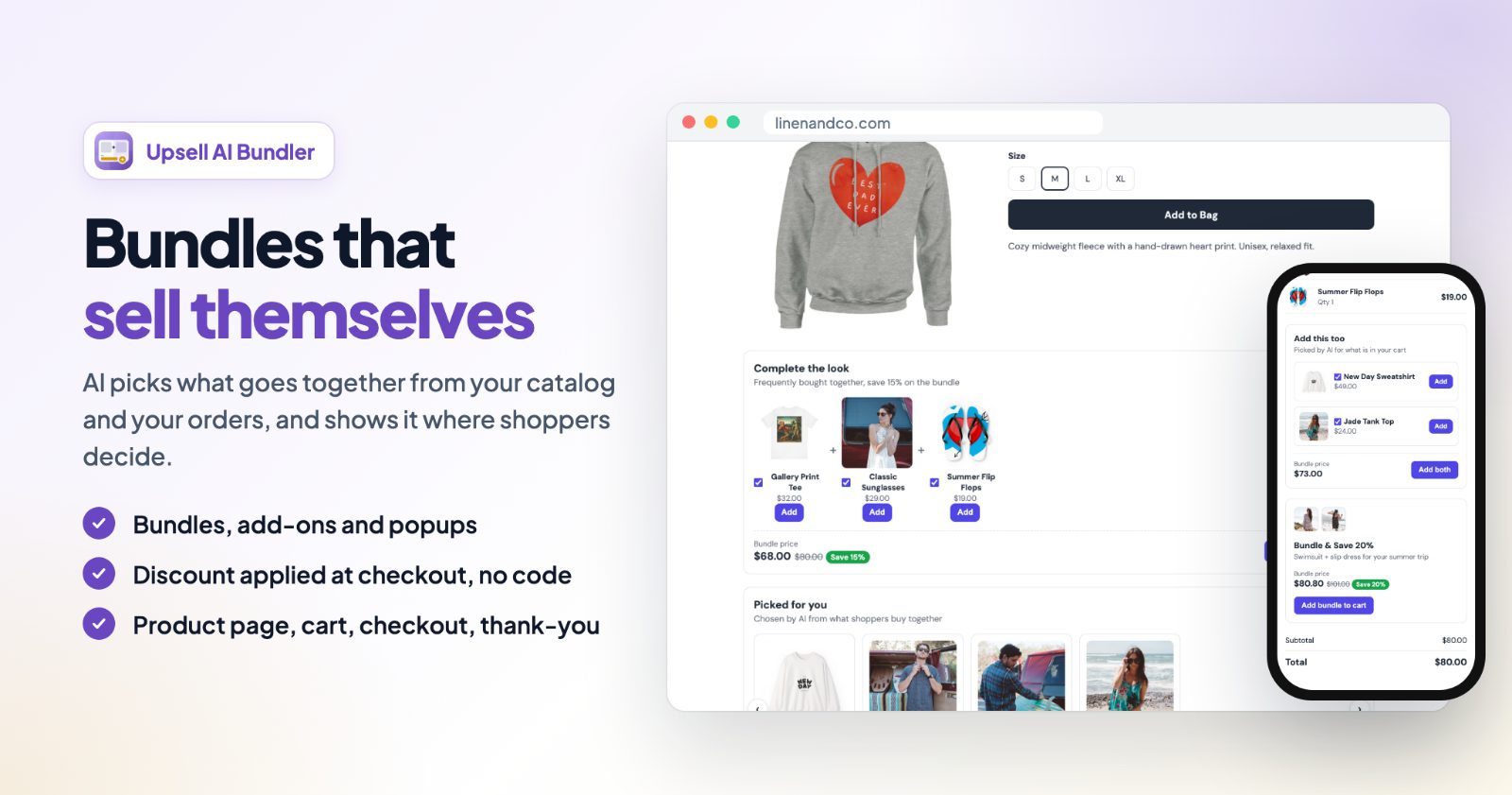
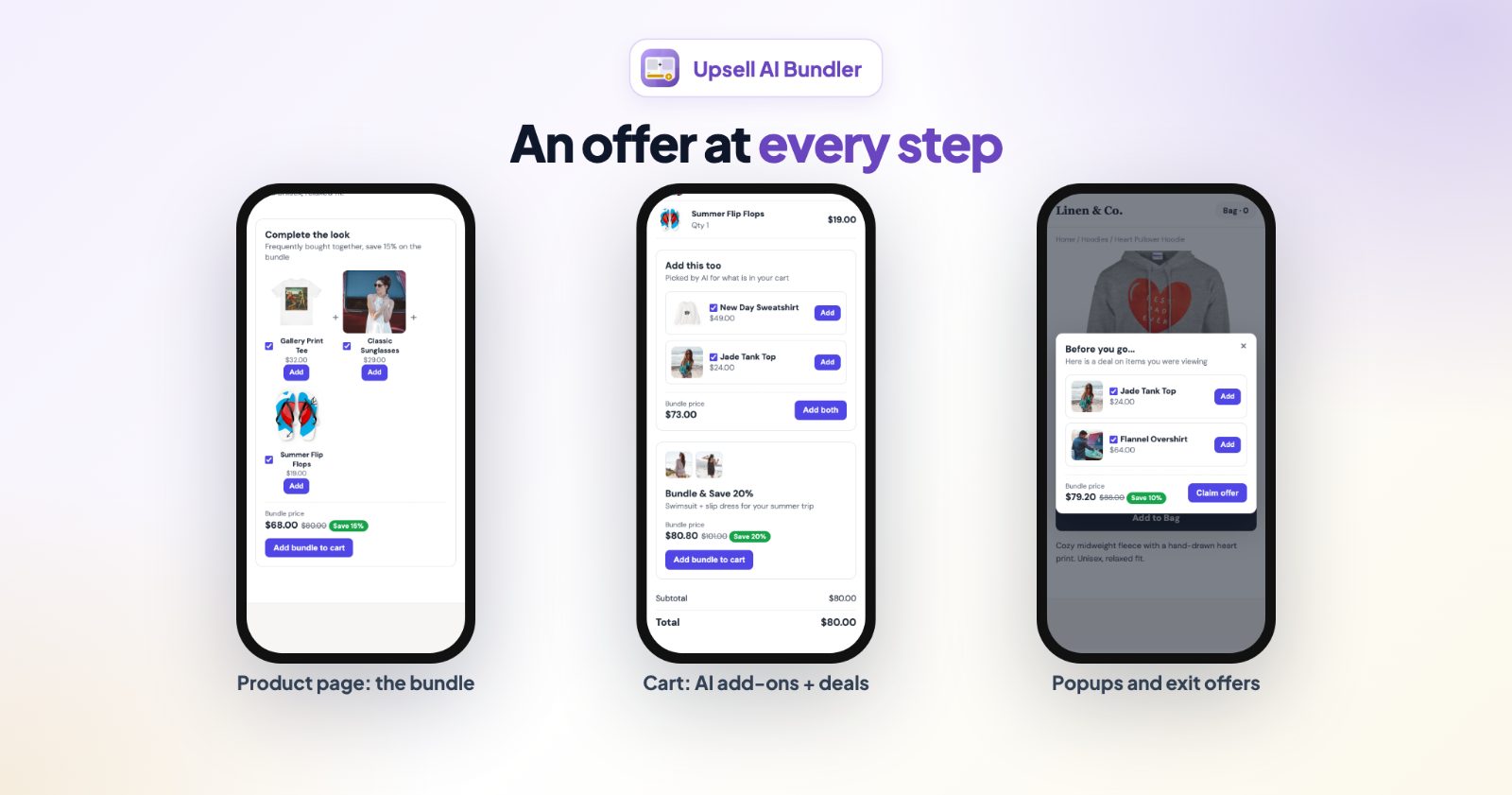
Every offer is a kit: a bundle on the product page, "add this too" cards in the cart, a bundle deal, a checkout-step widget, a popup or a thank-you page offer. A kit works on its own as soon as it is Active. The products can be ones you pick, or ones the AI picks for each shopper.
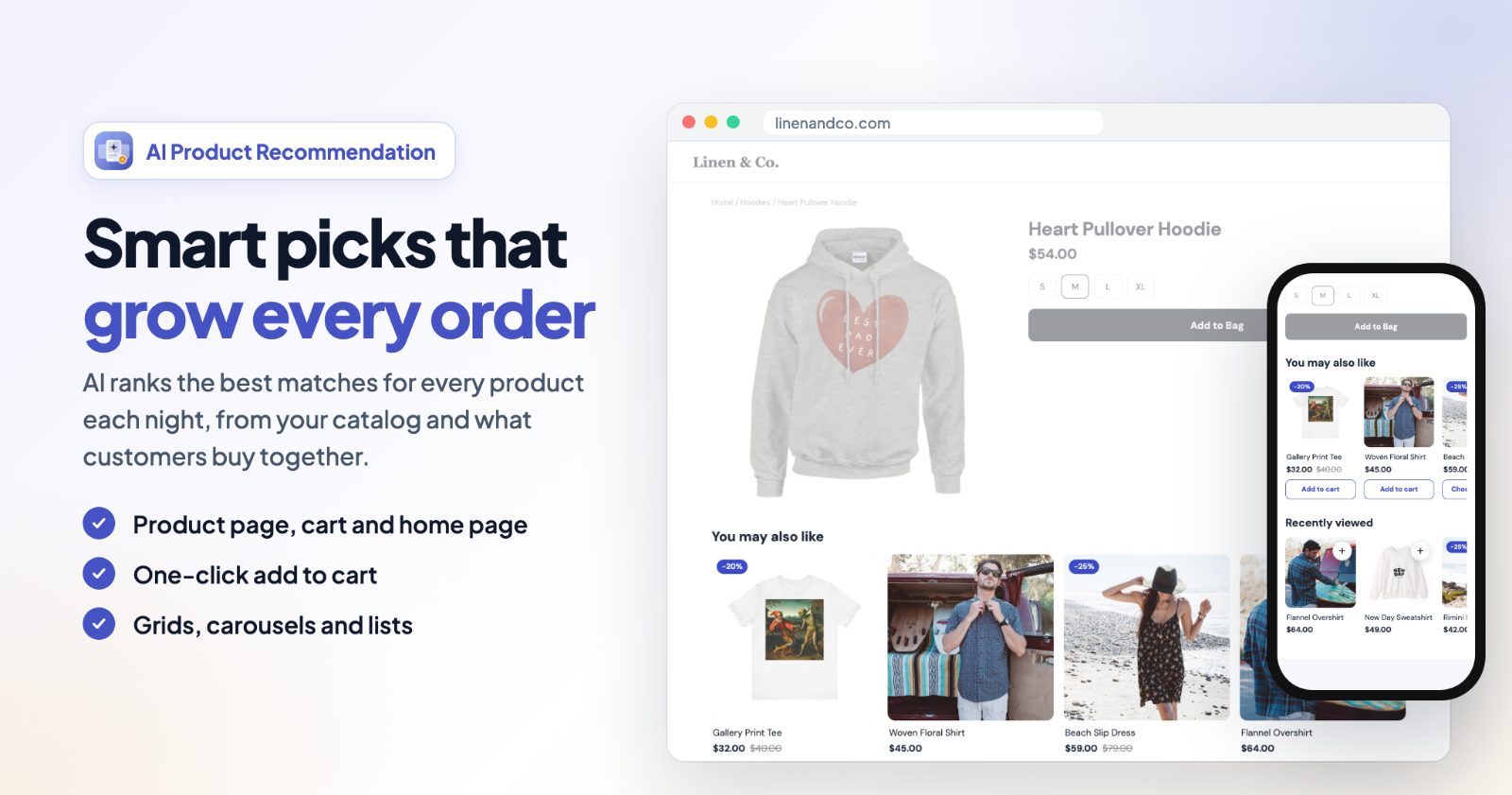
- Let AI pick blends products your customers have actually bought together (from your paid orders) with products similar to the one being viewed or the items in the cart. A new store with few orders leans on similarity first and shifts to bought-together data as orders come in.
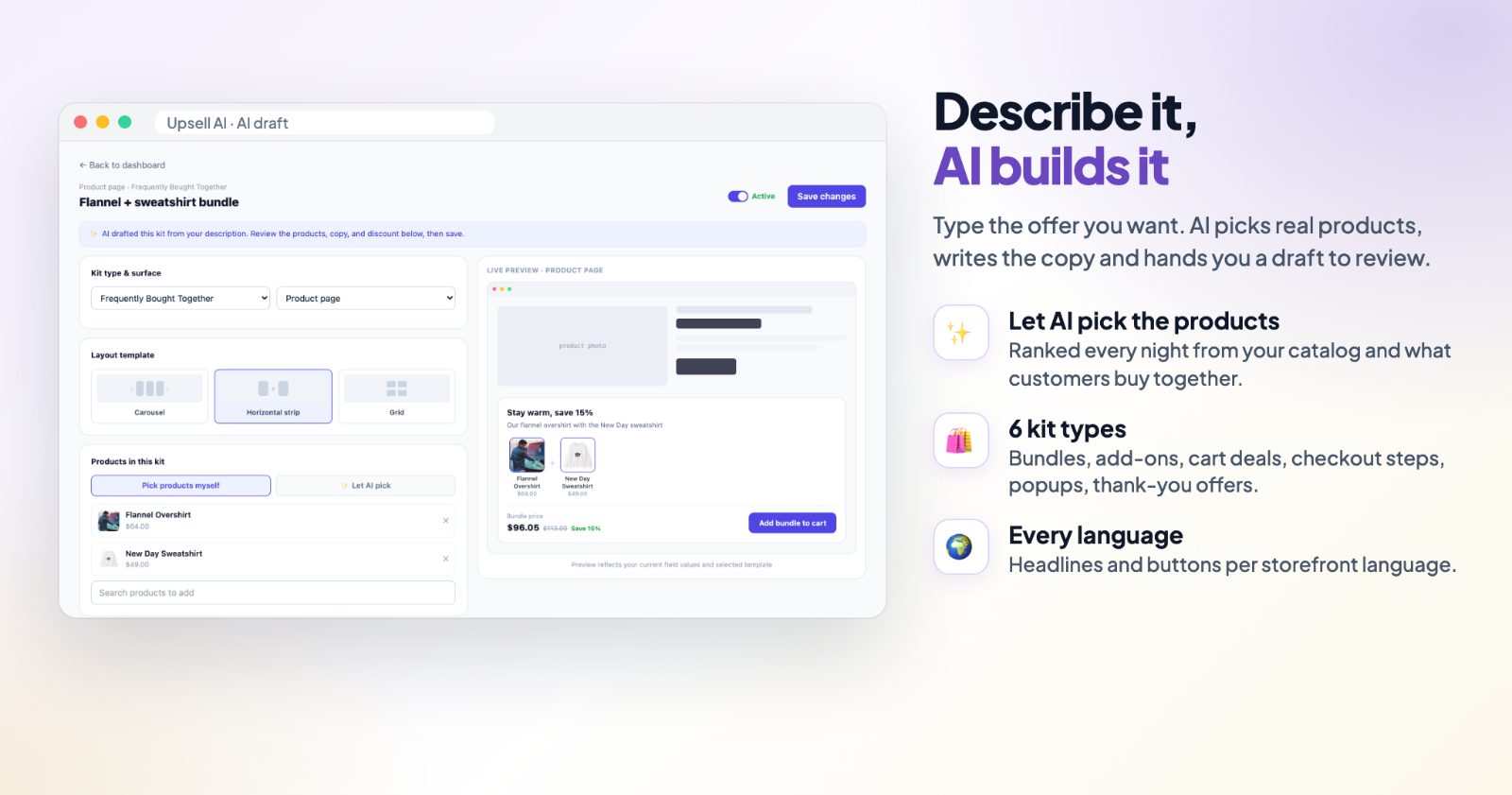
- Describe it, let AI build it drafts a whole kit from one sentence: real products from your catalog, the texts and the discount, for you to review.
- Real discounts, no code: for product, cart and checkout kits, the discount applies at checkout by itself once the shopper has the kit's products in the cart.
Not sure this is the right bundle app for you? See Upsell, Upsell AI or Cart Discounts - which one?
1. Start with a ready-made kit
On an empty dashboard, Start with a ready-made kit offers two: Frequently bought together (3 products shoppers buy with the one they are looking at, on every product page) and Add this too (cart) (2 products that go with what is already in the cart). The AI picks the products, at their normal prices. The kit opens as a draft: check the texts and where it shows, then click Save changes.
2. Let the AI learn from your orders
The AI picks box on the dashboard says how many "bought together" pairs the app knows from your paid orders. Click Learn from order history (later Rebuild from order history) to scan your last 500 paid orders. It runs in the background and doesn't create or change any kit. You usually need it only once, after installing or after importing old orders: new orders are picked up by themselves.
3. Create your own kit
Click + Create kit and choose a kit type:
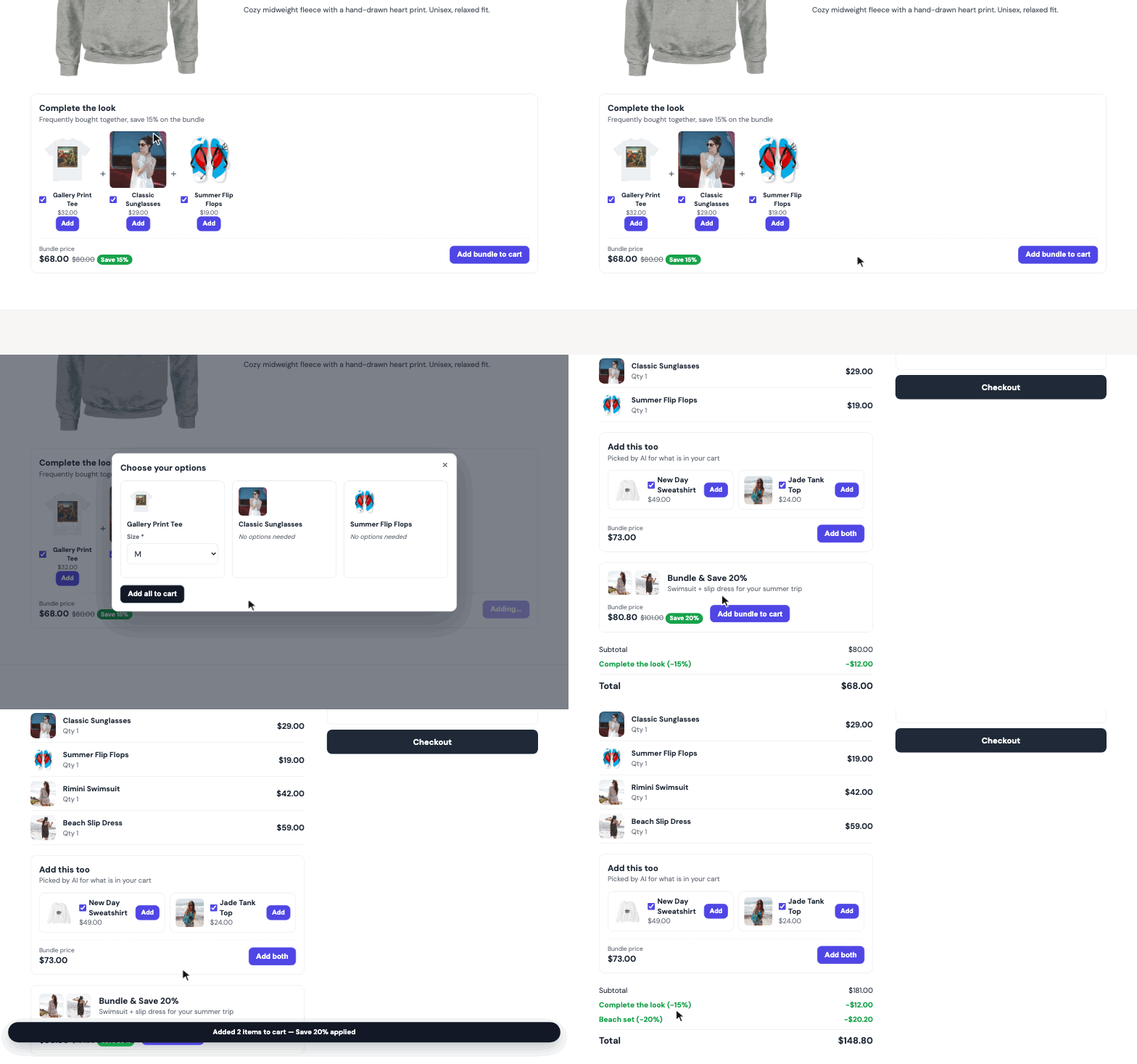
- Frequently Bought Together (product page): a strip of products that go together, with a combined button. Each product has its own tick, so shoppers can leave out what they don't want.
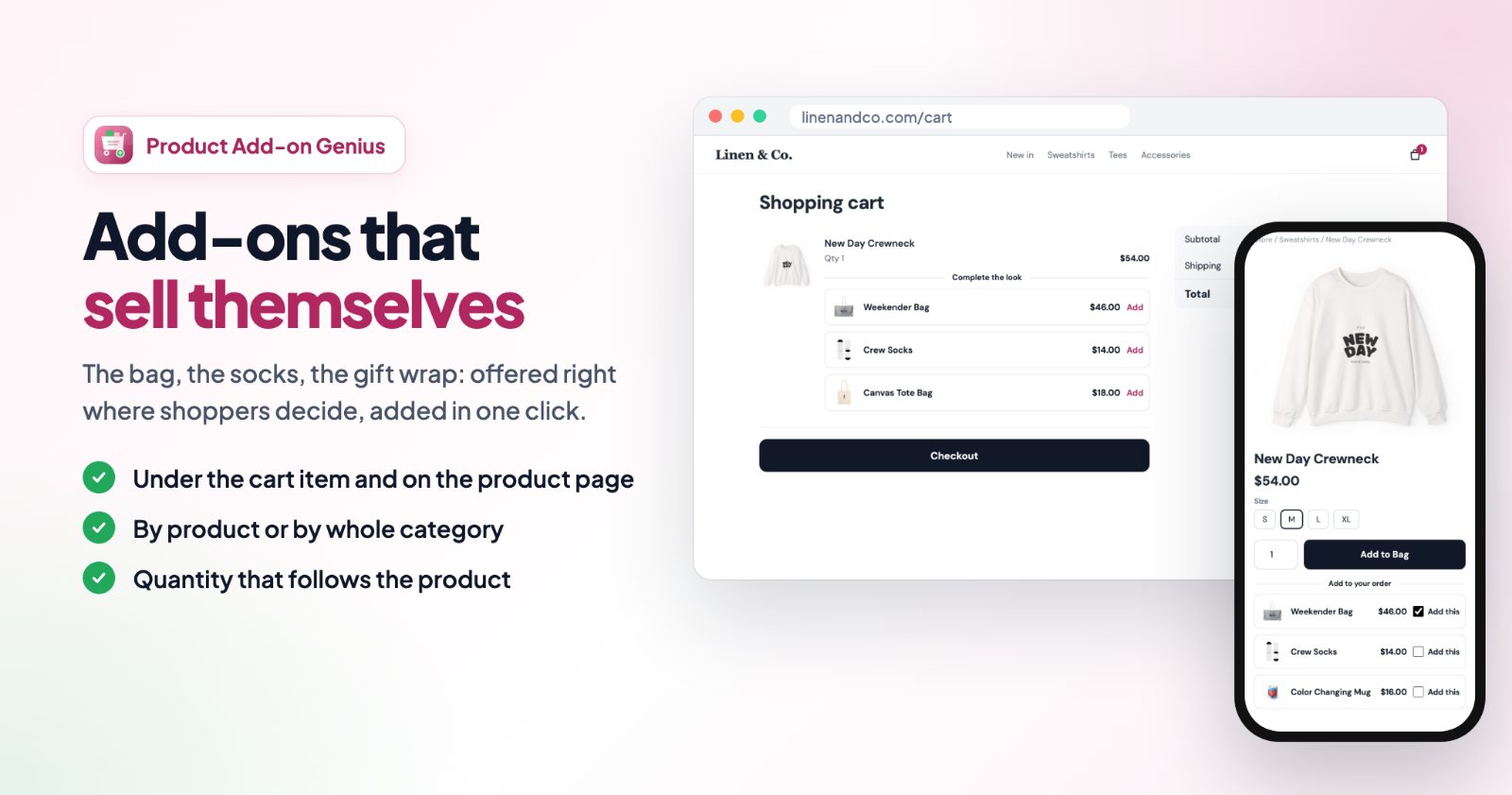
- Add-on / Cross-sell (cart or checkout): small "add this too" cards.
- Cart Upsell (cart): a bundle discount right in the cart.
- Checkout Step Widget: an offer in any checkout step (address, delivery, payment, place order).
- Popup (any page): a center window or a slide-in.
- Post-purchase Offer (thank-you page): accepting it gives the shopper a one-time discount code for their next order.
Or click Describe it, let AI build it and type the offer, for example "Bundle our winter coats with a matching beanie at 15% off, shown on the product page". It can take up to 20 seconds; you get a draft with real products, a headline and button texts. Nothing goes live until you save it.
4. Pick the products and the discount
In the kit, choose the Layout template (for example Carousel, Horizontal strip or Grid for a product page bundle). Under Products in this kit:
- Pick products myself: search and add the products. Then set the Discount: % Percent off, $ Fixed amount or None. Applies when decides if the whole bundle must be in the cart or any of its products. Counts when added can limit the discount to shoppers who used the kit's own button (best-effort).
- Let AI pick: set the Number of products to show (1 to 12). Products already in the cart are never suggested. AI picks change for every shopper, so they show at their normal prices: for a bundle discount, pick the products yourself.
5. Set when and where it shows
Under Trigger rules:
- Show on: all products, or specific products (product page kits).
- Minimum cart value: none, greater than or smaller than an amount.
- Device: Desktop + Mobile, Desktop only or Mobile only.
- Placement on product page: below product info (the default), below the price or below Add to Cart. Custom CSS selector (advanced) puts the kit right after any element of your theme.
- For popups: Open popup after a delay or on exit intent (desktop), and Show again once per session or on every page load. Only one popup shows at a time.
6. Write the texts and save
Offer copy has the Headline, Subheadline, Bundle button label, Individual add button label, the "Bundle price", "Price" and "Save" labels, an Accent color and the Button text color, in every language of your store. The Live preview on the right follows your changes. Switch the kit to Active and click Save changes: it shows on your store almost right away. Paused keeps a kit as it is, without showing it.
7. Test two versions and chain offers
- Split test: in a kit, switch it on and give it a Variant label (A to D), then click Duplicate as a new variant to compare against and change the copy. Visitors are split evenly between the variants. Once a variant has at least 20 impressions, the one with the higher conversion rate is marked Leading.
- Funnels: link kits you already have so one leads into the next. For each step choose what happens If accepted and If closed without adding: end the funnel or show the next step. Most stores never need one.
The dashboard shows impressions, clicks, conversions and revenue for each kit, and each kit's stats page has the last 14 days, 30 days or all time.
Common setups
"Complete the look" for 15% off
Frequently Bought Together, Pick products myself (a hoodie, a tee and sunglasses), 15% Percent off, Applies when the whole bundle is in the cart.
AI add-ons in every cart
Start from Add this too (cart) and save. Each shopper sees 2 products that go with their own cart.
Bigger carts only
A Cart Upsell with Minimum cart value Greater than 50, so the deal shows only once the cart is above $50.
A "before you go" offer, then a better one
Two popups on exit intent: the first with 10% off, the second with a better deal. Put them in a funnel with If closed without adding: Show next step.
A thank-you offer for the next order
A Post-purchase Offer on the thank-you page. Shoppers who accept get a one-time discount code for their next order.
Questions
Does the discount apply automatically?
For product, cart and checkout kits, yes: once the shopper has the kit's products in the cart, the discount applies at checkout with no code. A thank-you page offer gives a code for the next order instead, because a placed order can't be charged again.
Why can't an AI-picked kit have a discount?
The picks change for every shopper, so the checkout can't check which products belong to the offer. For a bundle discount, pick the products yourself.
Do I need a funnel?
No. Kits work on their own. Use a funnel only when one offer should lead into another.
What happens to my kits if I uninstall the app?
Everything tied to your store is deleted: kits, stats, coupons and the "bought together" pairs. A reinstall starts fresh.
Want plain recommendations without a bundle? See smart product recommendations with SmartSuggest. For add-ons you choose yourself, like gift wrap or a warranty, see cart add-ons with Product Add-on Genius.