How it works in short
You make kits: a few products that go together and a discount for buying them together. The app shows each kit at the right moment in your store, and the discount is applied by itself at checkout once all the kit's products are in the cart. Shoppers don't type a coupon code.
- The discount is real: it shows at checkout next to the kit's name.
- No sold-out bundles: a kit with a product that is out of stock, switched off or deleted is hidden until the product is back.
- It fits your store: fonts, buttons and colors come from your theme, dark themes included.
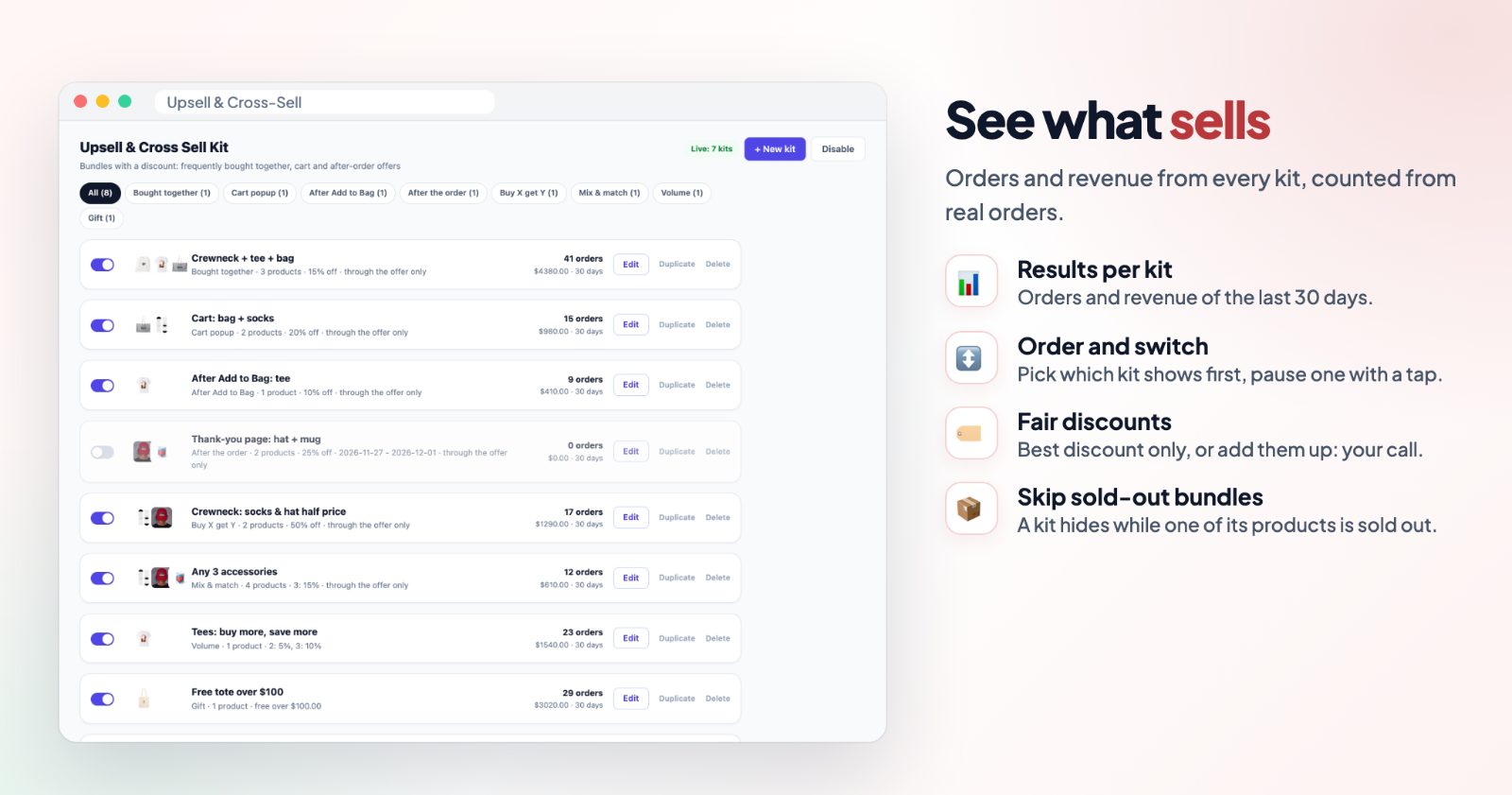
- You see what sells: every kit shows its orders and revenue of the last 30 days, counted from real orders.
It works for any store that sells things that go together: clothing and accessories, beauty sets, electronics and cases, furniture, jewelry, toys, food and drinks.
1. Pick the kind of kit
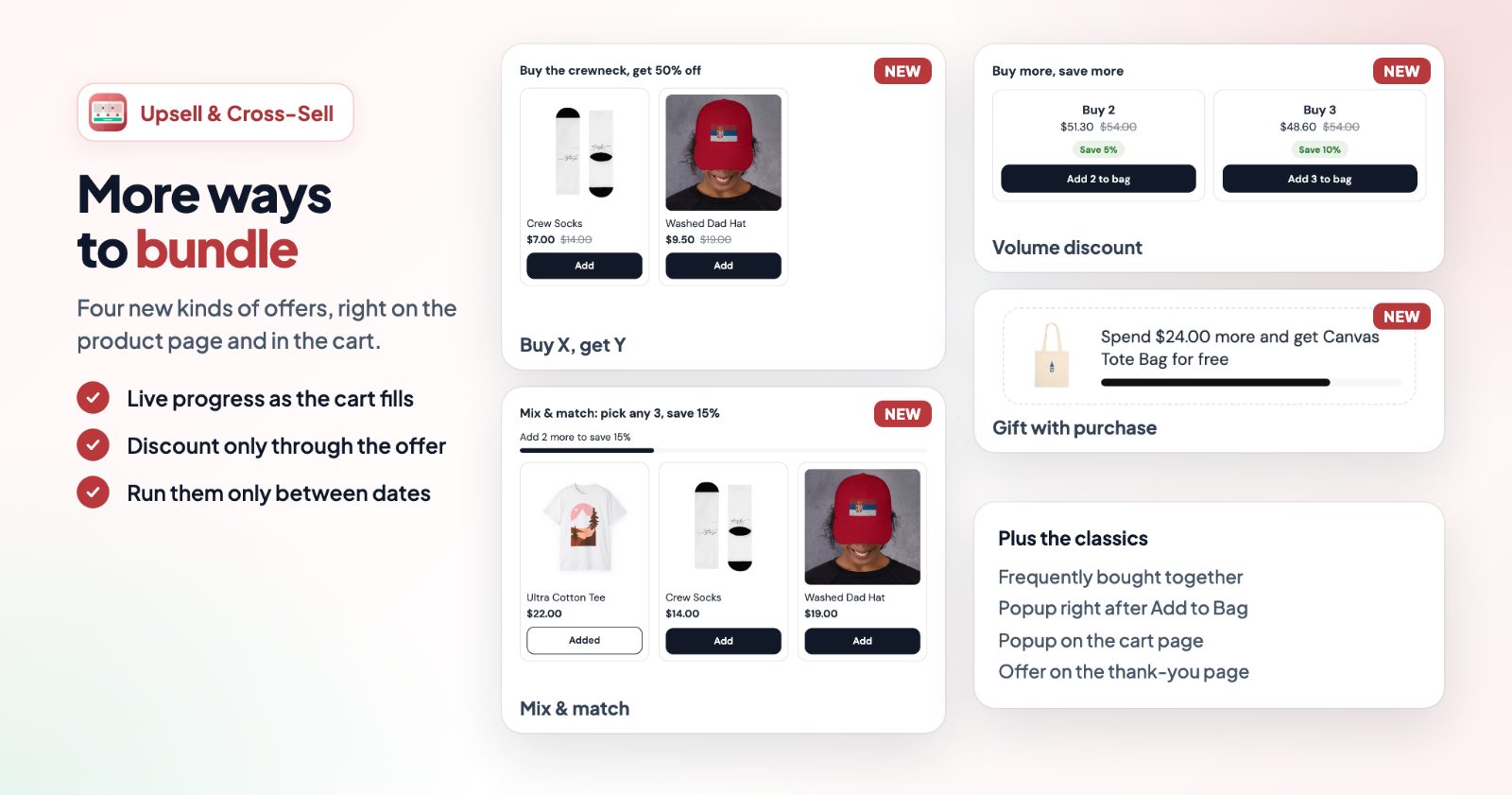
Open the app and click + New kit. Under What kind of kit? you get eight kinds:
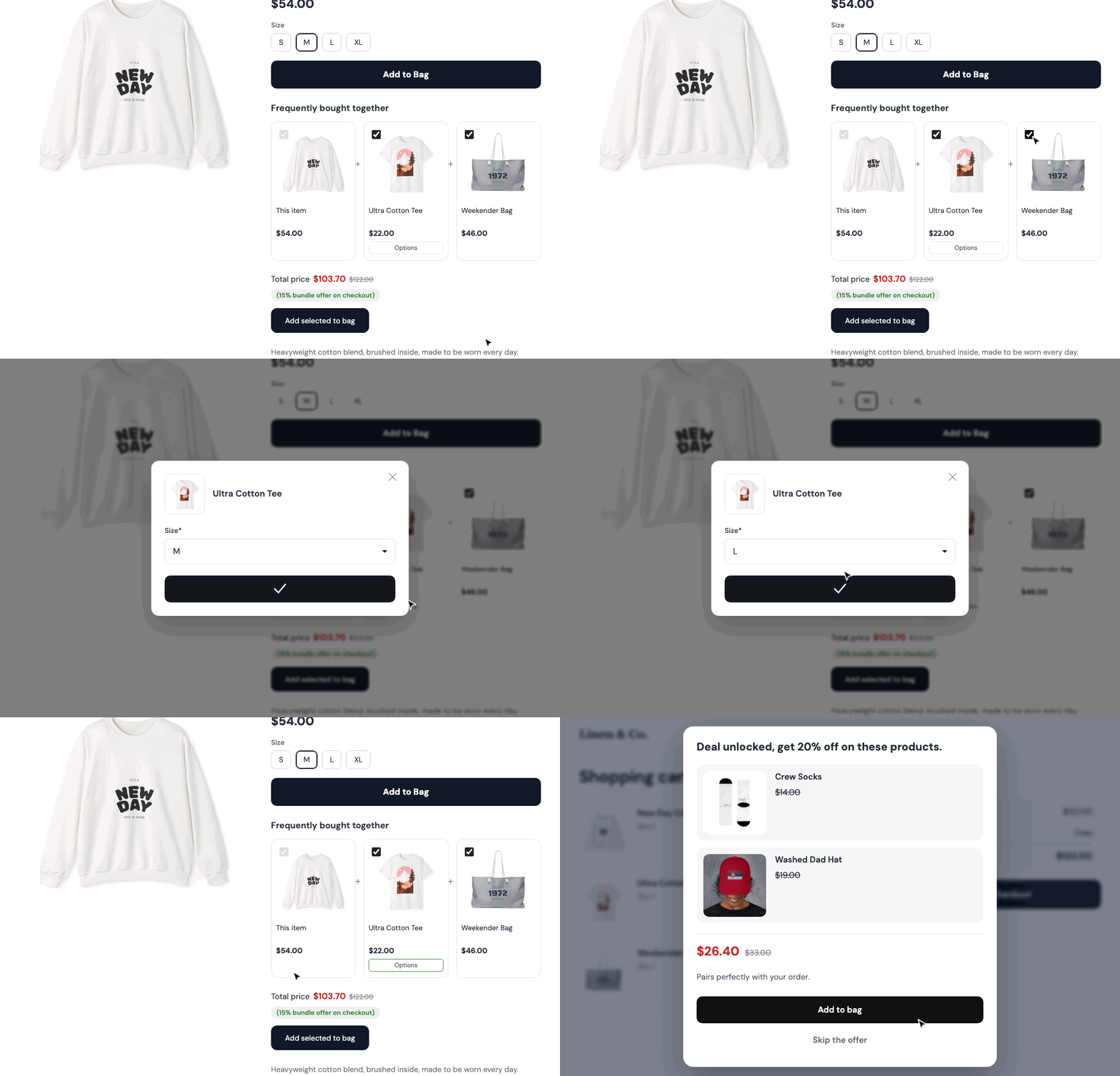
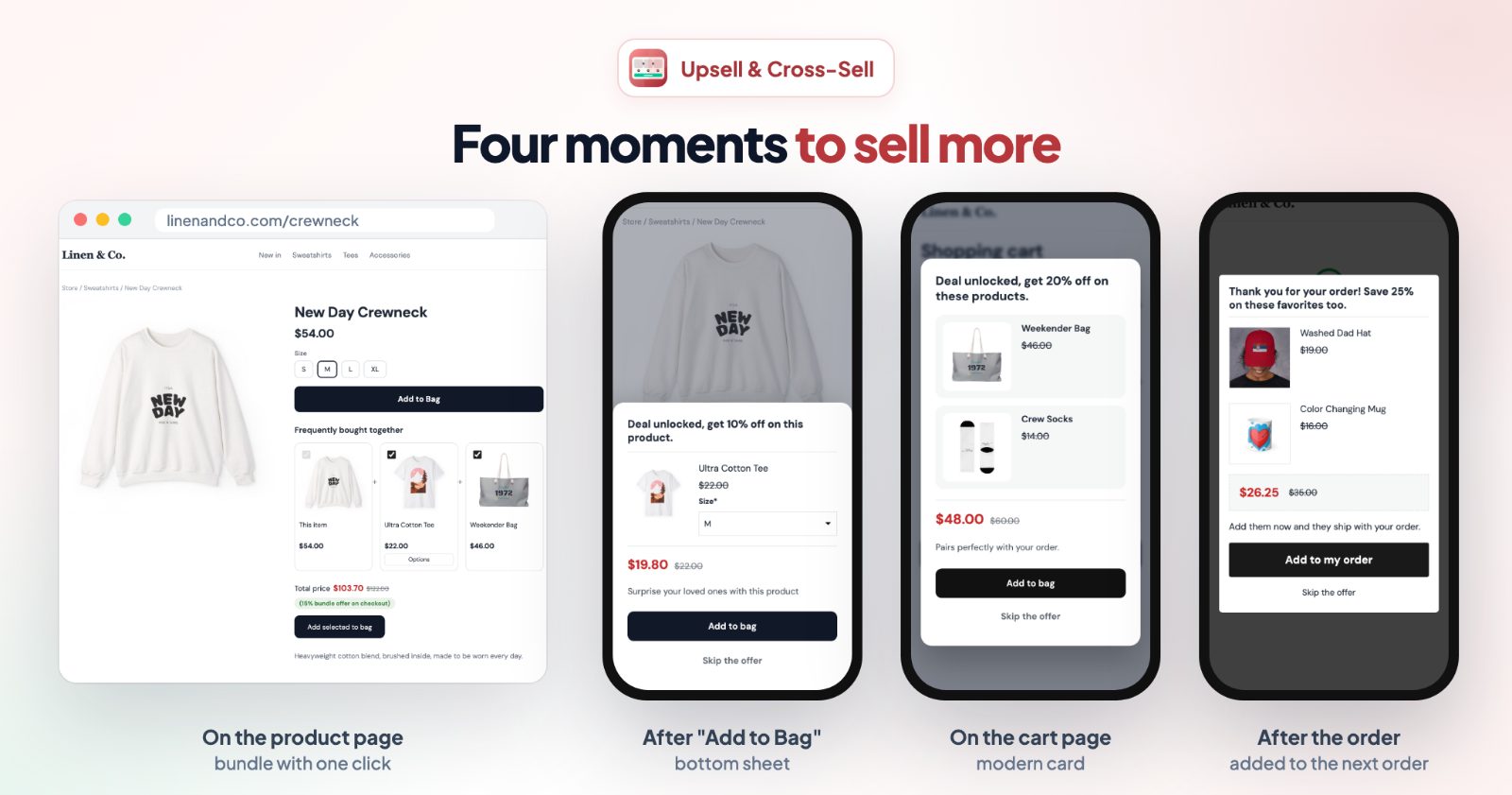
- Frequently bought together: on the product page, the product with the ones that go with it, ticked, with a bundle price. Shoppers untick what they don't want.
- Buy X, get Y: buy one product, get another at a discount or free, one per product bought (2 cameras, 2 discounted bags).
- Mix & match: pick any 3 from a group, save 15%. A progress line shows how many more items the shopper needs.
- Volume discount: buy more of the same product, pay less: 2 for 5% off, 3 for 10%.
- Gift with purchase: a free product once the cart reaches an amount, shown in the cart with a progress line.
- After Add to Bag popup: an add-on right after a shopper adds a product.
- Cart popup: a last offer on the cart page.
- After the order popup: on the thank-you page, products shoppers can add to the order they just placed.
2. Add the products
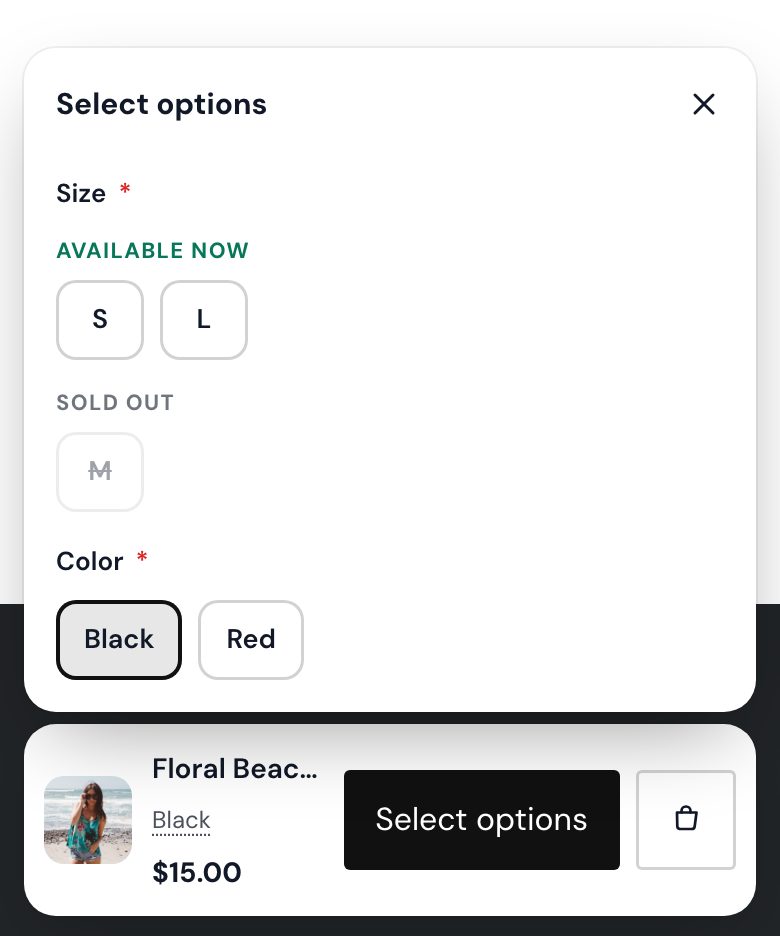
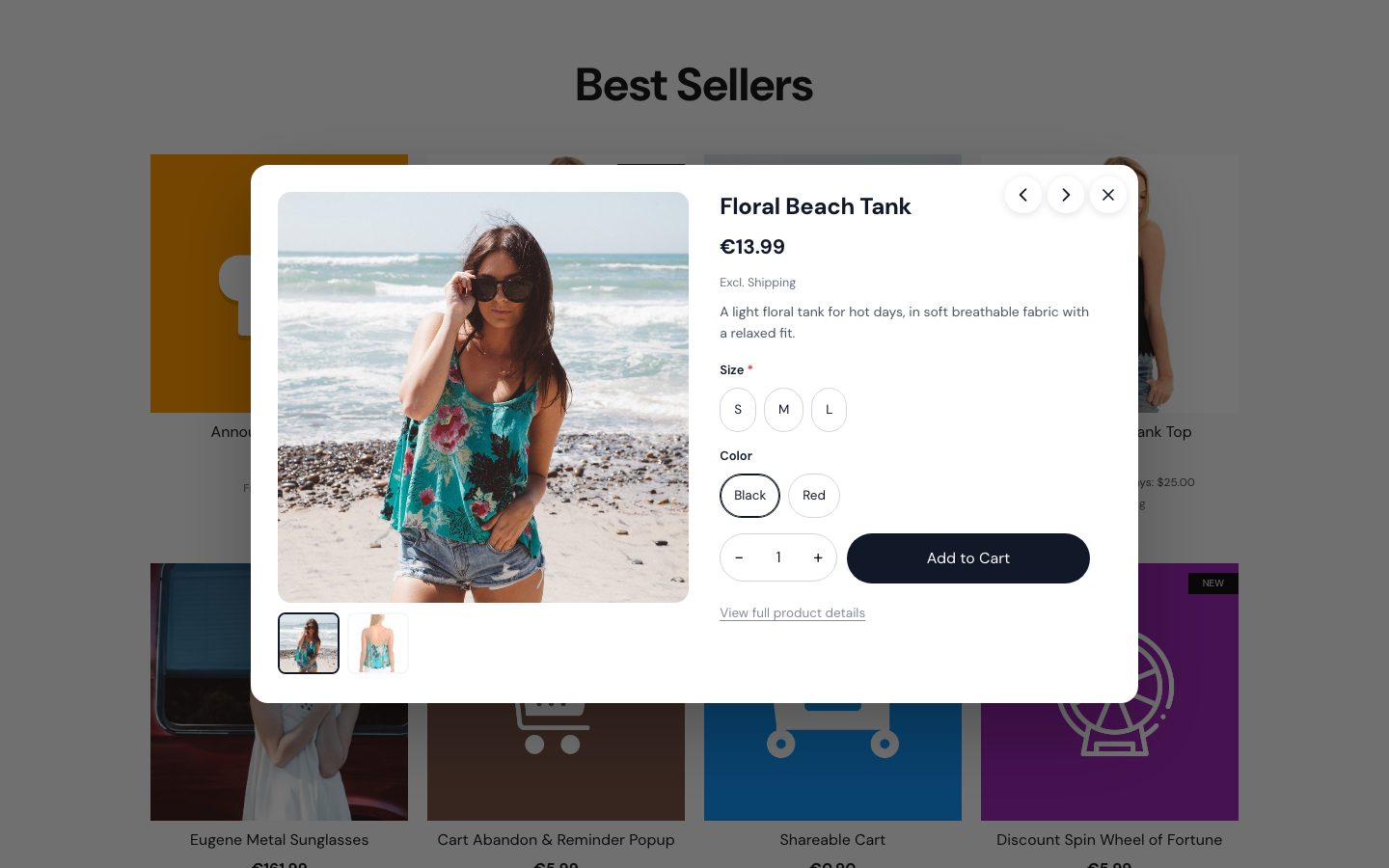
Give the kit a name (it also shows at checkout next to the discount) and open the Products tab. Search your products and add them. Products with sizes or colors open a small window so shoppers can pick them before adding.
- For Buy X, get Y, add the products under When the shopper buys (the offer shows on their pages) and the discounted ones under They get at a discount.
- For Frequently bought together, Also on the pages of these categories (optional) shows the kit's products as a suggestion on every product page of those categories.
- For the After Add to Bag popup, After adding these products (optional) picks which products open it. Leave it empty to show the popup after any product is added.
3. Set the discount
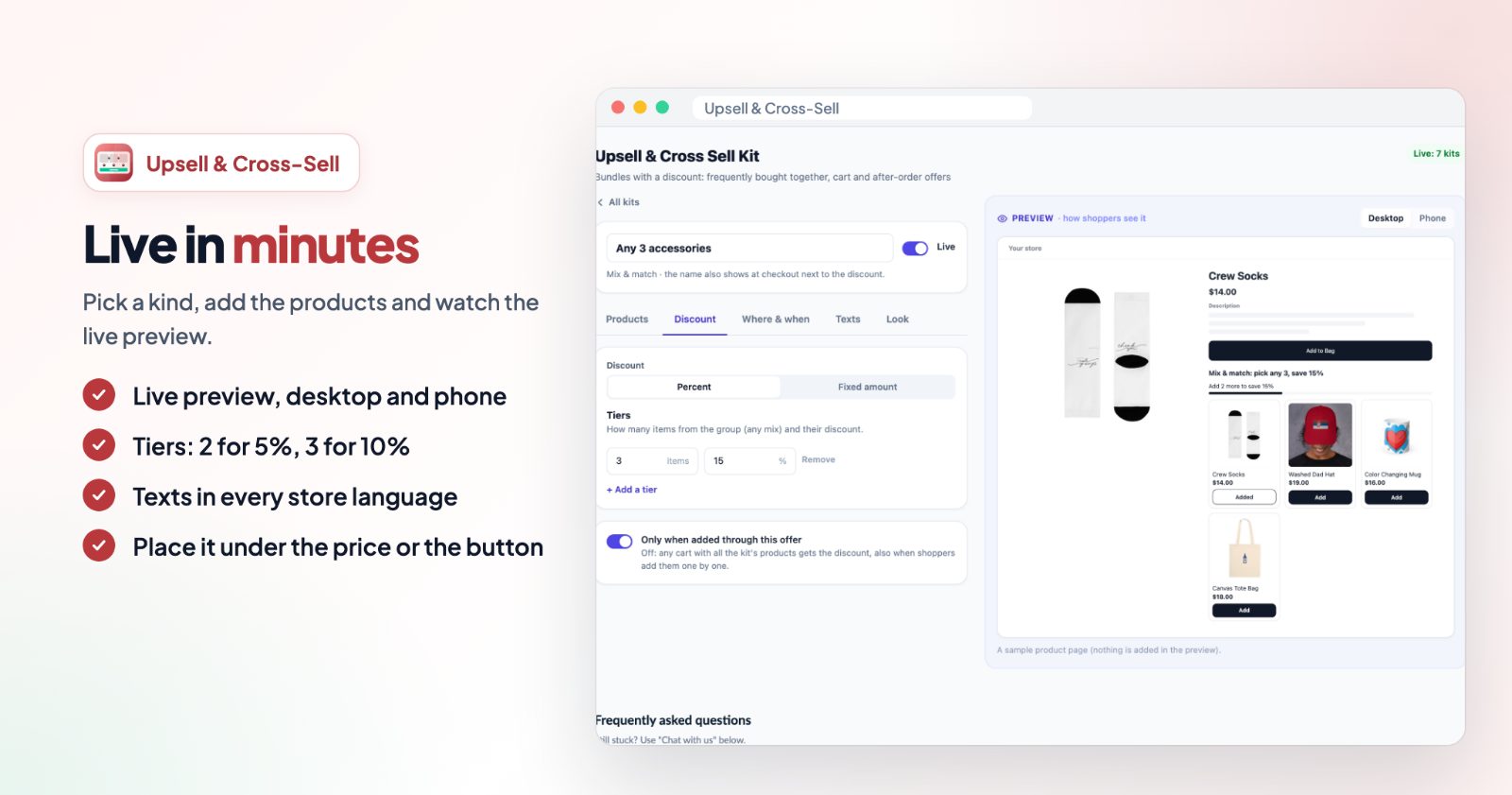
In the Discount tab choose Percent or Fixed amount. A percent discount is taken off every unit of the kit's products in the cart; a fixed amount is taken off once per order. For a gift, 100% makes it free.
- Tiers: Mix & match and Volume discount use tiers, for example 3 items 15%. Click + Add a tier for more steps.
- Discount for part of the kit (optional): for Frequently bought together, for example 2 products 5%, all 3 products 10%. Shoppers see the price change as they tick products.
- Only when added through this offer: the discount goes only to shoppers who added the kit from the offer. When it is off, any cart with all the kit's products gets it, also when the products were added one by one. New kits have it on.
- For the cart and After Add to Bag popups, Show and give the discount: Always, Cart above or Cart below an amount.
4. Where and when it shows
In Where & when:
- Where on the product page: Under the price, Under Add to Bag or Under the description. Popups take Where on the screen: top, middle or bottom.
- Only between dates: for a season or a campaign, the kit and its discount run only on those days.
- For the cart popup, Also when the products are already in the cart, and for both cart and After Add to Bag popups Show again after Skip (off: a skipped popup stays away for a day).
- For the After the order popup, When: Right away or After a few seconds.
5. Texts and look
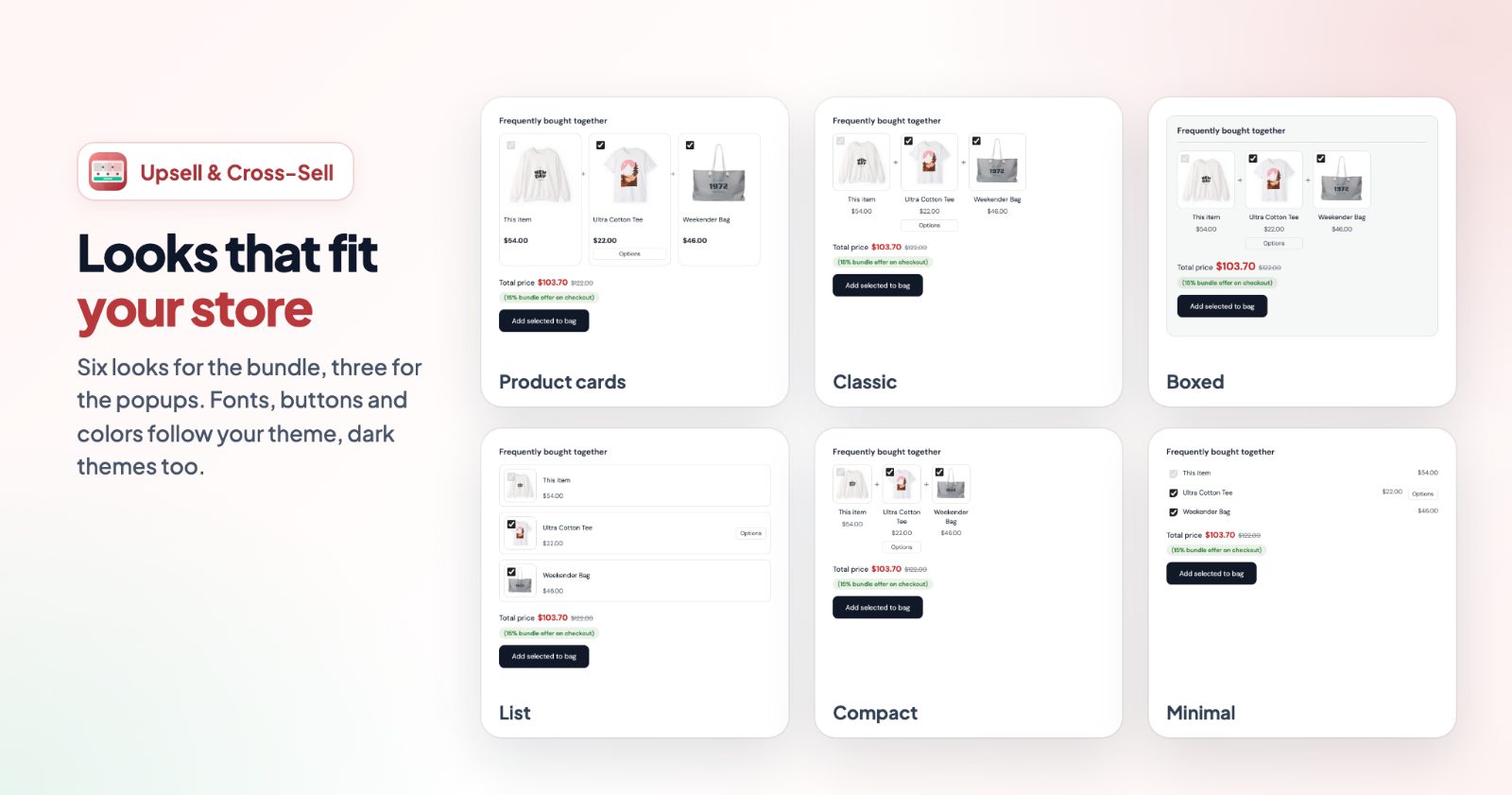
The Texts tab holds every text shoppers see, like the heading and the buttons, and you can write them for each language of your store. Under Look, pick one of six bundle looks (Product cards, Classic, Boxed, List, Compact, Minimal) or, for popups, Classic, Modern card or Side drawer (a sheet from the bottom on phones).
6. Check the preview, switch it on, watch the results
The Preview next to the editor shows the kit on a sample product page or cart, on Desktop and Phone. When it looks right, switch on Live and press Save. Back in the list, every kit shows its orders and revenue of the last 30 days. The switch next to a kit pauses it, and the arrows set which kit shows first when several match the same product.
Under the list, Store options has When kits share products: Give the best discount only (the default) or Add the discounts up.
Common setups
A "complete the look" bundle
Frequently bought together with a sweatshirt, a tee and a bag, 15% off the whole kit, and a part-kit tier of 5% for 2 products. Put it Under Add to Bag.
The accessory at half price
Buy X, get Y: the camera under When the shopper buys, the bag under They get at a discount, 50%. Each camera in the cart gets one bag at half price.
Any 3 for 15% off
Mix & match with your socks, hats and mugs and a tier of 3 items 15%. Shoppers can mix any of them, and the progress line says how many more they need.
A free tote over $100
Gift with purchase with the tote, an amount of $100 and 100% off. The cart shows how much is still missing; once the cart reaches it, shoppers add the gift with one click.
A holiday offer after the order
After the order popup with two gift products at 25% off, Only between dates for the holiday weeks.
Questions
When is the discount given?
At checkout, when all the kit's products are in the cart. With a part-kit tier (Frequently bought together), part of the kit gets the tier's discount, for example 2 of 3 products 5%.
Can shoppers pick sizes and colors?
Yes. Products with options open a small window to choose them.
Two kits share a product: which discount counts?
Under Store options you choose: only the best discount (the default), or both added up.
Why doesn't my kit show in my store?
Check that the app and the kit are switched on, today is within the kit's dates (if you set any), every product in the kit is in stock, switched on and not deleted, no product needs a file upload, and you are on the page of a product in the kit. If another kit of the same kind matches the same product, only the first one in your list shows.
Can I translate the texts?
Yes. Every text can be set for each language of your store.
Want automatic discounts in the cart without showing a bundle? See BOGO, bundles and tiered discounts in the cart. For a progress bar to free shipping, see the free shipping bar guide.