Why this matters for products with options
A sticky add to cart bar helps most on long product pages: the shopper reads the description, looks at the photos, scrolls through the reviews, and the buy button is still there. But if the product has sizes, colors or flavors, a plain button can't add it yet. Before, the bar's button took the shopper back up to the options. On a phone that means losing their place on the page.
With the product options support in Sticky Add to Cart Button, stores with many flavors, sizes or colors get a bar that does the whole job:
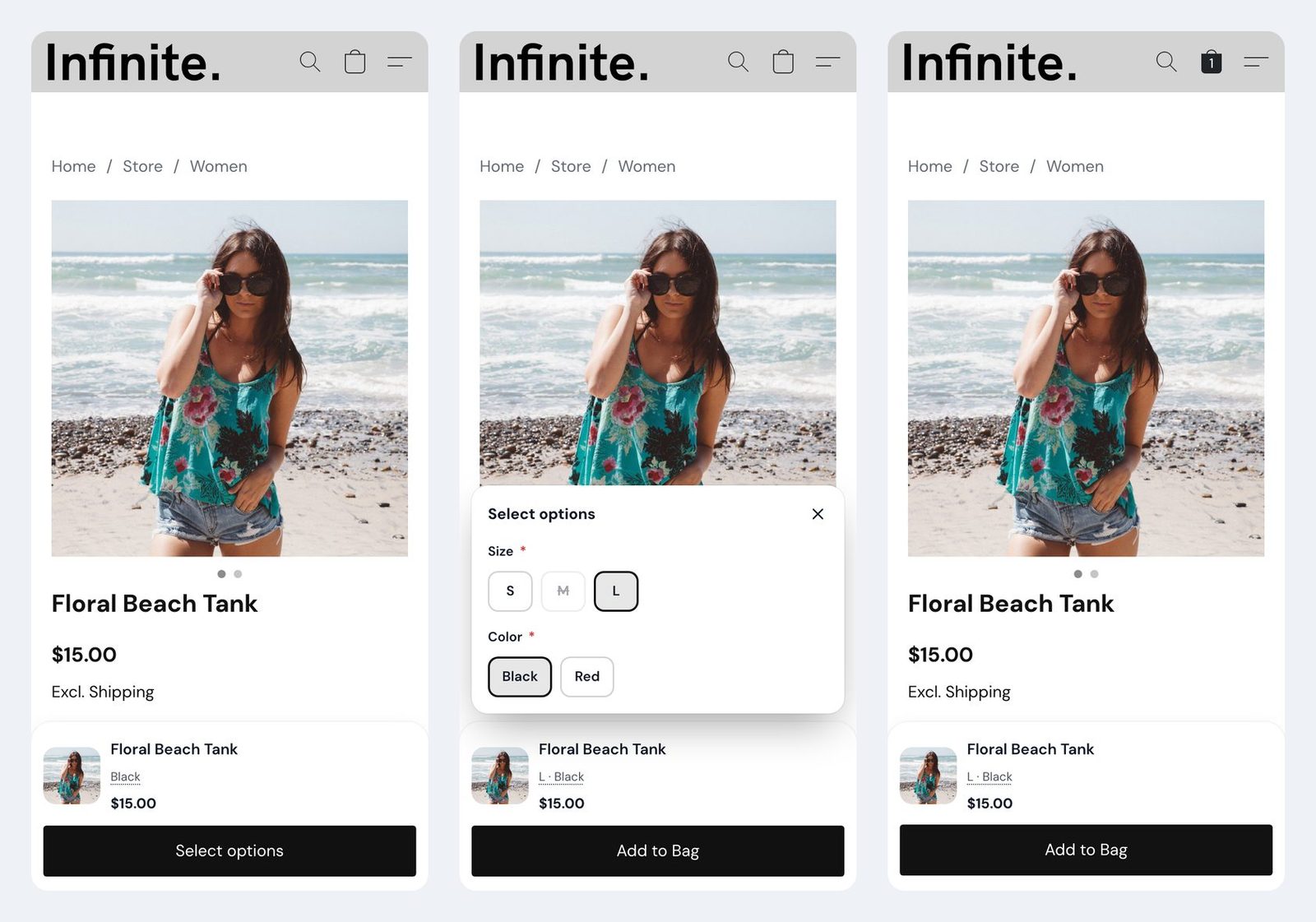
- The selected options in the bar: for example "L · Black" or "Mango · 500 g" under the product name, updated as the shopper chooses. Price add-ons like "(+$5.00)" are left out, because the bar already shows the price.
- A "Select options" button: until the required options are chosen, the button says so instead of "Add to cart".
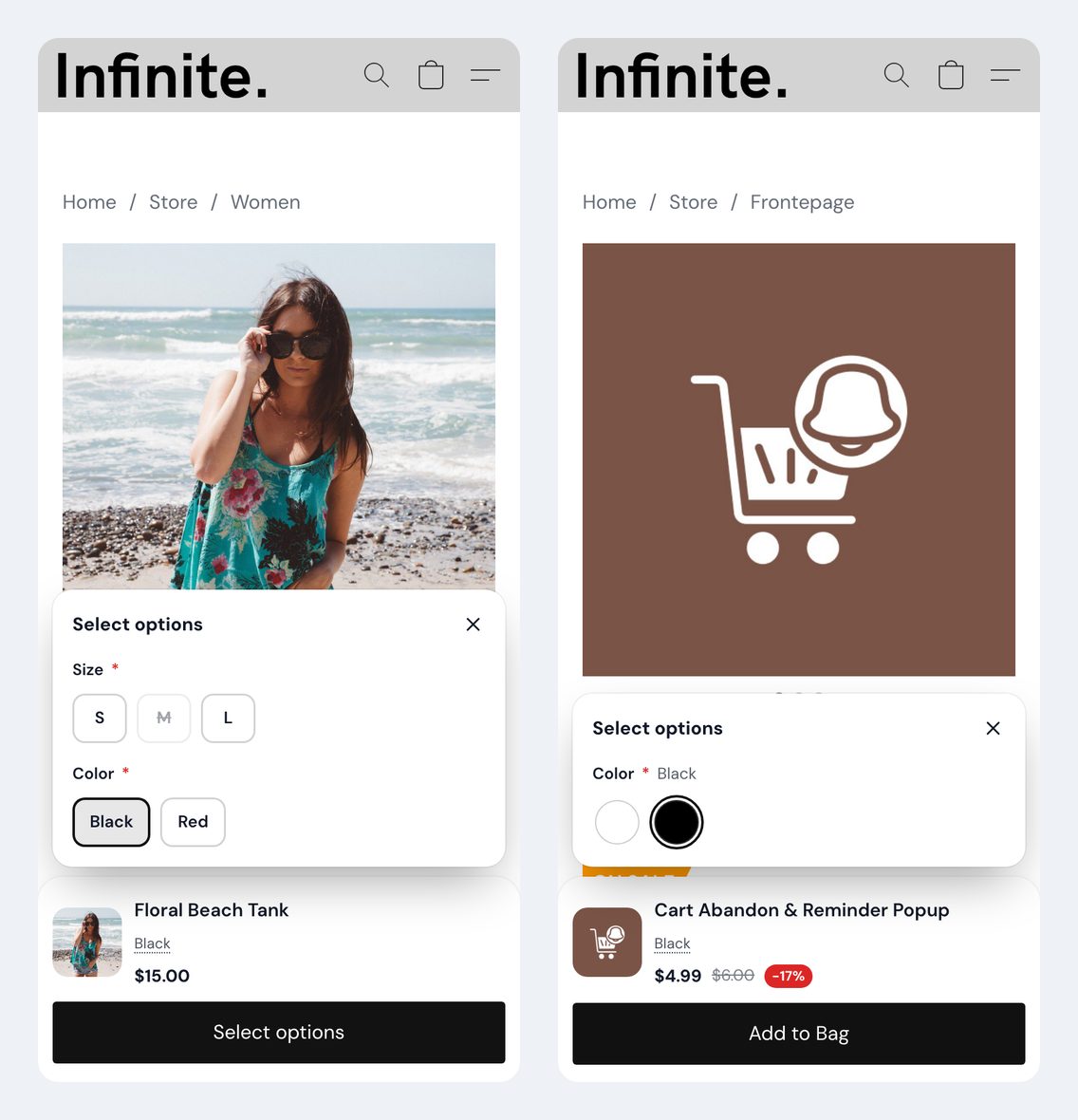
- An option picker in the bar: tapping the button opens a small panel above the bar with every option: size buttons, dropdowns, radio buttons, checkboxes and color swatches.
- Your store's own rules: the picker sets the option fields on the page itself. Prices, stock and sold out choices always come from your store, and the bar shows the price, stock and photo of the chosen variant.
How the picker works for shoppers
The shopper scrolls down, the bar slides in and says Select options. One tap opens the picker with the option names and their choices, required ones marked with a star. Each tap sets that choice on the product page, so the store updates the price and stock as usual, and the bar follows. Once every required option is chosen, the button goes back to your add to cart text, and the next tap adds the product.
Sold out choices are crossed out and can't be picked, the same way your store marks them. Color swatches show as round color dots with the chosen color's name next to the option name. The selected options under the product name are a link too: tap them to open the picker again and change a size.
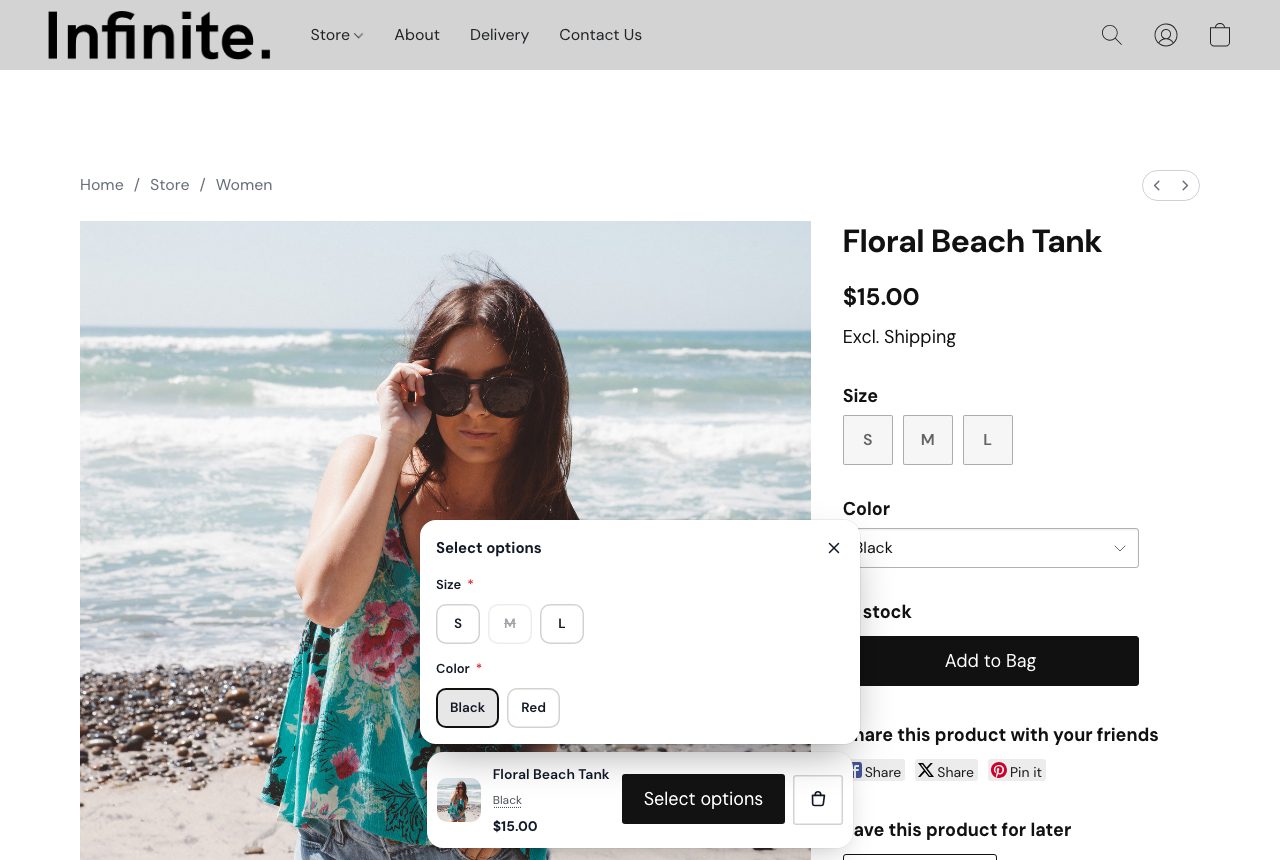
On desktop the picker opens above the bar in the same way, next to the product's own options.
How to set it up
1. Open Content > Product options
Open the app and go to the Content tab. Under Product options you find everything on this page. If you just installed the app, the picker is already on. If you have used the app for a while, your bar works as before until you turn it on here.
2. Show the selected options
Turn on Selected options to show the chosen options under the product name. It is there in the layouts that show the product name: Floating card, Product dock and Full-width bar.
3. Choose what the button does
Under While a required option isn't chosen yet, pick one of three:
- Option picker in the bar (recommended): the button says "Select options" and opens the picker right in the sticky bar, no scrolling.
- "Select options" button: the button says "Select options" and scrolls up to the options.
- Keep the add to cart text: the button keeps its text; tapping it with an option missing scrolls up to that option. This is how the bar always worked.
4. Change the texts if you like
Button text until they're chosen is "Select options" when left empty. You can write "Choose your size" or "Pick a flavor" instead. With the picker on, Text fields and uploads in the picker sets the text of the link to fields that are filled in on the page ("Fill in on the page" by default). Both are in Translations for your other store languages.
The app's Preview has an Options not chosen state, so you see the picker on a sample product before you save.
Text fields and uploads
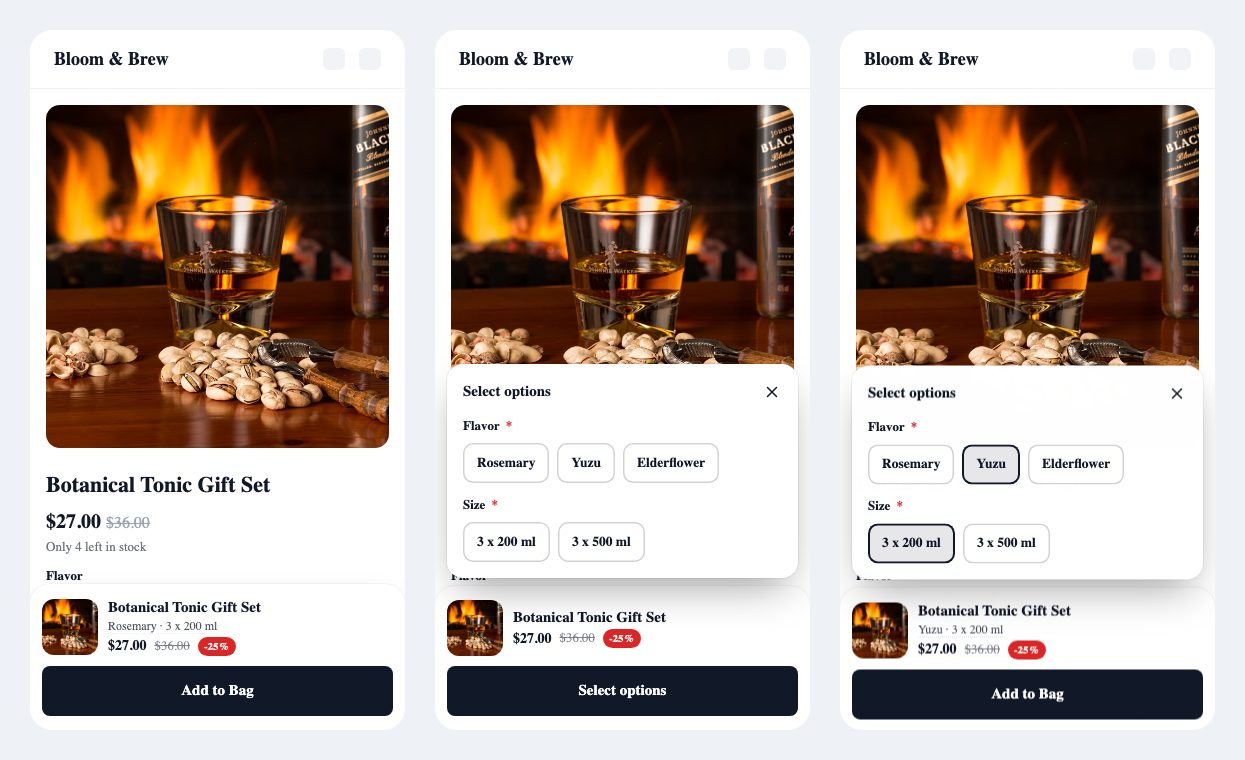
The picker is for choices. Text fields (an engraving, a name) and file uploads are filled in on the product page. A required one shows in the picker as a link; tapping it closes the picker and scrolls to that field. Text fields that are not required are left out of the picker.
Common setups
Clothing with sizes and colors
Product dock, Selected options on and Option picker in the bar. Shoppers see "L · Black" before they add, and sold out sizes are crossed out.
Food and drinks with flavors and pack sizes
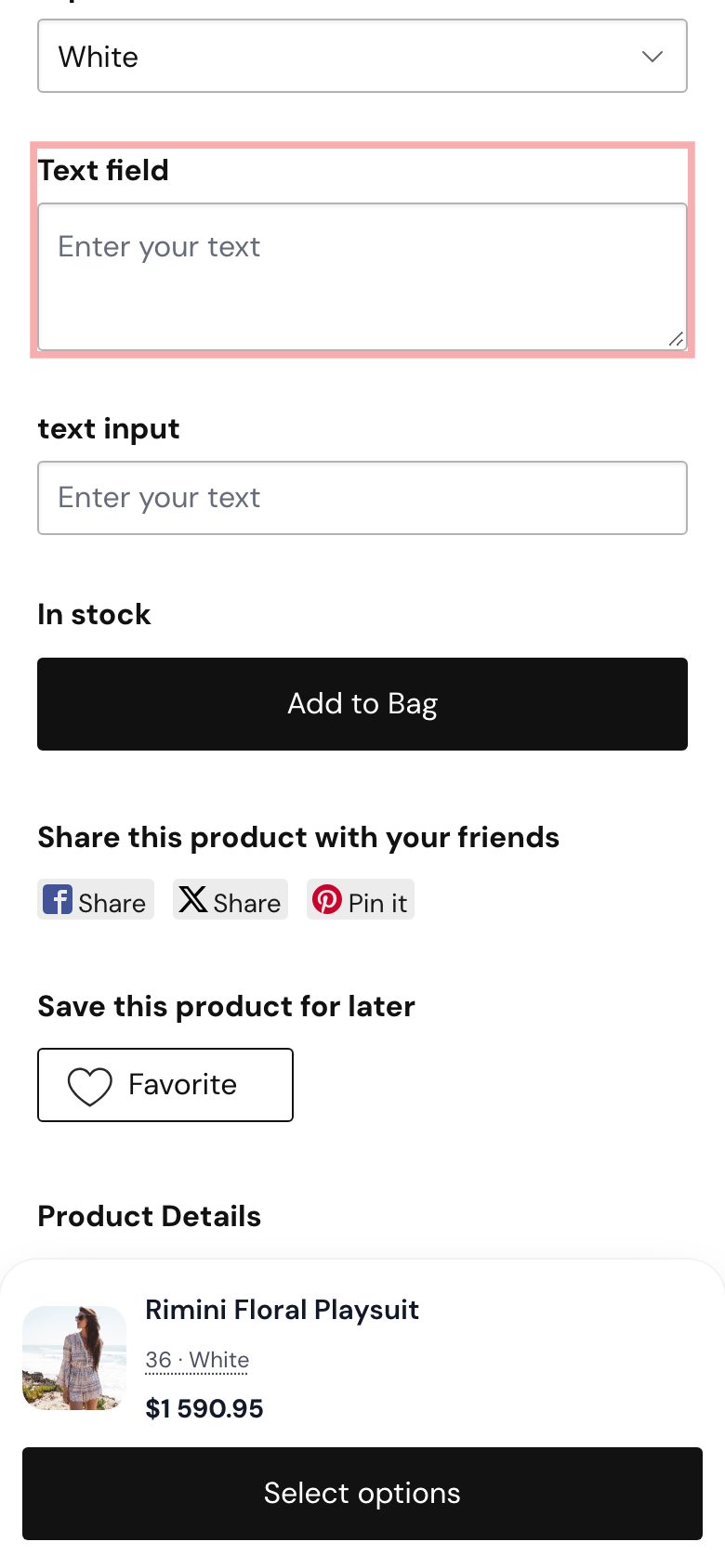
Floating card with the picker and the button text "Pick your flavor". The bar shows "Mango · 500 g" and the price of that size.
Personalized products
If most of your options are engravings or uploads, "Select options" button is a good fit: one tap takes the shopper up to the fields.
Keep it as it was
Prefer the old behaviour? Keep the add to cart text with Selected options on: the button stays the same, and shoppers still see which size and color they picked.
Questions
Can the bar add a sold out size?
No. Sold out choices are crossed out and can't be picked. The picker sets your store's own option fields, so stock and prices are always your store's.
Does it change my existing bar?
No. Stores that had the app before keep the old behaviour until they turn the options on under Content > Product options. New installs get the picker by default.
Does the bar show the price of the chosen variant?
Yes. When the store updates the page after a choice, the bar reads the price, stock and photo again.
What about options hidden by conditional rules?
Options that are hidden on the page, for example by conditional product options, are left out of the picker.
New to the app? Start with the full sticky add to cart guide (layouts, style, when it shows). For colors on product pages, see color swatches.