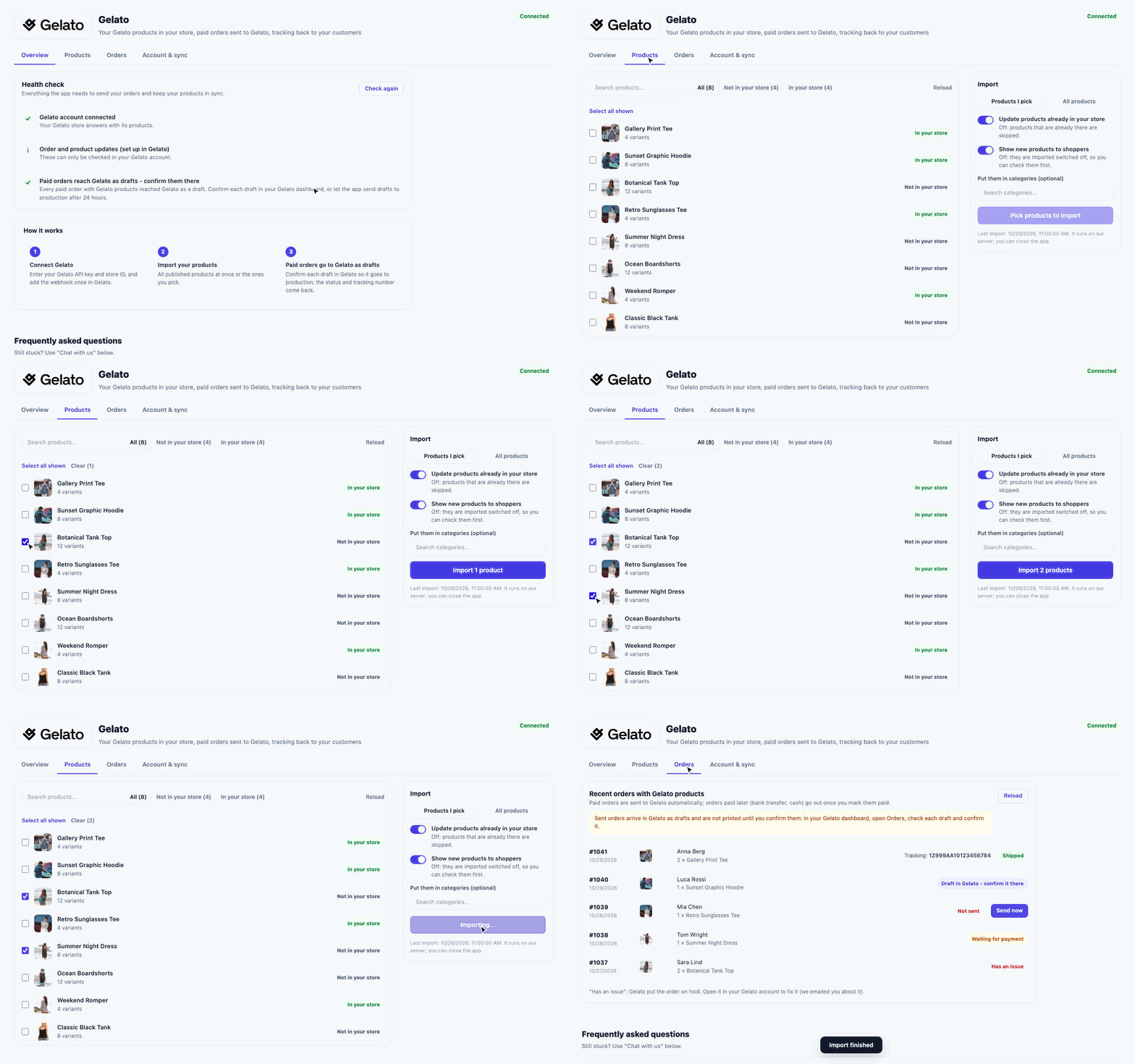
How it works in short
- Connect Gelato: enter your Gelato API key and store ID, and add the webhook once in Gelato.
- Import your products: all published products at once, or the ones you pick.
- Paid orders go to Gelato as drafts: confirm each draft in Gelato so it goes to production (or let the app do it after 24 hours). The status and tracking number come back to the order in your store.
Only the Gelato products of an order are sent, so you can sell your own products next to them. At checkout, your customers see the shipping rates Gelato calculates for their address.
1. Connect your Gelato account
Open the app and go to Account & sync. You need two things from your Gelato dashboard (log in first):
- Your API key: under Developer, API keys. Copy a key, or press "Create API key" if you have none.
- Your Gelato store ID: open Stores and click your store. The store ID is the long code in the address bar. The app shows a picture of where to find it.
Paste both and press Save and check.
2. Set up automatic sync (once)
A webhook in Gelato tells the app when you publish or change a product, and when an order is printed or shipped. Under Automatic sync, the app walks you through it in 7 steps with Copy buttons: open the webhooks page in Gelato, add a new webhook, paste the address, pick the method POST, tick the four events, turn on authorization and paste the header name and value, then save the webhook. It takes a few minutes. Without it, you can still import under Products, but order updates don't come back.
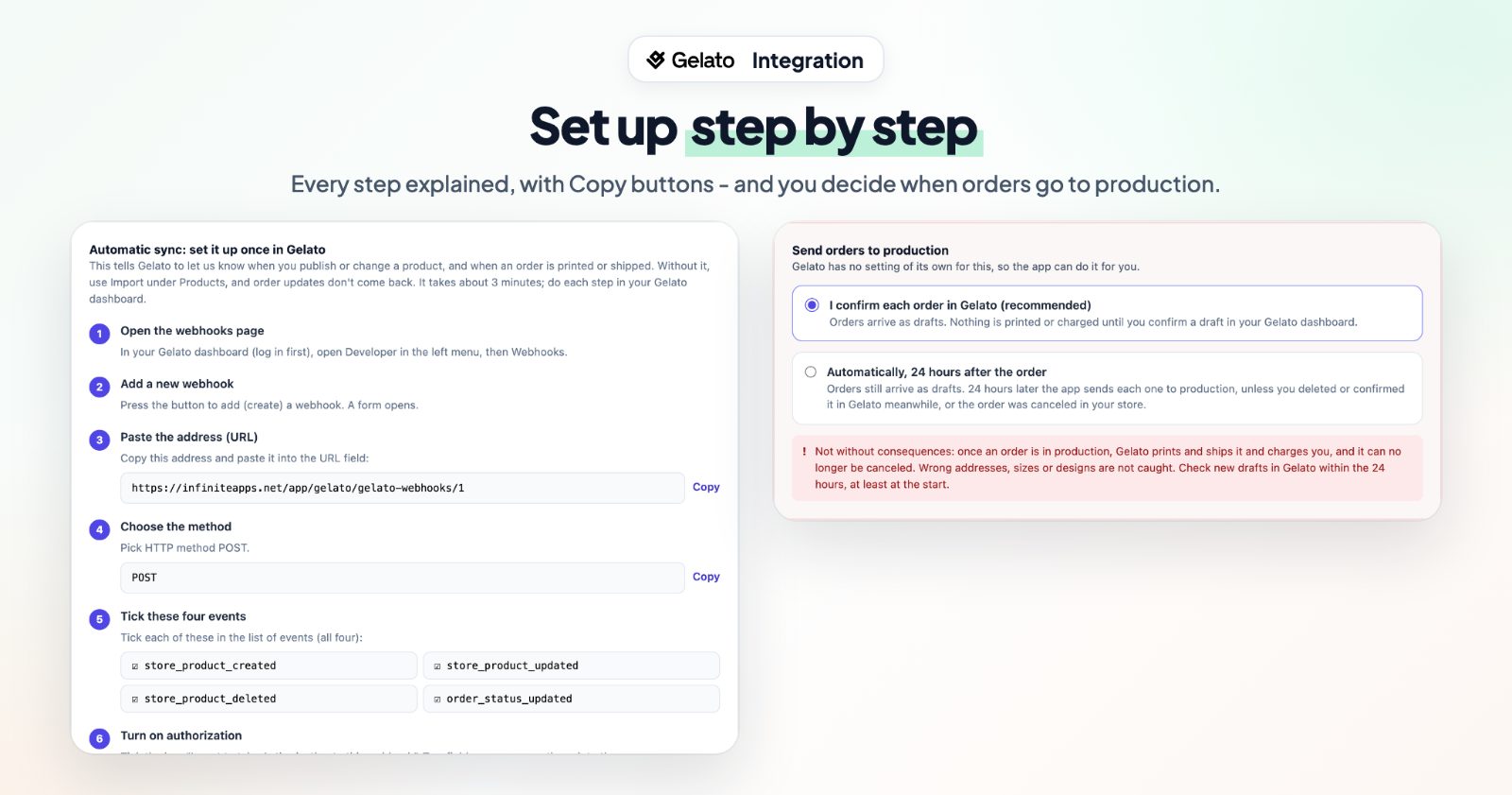
3. Import your products
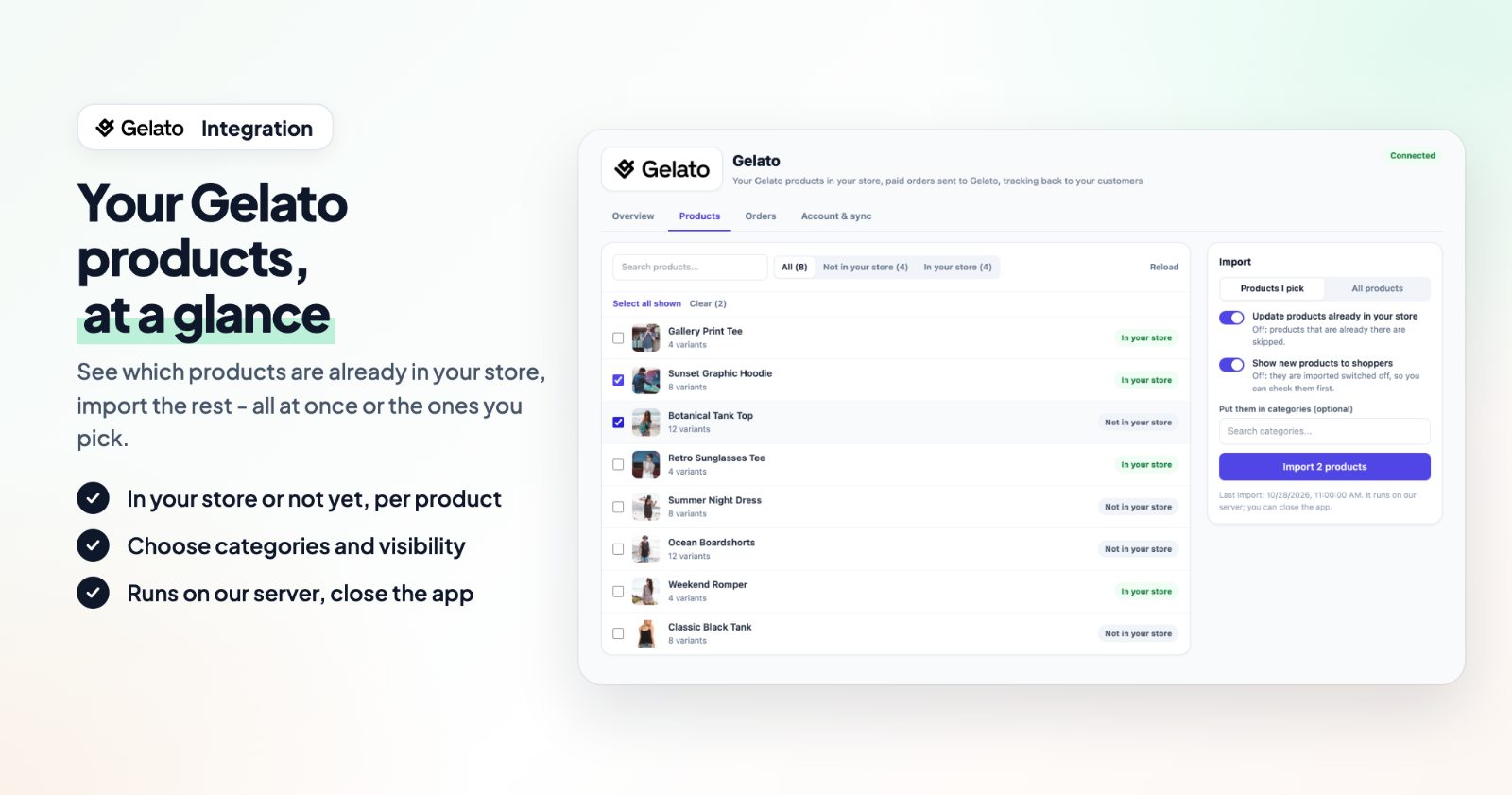
On the Products tab, every Gelato product is marked In your store or Not in your store. Tick the ones you want (or Select all shown), or switch to All products, and choose:
- Update products already in your store: designs, Gelato's photos, texts and options are updated; your prices, photos you added and whether a product is shown stay as you set them. Off: products that are already there are skipped.
- Show new products to shoppers: off, they are imported switched off so you can check them first.
- Put them in categories (optional).
Then press Import. The import runs on our server, so you can close the app. Imported products start at Gelato's production price for one item in your store's country and currency: set your own selling price in your store.
4. Decide when orders go to production
Orders are sent to Gelato as soon as they are paid. Orders paid later (bank transfer, cash on delivery) are sent when you mark them as paid. They arrive in Gelato as drafts. Under Send orders to production, choose:
- I confirm each order in Gelato (recommended): nothing is printed or charged until you confirm a draft in your Gelato dashboard.
- Automatically, 24 hours after the order: 24 hours later the app sends each draft to production, unless you deleted or confirmed it in Gelato meanwhile, or the order was canceled in your store. It is off unless you turn it on.
Once an order is in production, Gelato prints, ships and charges you, and it can no longer be canceled. Check new drafts within the 24 hours, at least at the start.
5. Follow your orders
The Orders tab lists your recent orders with Gelato products: Shipped with the tracking number, Draft in Gelato - confirm it there, Waiting for payment, Has an issue or Not sent. For an order that wasn't sent, we email you the reason Gelato gave; fix it and press Send now.
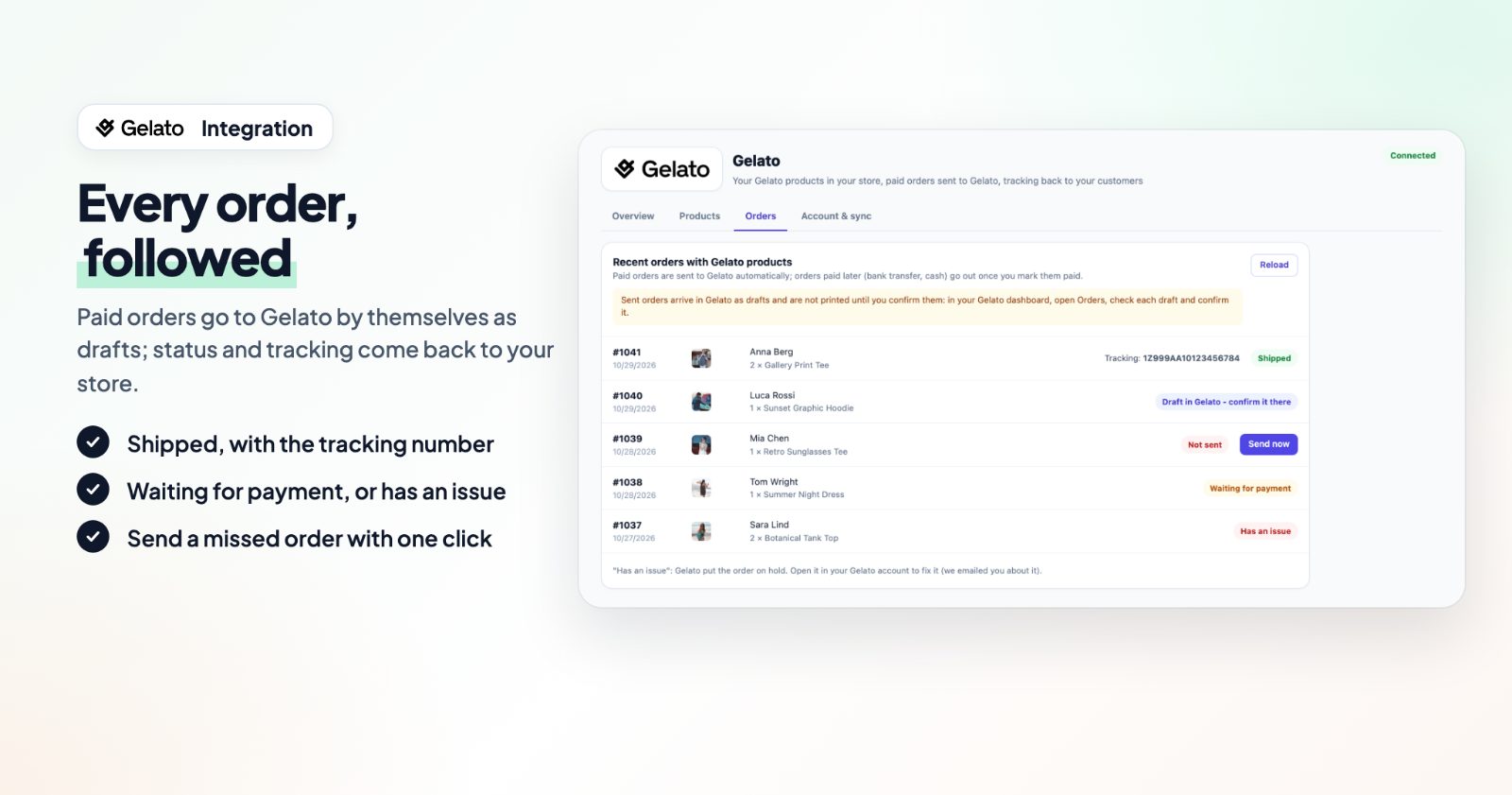
The Health check on the Overview tab shows that your account is connected and that paid orders reach Gelato, and tells you how to fix what doesn't.
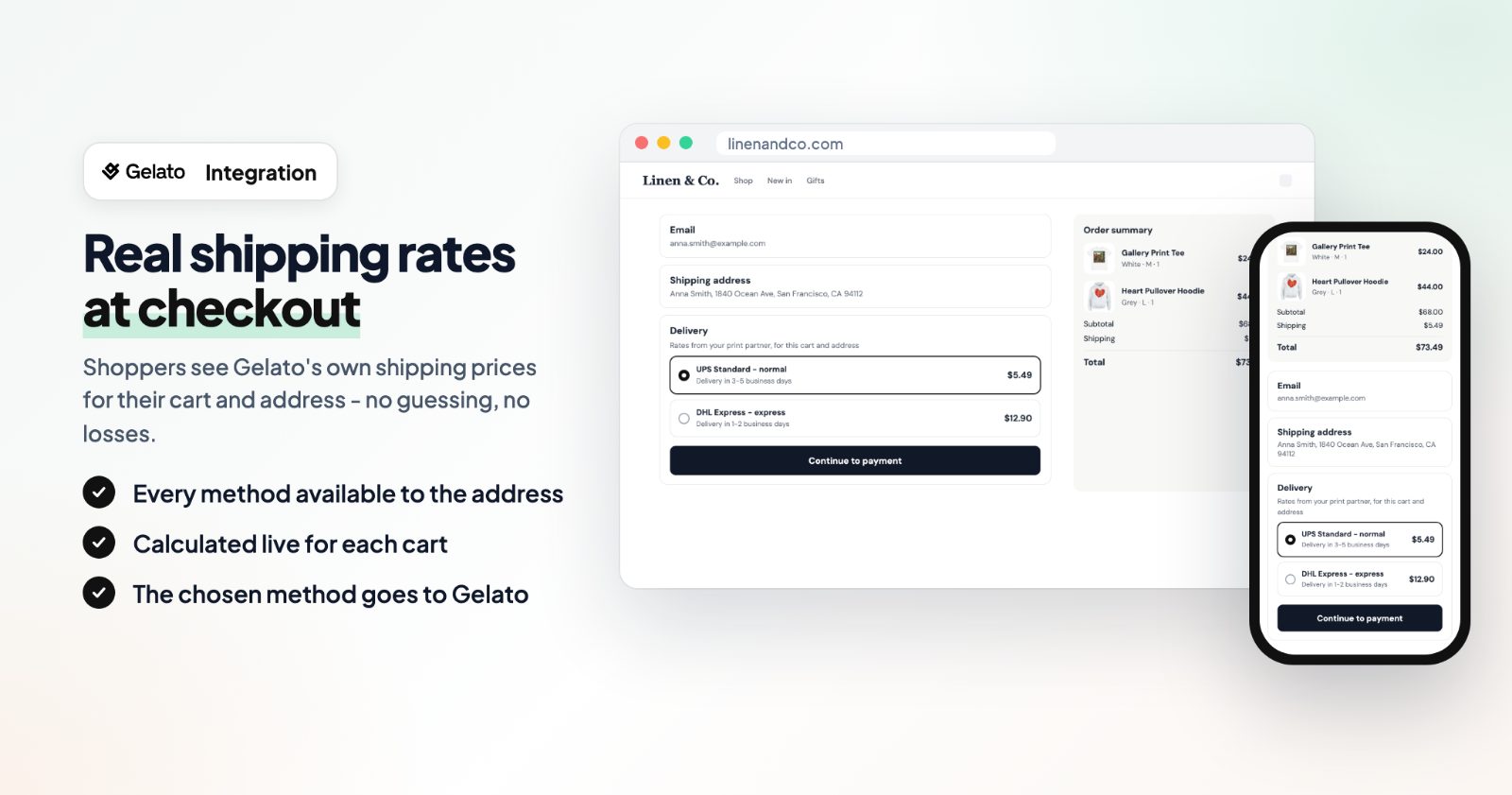
6. Shipping rates at checkout
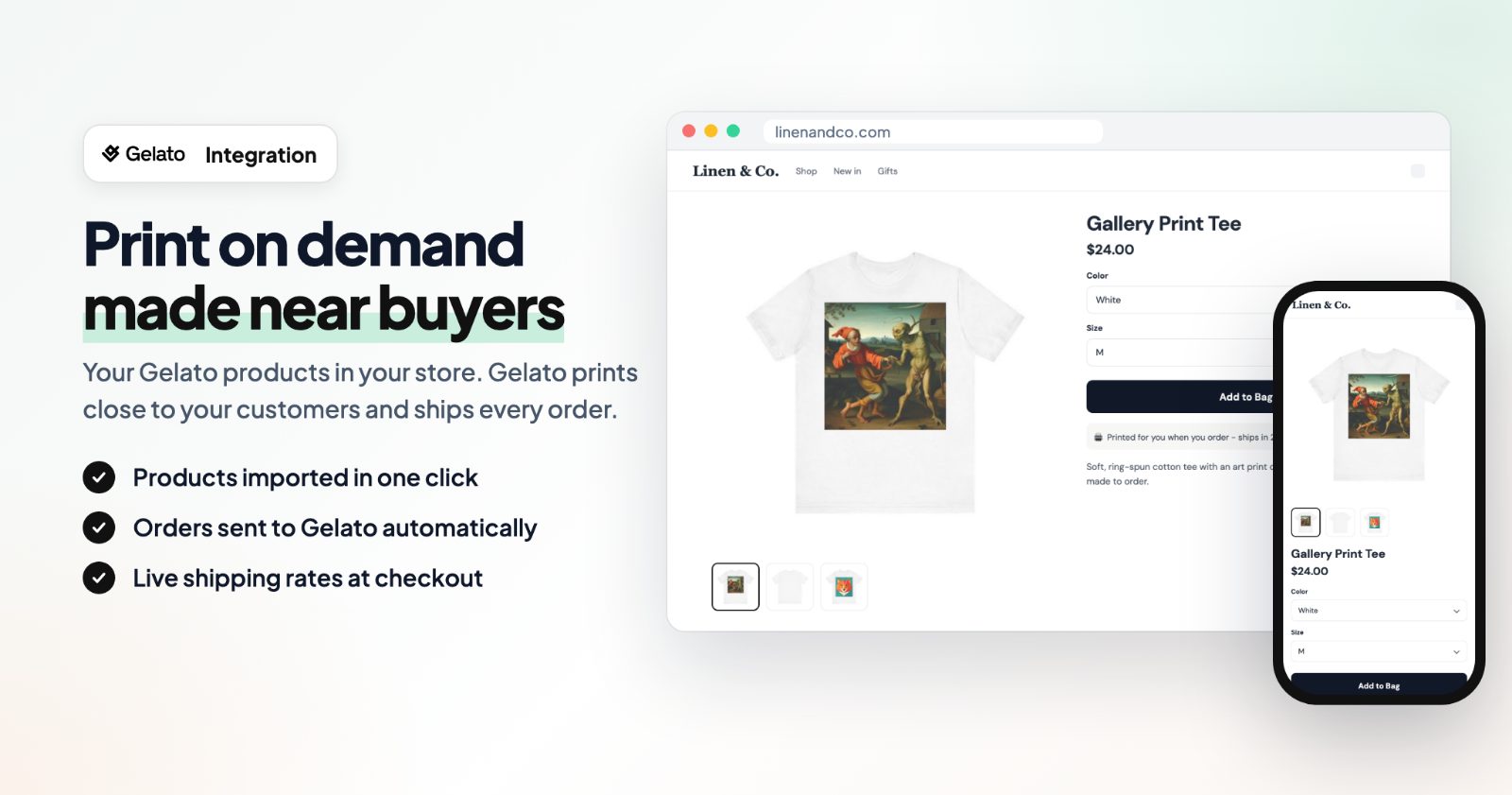
Your customers see the shipping rates Gelato calculates for their cart and address. In a cart with your own products too, the Gelato rate covers only the Gelato products.
Common setups
Check every order before it is printed
Keep I confirm each order in Gelato. Open Orders in your Gelato dashboard, check each draft and confirm it.
Hands-off orders with a safety day
Choose Automatically, 24 hours after the order. You still have a day to delete or fix a draft in Gelato if something is wrong.
Add new designs without showing them yet
Turn off Show new products to shoppers, import, then set your prices and photos in your store and switch the products on when they are ready.
Print-on-demand next to your own stock
Sell both. Only the Gelato products of an order go to Gelato; you ship the rest yourself.
Using Printify instead? See the Printify integration guide. For the other apps to add first, see must-have apps for your store.
Questions
When is an order sent to Gelato?
As soon as it is paid. Orders paid later (bank transfer, cash on delivery) are sent when you mark them as paid. Only the Gelato products of the order are sent.
Are orders printed right away?
No. They arrive in Gelato as drafts. Confirm them there, or turn on "Automatically, 24 hours after the order" in the app.
Do my customers get tracking?
Yes. The status and tracking number come back to the order in your store.
Will an update in Gelato change my prices?
No. When a product is updated in Gelato later, your prices stay as you set them. Only variations that are new get Gelato's price. Photos you uploaded yourself stay too.
Products I publish in Gelato don't come in.
Check the webhook in your Gelato account (Automatic sync under Account & sync shows the address, events and authorization), or import the products under Products.