How it works in short
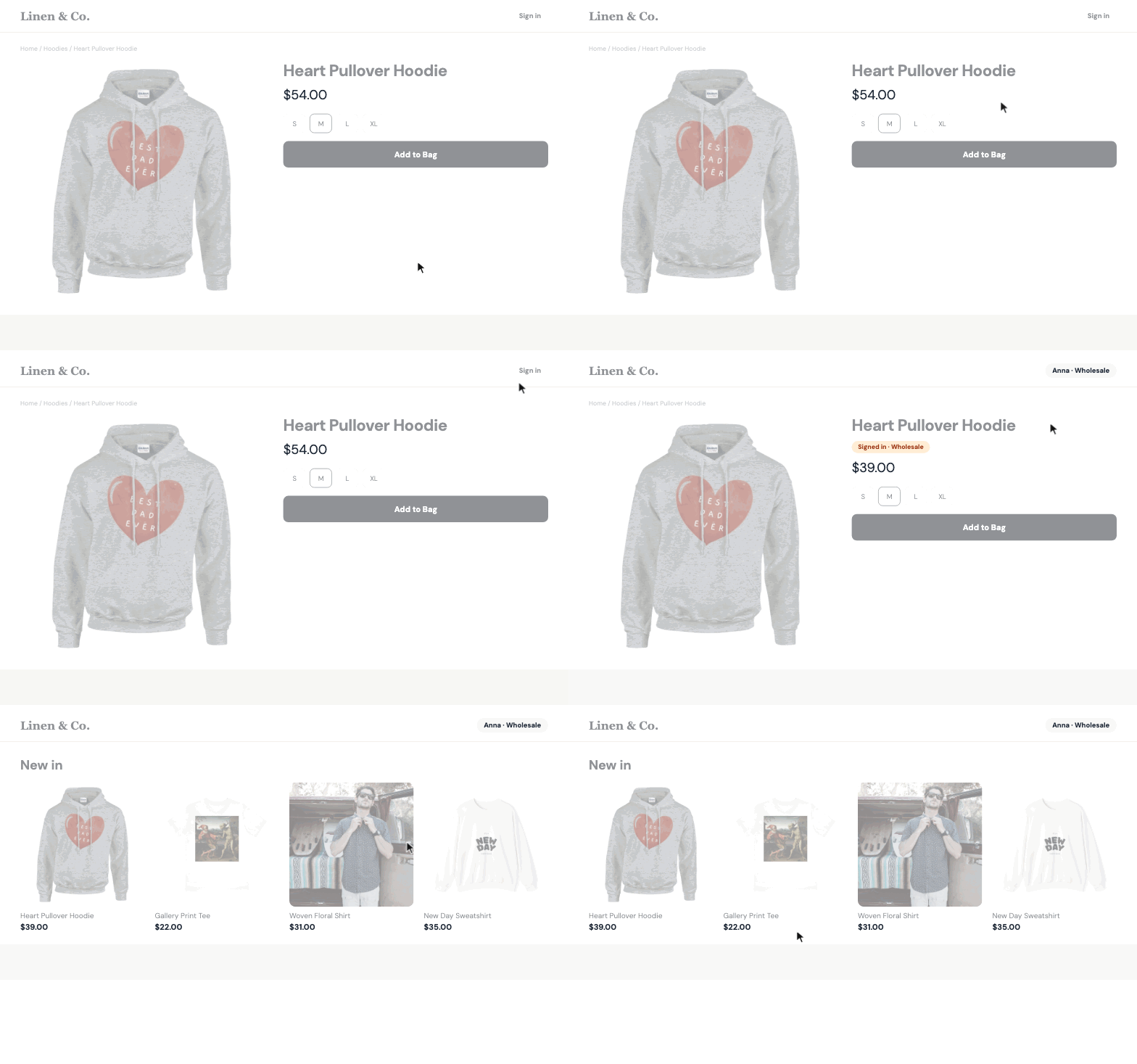
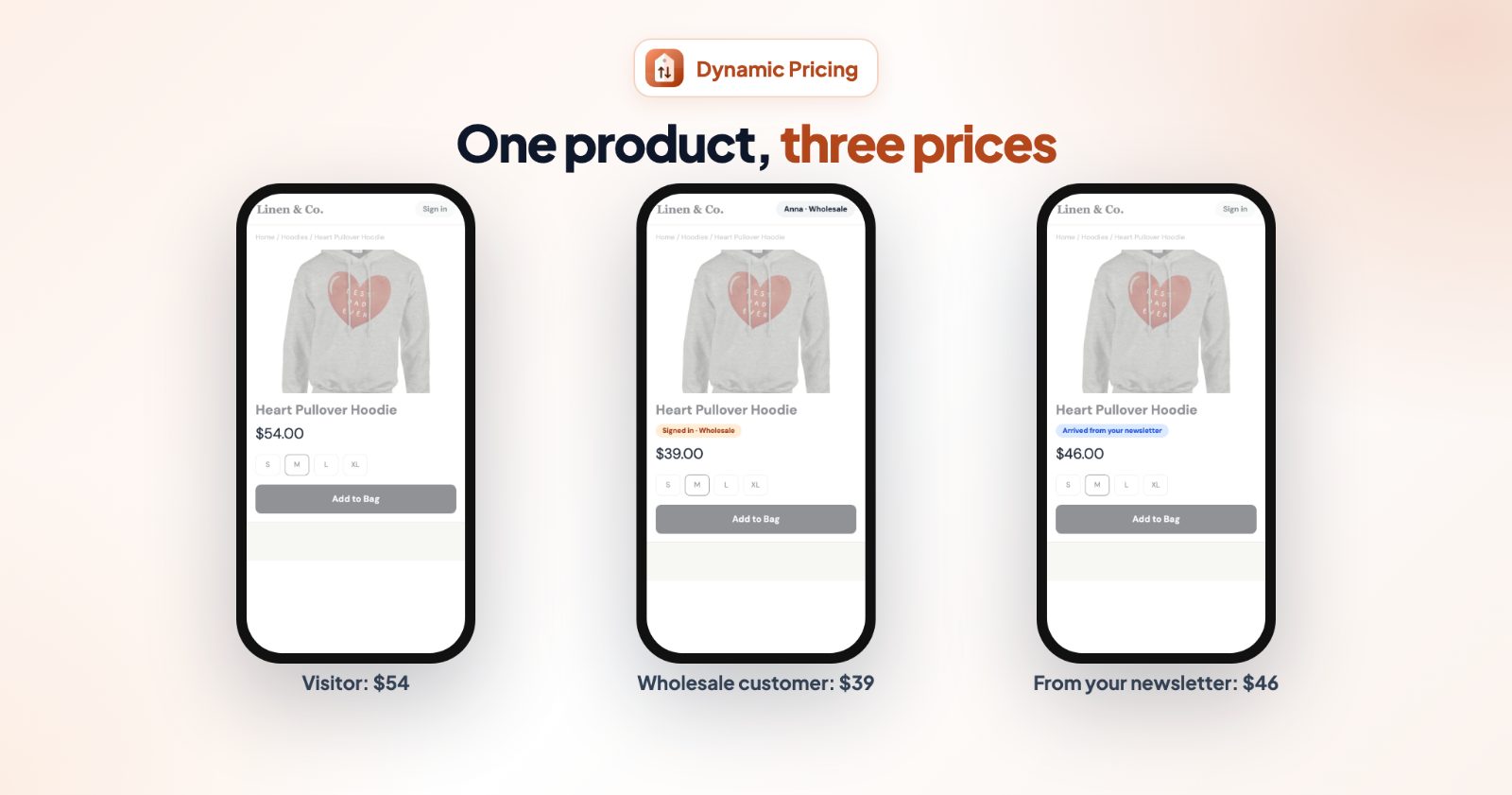
You make a pricing set: a few prices (for example Retail $54 and Wholesale $39), rules for who gets which price, and the products the set prices. When you save, the app gives those products all the set's prices as price choices. On your store, each shopper sees only their own price - the others stay hidden.
- One product, several prices: visitors, wholesale buyers and shoppers from your newsletter can each see a different price on the same product page.
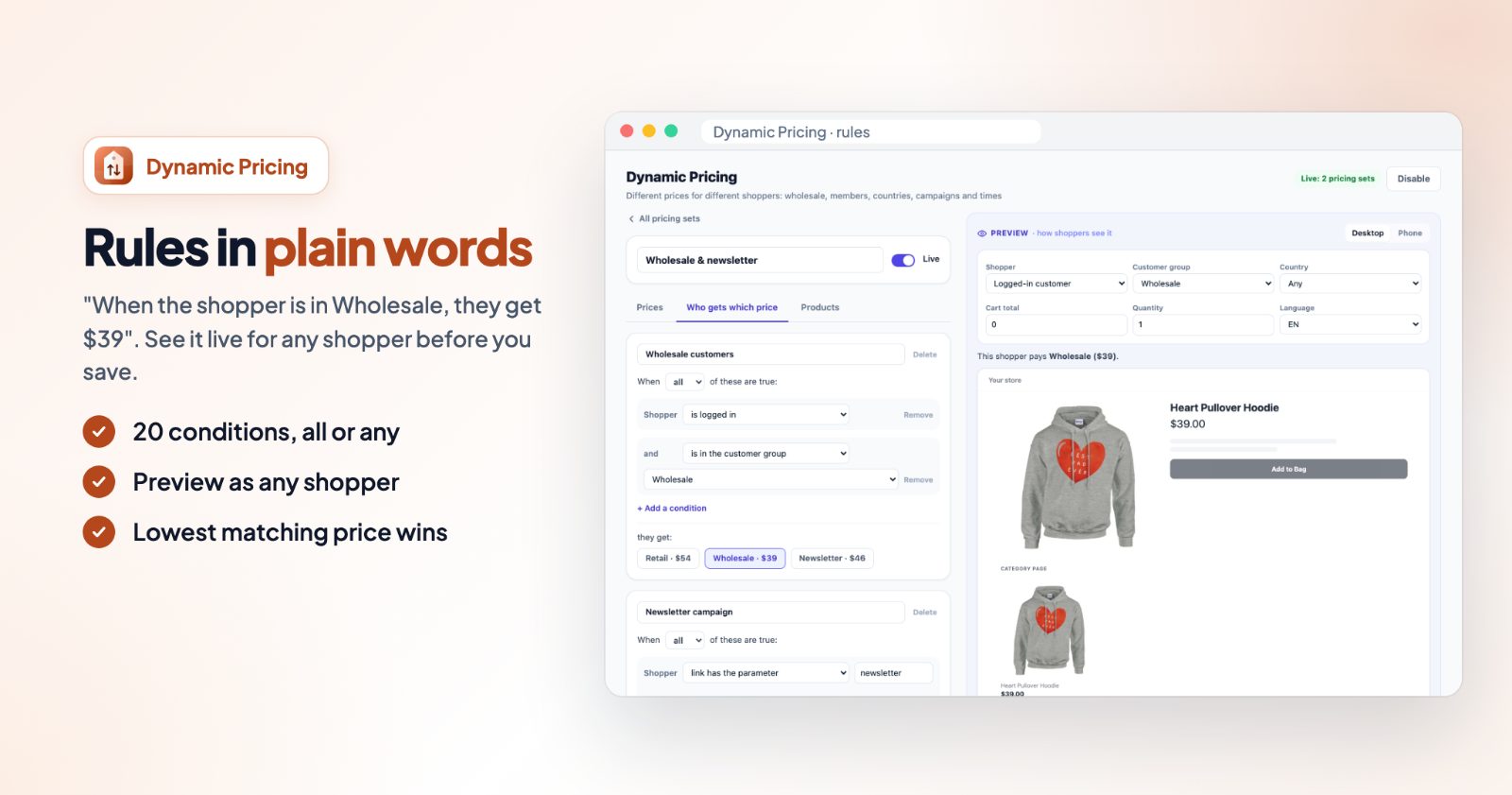
- Rules in plain words: "When the shopper is in the customer group Wholesale, they get Wholesale".
- A floor: each set has a Lowest price anyone can pay, and your store refuses smaller amounts.
1. Create your customer groups
For wholesale or VIP prices, first create the groups in your store admin (for example Wholesale) and assign your customers to them. SmartPrice reads these groups, so they show up in its rules. Customers see their group's price once they are logged in. If you only need campaign, country or time prices, you can skip this step.
2. Add a pricing set and its prices
Open the app and click + New pricing set. Give it a Pricing set name (only you see it). On the Prices tab, click + Add a price for every price you need, give each one a name, like Retail or Wholesale, and an amount. Click Set default on the price for shoppers who match no rule - usually your retail price.
Below the prices, fill in Lowest price anyone can pay. Shoppers can't pay less than this, whatever they try. Leave it empty and it is your lowest price above.
3. Decide who gets which price
On the Who gets which price tab, click + Add a rule. A rule reads like a sentence: "When all (or any) of these are true: Shopper is in the customer group Wholesale... they get: Wholesale". Click + Add a condition to add more. The conditions come in three groups:
- Customer: is logged in or not, is in a customer group or not, is from a country (or state) or not, shops in a language or not.
- Cart and product: cart total is more than or at most an amount, quantity is at least or at most, an option is (or is not) a value, like Size is XL, and product weight.
- Time and campaign: date is between, time of day is between, link has (or does not have) a parameter, and browser has (or does not have) a cookie.
When several rules match, the shopper gets the lowest of their prices. When nobody matches, they get the default price.
4. Pick the products
On the Products tab, search and click + Add on the products this set prices. A product can be in one pricing set only: adding a product that is in another set moves it, and products you take out go back to the set's default price when you save.
5. Check it in the preview, then save
The Preview on the right shows how shoppers see it. Change the Shopper (Guest or Logged-in customer), the customer group, country, cart total, quantity and language, and it tells you which price that shopper pays, on the product page and the category page, on desktop or phone. When it is right, click Save: your store shows the new prices.
6. Choose what category pages show
Under On category pages, Product cards show one of three things:
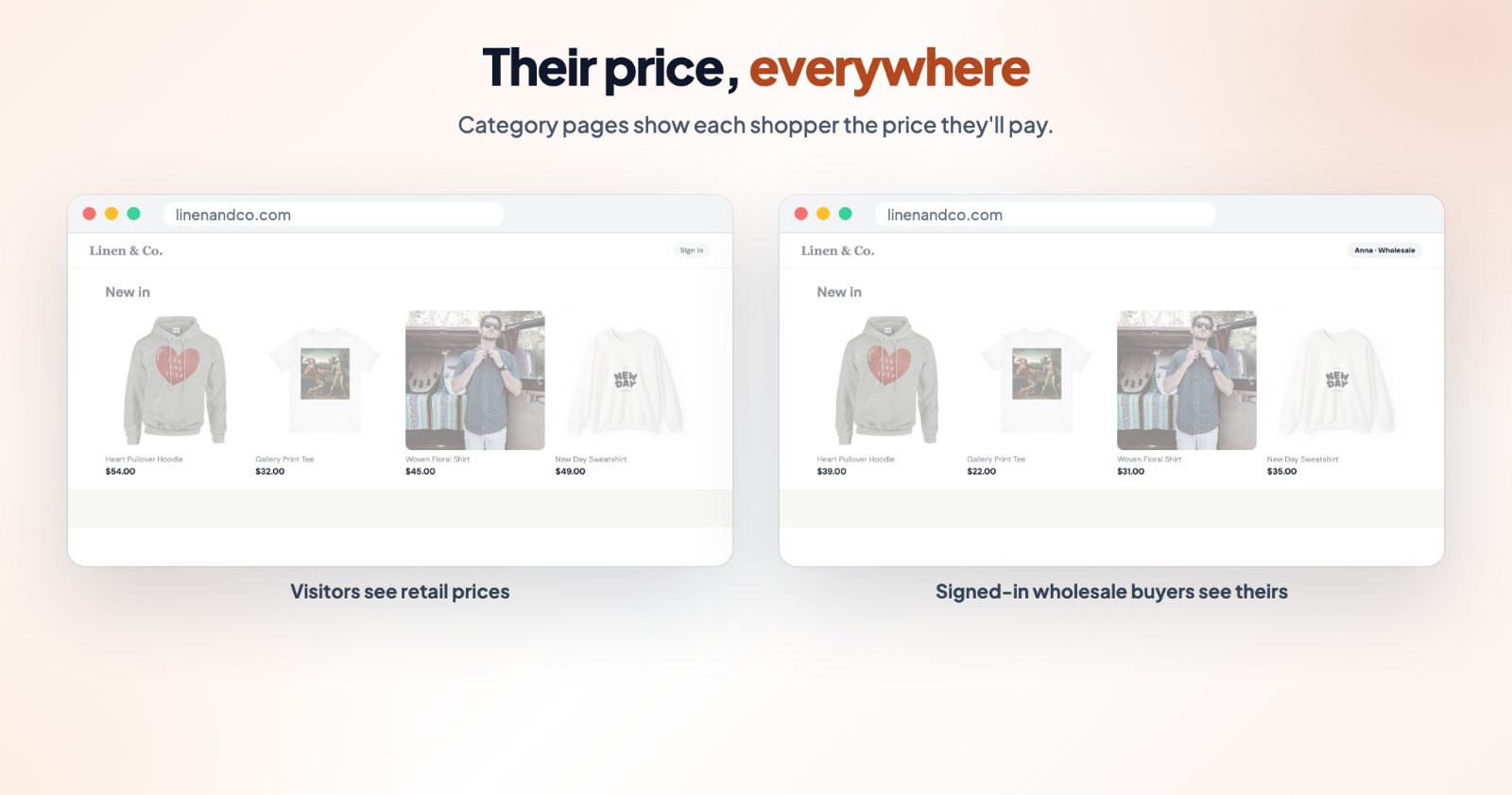
- Each shopper's price: the price the shopper gets on the product page. Rules about options or quantity count on the product page only.
- No price: cards of priced products show no price; shoppers see theirs on the product page.
- The lowest price: the lowest price of the set, the same for everyone.
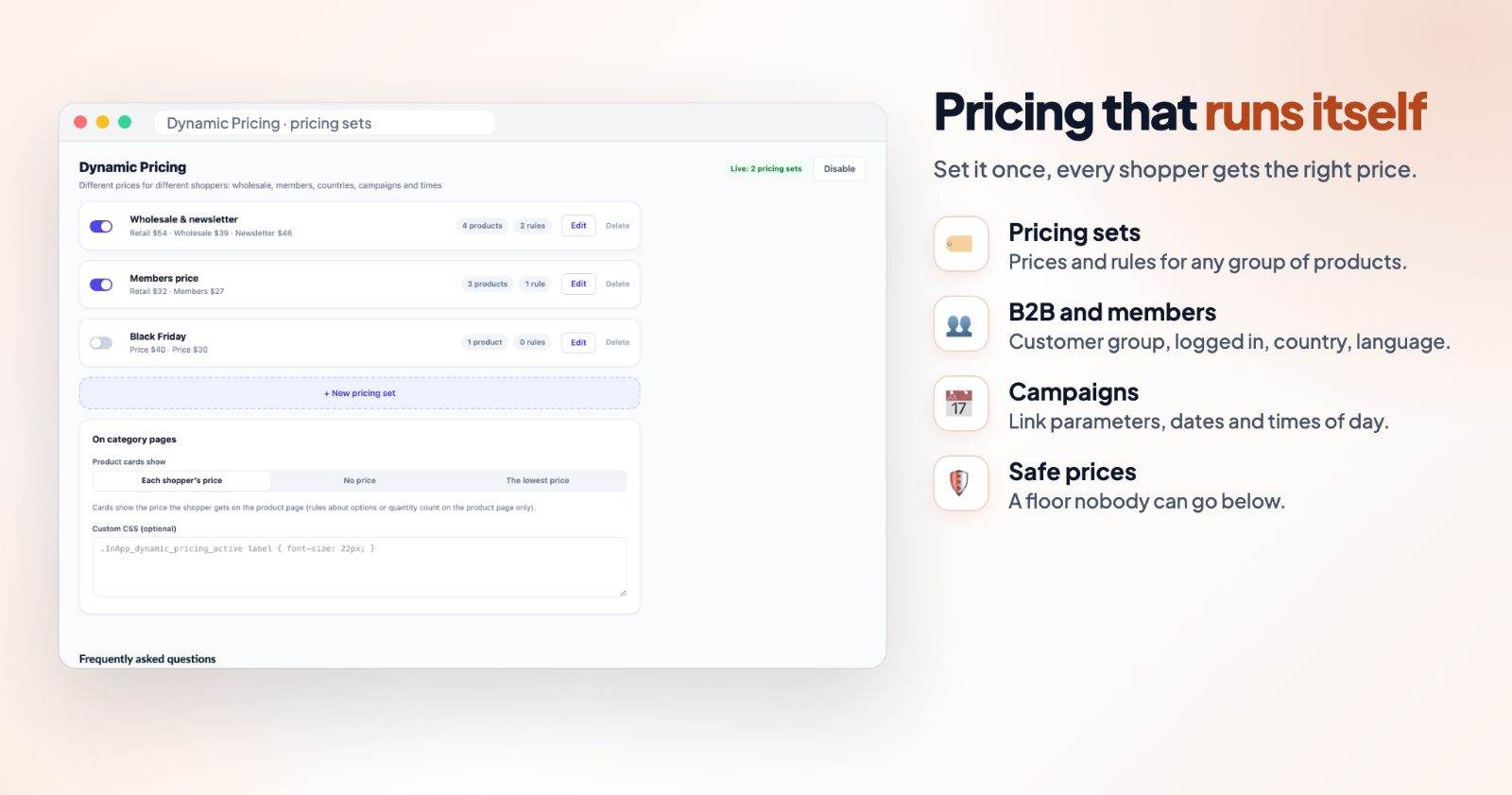
All your sets are listed on the main page, each with its own switch, so you can turn one off without deleting it. Switching a set off or taking a product out puts those products back on the set's default price when you save.
Common setups
Wholesale prices for B2B customers
Add the prices Retail (default) and Wholesale. Add a rule: Shopper is logged in and is in the customer group Wholesale, they get Wholesale. Set the lowest price anyone can pay to your wholesale price.
A members price for logged-in shoppers
Add a Members price and one rule: Shopper is logged in, they get Members. It is a simple reason for shoppers to create an account.
A price only for your newsletter
Add a Newsletter price and a rule: link has the parameter promo (or any word you like).
Then use your store link with ?promo in the email. Shoppers who come from it see the
newsletter price.
Prices by country
Add one price per market and a rule for each: Shopper is from Germany, they get the EU price. Shoppers from other countries get the default price.
A price for a weekend or a few hours
Add a Sale price and a rule with date is between (for example Black Friday to Cyber Monday) or time of day is between for an evening price. It starts and stops by itself.
Bulk price for larger quantities
Add a rule: quantity is at least 10, they get the bulk price. This counts on the product page, so pick No price or The lowest price for category pages if you don't want cards to show the single-item price.
Prefer to keep your product prices and give wholesale customers a discount in the cart instead? See automatic cart discounts: its Customer group price discount does that.
Questions
What happens if no rule matches a shopper?
They get the set's default price. When several rules match, they get the lowest of those prices.
Can someone pay less than their price?
Never less than the set's Lowest price anyone can pay: your store refuses smaller amounts. A determined shopper could still reach that lowest price, so keep it at a price you are happy to sell at.
When do wholesale customers see their price?
Once they are logged in to their customer account in your store.
Can I still use option price changes?
Yes. Your options' price changes are added to the shopper's price as usual.
What if I switch SmartPrice off?
Every shopper sees the default price.