How it works in short
When a visitor opens your store, a popup asks them to confirm their age. They either click a button ("I am 18 or older") or enter their date of birth, which is checked against the minimum age you set: 18, 21 or any other. A visitor who confirms isn't asked again for the number of days you choose. A visitor who says they are too young can't continue: they see your message, or go to a page you choose.
One thing to know first: it's an age confirmation, not an ID check. It shows the warning and records that the visitor confirmed their age; it can't verify a real ID.
1. Pick a template (Layout)
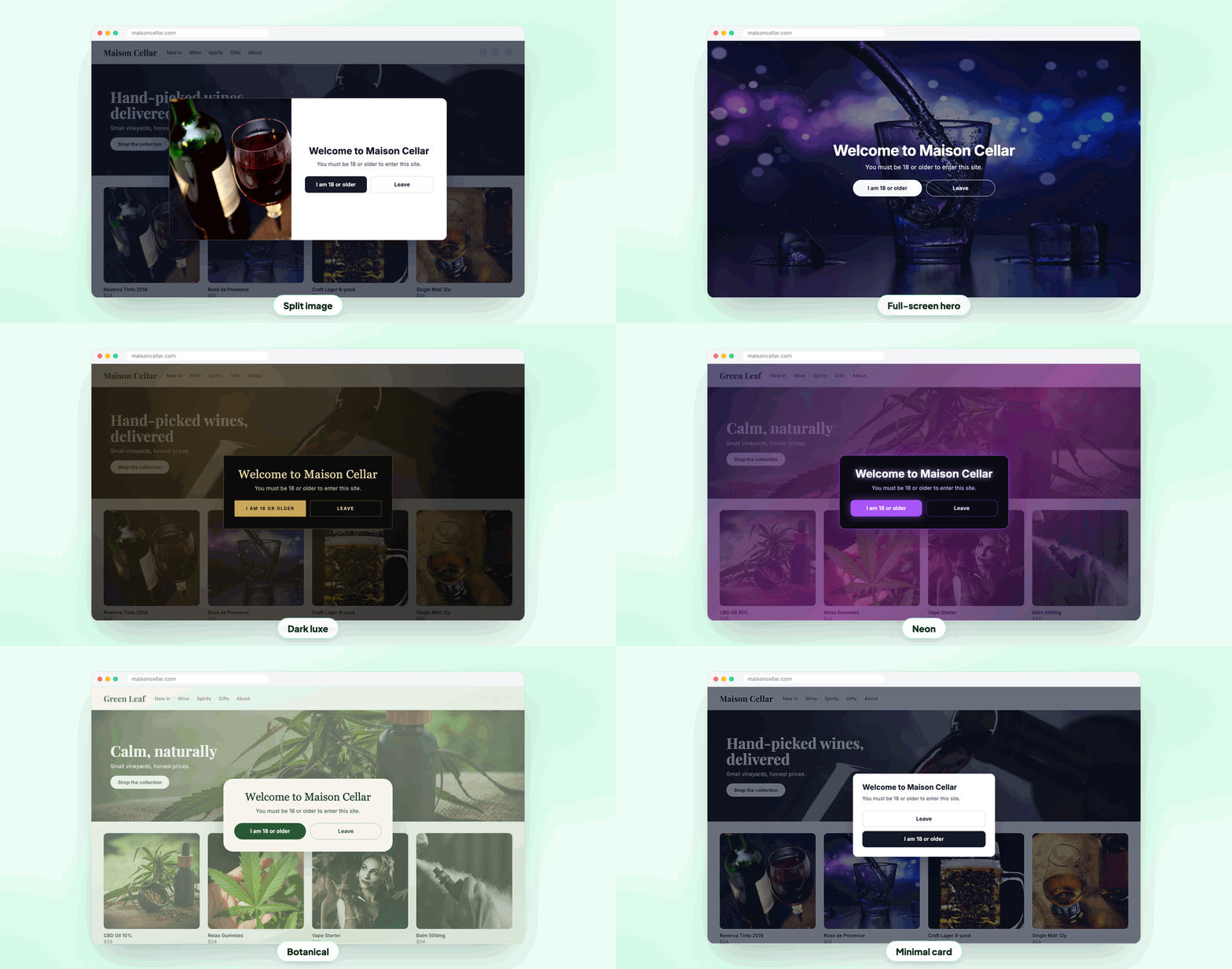
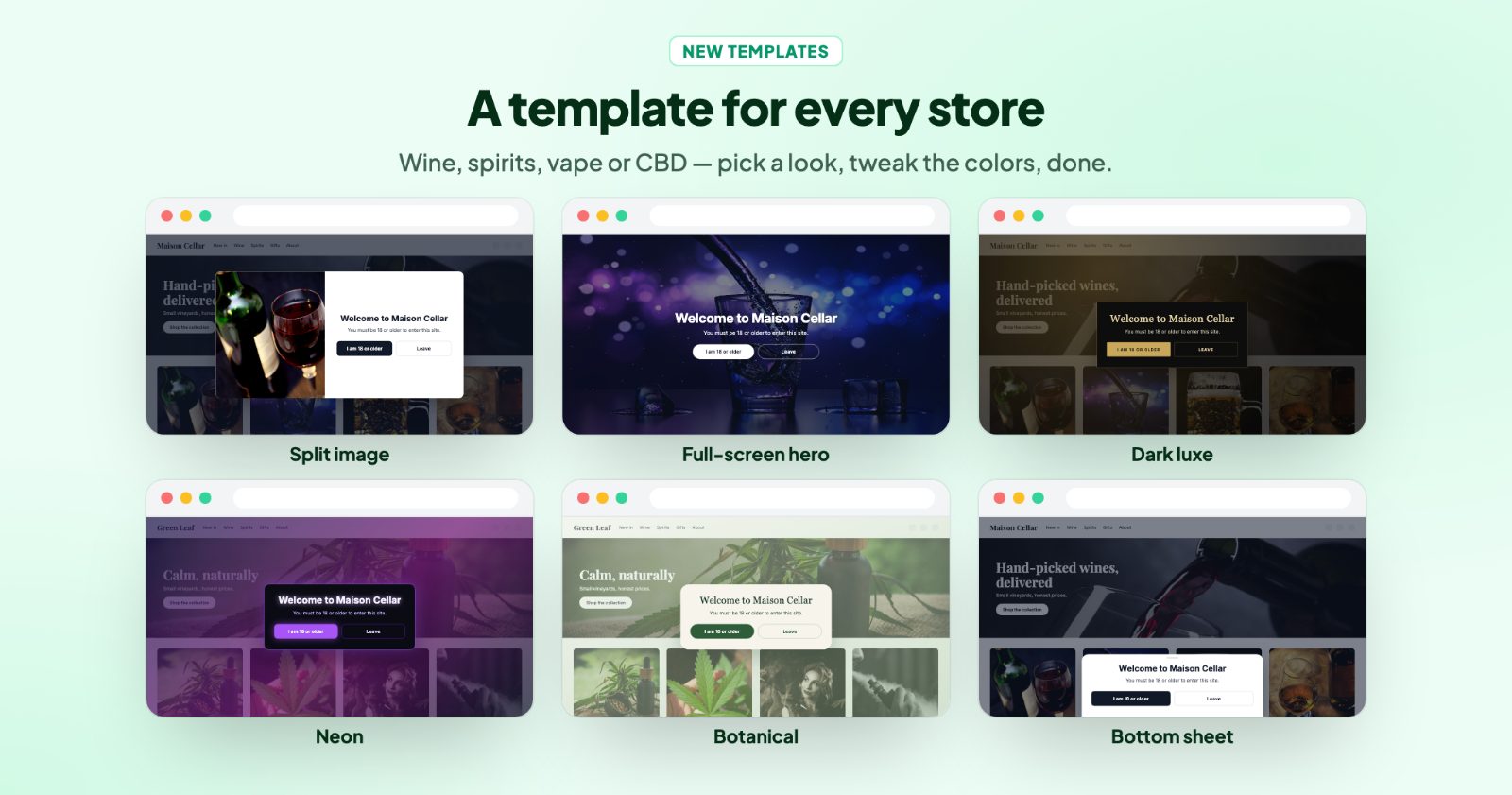
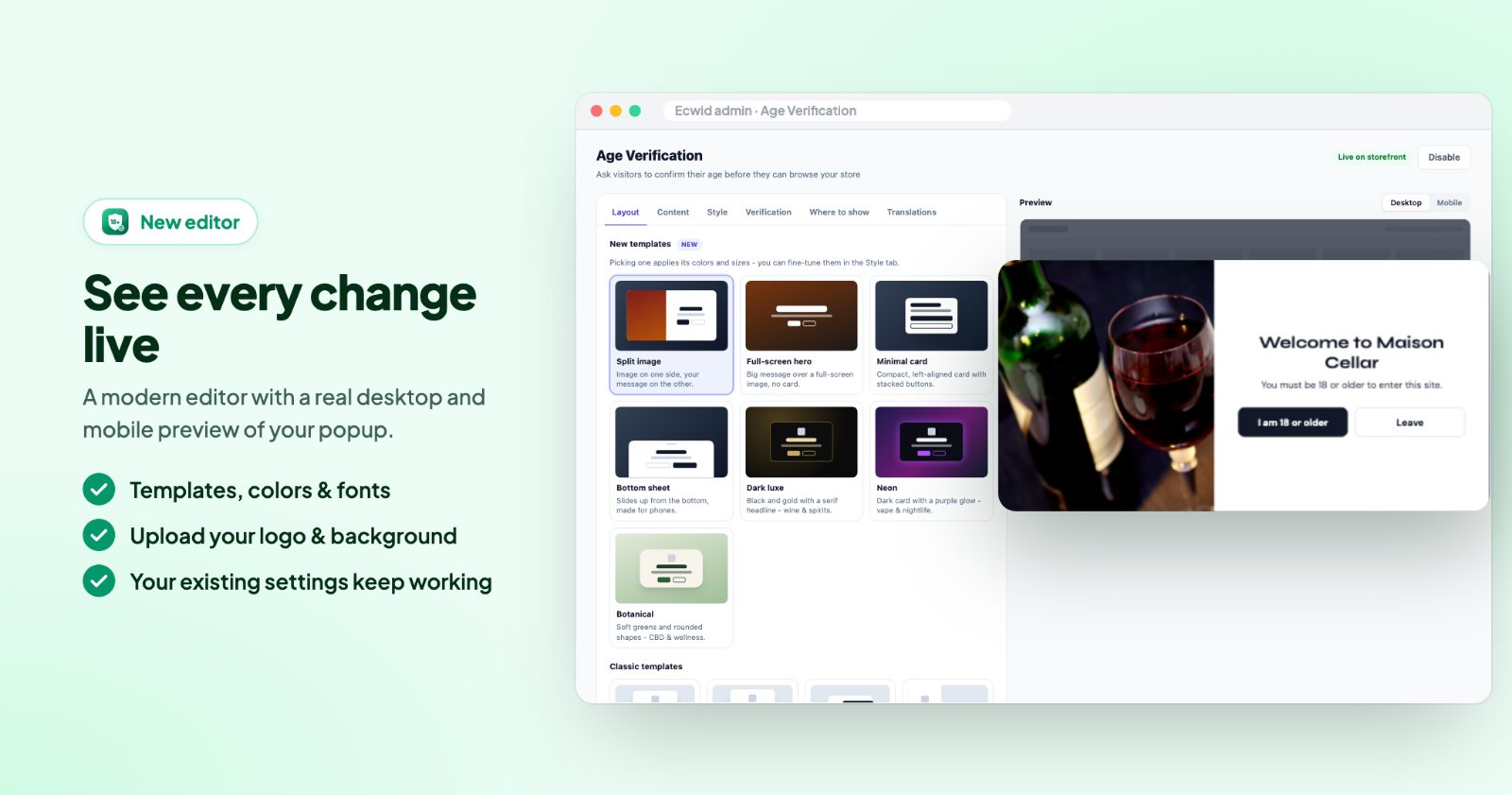
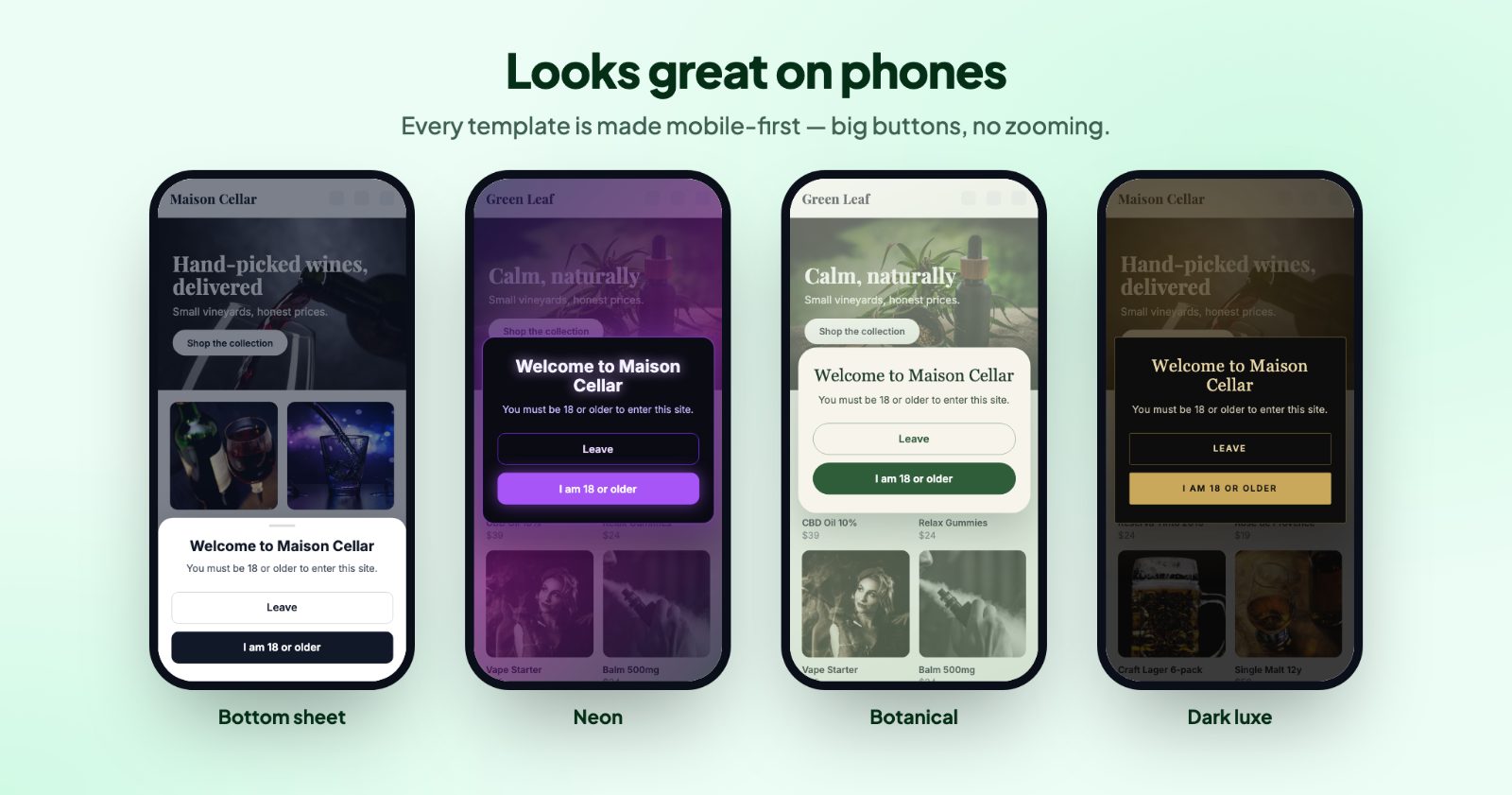
Open the app. The first tab, Layout, has the templates. The New templates are Split image, Full-screen hero, Minimal card, Bottom sheet (slides up from the bottom, made for phones), Dark luxe (black and gold, for wine and spirits), Neon (a purple glow, for vape and nightlife) and Botanical (soft greens, for CBD and wellness). The Classic templates are Classic, Button bar, Logo left and Side panel.
Picking a template applies its colors and sizes. You can fine-tune them later in the Style tab. Here you can also set the Popup width, the Corner radius and upload your Logo (PNG or SVG with a transparent background works best).
2. Write the texts (Content)
On Content, write what visitors read:
- Heading, for example "Welcome to Maison Cellar" or "Are you 21 or older?"
- Sub-heading, for example "You must be 18 or older to enter this site."
- Primary button (enter the store), for example "I am 18 or older".
- Show a second button lets visitors say they're under age. Name it ("Leave"), and under Redirect under-age visitors to (optional) enter a web address. Leave it empty to show the Restriction message instead, in the Message color you pick.
Use the age you really need in the texts. With one-click confirm, the button text is the promise the visitor makes, so "I am 21 or older" for a 21+ store.
3. Match your store (Style)
Style has the color, weight and size (desktop and mobile) of the heading and sub-heading, the text, background, border and corners of both buttons, the Popup color and the Page overlay behind it with its Overlay opacity.
Under Background image, pick a ready-made background (Wine, Beer, Alcohol, Beverage, Vape, CBD, Smoking, or a color gradient) or upload Your own background (minimum size 1000 x 667 px). With Split image it shows inside the popup, next to your message; with the other templates, behind the popup.
4. Choose how visitors confirm (Verification)
On Verification, choose one of two ways:
- One-click confirm: visitors confirm with a button. Quick and simple.
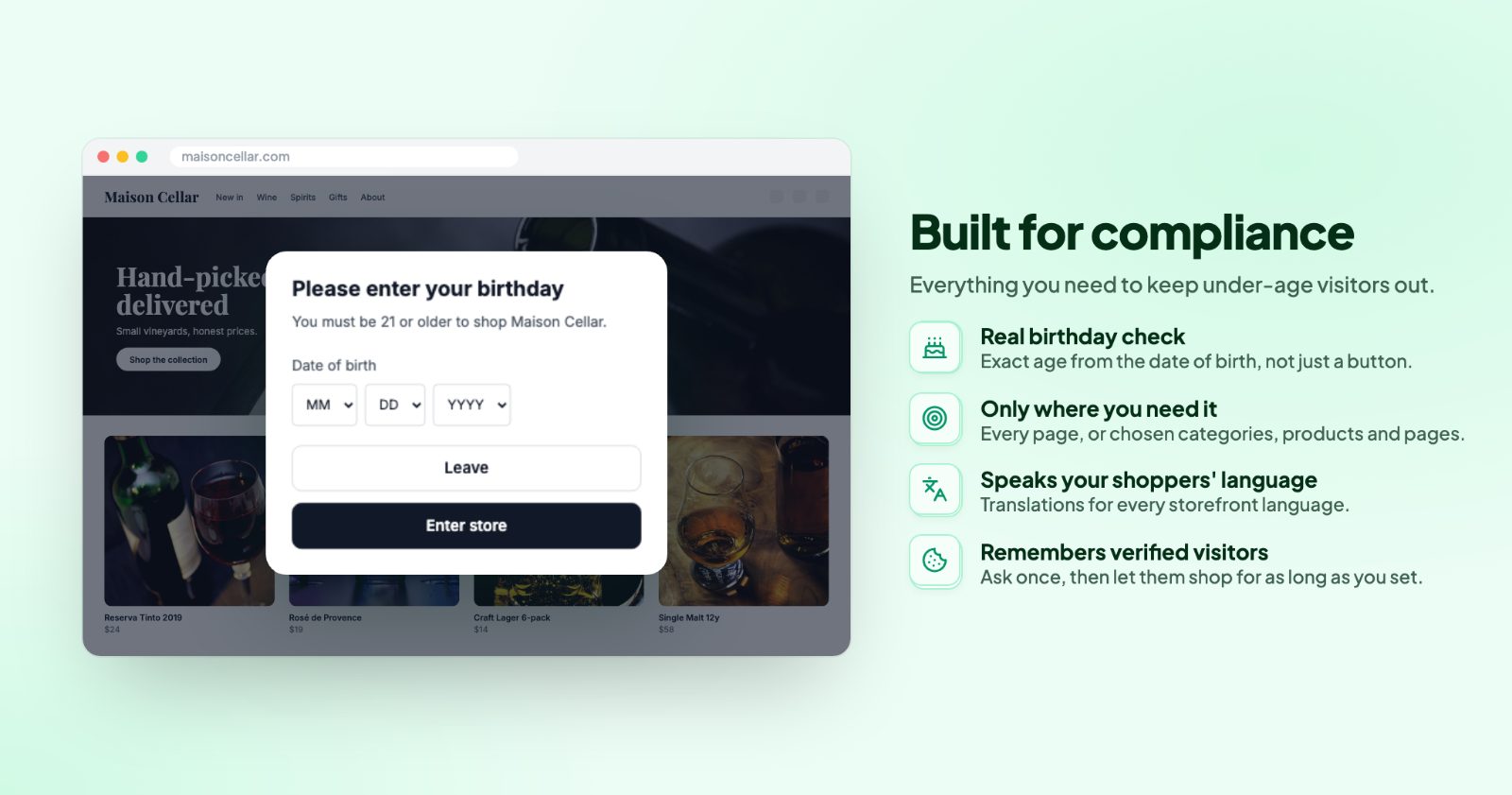
- Date of birth: visitors enter their birthday to continue. Set the Minimum age in years and the Birthday prompt text. The age is worked out from the date, so a visitor who is too young can't get in by clicking.
Remember a visitor for sets how many days a visitor who confirmed isn't asked again.
5. Show it only where you need it (Where to show)
With nothing picked on Where to show, the popup shows on every store page. Pick Pages (for example Cart or the checkout steps), Categories, or enter Other category or product IDs (comma separated) to show it only there. Products in a selected category are included.
This is useful when only part of your store is age-restricted, for example a wine category in a gift shop. Everyone else can browse without the popup.
If your store is part of your own website (for example WordPress or Wix), "Home page" is not in the list. It only exists in stores made with the store's website builder. The app runs on the pages of your website that show your store, not on your website's other pages. Pick categories, or leave everything empty to show it on every store page.
6. Translate and switch it on
If your store has more than one language, the Translations tab has a field per language for the heading, sub-heading, both buttons, the restriction message and the birthday prompt. Empty fields fall back to the texts from the Content tab.
The Preview shows the popup on desktop or mobile while you edit. When it looks right, click Save, then Enable. The label next to it changes to Live on storefront.
Common setups
Wine shop, 18+
Split image or Dark luxe, a Wine background, One-click confirm, "I am 18 or older" and "Leave", remember the visitor for 30 days.
21+ with a date of birth
Date of birth, Minimum age 21, the heading "Are you 21 or older?" and a second button that sends under-age visitors to another web address.
Vape or CBD store
Neon with a Vape background, or Botanical with a CBD background, on every page.
Only one category is age-restricted
On Where to show, pick just that category. The rest of your store stays open to everyone, and products in the category ask for the age check.
Questions
Who sees the age check?
Every visitor sees it once when they first open your store (or a page you chose). After they confirm, they aren't asked again for the time you set under "Remember a visitor for".
The popup doesn't show on my store. Why?
Check that the app is enabled and look at Where to show: with nothing picked it shows on every store page; with pages or categories picked, only there. If your store is part of your own website, "Home page" never matches. Also, a visitor who already confirmed isn't asked again for the days you set: to see the popup again, open your store in a private window.
What happens if a visitor says they're too young?
They can't continue to your store. You choose what they see instead: a message, or a link to another page (the second button).
Does it slow my store down or hurt search rankings?
No. The popup is drawn on top of your store after it loads, so your pages stay the same for search engines and load as fast as before.
Can visitors get around it?
The age check is a confirmation, not an ID check. It shows the warning and records that the visitor confirmed their age; it can't verify a real ID.