How it works in short
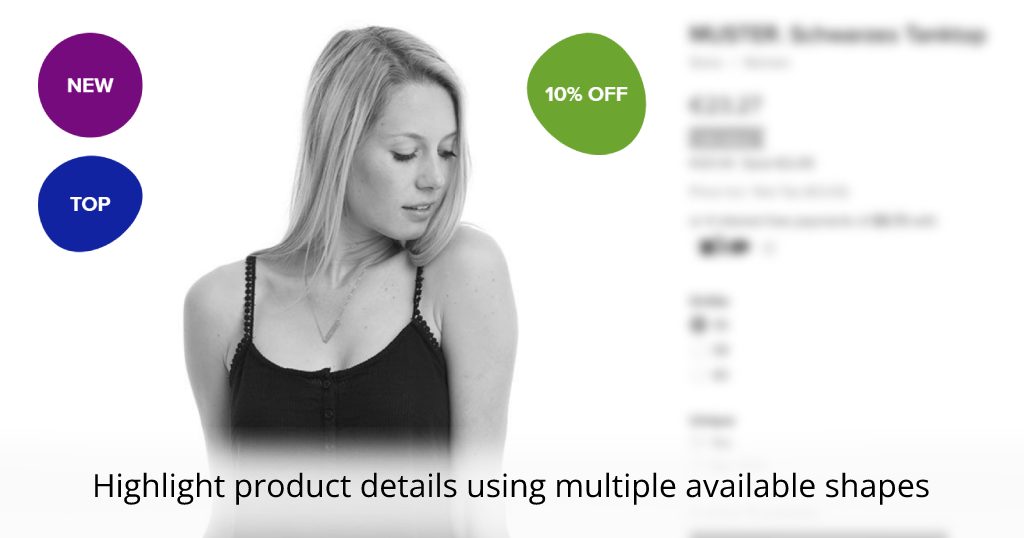
Each label has a text, a design and the products that get it. The labels show on the pictures of your product pages. A label goes either on the products you pick, or on every product that matches its conditions, and it can run only between two dates.
1. Create a label
Open the app from your site editor. The dashboard lists your product labels and badges; press Create new. Write the Text, then set the look:
- Design: Rectangle, Rectangle Rounded, Square, Square Rounded, Circle, ten shapes and ten badges.
- Text color and Background color.
- Text size, Text style (normal or italic) and Text weight (normal or bold), and the label's Size.
- Position: Top Left, Top Right, Left Center, Right Center, Bottom Left or Bottom Right of the picture.
- Animation: none, or a movement like bounce, flash, pulse, shake, swing or tada.
The Preview shows the label as you change it.
2. Choose which products get it
Under Choose to which products you want to assign the label, the Assignment toggle switches between two modes:
- Manual: search your products and add them to Selected products.
- Automatic: switch on the conditions you need. Price is greater than, smaller than, equal to or between two amounts. Keywords (comma separated) match the product's name, description or SKU. If no condition is set, the label is applied to all products.
In the dashboard, each label shows whether it is AUTO or MANUAL.
3. Schedule it (optional)
Switch on Scheduled and set Show from and Show until. The label shows only between those dates, so a holiday or sale label goes away by itself when the season is over.
Common setups
Free shipping over an amount
A "Free shipping" label on every product with a price greater than your free shipping amount.
A label for one product line
Keywords "organic, vegan" put an "Eco" badge on every product with those words in the name or description.
A holiday sale
A red "Sale" circle on the products you pick, scheduled from the first to the last day of the sale.
Questions
Where do the labels show?
On the product pictures of your product pages.
What if several conditions are set?
A product gets the label only when it matches all of them.
Can I switch a label off without deleting it?
Yes, use the switch next to the label in the dashboard list; it stays there for later.