How it works in short
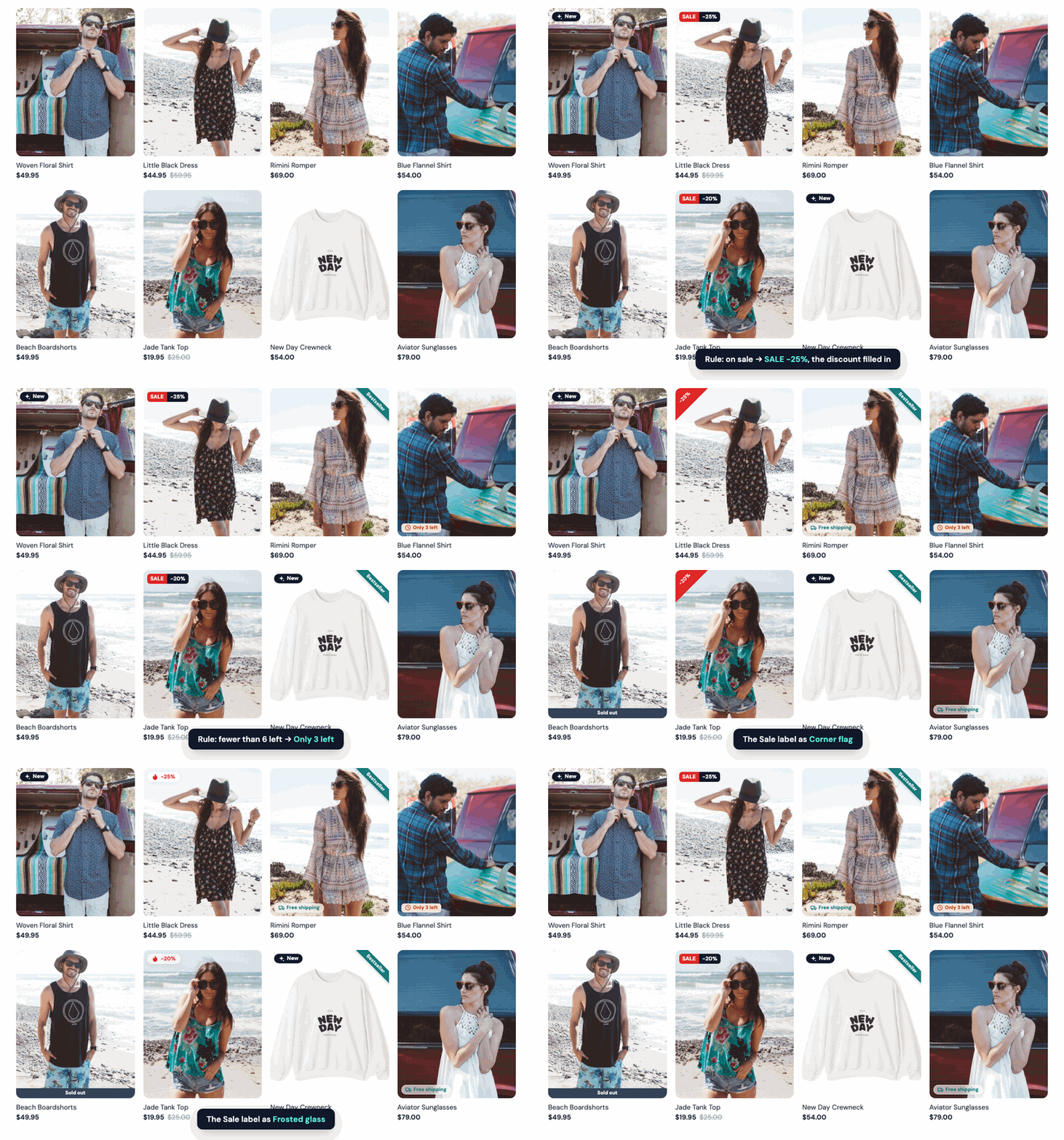
Each label has a text, a design and a list of products that get it. The products are either the ones you pick, or every product that matches the rules you switch on: on sale, bestsellers, new, in or out of stock, stock level, categories, price or keywords. A product gets the label while it matches and loses it when it doesn't, so you set a rule once and the labels keep up with your catalog.
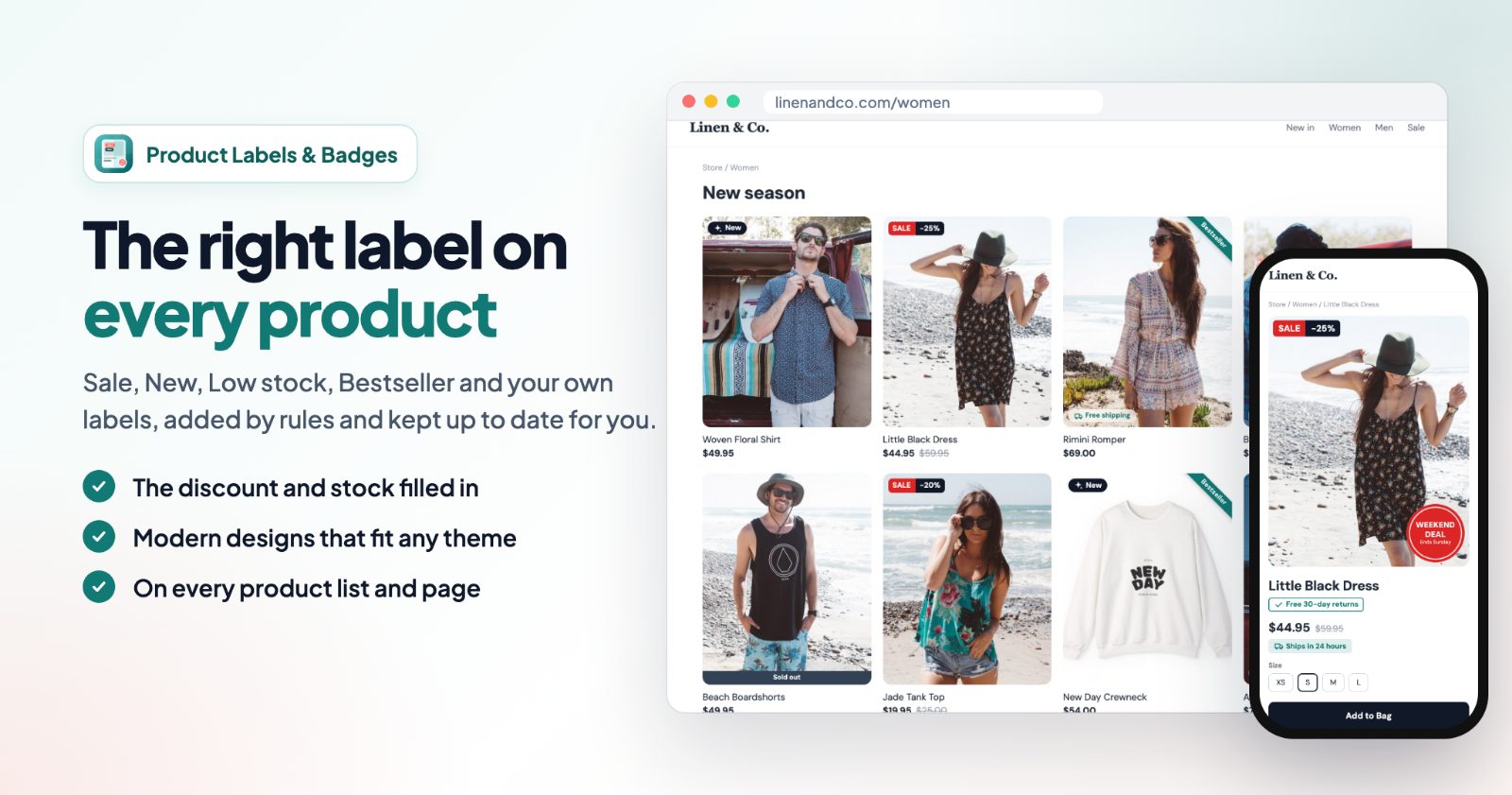
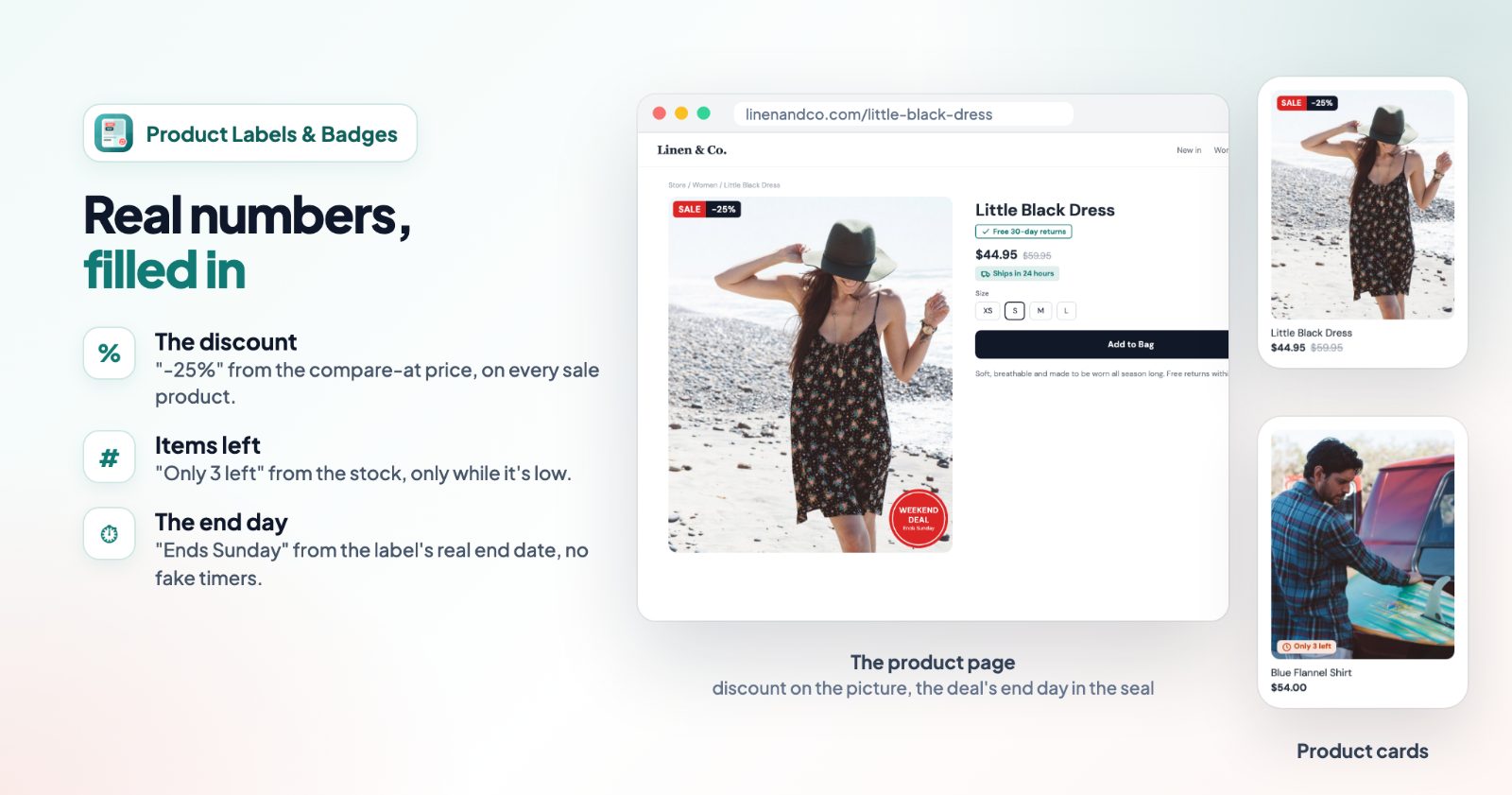
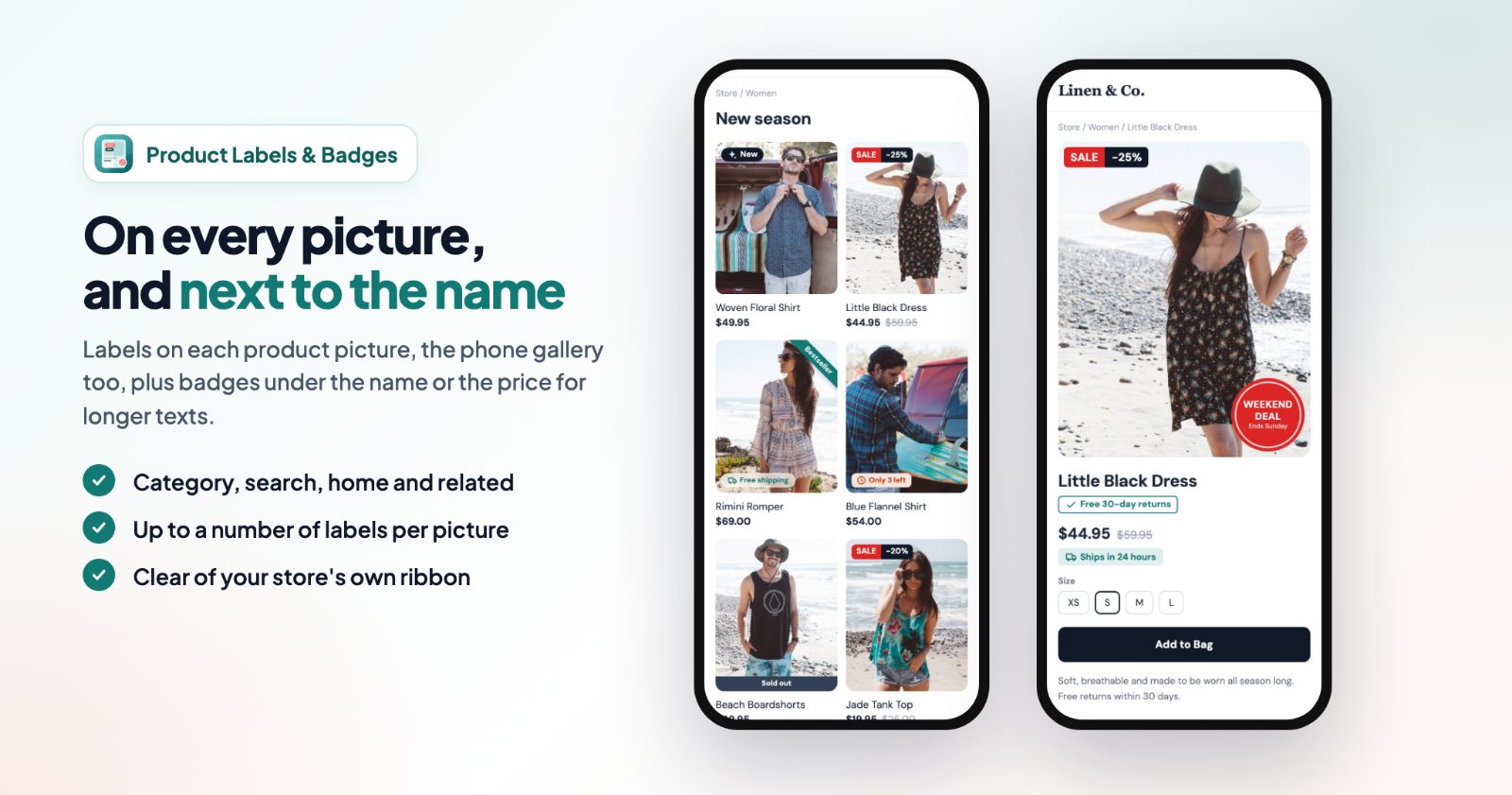
Labels show on product cards in every product list (category pages, search, the home page, related products) and on the product page: on every picture, or as a badge under the product name or the price.
1. Start from a ready-made label
Open the app and press + New label. Under Start from you get six starting points, each with its rule already set:
- Sale: products with a compare-at price, with their discount.
- New: products added in the last 30 days.
- Low stock: in stock, fewer than 6 left: "Only 3 left".
- Bestseller: your 10 best-selling products of the last 30 days.
- Sold out: out of stock products, a strip over the picture.
- Your own: your text on the products you pick, for example "Free shipping".
Give the label a name (it is only for you, in the list) and change whatever you like in the four tabs: Look, Products, Where and When & link.
2. Write the text and pick a design (Look)
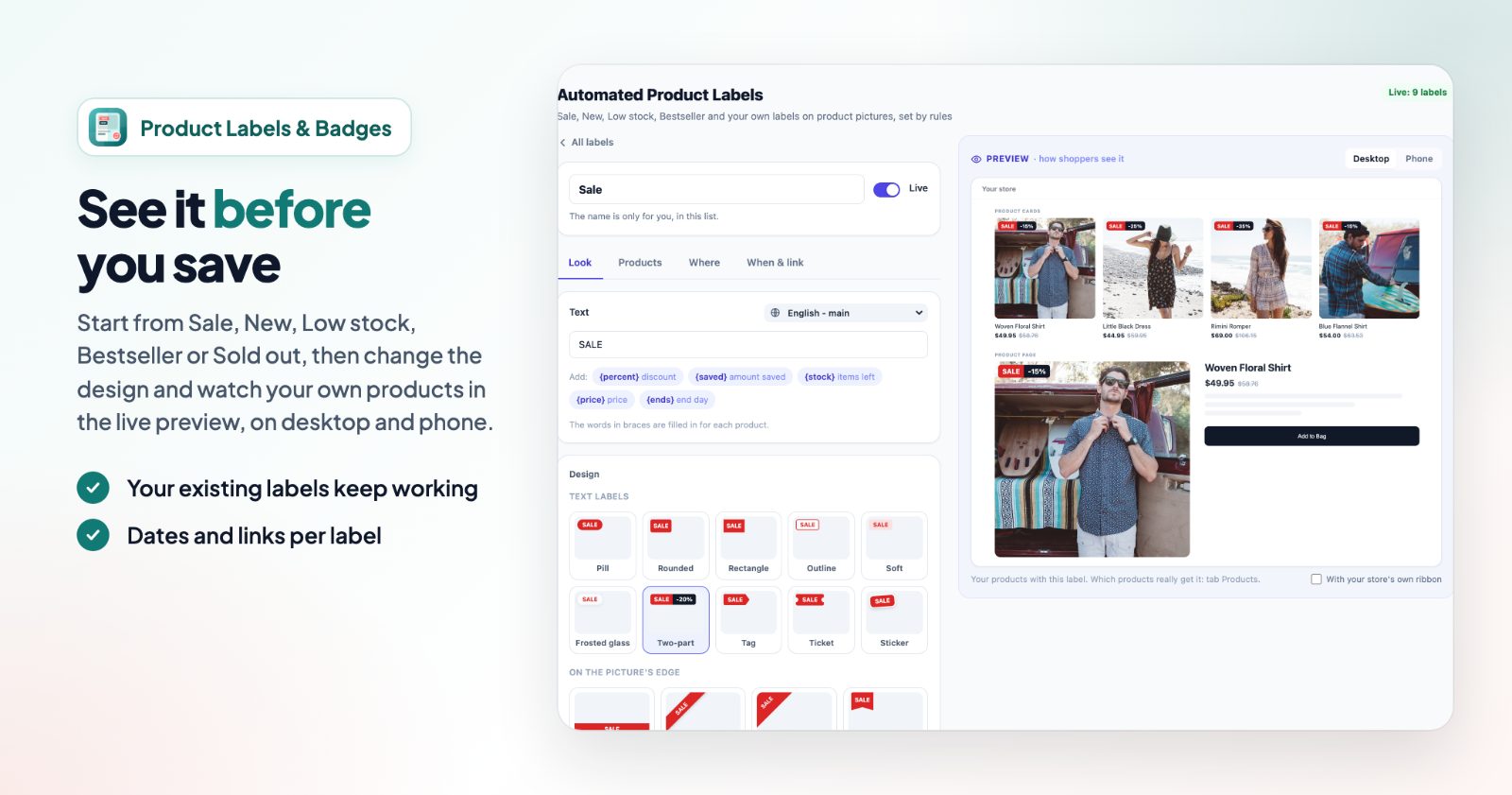
Write the label's text, in every language of your store. A few words in braces are filled in for each product:
- {percent} the discount and {saved} the amount saved (the label shows only on products with a discount)
- {stock} the items left (only on products with a stock count)
- {price} the price
- {ends} the day the label ends, when you set dates
Then pick a Design: text labels (pill, rounded, rectangle, outline, soft, frosted glass, two-part, tag, ticket, sticker), labels on the picture's edge (banner, corner ribbon, corner flag, bookmark) or round badges (circle, seal, starburst, stars, hexagons, shield). Set the colors, text size and style, an Icon in front of the text if you like (a flame, a truck, a leaf...), and an Animation: once when it appears, when the pointer is over the product, or over and over.
The Preview on the right shows the label on your own products, on desktop and phone.
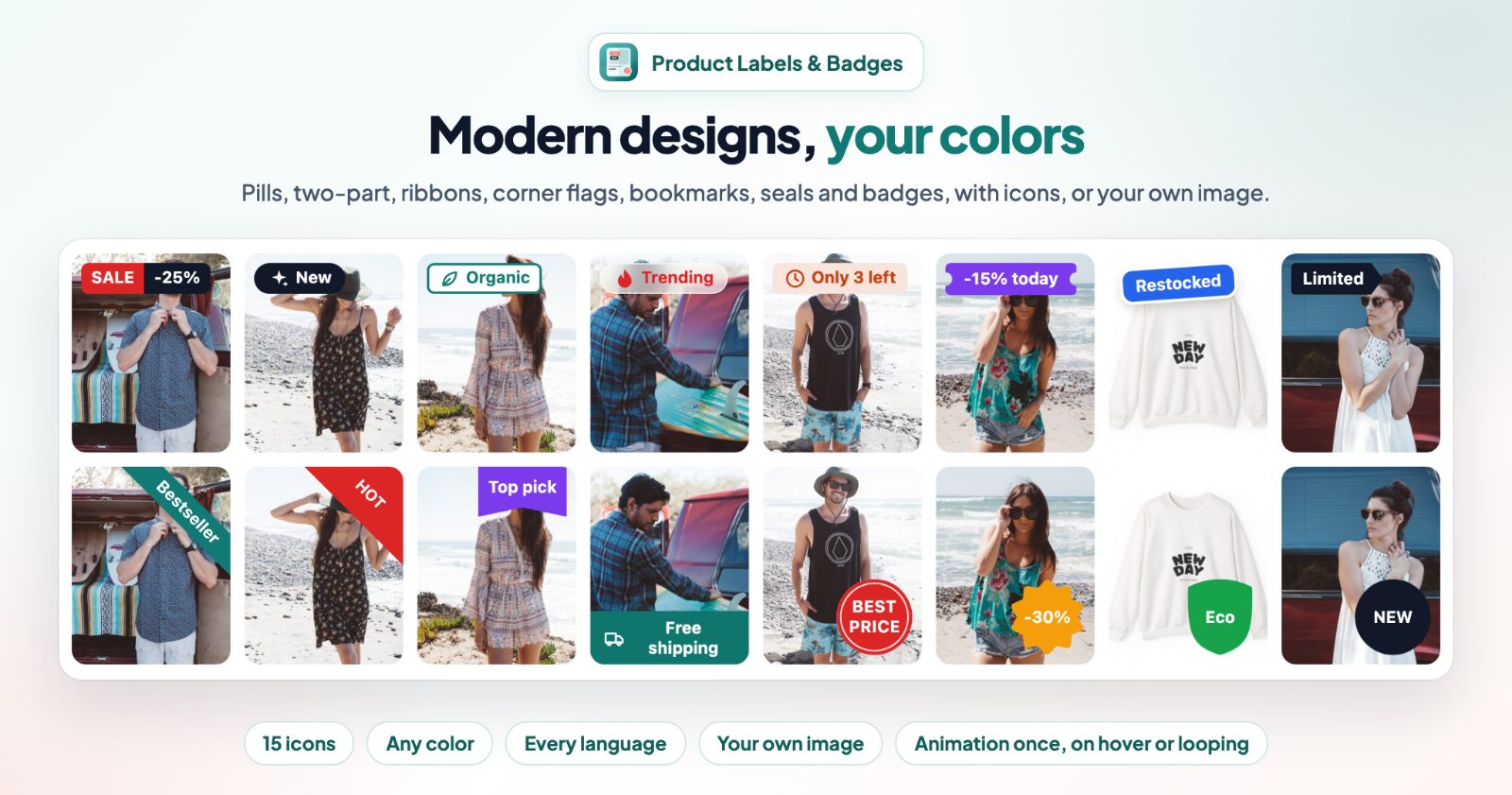
For a picture as the label, like a "Vegan" or "Made in Italy" icon, choose Your own image under the designs and upload it. A PNG with a transparent background looks best, under 2 MB.
3. Choose which products get it (Products)
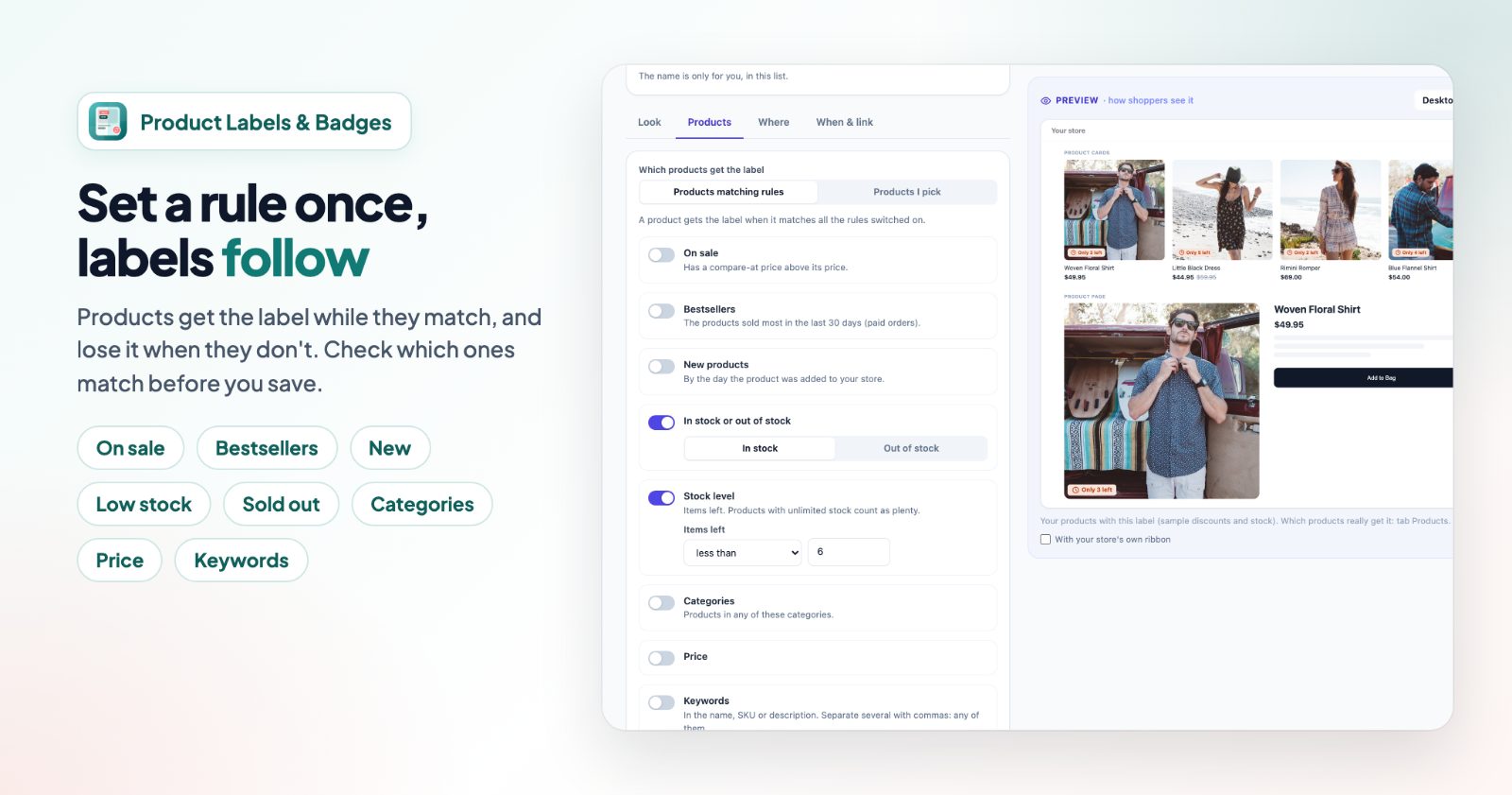
Under Which products get the label, choose Products matching rules or Products I pick. With rules, switch on the ones you need. A product gets the label when it matches all the rules switched on:
- On sale: has a compare-at price above its price. Add Discount at least, for example 20%, to label only the bigger deals.
- Bestsellers: the products sold most in the last 30 days (paid orders). The list is updated every night, or right away with Count now under Store options.
- New products: by the day the product was added to your store.
- In stock or out of stock, and Stock level (items left; products with unlimited stock count as plenty).
- Categories, Price and Keywords (in the name, SKU or description; separate several with commas).
Leave out products (optional) keeps single products from ever getting the label. Press Check which products match to see the list before you save.
4. Pick where it shows (Where)
Show on product cards puts the label on the pictures in every product list. Show on the product page adds it to the product page, and Where on the product page sets the spot: On the pictures, Under the name or Under the price. Under the name or price suits longer texts like "Ships in 24 hours".
If your store shows its own ribbon (like "Sale") in the same corner, the label goes just below it. Under Store options, Labels per picture limits how many labels one picture shows; the first ones in your list win, and the arrows change the order.
5. Dates and a link (When & link)
Switch on Only between dates for a season or a sale: the label shows from the first to the last day, both included. Show the end date adds a second line from the real end date: Ends today, Ends tomorrow, Ends Sunday, or the date. No fake timers.
Link (optional): a click on the label opens this page, for example your shipping or sale page. Press Save, and the label is live.
Common setups
Real discount on every sale product
Start from Sale, two-part design with "SALE" and "-{percent}". Every product with a compare-at price shows its own discount, and the label goes away when the sale ends.
Low stock nudge
Start from Low stock: In stock plus Stock level less than 6, text "Only {stock} left". It shows only while the stock is low.
A weekend deal
A seal reading "Weekend deal" on one category, Only between dates Friday to Sunday, with Show the end date on. It adds "Ends Sunday" and switches off by itself.
Free shipping on a few products
Your own, Products I pick, a pill with the truck icon, linked to your shipping page.
Shipping time under the price
"Ships in 24 hours" for every product in stock, shown on the product page under the price instead of on the picture.
Questions
Several labels match one product: which show?
All of them, in the order of your list. With a limit under Labels per picture, the first ones in your list win.
Why doesn't a label show?
Check that the app and the label are switched on, that today is within the label's dates (if you set any), that the product matches the label's products or rules, and that the place is switched on. Labels on product cards need Show on product cards.
Do my old labels keep working?
Yes. Labels made with the older shapes keep them; you find those under Older shapes.
Can the labels be in my store's languages?
Yes, every label text has a field per store language. Leave one empty to show the main language's text.